
Hyperspace — Mac download
Download (6 MB) Earlier builds
Ticked
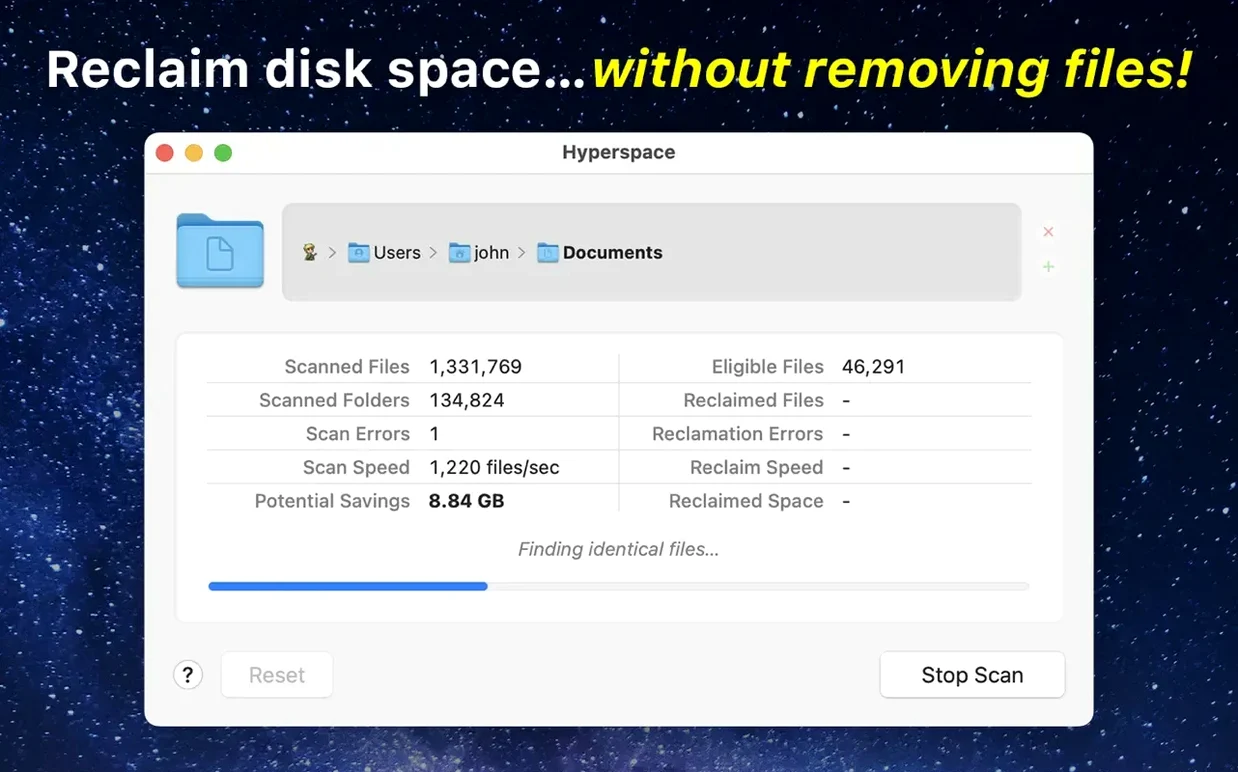
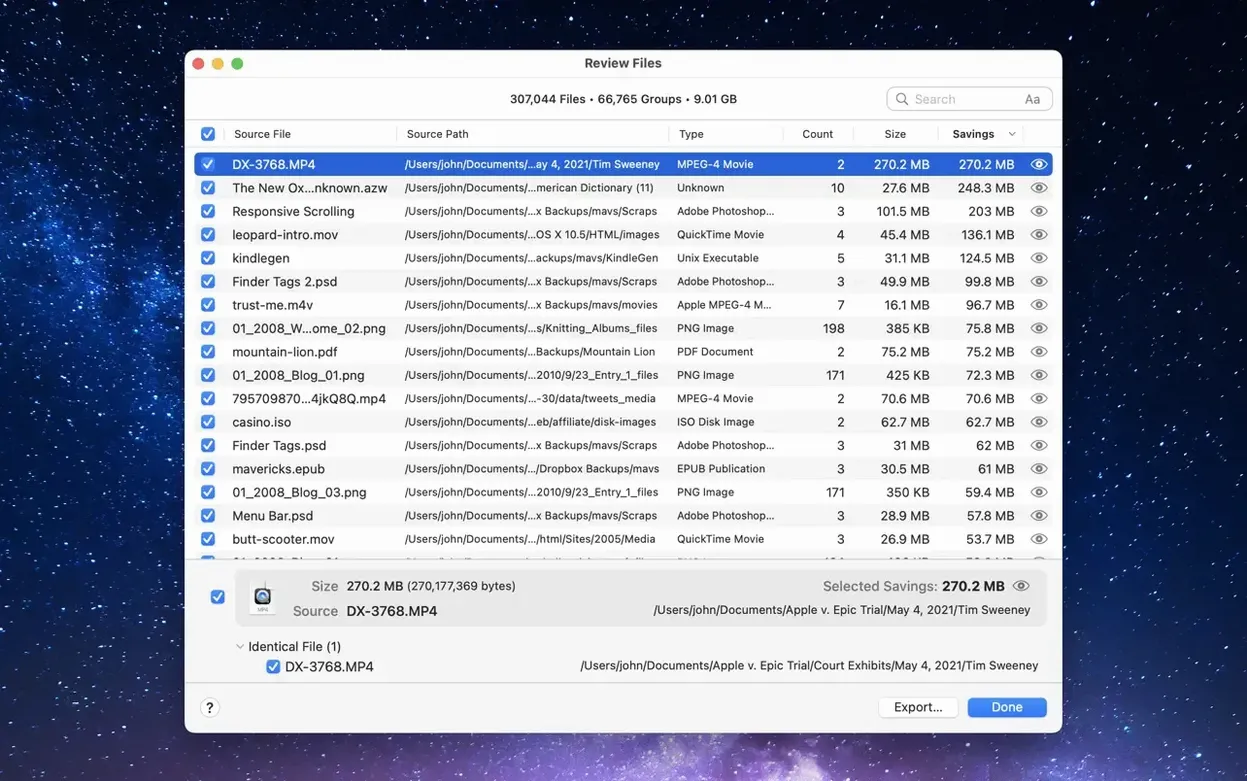
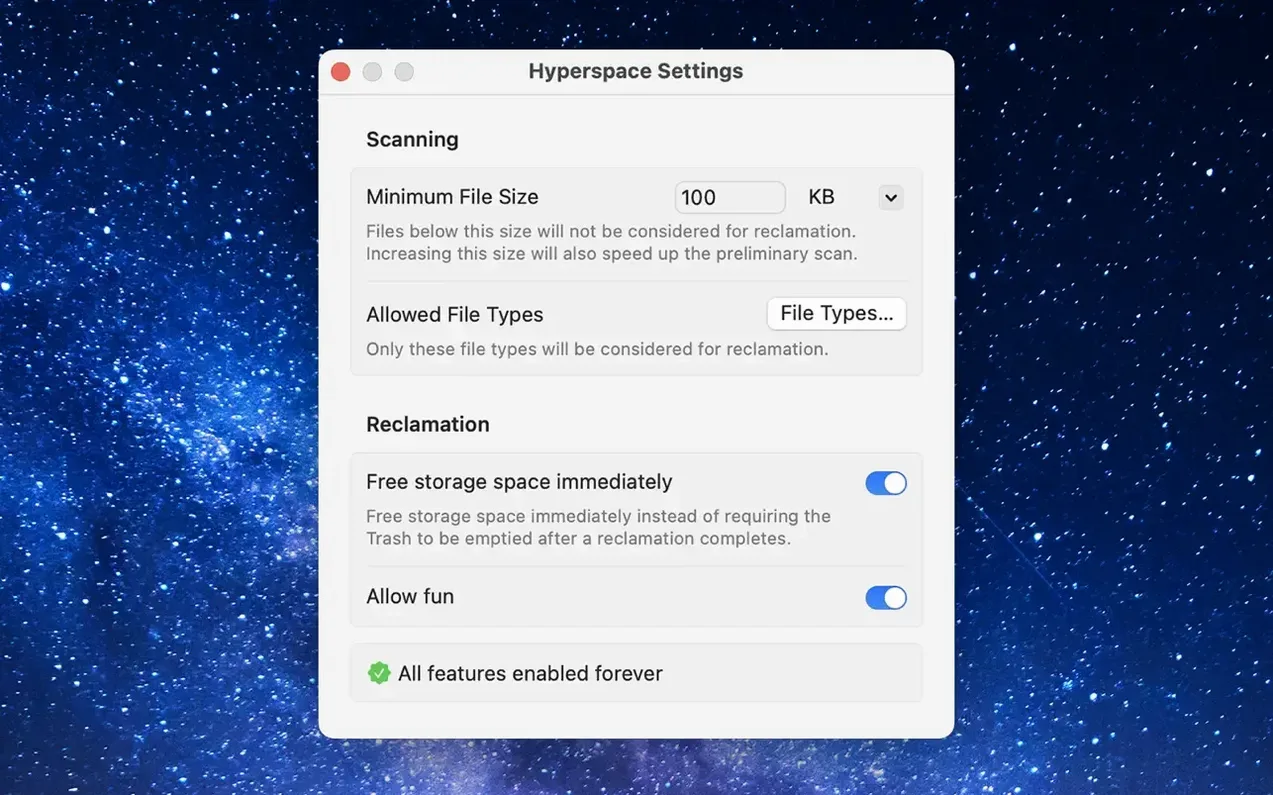
One byte different is a different file. Hyperspace only cares when every byte matches. It scans folders you choose and finds files with identical content.
Spot duplicate files before your manual spring-clean
- Next to your manual spring-clean — drag a messy project folder in, see if old backups are eating space.
- After a photo import — identical raws exported as TIFFs, then JPEGs, then moved three times.
- Alongside your sync tools — cloud services sometimes leave duplicate local copies when things go wrong.
How it reclaims space
The trick is APFS clones. Hyperspace replaces the duplicates with lightweight clones that point to a single copy of the data on disk. Finder still shows every file in its original place. The space taken by the extra copies is freed without deleting anything.
Hyperspace vs similar tools
Three Mac apps sit in roughly the same corner, but they solve different problems.
Gemini 2 scans for duplicates and similar-looking files — think resized photos or slightly different edits. It removes the extras permanently. Good for media libraries. Not built around APFS clones, so space reclaim means actual deletion.
dupeGuru is a cross-platform scanner with fuzzy matching and customisable filters. Free, open source, no clone logic at all. It finds matches and leaves deletion decisions to you. More powerful for odd file collections, but no space-saving tricks under macOS.
Hyperspace does one thing: byte-identical files only, replaced by APFS clones. Zero guesswork, zero risk of deleting the wrong edit. The clones mean every file stays where it was — Finder, Spotlight, and Time Machine see no difference. If you want to keep duplicates visible but stop them hogging blocks, it is the only tool on this list that works that way.
A cleanup workflow: post-shoot photo mess
You have just imported a card, exported proofs, and copied the whole folder to an external drive for safekeeping. Somewhere in that shuffle, Finder duplicated a few hundred raw files. Here is one way through:
- Drop the top-level project folder onto Hyperspace. Let it scan. The list populates with sets of byte-identical files — same raws in
/Shoot/and/Shoot_backup/. - Sort by size. The big raw files sit at the top. Skim the paths to confirm they are genuine duplicates, not hard links you made on purpose.
- Select all sets and click Reclaim. Hyperspace converts the extra copies into APFS clones. Finder still shows the files in both folders, but the space counted against the duplicates drops to nearly zero.
- Verify in Finder. Get Info on each folder before and after. The "Size" field shrinks. The "on disk" number tells the real story — only one copy of the data remains.
- Repeat for the external drive if it is APFS-formatted. Clone behaviour depends on the volume format, so the external disk must use APFS too.
Nothing moved, nothing deleted. Your backup folder still looks complete. The only thing missing is the wasted space.
- macOS 15 or later
- Apple Silicon or Intel 64-bit
Questions the team asks
No. It reclaims the disk space used by the extra copies using APFS space-saving clones. Every file remains visible in Finder in its original location.








Comments 0
Sign in or create an account to add a comment.
No comments yet. They go up after moderation.