

Infuse Pro — Mac download
Download (90 MB) Earlier builds
Ticked
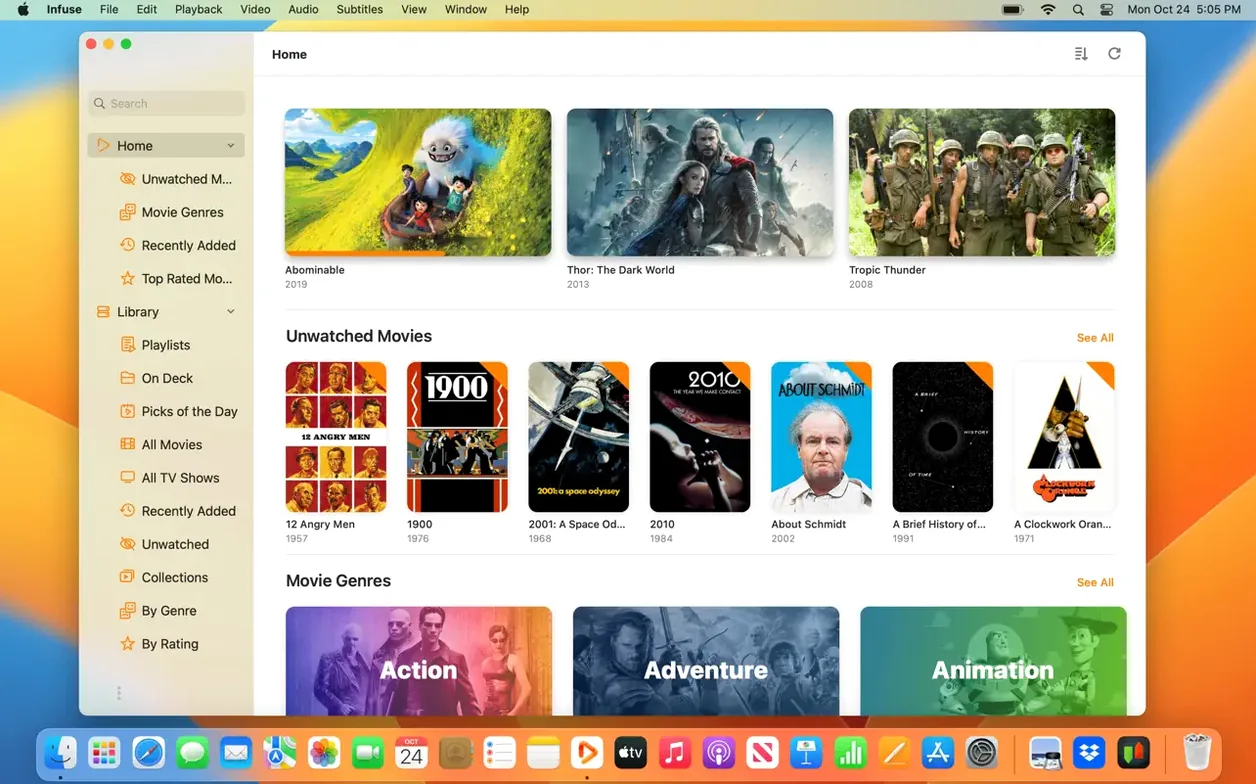
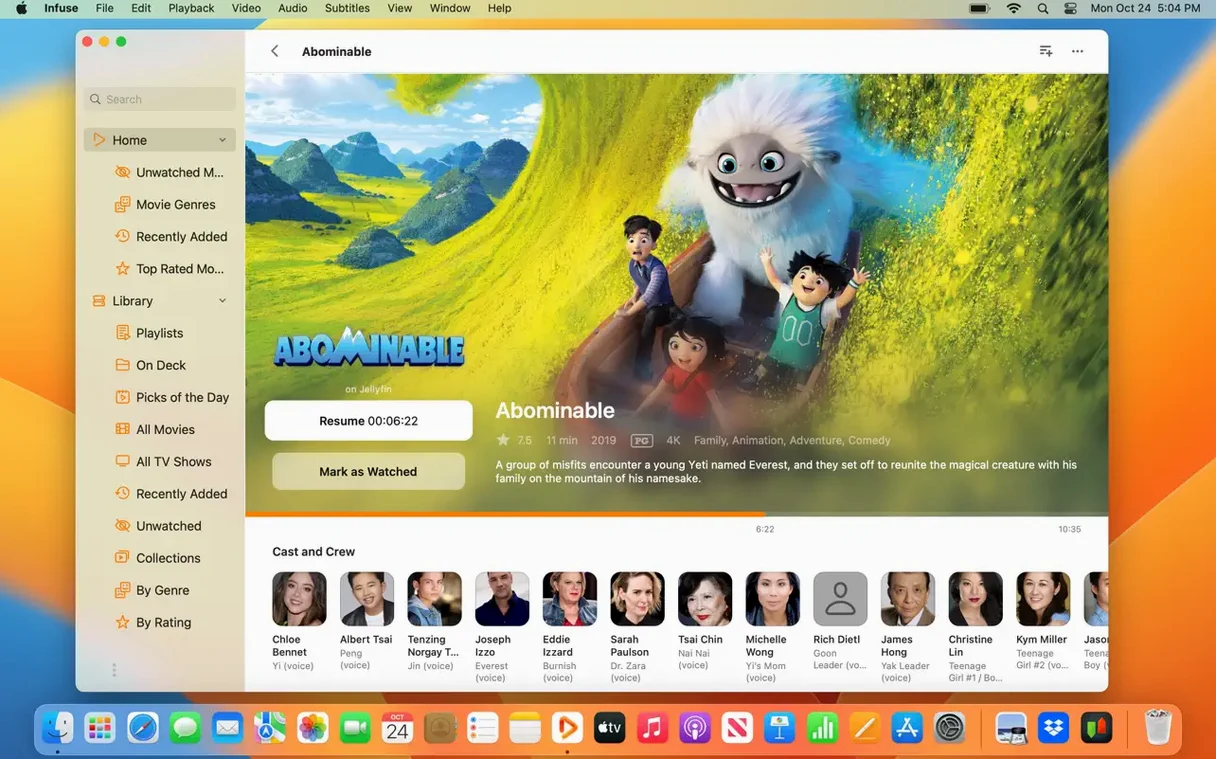
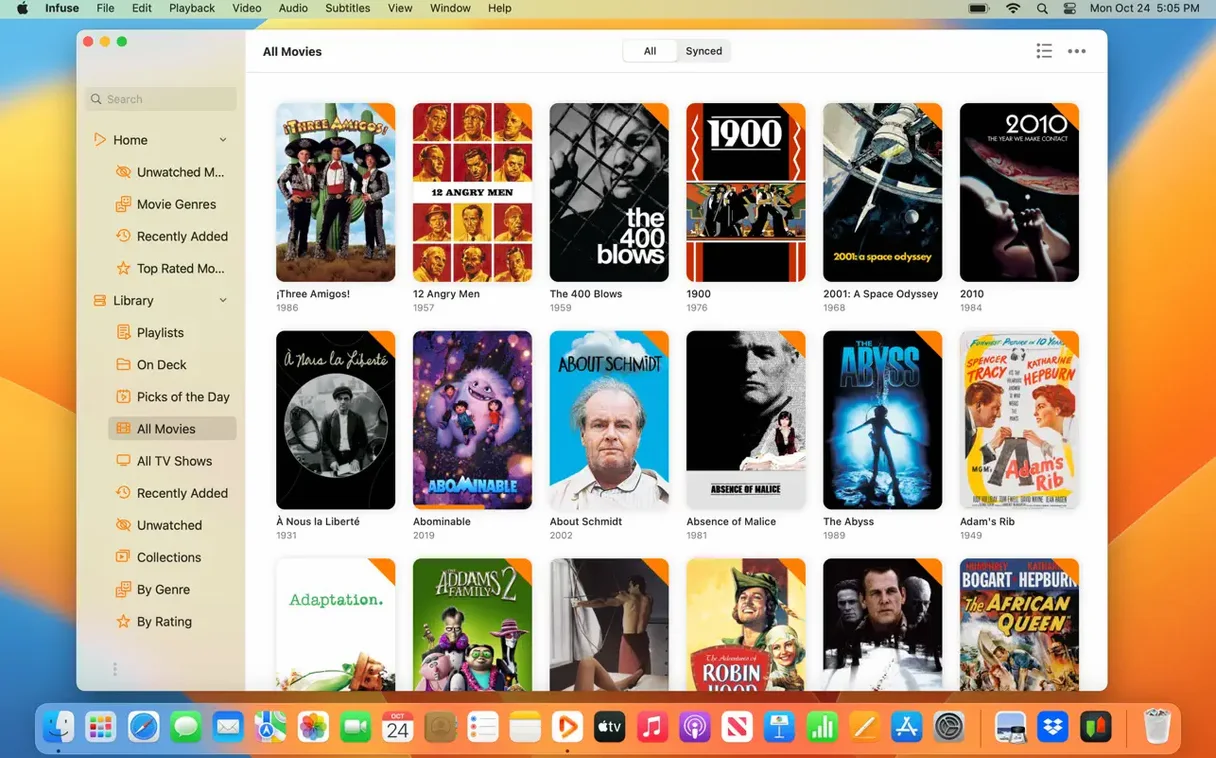
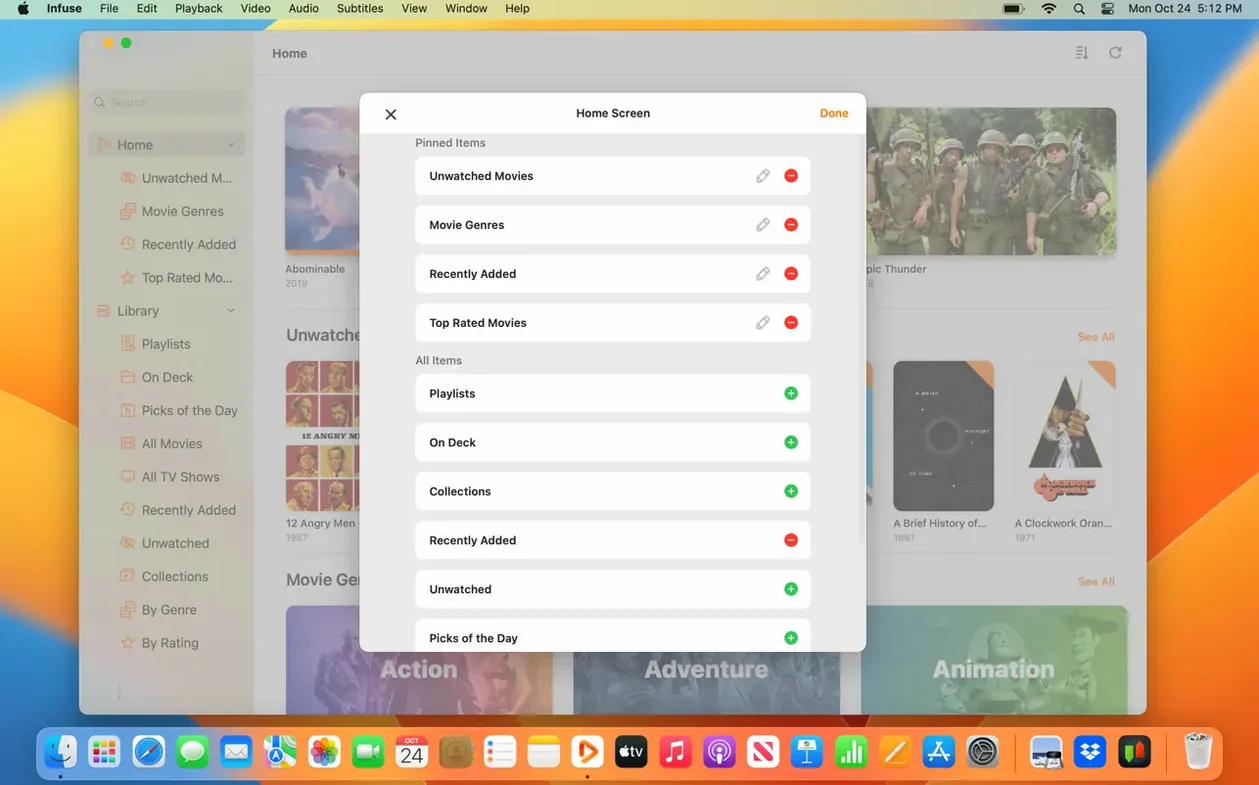
If you have ever dragged a video file into QuickTime and watched it choke on the audio codec, Infuse 8 Pro takes a different approach. It connects to the drive where your files live and plays them directly, without touching HandBrake.
Plays lossless audio and pulls subtitles while streaming from your NAS
- Playing Dolby Digital Plus and DTS‑HD audio without conversion
- Streaming from a NAS over SMB, NFS, or WebDAV
- Pulling subtitles from OpenSubtitles while the file plays
- Keeping watched status in sync across Mac, iPad, and Apple TV
Library sync and cloud setup steps that stay behind the Pro tier
- Library and progress syncing is limited to the Pro tier
- Adds a step for cloud drive setup if your files live in OneDrive or Box
Turn off volume boost to restore full dynamic range for concerts and FLAC
- Turn off volume boost for music libraries. Infuse applies a slight gain by default. If you watch concert films or keep FLAC folders indexed, switch it off in playback settings — the dynamic range snaps back.
- Set the default subtitle language. Infuse pulls the first available track unless you pick a preferred language. Go to Subtitles, choose your language, and it sticks for every file.
- Switch the library view to List. The grid looks clean, but List view shows codec badges, file size, and duration in one scannable column. Faster when you are comparing three encodes of the same film.
- Disable "Fetch Metadata for TV Shows" if you rename files by hand. Infuse matches aggressively. If your folder structure is custom, turning this off stops wrong artwork from overwriting your labels.
Small conveniences you can miss
- Two-finger double-tap to toggle subtitles. Works on the trackpad. No menu diving when a foreign-language scene catches you off guard.
- Hold the spacebar to preview a file. In library view, highlight a video and hold Space. A playback window pops open — useful when checking which rip includes the commentary track.
- Drag a subtitle file onto the player window. No need to rename anything or match filenames. Drop the SRT or ASS file mid-playback and Infuse loads it instantly.
- AirPlay device picker remembers the last target. If you always send playback to the same HomePod or Apple TV, Infuse keeps the selection between sessions. One click resumes the stream.
- Pinch to zoom works during playback. Useful for cropping hardcoded black bars on a rip or checking a detail in the corner of a frame.
A video editor's evening
A freelance editor finishes a project and receives three reference MKV files from a director via a shared NAS folder. The files are 4K, DTS-HD audio, with embedded PGS subtitles. QuickTime refuses to open them. VLC plays them but stutters on the subtitle track.
They open Infuse Pro, which had already indexed the NAS share overnight. The three files appear in the Recently Added row. They tap the first one. DTS-HD passthrough engages immediately over HDMI to a receiver. A quick two-finger double-tap brings up the PGS subtitle stream, synced without drift.
Halfway through, the director sends a revised SRT file over Slack. The editor drags the file onto the Infuse window without stopping playback. The new subtitles replace the embedded track. Progress is written to Trakt, and the playback position syncs to an iPad in the kitchen — so the editor can keep screening during a late dinner without hunting for timestamps.
- Version 8.5.5 shipped 16 September 2026
- iOS and iPadOS release notes cover this build
- macOS 12 or later
- Apple Silicon or Intel Mac
Questions the team asks
Yes. Infuse Pro includes native decoding for DTS and DTS‑HD, so no external codecs are needed.
It streams from Dropbox, Google Drive, OneDrive, Box, pCloud, Yandex.Disk, and Mega.nz.
The Pro version syncs library, watched status, and in‑progress queue via iCloud.









Comments 0
Sign in or create an account to add a comment.
No comments yet. They go up after moderation.