

Jump Desktop — Mac download
Download (62 MB) Earlier builds
Ticked
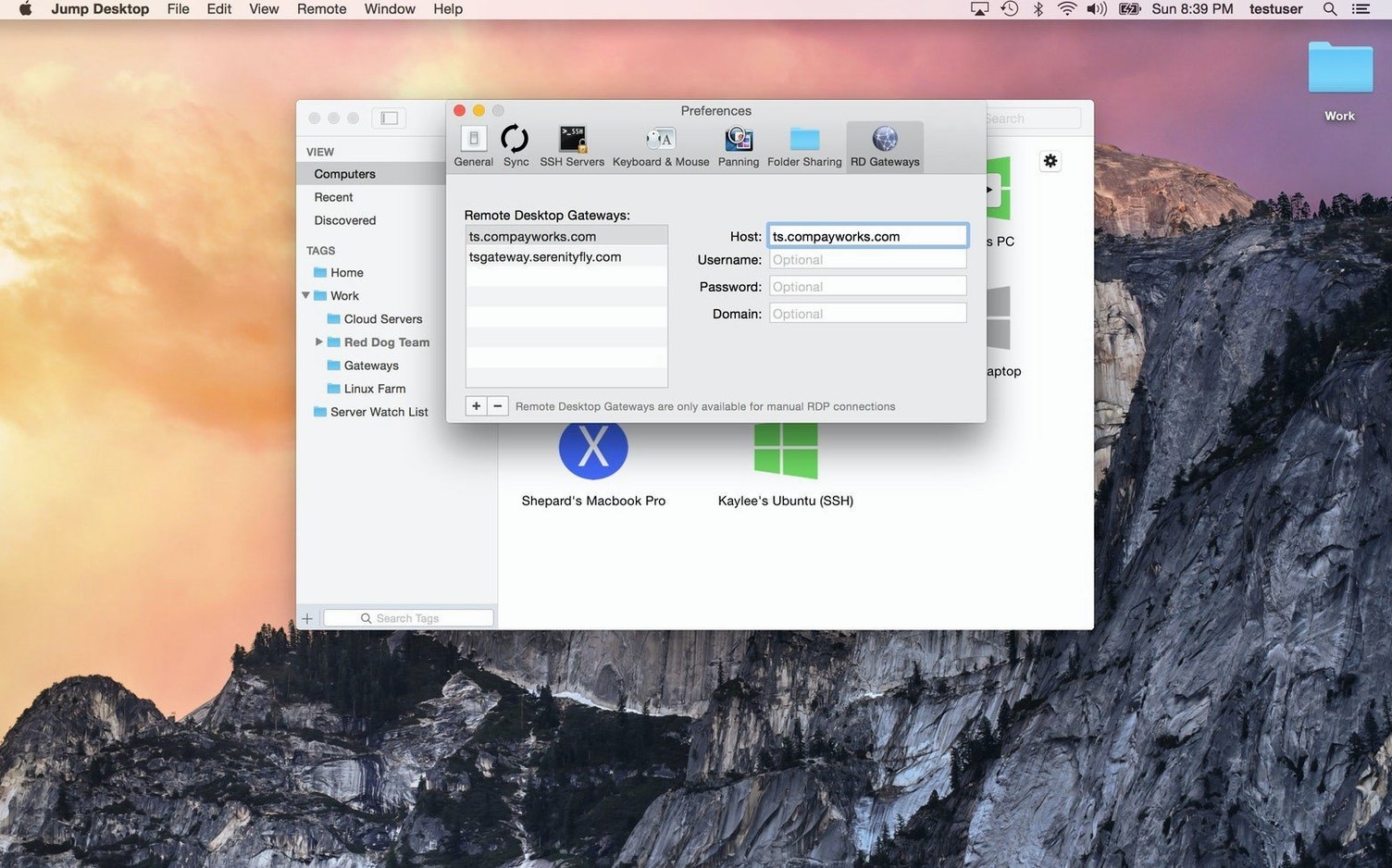
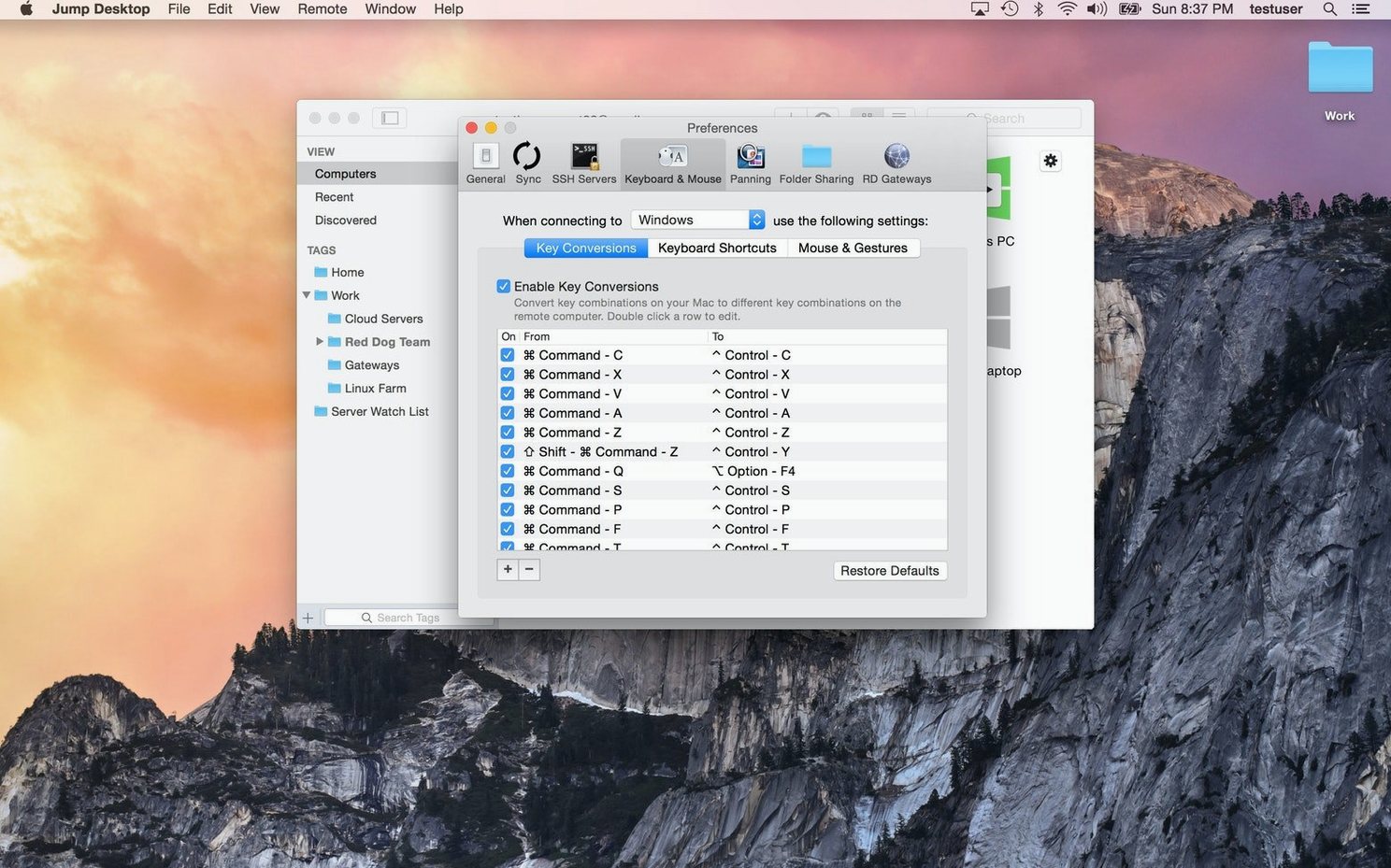
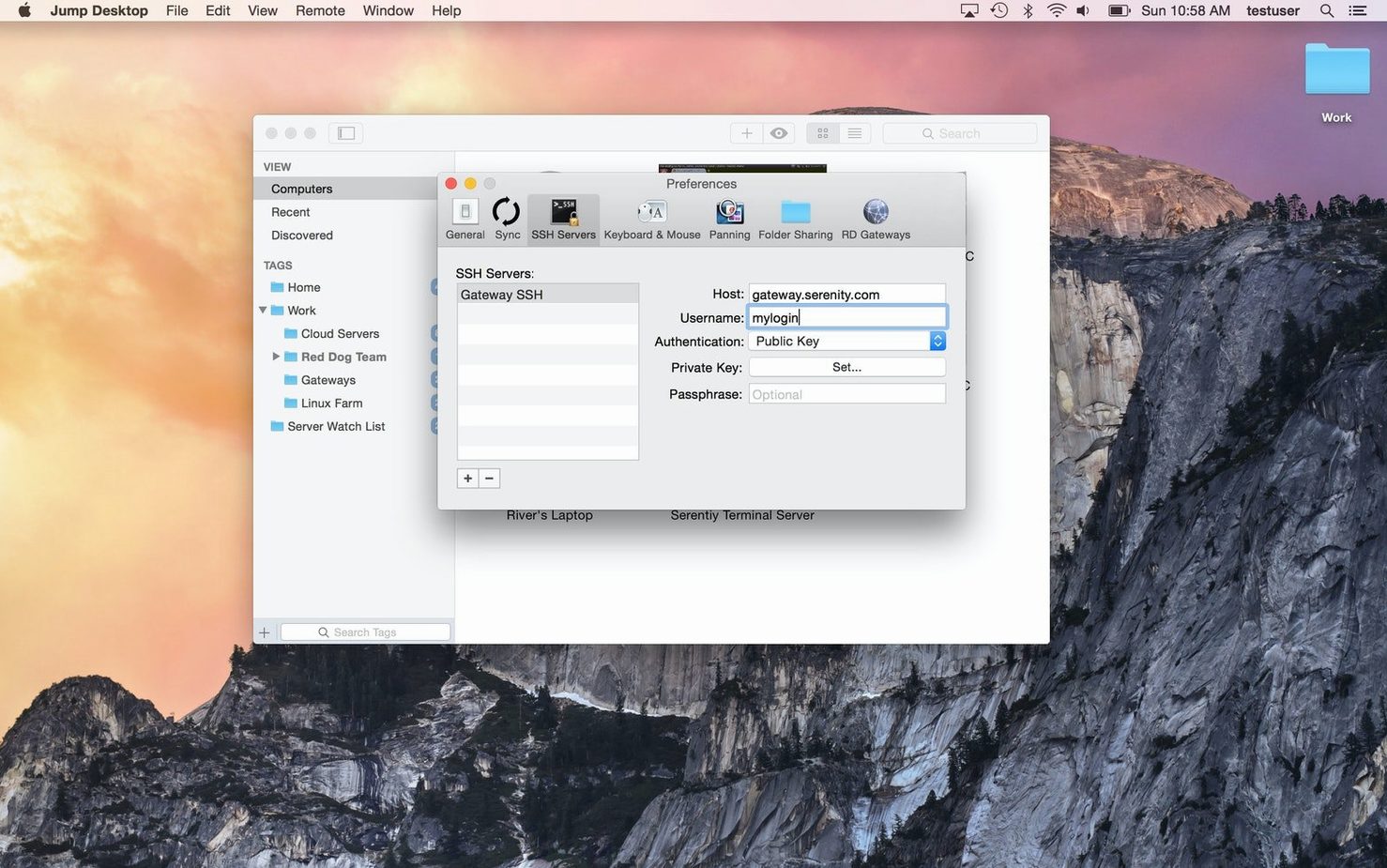
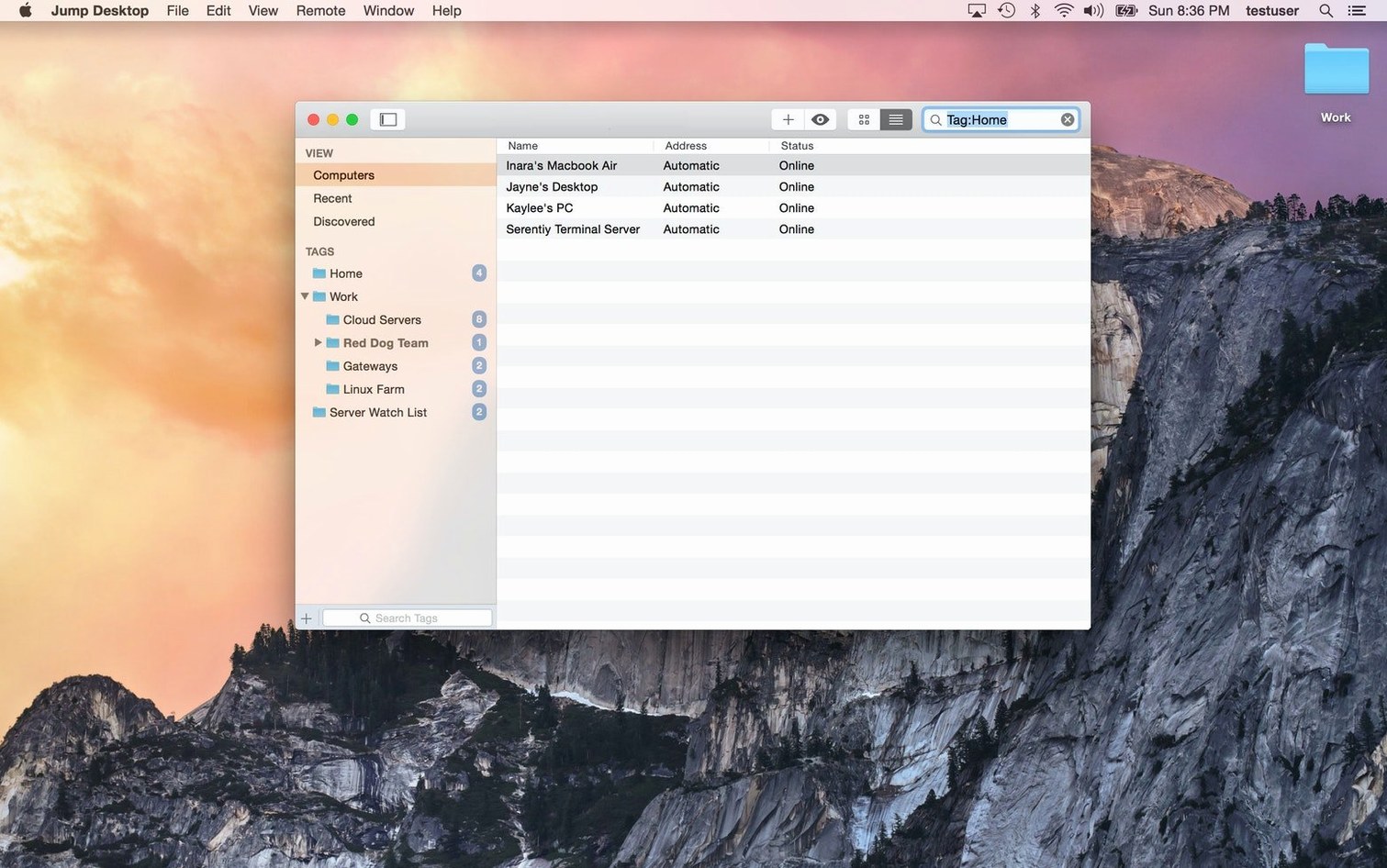
If you have used Screen Sharing to grab a file from the iMac downstairs, you already know the basics. Jump Desktop turns that idea into a proper checklist item you can rely on across Mac, PC, and VNC hosts.
Add the host
Sign in with any email address, then install Jump Desktop Connect on the target computer. The client picks it up and you are in.
Control the session
Work with the remote desktop in real time. Remap keys to match your muscle memory and pull files straight from the host.
Switch machines
Where it lands between Apple Remote Desktop and Screens
Jump Desktop sits between Apple Remote Desktop and Screens in my checklist of remote access tools.
Apple Remote Desktop
ARD is the heavyweight. Full fleet management, reporting, and package deployment for Mac-only networks. Jump Desktop is leaner — it opens RDP and VNC doors without tying you to one platform.
Good for Mac admin fleets. Not for cross-platform quick connects.
Screens
Screens has a cleaner macOS-native feel and a one-time purchase model. Jump Desktop counters with stronger cross-platform support and keyboard remapping that actually works when you flip between macOS and Windows layouts.
Good for pure Mac-to-Mac remote sessions. Not for RDP-heavy workflows.
Workflow: remote file grab in three steps
- Wake the host. Launch Jump Desktop Connect on the office Mac before leaving. It registers with your account automatically.
- Connect from home. Open Jump Desktop on your personal Mac. The host appears in the sidebar. Click it. The desktop fills your screen in under two seconds.
- Drag the asset. Navigate to the shared folder on the remote machine. Drag the PDF to your local desktop. The file transfers without opening a separate FTP client or cloud sync.
Keyboard shortcuts remap on the fly — Command+C on your Mac sends Control+C to the Windows host. No retraining your fingers.
IT support specialist: a morning with two tickets
Dan runs support for a mixed office — ten Macs, fifteen PCs. Monday morning brings two requests before 9 a.m.
First ticket: a designer on an M1 MacBook cannot export from Sketch. Dan opens Jump Desktop, connects via VNC, and checks the export settings directly. He remaps his Windows keyboard so shortcuts match what the designer sees. Problem solved in three clicks.
Second ticket: the finance PC needs a driver update. Dan switches to an RDP session, installs the driver, and reboots the machine. He never leaves his desk. The entire morning, including grabbing a jump desktop dmg from the shared drive for a new hire, fits inside one coffee.
Connect to a work PC via RDP, a home Mac via VNC, or both from the same window. Apple Silicon and Intel Macs are supported.
What's new in Jump Desktop 10
- Up to 480 FPS. Leave Framerate on Auto and your remote games, scrolling, and motion stay sharp on high-refresh-rate screens.
- Hardware encoding. Choose Codec > Hardware for cleaner detail at the same bandwidth, lower CPU load on the host, and longer battery life on your Mac.
- High-performance virtual displays. Save resolution, scale, and refresh rate presets. Use Keep After Disconnect to leave displays arranged on the host between sessions.
- USB device redirection. Route USB devices plugged into your desk directly to a Windows or Mac host.
- Game controller support. Play your games from your Mac with the controller in your hands.
- Creative work. Input Trail shows stylus and mouse strokes instantly on high-latency connections. Color Passthrough sends the host colours unprocessed to your calibrated display.
- Everyday work. Back and forward mouse buttons, pinch-to-zoom on a trackpad, and more reliable Chinese, Japanese, and Korean text input.
- Improvements and fixes. Fluid sessions now respect the local macOS shortcut for switching input sources (Control+Space); Wake-on-LAN sends fewer wake packets; automatic reconnects no longer wake a host you put to sleep or shut down; fixed crashes on quit, crashes on launch when a saved computer had no name, and a mouse-wheel notch scrolling too far on Mac hosts; fixed saved preset arrangements not applying correctly; fixed USB redirection for certain devices like colour grading panels; fixed RDP sessions ignoring custom resolutions and swapping full-screen displays on stacked monitors; fixed Eisu and Kana keys on Japanese keyboards in Fluid sessions; plus security updates.
- macOS 11 or later
- Apple Silicon or Intel 64-bit
Questions the team asks
Yes. It connects to Macs, Windows PCs, and any server that speaks standard RDP or VNC.
Install the Jump Desktop Connect companion app on the target machine, then sign in on your Mac with an email address.







Comments 0
Sign in or create an account to add a comment.
No comments yet. They go up after moderation.