
Keyboard Maestro — Mac download
Download (35 MB) Earlier builds
Ticked
How many actions come built in?
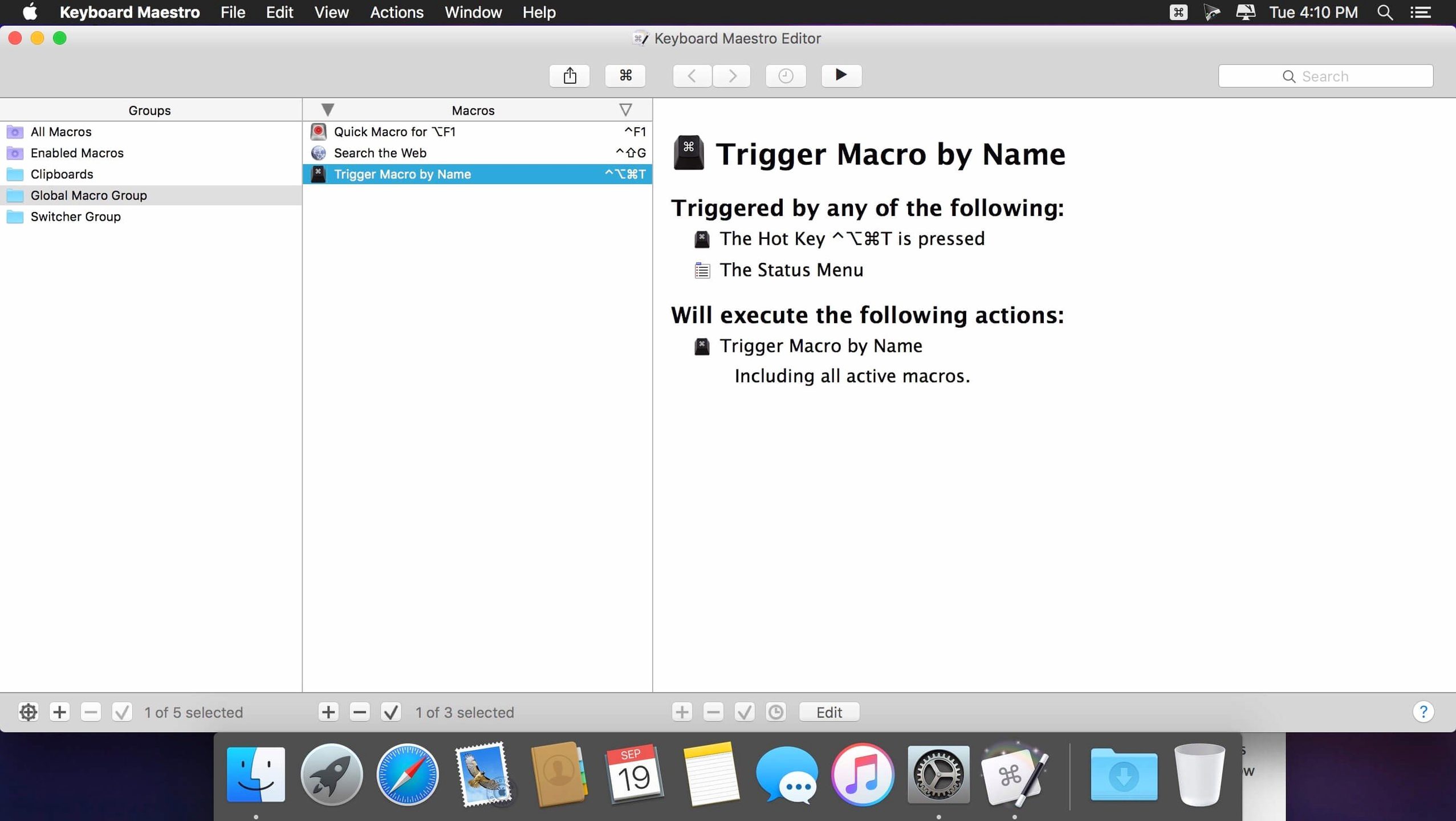
Hundreds. The action library covers text expansion, window management, file opening, web form filling, flow control and more. You build macros by combining these blocks.
Who actually needs this?
Anyone who repeats the same clicks or keystrokes daily. Project managers, editors, developers and sound designers all use it to chain tasks into single shortcuts.
Can it handle logic and conditions?
Yes. Switch/Case, loops and conditions let macros make decisions. The 11.0.4 update adds a live display showing which Switch/Case entry is true or would execute right now.
Screen text recognition powers condition checks
It does. Text snippets expand as you type. The latest release supports Apple Text Recognition in OCR Condition checks, so macros can read text on screen and act on it.
Dueling hotkeys surface a conflict palette
Keyboard Maestro vs BetterTouchTool
BetterTouchTool started as a trackpad customiser and grew into a trigger engine. It excels at gesture-based input — drawing shapes on a trackpad, force-click sequences, Magic Mouse combos. Keyboard Maestro does none of that well. But for application automation, conditional logic and clipboard workflows, Keyboard Maestro runs deeper. You get proper variables, loop constructs and Switch/Case branching that BetterTouchTool doesn't match.
Good for BetterTouchTool: gesture-heavy setups, window snapping, Touch Bar customisation
Good for Keyboard Maestro: multi-step macros, text processing, scheduled tasks, OCR triggers
Keyboard Maestro vs Alfred
Alfred is a launcher first, a workflow tool second. Its Powerpack lets you string actions together, but the action library stays modest — open files, run scripts, filter lists. Keyboard Maestro flips that ratio: launching apps is one action among hundreds. Alfred wins on search speed and file navigation from the keyboard. Keyboard Maestro wins when a task touches three applications and needs error handling.
Many users run both. Alfred handles the quick-launch and clipboard-snippet side; Keyboard Maestro handles the heavy-lifting macros.
Keyboard Maestro vs Shortcuts
Apple's Shortcuts ships free with macOS. It integrates tightly with system services and works on iOS too. But its action set shrinks once you leave Apple's ecosystem. Keyboard Maestro manipulates third-party application menus, clicks interface elements, and reads screen text via OCR. Shortcuts cannot do those things without AppleScript bridging. For cross-platform simple workflows, Shortcuts is fine. For deep Mac automation, Keyboard Maestro pulls ahead quickly.
Debugger tool tips appear on hover
- Conflict palette. When two macros share the same hotkey, Keyboard Maestro shows a popup letting you pick which one fires. No silent failures — you see the collision immediately.
- Macro Debugger tool tips. Added in 11.0.4. Hover over any step in the debugger to see what it does before you run the macro. Saves guesswork when revisiting old macros.
- Named clipboard history. Beyond the standard clipboard switcher, you can save named clippings that survive restarts. Perfect for boilerplate replies, licence keys, or code snippets you paste weekly.
- Palette macros. Trigger a macro and get a floating HTML panel with custom buttons. Use it to build project-specific command palettes — one click runs any macro you nest inside.
- Application-specific macro groups. Macros activate only when you're in a target app. No modifier-key gymnastics; the same shortcut can do different things in Mail, Safari and Finder.
Automate one repetitive task you do ten times a day
- Start with a repetitive pain point. Don't try building a giant workflow. Pick one thing you do ten times a day — resizing a window, pasting a formatted date, inserting an email template — and automate that single action.
- Use the recorder early. The record button watches your clicks and keystrokes, then generates a macro. It won't be perfect, but it teaches you how actions map to real interface steps.
- Browse the Public Macro Library. Others have shared macros for tools you likely use. Pull one apart to see how conditions and variables connect. Reverse-engineering a working macro teaches faster than documentation.
- Set up a few text expansion snippets. Even basic expansions like
;addrfor your full address save minutes per day. This is the shallow end — quick wins that build muscle memory for the editor. - Enable clipboard history with a shortcut. Assign something like ⌃⌥⌘V to bring up the clipboard switcher. Use it for a day before adding filters or named clippings. One habit at a time keeps the setup manageable.
- Check the conflict palette once. After adding new
ableton 12 keyboard shortcutsor custom triggers, glance at any conflicts. Fix them before they interrupt your flow mid-session.
- Switch/Case actions now display which entry is true or would currently execute
- Apple Text Recognition support added to OCR Condition
- Tool tips added to the Macro Debugger window
- Fixed an issue with search highlighting triggers
- macOS 10.13 or later
- Intel and Apple Silicon Macs
- Interface: English
Questions the team asks
It steps through macro execution so you can see what each action does. Version 11.0.4 adds tool tips to explain the debugger controls.
Yes. Built-in window actions can resize, move and snap application windows to exact positions on your display.







Comments 0
Sign in or create an account to add a comment.
No comments yet. They go up after moderation.