

Little Snitch — Mac download
Download (39 MB) Earlier builds
Ticked
Little Snitch is a macOS application firewall that shows an alert whenever an app tries to connect to a server on the Internet.
Tools for the experienced user
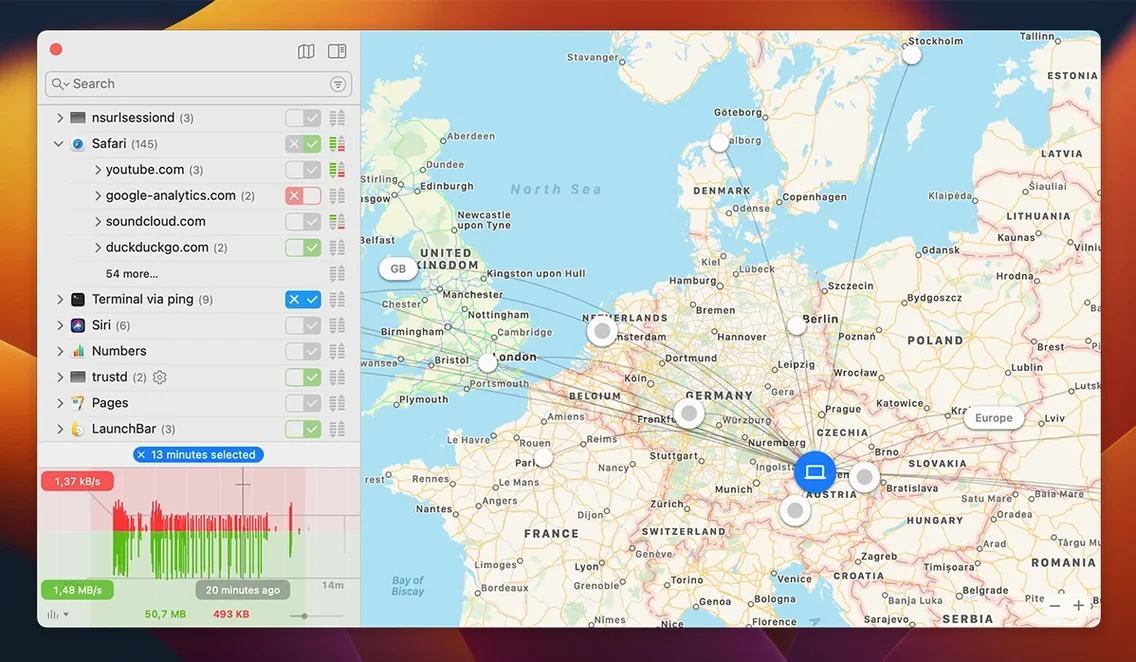
Beyond the standard allow-or-deny prompt, a command-line interface lets you script and deploy configuration changes without touching the GUI. The interactive world map plots server locations in real time, turning connection data into something you can scan visually. Quiet Mode postpones all notifications and decisions — useful during a focused work session when you do not want interruptions but still need rules enforced. A new filtering engine replaces the older kernel-extension approach, and an experimental NAT64 (RFC 6052) implementation is built in. The monitoring also checks app bundle integrity while the program runs.
Traffic volume column and a crash fix for exact-match searches
Version 6.5 relabelled the traffic amount column to traffic volume and fixed a rare crash that occurred during exact-match process searches in the rules list. Inbound connections no longer rely on hostnames. The update also adds compatibility with macOS 27 Golden Gate and improves encrypted DNS handling.
Alert fatigue fades as you build rules by app group
- Alert fatigue is real. For the first few hours, Little Snitch will fire a lot of prompts. Every background helper, updater, and sync service wants to talk. That is normal.
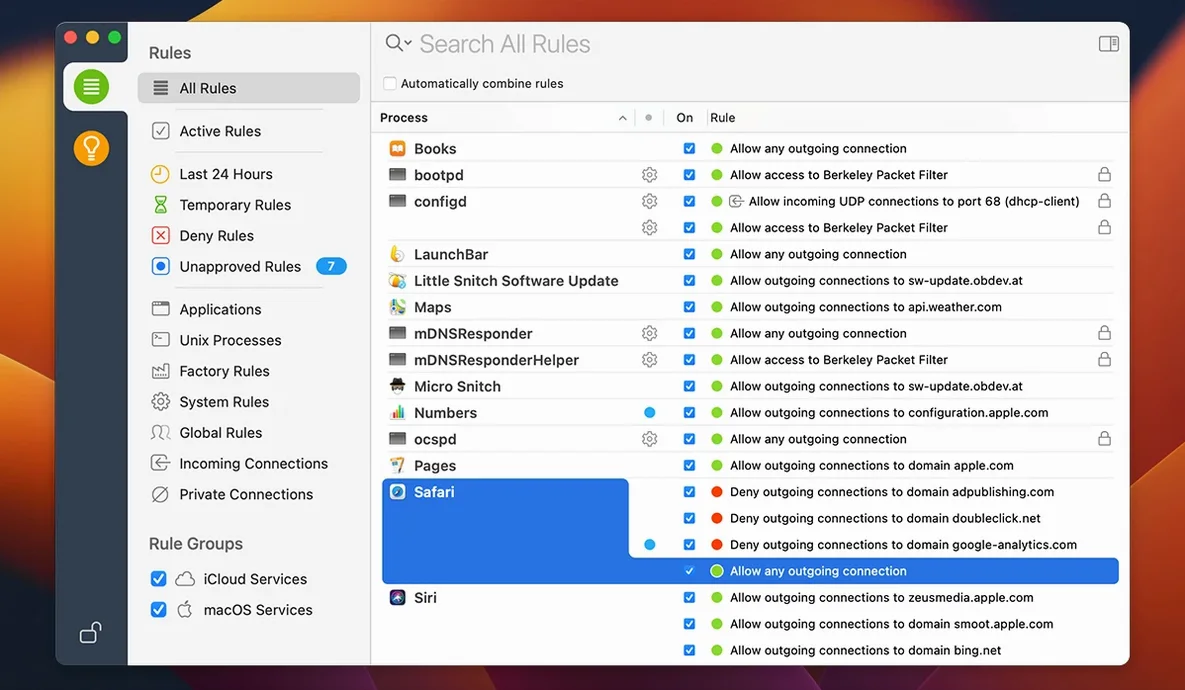
- Build rules by app group. Tackle one category at a time — browsers, then cloud sync tools, then system services. It stops the task feeling endless.
- Use the “Any Connection” scope sparingly. Early on, it is tempting to allow an app to connect anywhere. Better to restrict by domain or port, then broaden later if needed. The rule editor makes this granular.
- Quiet Mode is your friend. Turn it on during the first afternoon. Alerts queue up in the Network Monitor instead of popping up. Review them in one go when you have a coffee.
- Pin the Network Monitor map. Keep it open on a secondary display. Watching server locations appear gives you a quick sense of which apps phone home and where.
- Export your rules. Once you have a clean set, back them up via the command-line tool. If you reinstall macOS or set up another Mac, you will thank yourself.
- Do not ignore the little snitch agent. The menu bar item gives you one-click access to silent mode and a live traffic summary. It is worth keeping visible.
Docker, Node, and a to-do app phoning home unnoticed
Lena builds web apps from a co-working space in Bristol. She runs Docker containers, a local Node server, three browsers, and a handful of Electron-based tools. Before Little Snitch, she had no idea her to-do app was sending analytics to three different domains on launch. She installed Little Snitch on a Tuesday morning. By lunch, she had blocked tracking from two note-taking tools and caught a design app phoning home with telemetry she had never agreed to. The Network Monitor map showed connections to servers she did not recognise in countries she did not have clients in. She created a permanent rule group for her development stack — allowing localhost, her staging server, and GitHub — and denied everything else by default for those tools. Now her machine only talks to the outside world when she decides.
Outbound firewall that sits beside macOS inbound protection
- macOS built-in firewall handles inbound connections. Little Snitch handles outbound. They complement each other.
- VPN apps show up as their own process in the connection list. You can verify that traffic really goes through the tunnel and that no leaks happen outside it.
- Time Machine can back up your rule set if you keep the configuration files in a backed-up location. The command-line tool lets you script exports to a watched folder.
- Focus modes in macOS work well with Quiet Mode. Automate switching via a shell script that triggers both when your Focus changes.
- Activity Monitor shows bytes in and out per process. Little Snitch shows where those bytes are going. They answer different questions.
Free LuLu blocks per-app outbound but skips the map and traffic history
LuLu (by Objective-See) is a free, open-source firewall. It offers per-app outbound blocking with a simpler rule model. It does not have the interactive world map, the traffic history graph, or the scriptable command-line depth that Little Snitch provides. Good for basic blocking; less suited if you need detailed forensic views or automated rule deployment.
Radio Silence takes a different approach. You drag apps into its list, and they stay blocked. No pop-up alerts, no per-connection decisions. It is silent by design. That simplicity means you trade away the granularity Little Snitch gives you — no domain-specific rules, no port-level control, no network monitor.
Little Snitch sits at the deep end. The combination of real-time connection alerts, the map, the traffic volume history, and the command-line interface puts more control in your hands. It asks more of you, especially in the first week, but the payoff is a level of visibility that the simpler tools do not aim to provide.
- Compatibility added for macOS 27 Golden Gate.
- App bundle integrity monitored while running.
- Experimental NAT64 implementation added.
- Encrypted DNS handling improved.
- macOS 14 or later
- Intel and Apple Silicon Macs
- Languages: English, German
Questions the team asks
The agent is the background component that enforces your firewall rules and monitors network traffic, showing alerts when applications attempt outbound connections.









Comments 0
Sign in or create an account to add a comment.
No comments yet. They go up after moderation.