

Mole — Mac download
Ticked

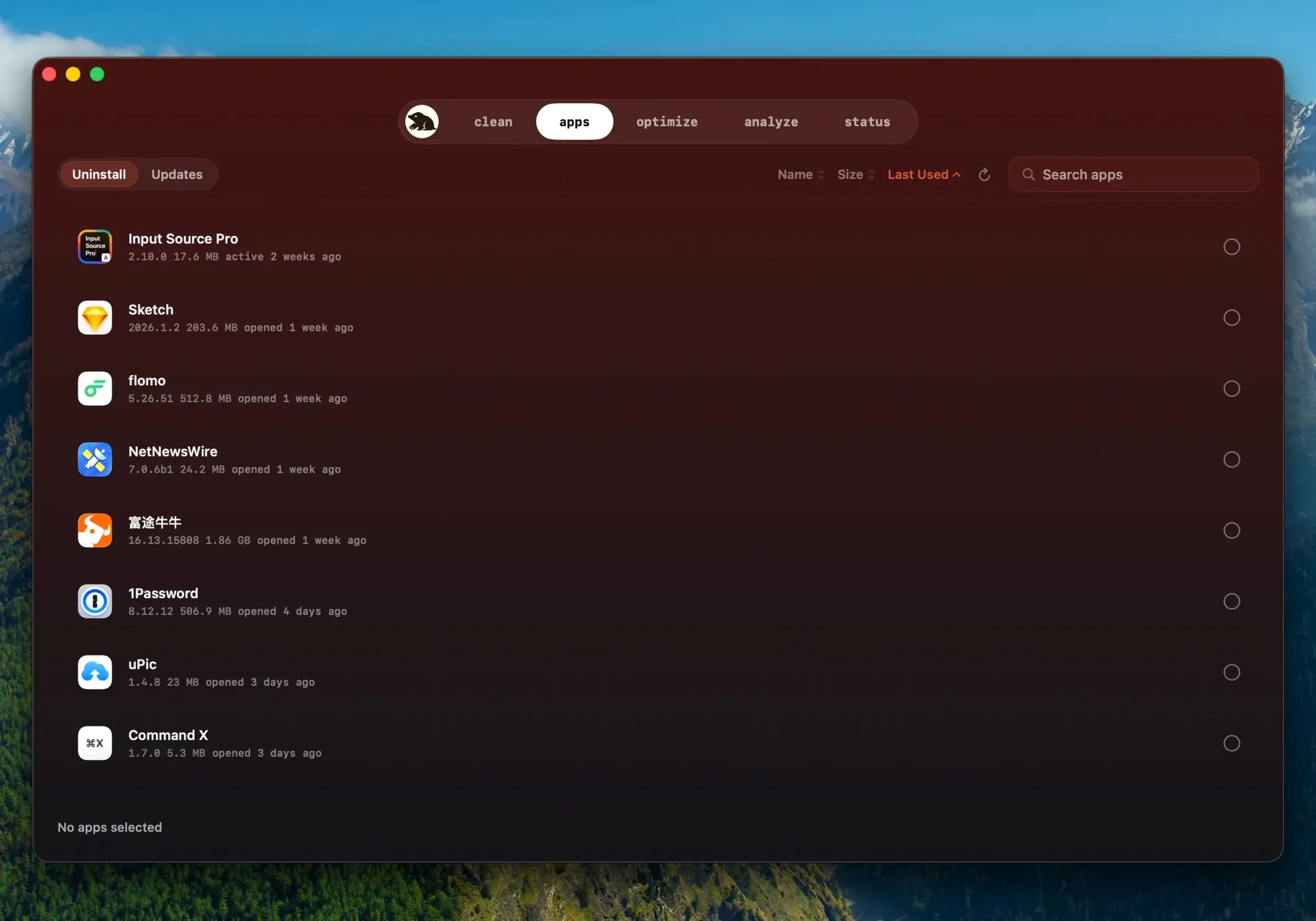
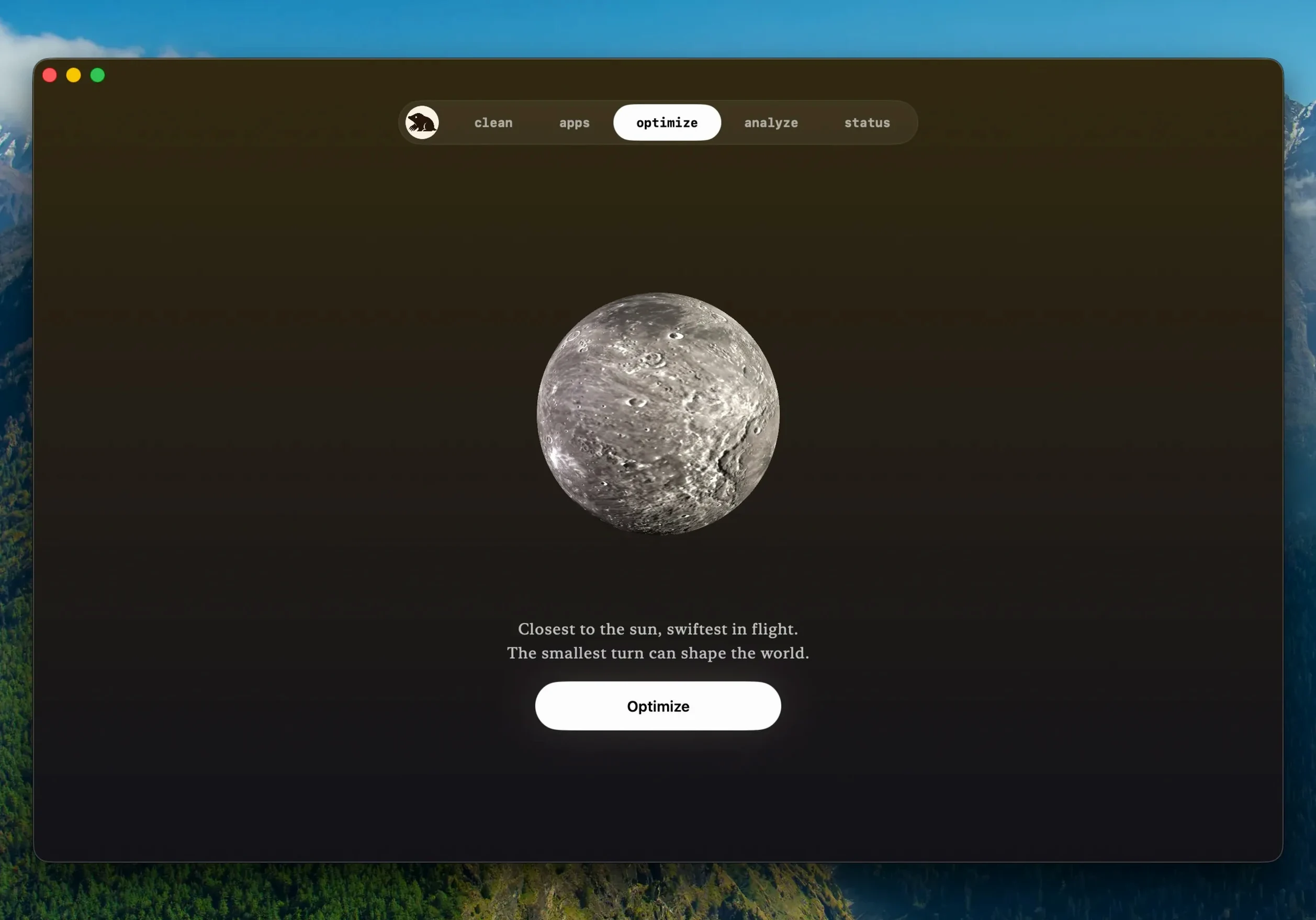
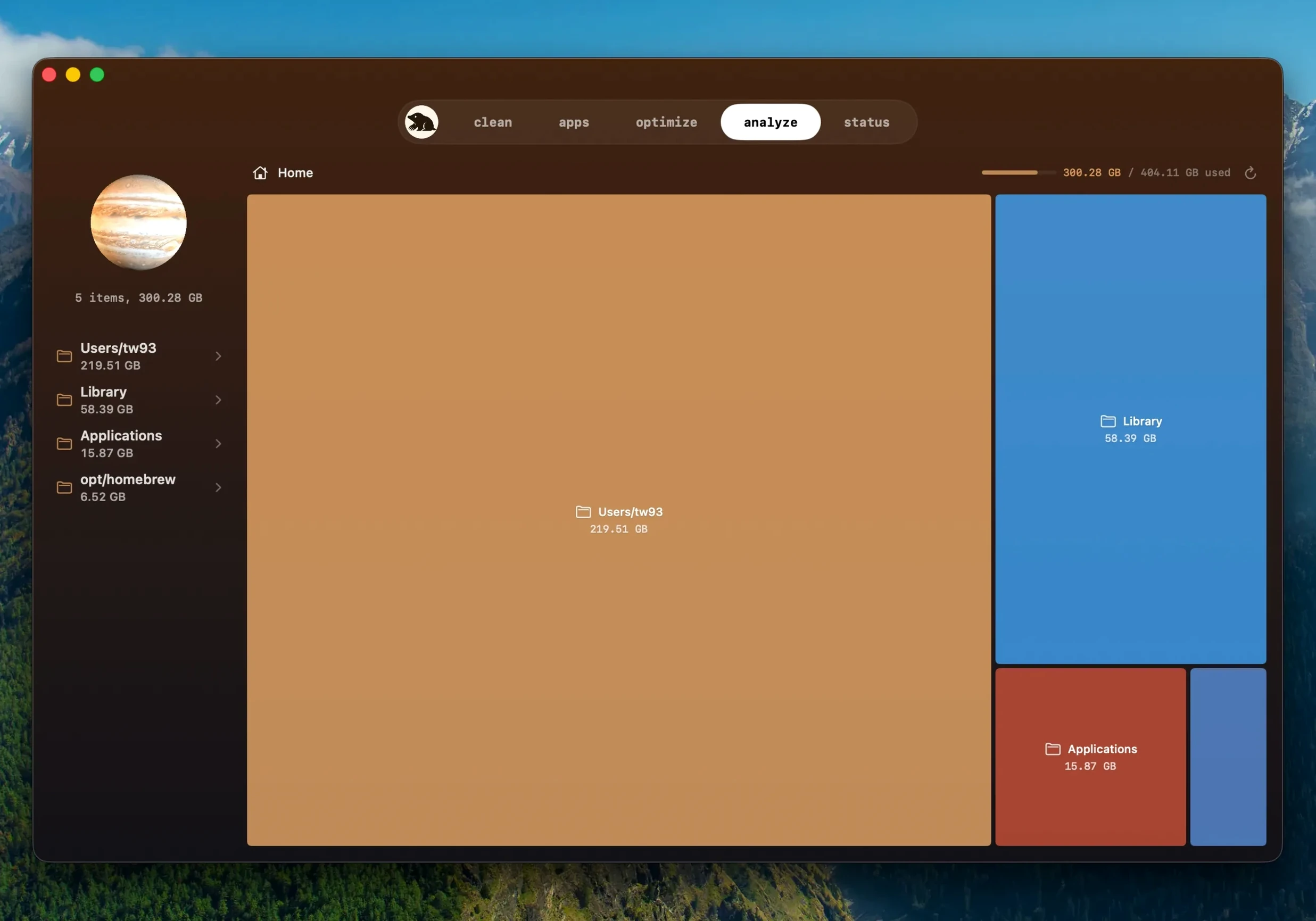
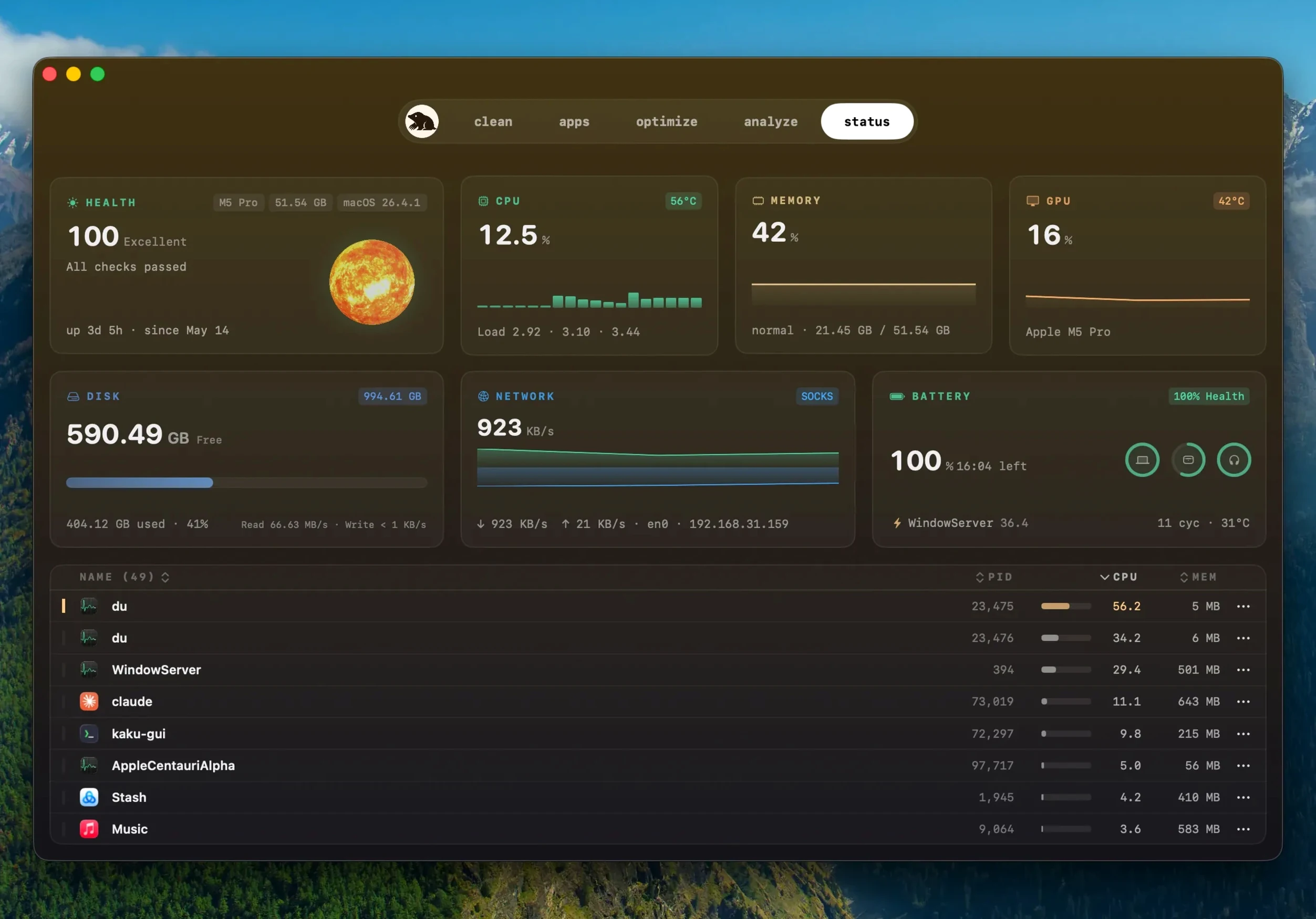
Mole is a straightforward system cleanup app that clears junk, removes app leftovers, and maps disk usage on your Mac.
- Run a full maintenance sweep with one click — scans, then waits for your confirmation before deleting anything.
- Removes application leftovers that standard uninstalls leave behind.
- Analyses disk space with a tree map, so you can spot large folders instantly.
- Updates apps you downloaded from websites, all from inside Mole.
- Skips files it cannot identify safely, rather than removing something important.
- Runs all scans locally — nothing leaves your machine.
The tool needs macOS 14 or later and works on both Apple Silicon and Intel Macs. It asks before quitting a running app to install an update, and reopens the app once the install finishes. If a download already exists, it reuses it instead of fetching it again.
First days with Mole
Install, launch, then do these four things before you open anything else.
- Grant full disk access. System Settings → Privacy & Security → Full Disk Access → toggle Mole on. Without it, the deep scan skips folders it cannot read. Tree maps look sparse and some leftovers stay hidden.
- Run a quick scan first. Don’t start with deep scan. The quick pass catches browser caches, old logs, and temporary files — safe ground while you learn what Mole flags.
- Read the file list before confirming. Each item shows its size and path. If a path looks unfamiliar, tap it to preview. Mole will not delete without your confirmation, but skimming the list teaches you what your Mac accumulates.
- Open the tree map. Scan takes under a minute on most machines. The visual block layout shows which folders eat your disk. Drag to zoom in, click to drill down. You’ll spot forgotten Downloads folders and old DMG files straight away.
After that first sweep, set a repeating reminder. Once a fortnight is enough for most users. Run maintenance tasks — the one‑click option under the Tools section — after macOS point updates. That flushes system caches that upgrades leave behind.
How Mole compares
Three Mac cleanup tools cover similar ground. Mole, CleanMyMac X, and BuhoCleaner. They overlap on cache cleaning, leftover removal, and system monitoring. The differences sit in approach and extras.
- CleanMyMac X bundles malware scanning, privacy protection, and a menubar widget. Mole skips malware and privacy tools entirely. CleanMyMac feels broader; Mole stays narrower and lighter. If you want a single app that does everything, CleanMyMac covers more. If you want a tool that cleans and analyses without background agents, Mole fits better.
- BuhoCleaner shares Mole’s focus on cleaning and disk analysis. Both show tree maps and both scan locally. BuhoCleaner adds duplicate file finding, which Mole lacks. Mole adds in‑app software updates for non‑App Store apps, which BuhoCleaner does not. The difference is which problem you face more often: scattered duplicates or outdated apps from websites.
Mole’s edge sits in three spots: it runs everything locally with no uploads, it skips items when uncertain instead of guessing, and version 1.14.0 brought software updates inside the app. Users who tried mole 1.13.0 or mole 1.12.1 will notice the update feature landed mature — it asks before quitting running apps and reopens them afterwards, which early builds did not do.
App pairings and macOS integration
Mole slots into a Mac workflow without overlapping what macOS already does well.
With Finder and Storage settings. macOS System Settings → General → Storage gives a broad breakdown. Mole’s tree map gives the granular view. Use the Storage pane to spot large categories — Documents, iOS Files — then open Mole’s disk analysis to drill into the specific folders eating space.
With Brew and CLI tools. The developer’s CLI project handles terminal‑side cleanup. The Mac app handles the visual side. Mac users who run the CLI for quick shell access often keep the app for disk mapping and the update feature. The CLI and the app read the same scan engine but serve different moments: terminal for speed, GUI for review before deletion.
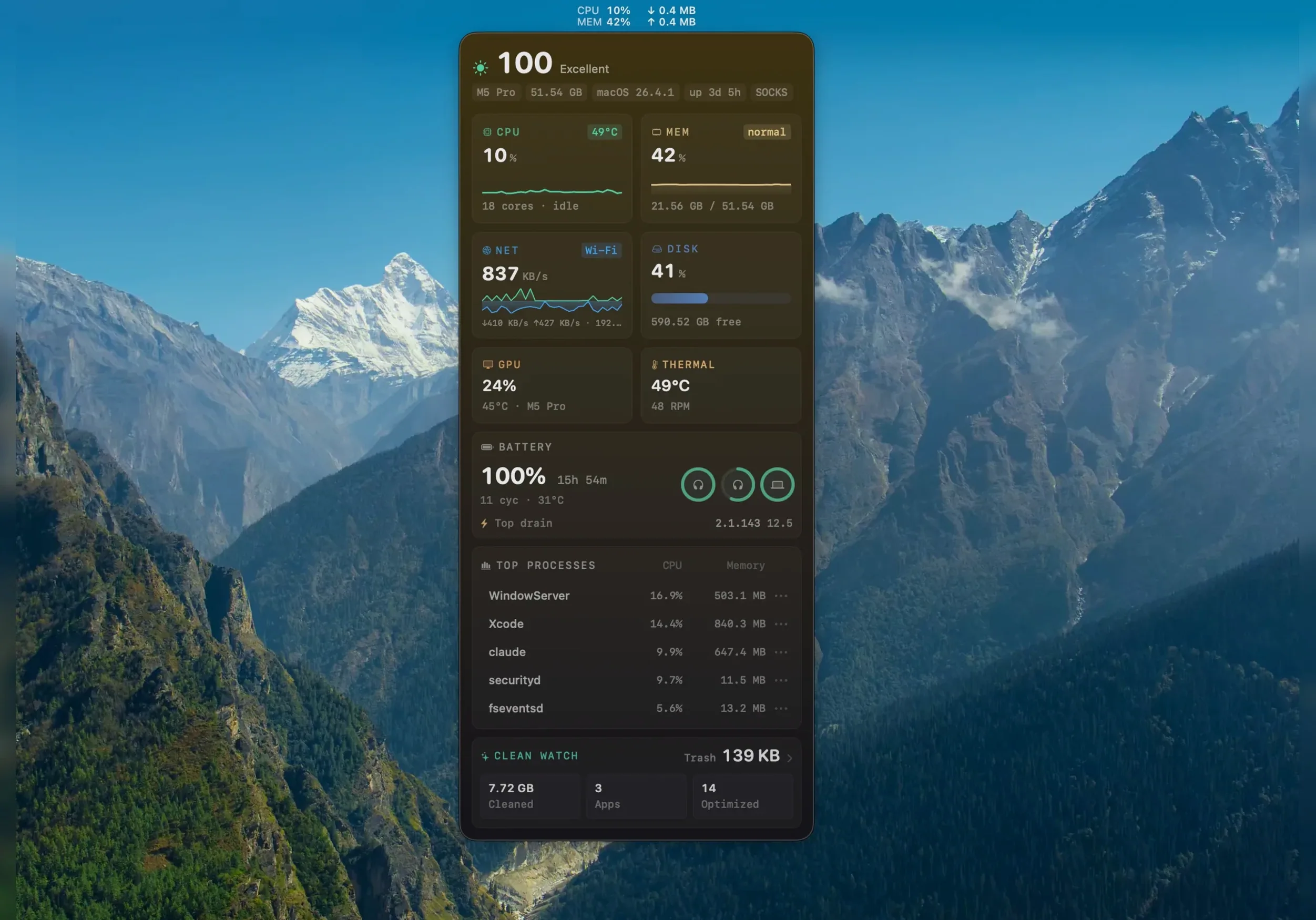
With Activity Monitor. Activity Monitor shows live process lists. Mole’s system status panel shows CPU, memory, GPU, disk, network, battery, and temperature in one glance. Keep Activity Monitor open when you need per‑process detail. Keep Mole’s panel open when you want a dashboard. They complement each other without duplication.
With Time Machine. Before a deep clean, let Time Machine run a backup. Mole is careful — it skips what it cannot identify — but a snapshot before any bulk deletion is good practice. Especially before removing app leftovers, where a misread path could pull config files you later need.
- Apps you downloaded from websites can now update directly inside Mole.
- A newer build of the same version is detected and offered.
- The app asks before quitting a running app and reopens it after the update installs.
- macOS 14 or later
- Apple Silicon or Intel Mac
- Full disk access recommended
Questions the team asks
All scanning and cleaning runs locally on your Mac by default — no data is sent elsewhere.
No. Mole always asks you to confirm an action before it processes anything, and it skips items it considers suspicious.
It requires macOS 14 or later and supports both ARM (Apple Silicon) and x86 64-bit Intel Macs.








Comments 0
Sign in or create an account to add a comment.
No comments yet. They go up after moderation.