
One Switch — Mac download
Download (7 MB) Earlier builds
Ticked
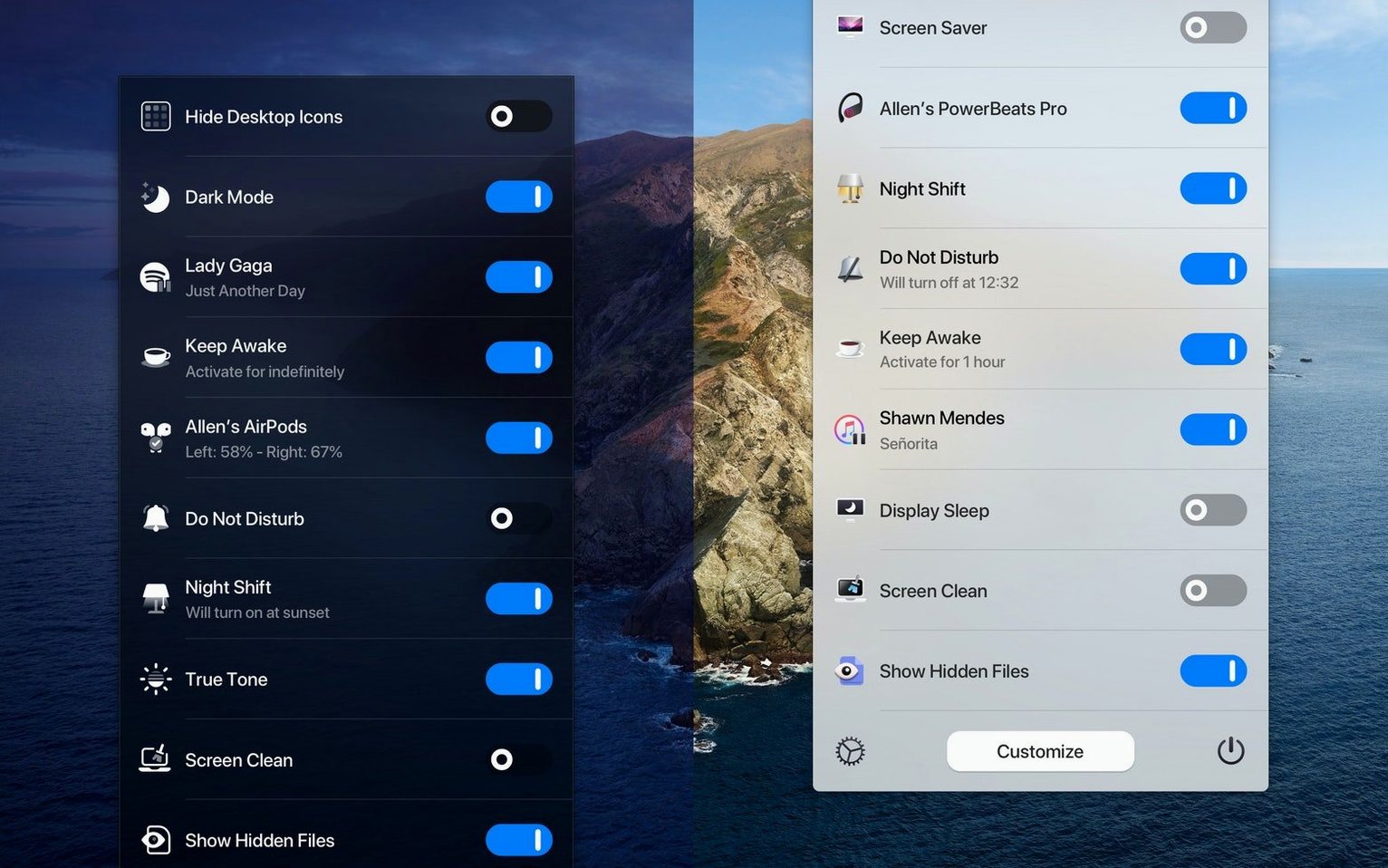
You hunt through System Settings for Display, or dig into a submenu just to put the Mac to sleep. Each switch takes a few clicks. Do that ten times a day and the friction adds up.
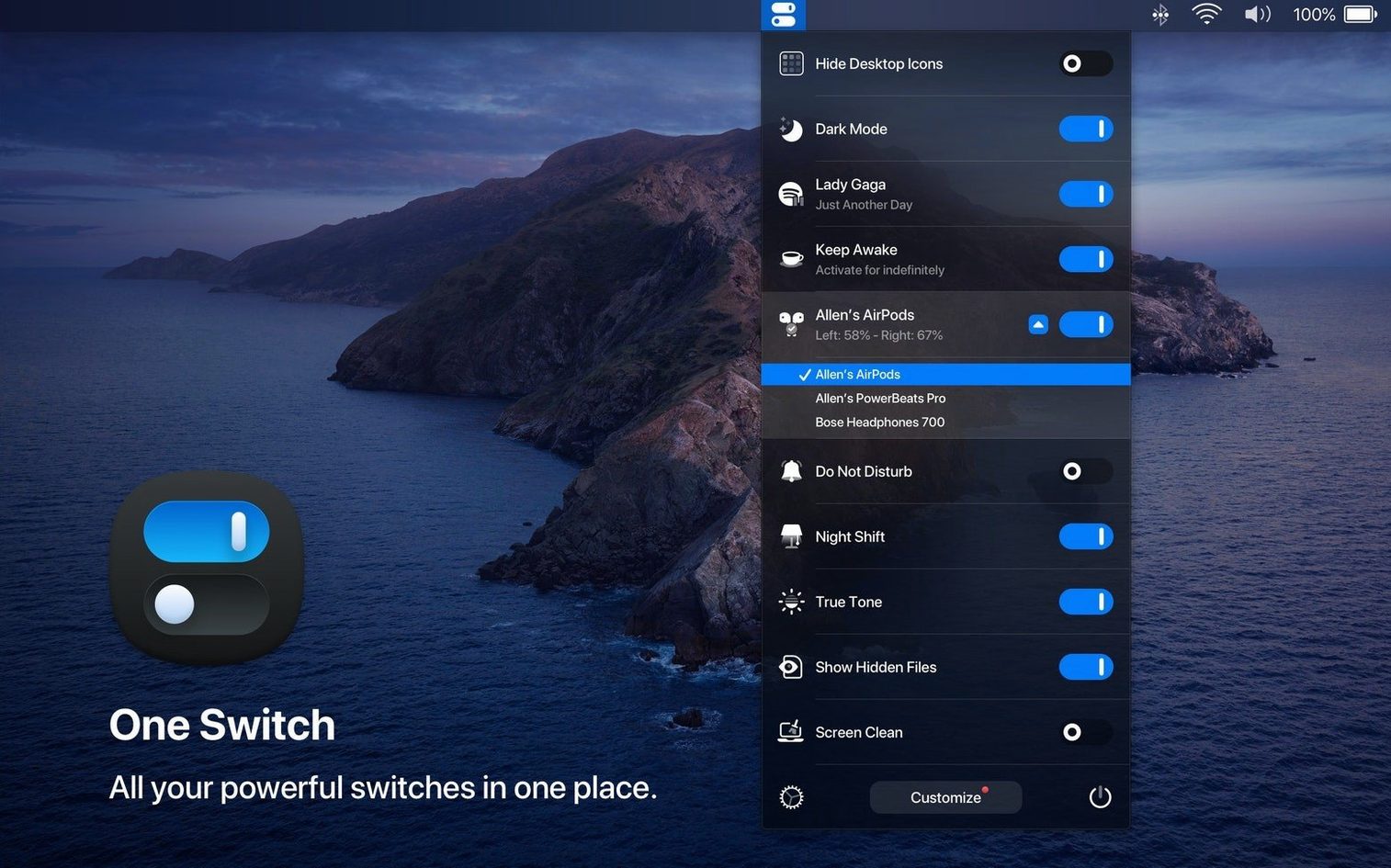
One Switch collects those scattered toggles into one menu bar app. Click the icon and you see a panel of controls — up to seven, arranged as an 8 position rotary switch. Flip what you need, close the panel, carry on.
Dark Mode on a timer, plus menu bar decluttering
- Anyone who toggles Dark Mode on and off during the day. The app can automate the switch on a schedule.
- Replacing several single-purpose menu bar utilities with one tool. Configure which switches show and hide the ones you never touch.
- Setting automatic sleep and wake times without opening Energy Saver preferences.
Seven slots you curate, no floating window
- Seven switches sit in the panel at once. You choose which seven from the available set.
- The app runs from the menu bar — there is no separate window to leave open.
When a toggle ignores you, check macOS permissions
One Switch relies on macOS permissions to control things like Do Not Disturb and desktop icons. When a toggle does nothing, the fix is usually in System Settings.
- Do Not Disturb switch greyed out. Open System Settings → Privacy & Security → Automation. Find One Switch in the list and make sure the tick box for System Events is on. If it is missing, toggle the switch off and on from within the app to re-trigger the permission prompt.
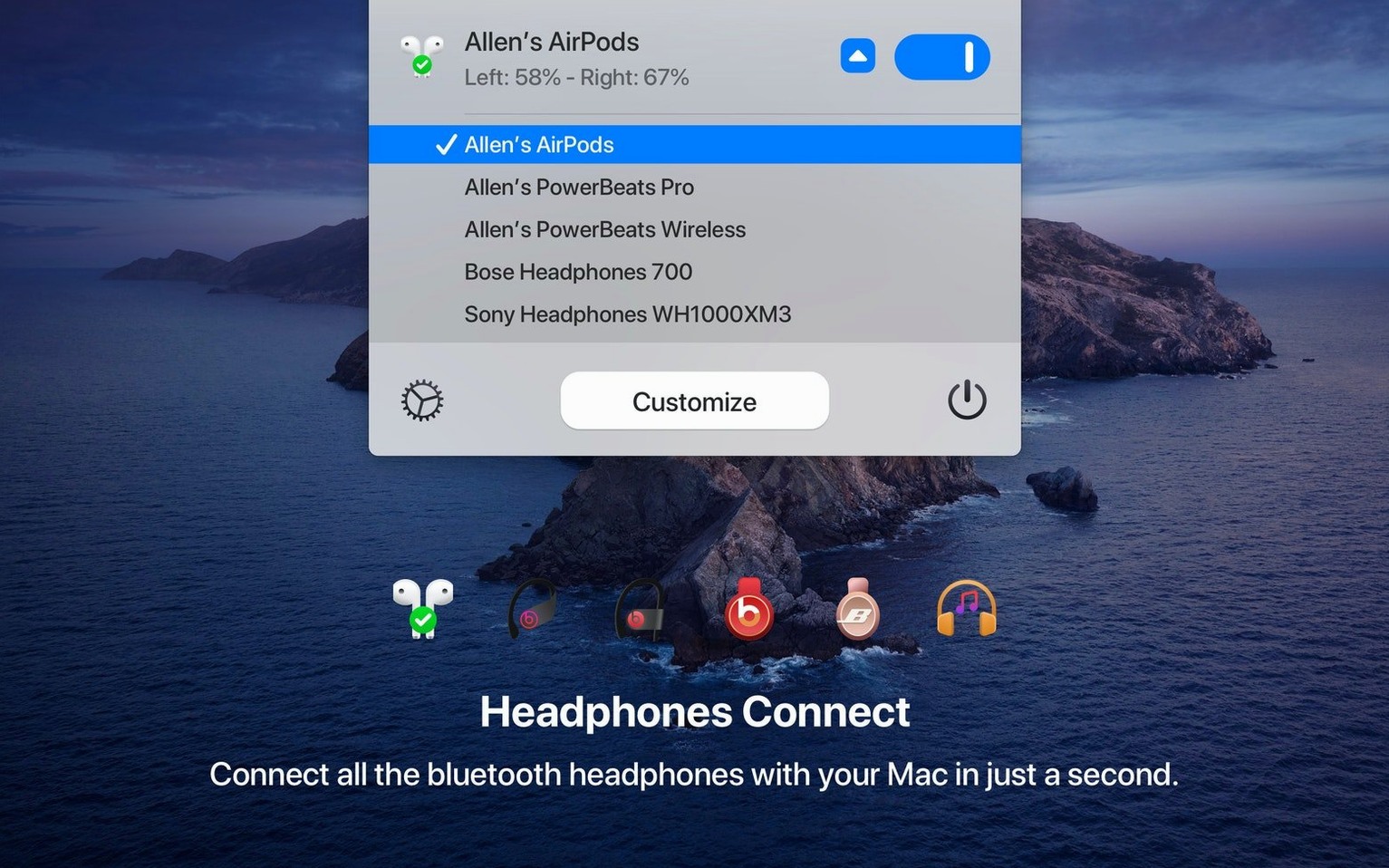
- AirPods switch not connecting. The Mac needs Bluetooth on and the AirPods paired to the machine already. One Switch does not pair new devices — it only jumps to ones your Mac knows. If the AirPods are connected to an iPhone nearby, disconnect them there first.
- Desktop icons not hiding. The app asks for Finder access on first use. Denied once, it stays denied. Reset it under System Settings → Privacy & Security → Automation, then flip the switch again.
- Menu bar icon vanishes. Too many menu bar apps push icons behind the notch or off-screen. Drag One Switch leftward while holding Command to reposition it, or use a tool like Bartender to manage spacing.
What changed with multilingual support
Version 1.35.4 added German, Italian, Japanese, Korean, Portuguese, Russian, and Spanish. Before that, the app spoke only English. For everyday use, two things shifted.
- Switch labels localise automatically. The panel picks up your macOS system language. If your Mac runs in Japanese, every toggle reads in Japanese — no extra config needed. Testers switching between languages on the same machine report the change is instant after a relaunch.
- Support for non-Latin scripts exposed a layout quirk. Longer translated labels, especially in German and Russian, occasionally wrap to two lines inside the 8 position rotary switch panel. The panel does not resize to compensate. Keeping the switch count to six or fewer avoids the text crunch on smaller menu bar resolutions.
Using it as a settings app instead of a shortcut panel
New users tend to treat One Switch like a settings app rather than a shortcut panel. That leads to a few repeat patterns.
- Enabling all switches at once. Seven toggles fit in the panel, but the goal is speed. Packing in switches you use twice a month defeats the point. Start with three — Dark Mode, Do Not Disturb, and Sleep — then add only what you reach for weekly.
- Ignoring the schedule feature for appearance switching. Manually flipping between Light and Dark every morning and evening is what the automation exists to avoid. Set a custom schedule in the switch preferences and the app handles it silently. A one-time setup replaces two daily clicks forever.
- Launching from the disk image every time. After dragging the app to the Applications folder, some people keep opening it from the mounted DMG. That leaves a disk image sitting on the desktop and stops the app from auto-launching at login. Eject the DMG and launch from Applications or Launchpad once the copy finishes.
- Forgetting the app is not a full system preferences replacement. One Switch toggles states — it does not configure them. The Do Not Disturb switch flips the mode on or off, but you still set allowed contacts and repeat calls in System Settings. Think of the app as a light switch, not the electrician.
- Added multilingual support: German, Italian, Japanese, Korean, Portuguese, Russian, and Spanish now available.
- macOS 10.15 or later
- Apple Silicon and Intel Macs
Questions the team asks
Yes, you can set it to switch between Light and Dark appearance automatically during the day.
It supports up to seven switches visible in the menu bar panel at once.






Comments 0
Sign in or create an account to add a comment.
No comments yet. They go up after moderation.