

Pacifist — Mac download
Download (38 MB) Earlier builds
Ticked
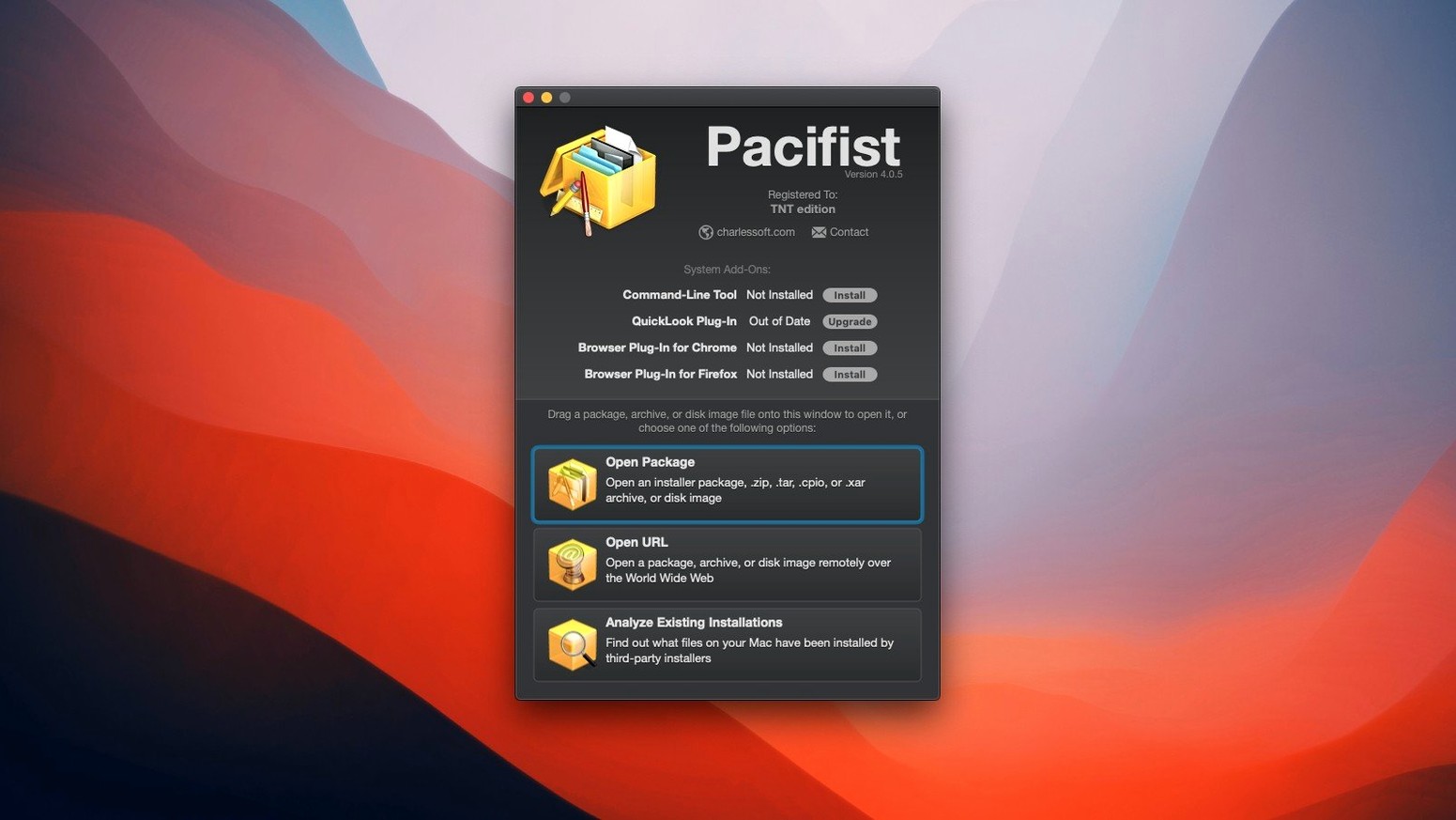
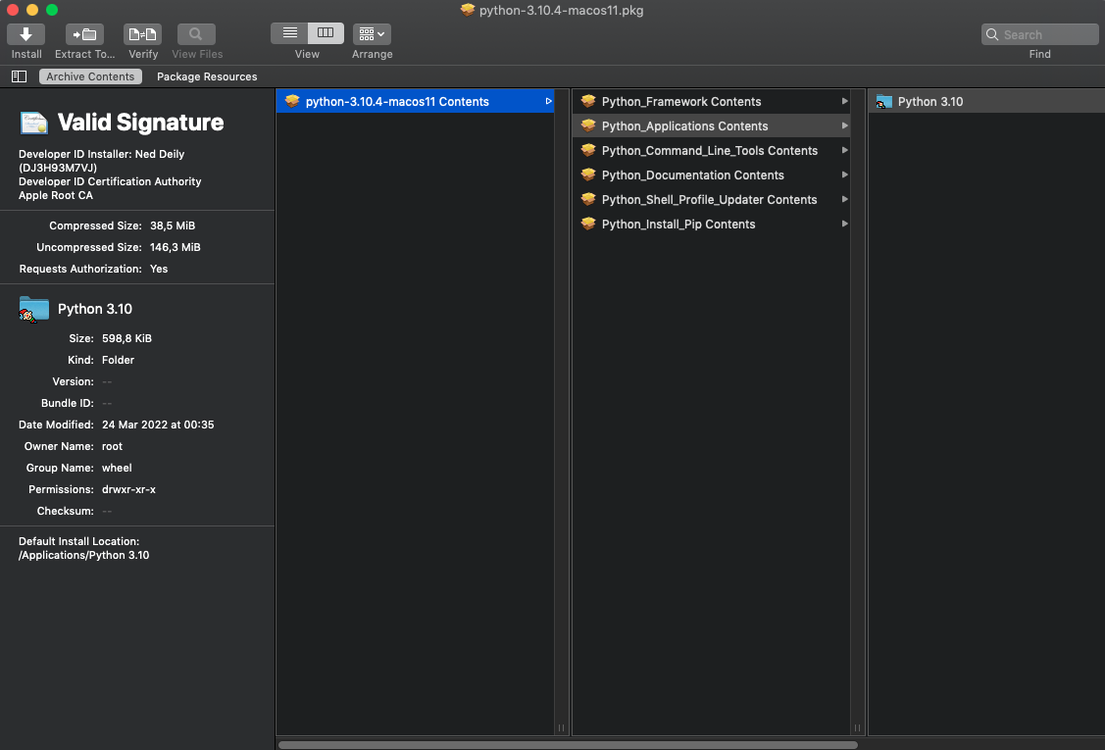
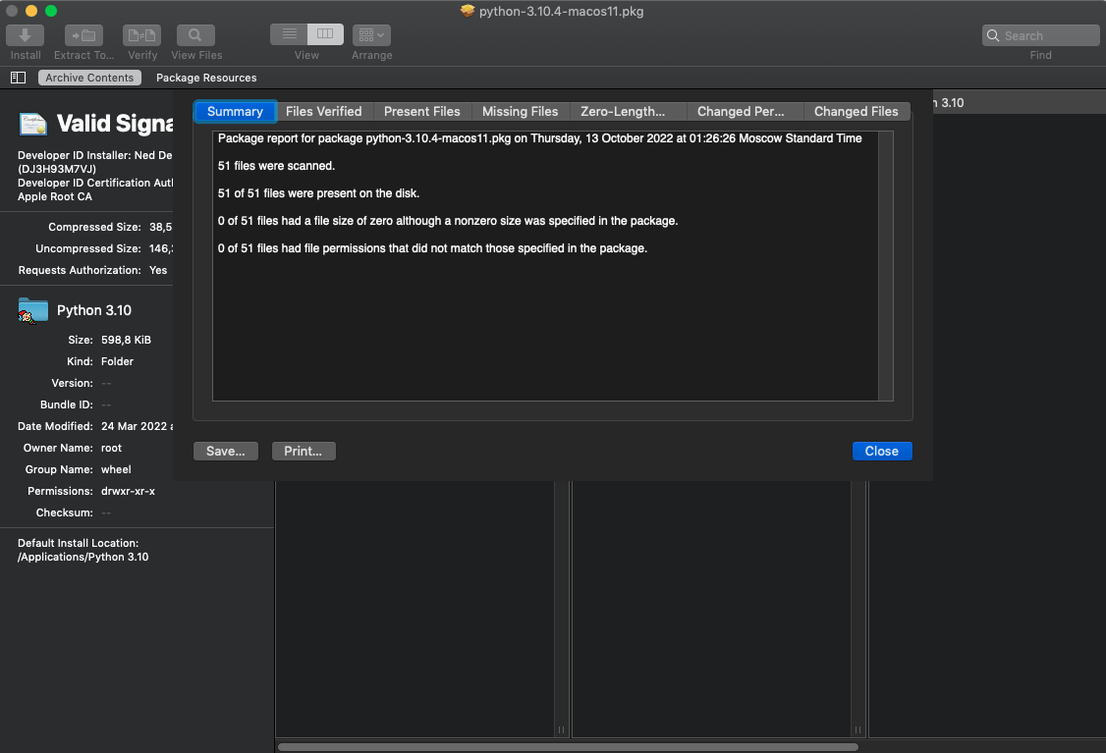
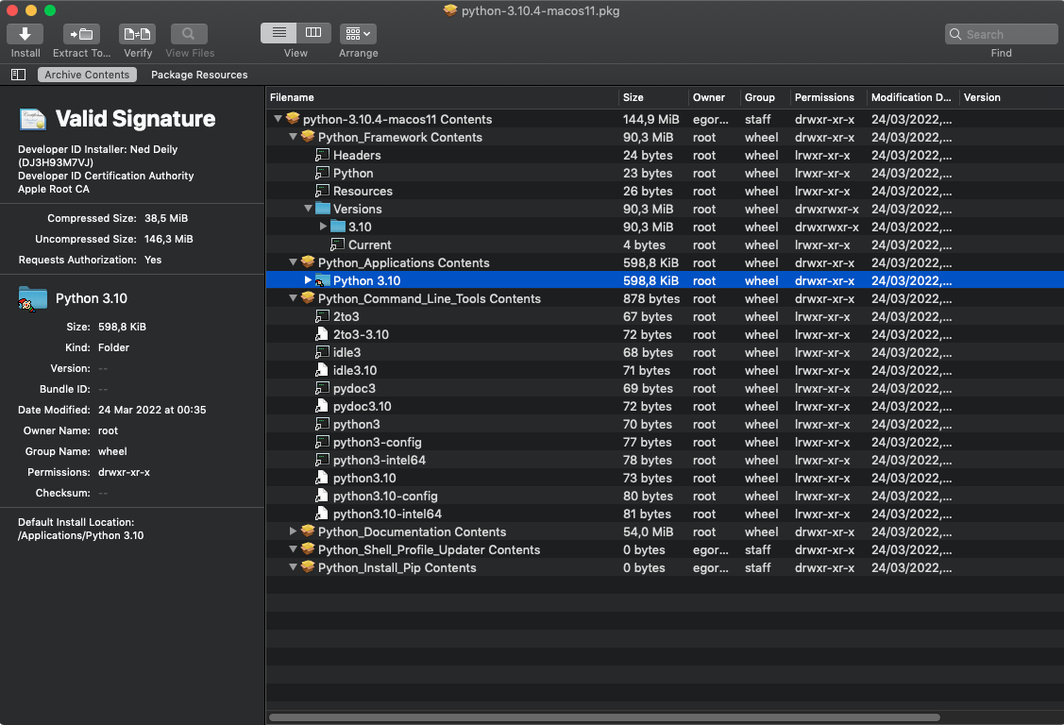
Version 4.1.4 brings updates for macOS Tahoe, more accurate asset catalog extraction and a handful of bug fixes.
| Quick facts | |
|---|---|
| Current version | 4.1.4 |
| Developer | CharlesSoft |
| macOS | 10.15 to 11.x |
| Architecture | Intel |
Pacifist works as a multi-tool for .pkg installer packages, disk images and file archives. You can open a package and pull out a single file or folder without running the full installer. It also scans your existing applications for missing or outdated files, and can identify kernel extensions, showing whether they came from Apple or a third party.
System admins and support techs inspecting packages
Pacifist suits a narrow set of users, but for them it removes a lot of friction.
- System administrators who deploy packages across fleets of Macs and need to inspect contents before rollout.
- Support technicians restoring a single missing file from an installer without wiping and reinstalling an app.
- Security-minded users who want to see what a downloaded package actually contains before they run it.
- Developers checking whether an installer placed kernel extensions and who signed them.
- Anyone recovering from a botched install where one component is broken but the rest of the system works.
Casual users who install apps from the App Store and never look inside a .pkg will rarely need it. The moment a package fails or a file goes missing, that changes.
Workflow: restoring a missing file from a .pkg
Say an application launches but complains about a missing framework. You want that one file back, not a full reinstall.
- Download the original installer .pkg for the application.
- Open the .pkg in Pacifist. The package contents appear as a file tree.
- Use the search field to locate the framework or file by name.
- Select the file and choose to extract it to a temporary folder.
- Move the extracted file into place inside the application bundle or the relevant system folder.
- Launch the application to confirm the error is gone.
The same flow works for preference panes, launch daemons and other components that installers scatter across the system. You skip the parts you do not need and keep the parts you do.
Archive formats you can extract single files from
Most people want to know whether Pacifist can extract from every file they throw at it. The short answer: it covers .pkg, .dmg, .zip, .tar, .tar.gz, .tar.bz2 and .xar. Some archive types also let you pull a single file over HTTP instead of downloading the whole archive first.
Another frequent question is about safety. Pacifist never runs the installer you are inspecting. It reads the package contents. That makes it useful for checking a suspicious download before you commit to installing it.
People also ask whether Pacifist can repair applications. It does not repair anything by itself. What it does is give you access to the files inside an installer so you can restore what is missing or damaged by hand. The repair is yours; Pacifist provides the parts.
Finally, users on newer Intel Macs often ask about compatibility. Pacifist 4.1.4 runs on Intel Macs with macOS 10.15 to 11.x, so anyone still on those systems can use it without issue.
- Updated for macOS Tahoe.
- More accurate parsing and extraction of images from asset catalogs.
- Miscellaneous bug fixes.
- macOS 10.14.6 or later
- Intel-based Mac
- Interface language: English
Questions the team asks
Yes. Open the package in Pacifist, browse the contents and extract a single file or folder to any location.
It can scan installed applications and flag files that are missing or out of date.
Pacifist identifies which installer placed a kernel extension and whether the developer is Apple or a third party.









Comments 0
Sign in or create an account to add a comment.
No comments yet. They go up after moderation.