

Permute — Mac download
Download (84 MB) Earlier builds
Ticked
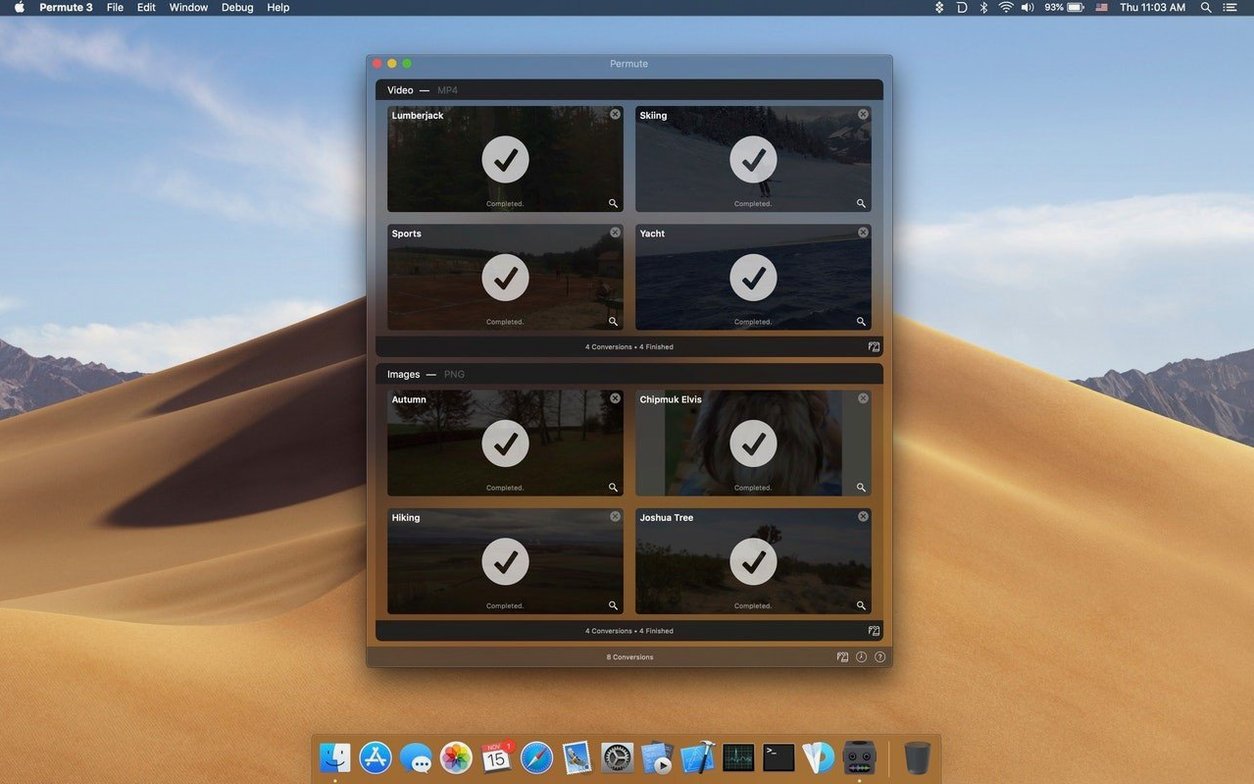
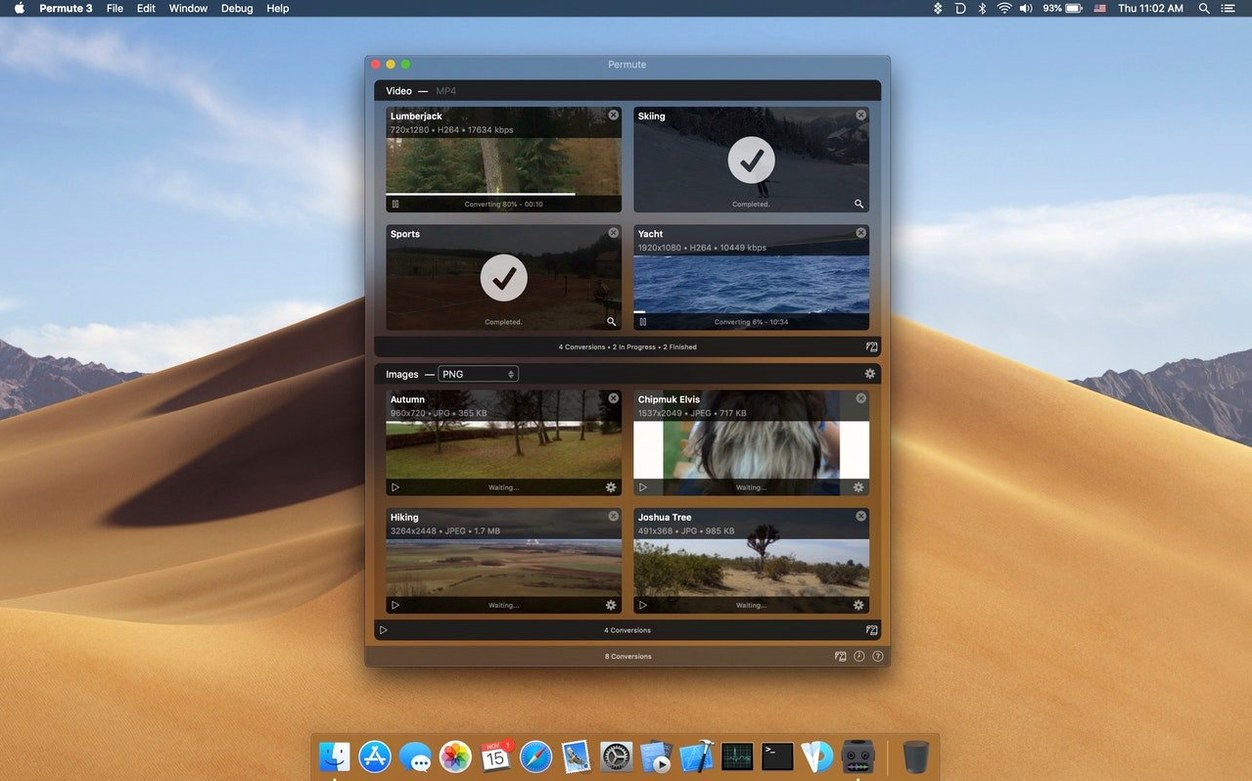
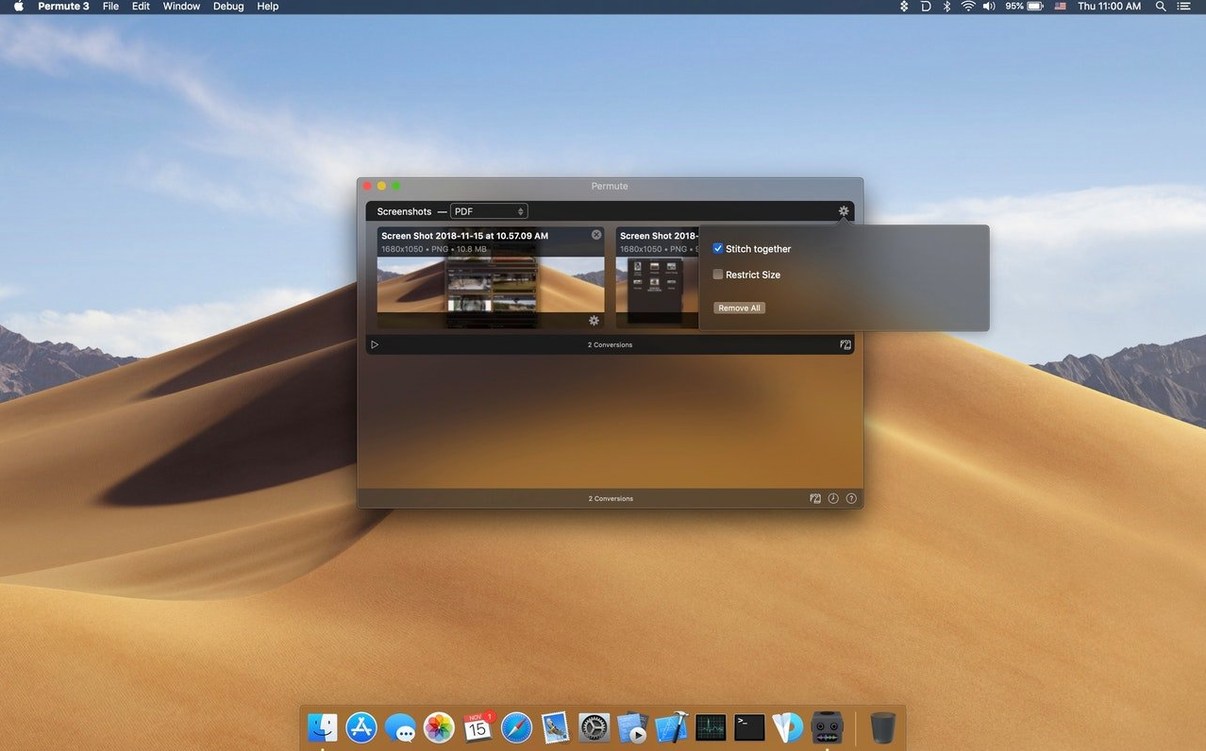
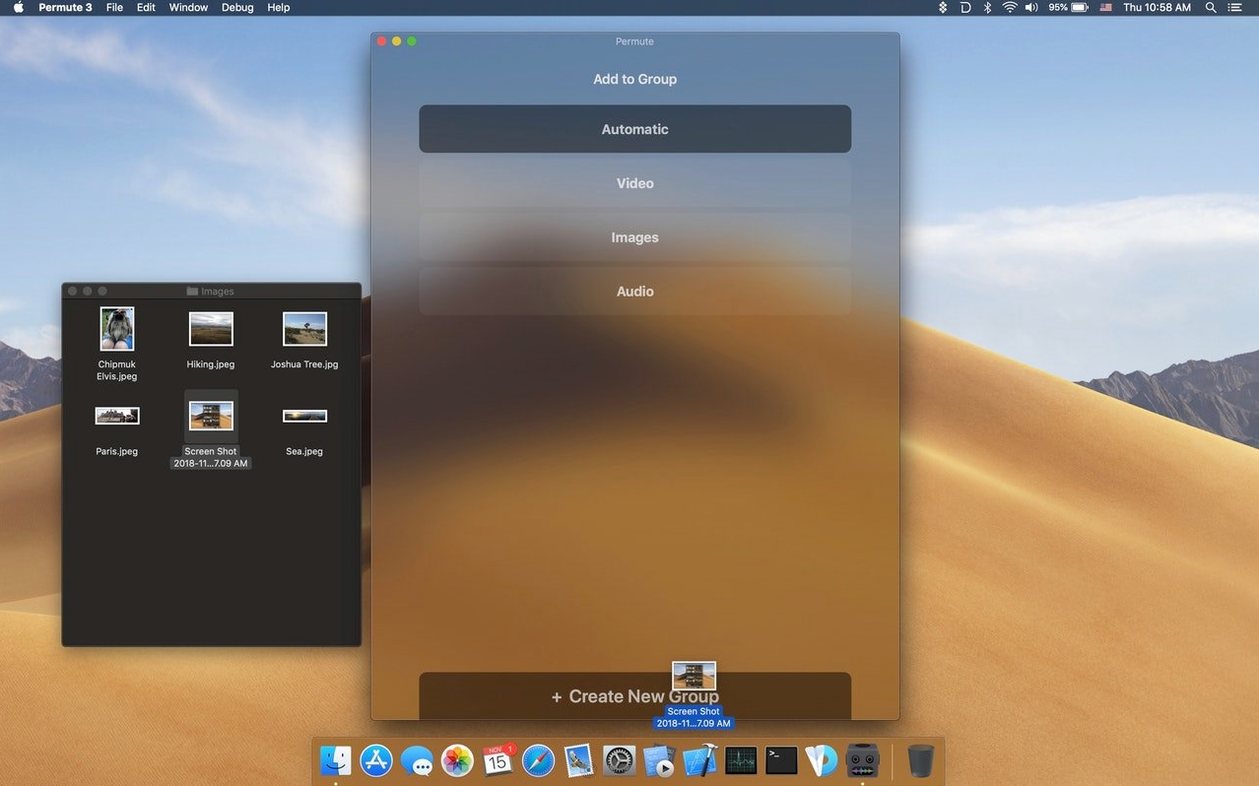
Permute 4 suits people who convert files often but want the process over in seconds. Drag in a file, pick a format, done.
Convert a video
Drop in a clip and choose the output format. Permute handles the rest without extra settings to fuss over.
Merge two videos
Select two clips and combine them into one file. The merge option sits alongside the usual conversion choices.
Convert audio or images
How Permute compares
Permute sits next to a handful of Mac media converters. Here is how it stacks up against three others.
Permute vs HandBrake
HandBrake gives you granular control — codecs, bitrates, filters, presets. Permute gives you a format picker and a start button. Good for different people.
- Good for HandBrake: deep encoding control, open-source, DVD ripping.
- Good for Permute: speed, image and audio support, drag-and-drop simplicity.
Permute vs FFmpeg
FFmpeg is the engine under Permute. On its own it is a command-line powerhouse. Permute wraps that power in a window you can use without typing a single flag.
- Good for FFmpeg: every format edge case, scripting, zero overhead.
- Good for Permute: visual queue, drag-and-drop, subtitle and merge tools without syntax.
Permute vs Compressor
Apple Compressor targets Final Cut Pro workflows — batch templates, distributed encoding, tight integration with the editing suite. Permute targets anyone with a file and a format in mind.
- Good for Compressor: professional video pipelines, custom export settings, network encoding.
- Good for Permute: everyday conversions, image and audio tasks, not tied to an editing suite.
Drag in a 2.3 GB screen recording
You have just finished editing a screen recording. The project file sits on the desktop at 2.3 GB — far too large to share. You open Permute.
- Drag the recording into the window. Permute recognises it instantly as H.264 video with AAC audio.
- Click the format dropdown and choose HEVC. The estimated output size updates to around 400 MB.
- Check the Include subtitles box and drop in an SRT file you prepared earlier.
- Press Start. A progress bar fills while the fans stay quiet — Apple Silicon keeps things cool.
- Three minutes later the converted file appears on the desktop. You attach it to an email and send it off.
No settings panels, no preset browsing, no waiting for a timeline to render. The whole task took the time of a coffee top-up.
Scenario: podcast producer
Sarah runs a weekly interview podcast. Each episode arrives as a large WAV file from her remote recording service. She needs it as MP3, a trimmed highlight clip as M4A, and a square thumbnail as JPEG for the show notes page.
She drags the WAV into Permute and picks MP3 — the full episode converts in under a minute. Next she drags the same file in again, selects Trim, marks a 90-second segment, and picks M4A. Finally she drops a PNG logo file, picks JPEG, and checks the resize option to 1400×1400 pixels. Three conversions, one queue, all while she writes the episode description in another window.
Same workflow for sound files and pictures. Point it at the file, select a format, and the conversion starts.
- macOS 26 or later
- Apple Silicon Mac
Questions the team asks
No. The developer page lists Apple Silicon as a requirement, with macOS 26 or later.
It converts video, audio, and image files, and can also turn files into ISO format.





Comments 0
Sign in or create an account to add a comment.
No comments yet. They go up after moderation.