

RAR Extractor — Mac download
Download (14 MB) Earlier builds
Ticked
Compressed files arrive in dozens of formats, and Finder alone cannot unpack most of them. RAR Extractor 13.9.6 steps in as the utility that opens practically any archive you drop on it, then gets out of your way.
What version 13.9.6 brings and what stays reliable:
- Batch unpacking still runs multiple archives in one go — no need to queue them individually.
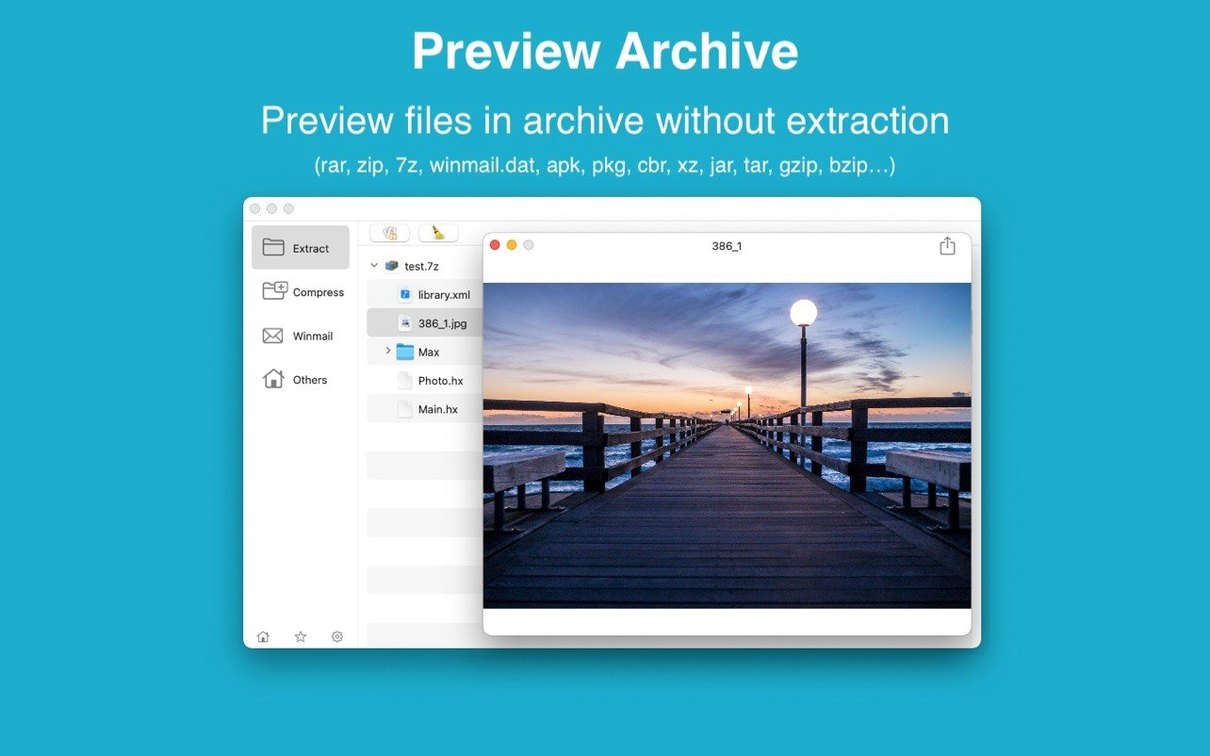
- Fast preview works before extraction, so you can check contents of a RAR or ZIP without committing to a full unpack.
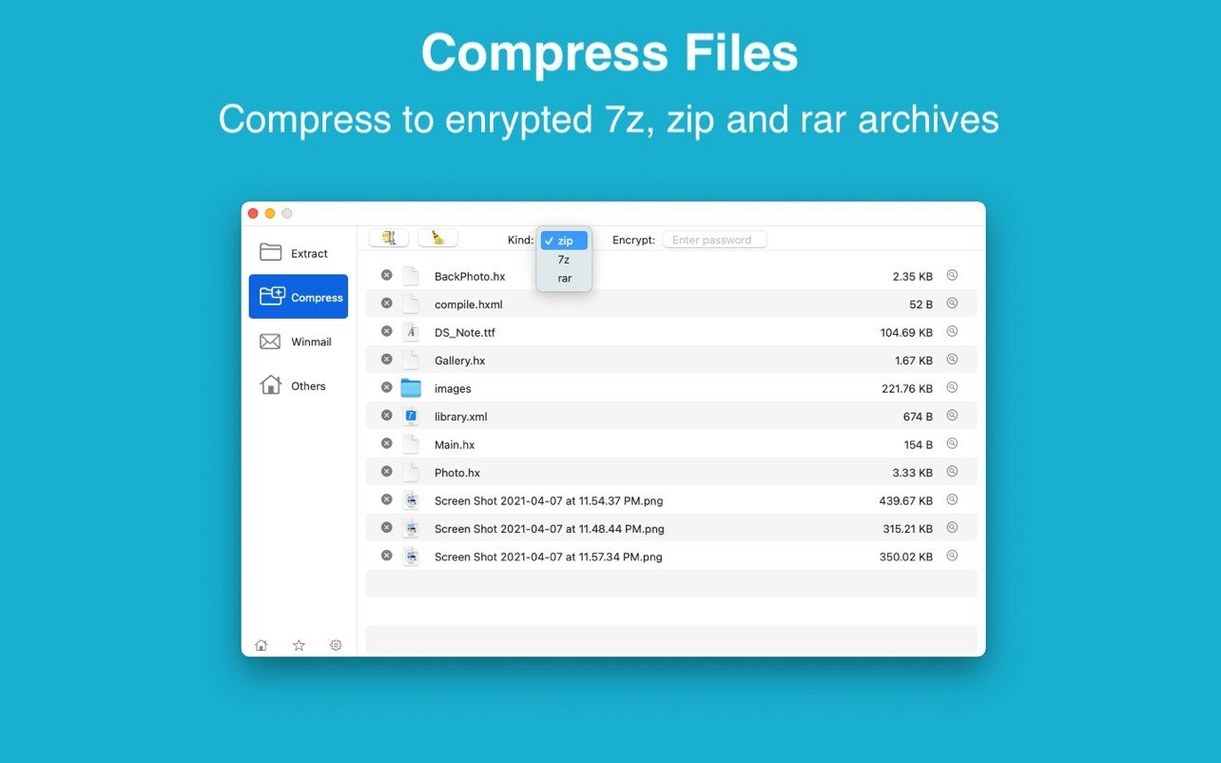
- Password-protected ZIP and 7Z creation is included for when you need to lock down outgoing files.
- Dragging an archive onto the Dock icon opens or extracts it immediately.
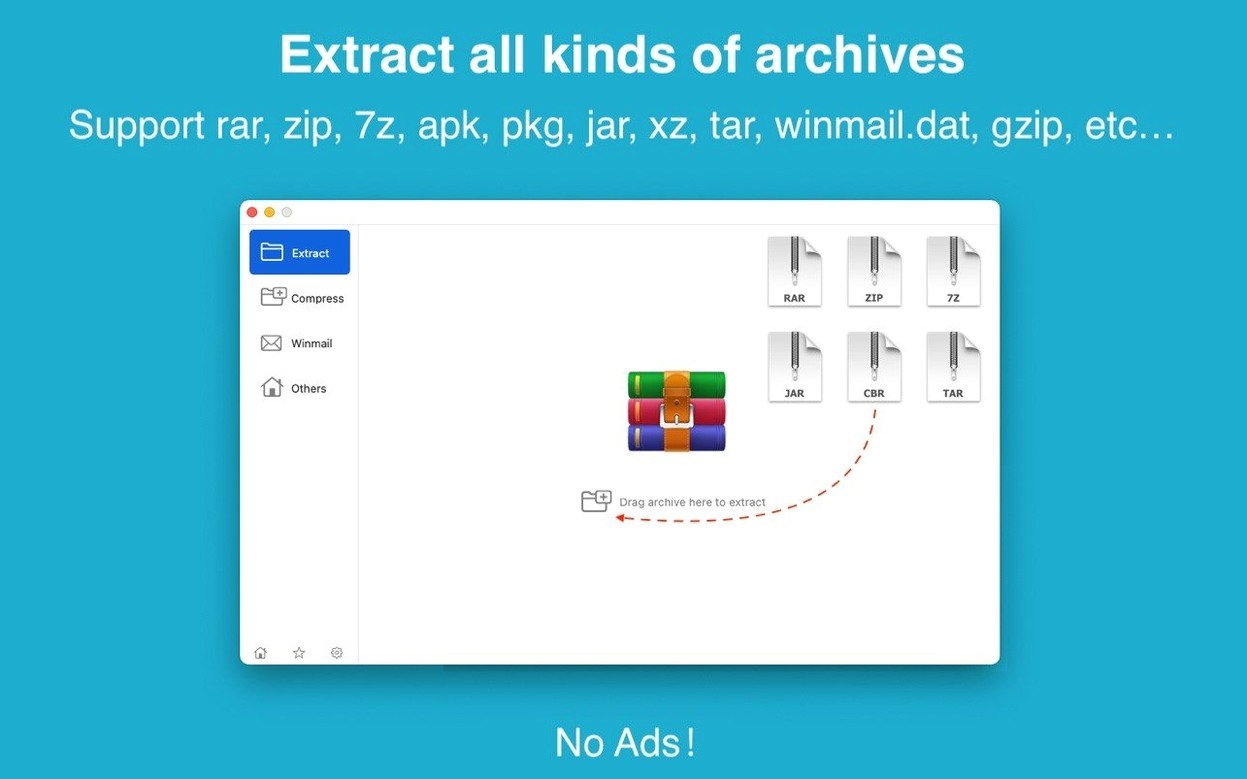
- Set as the default archive app, it handles double-clicked files across RAR, ZIP, 7Z, TAR, GZIP, CAB, ISO, APK and many other formats.
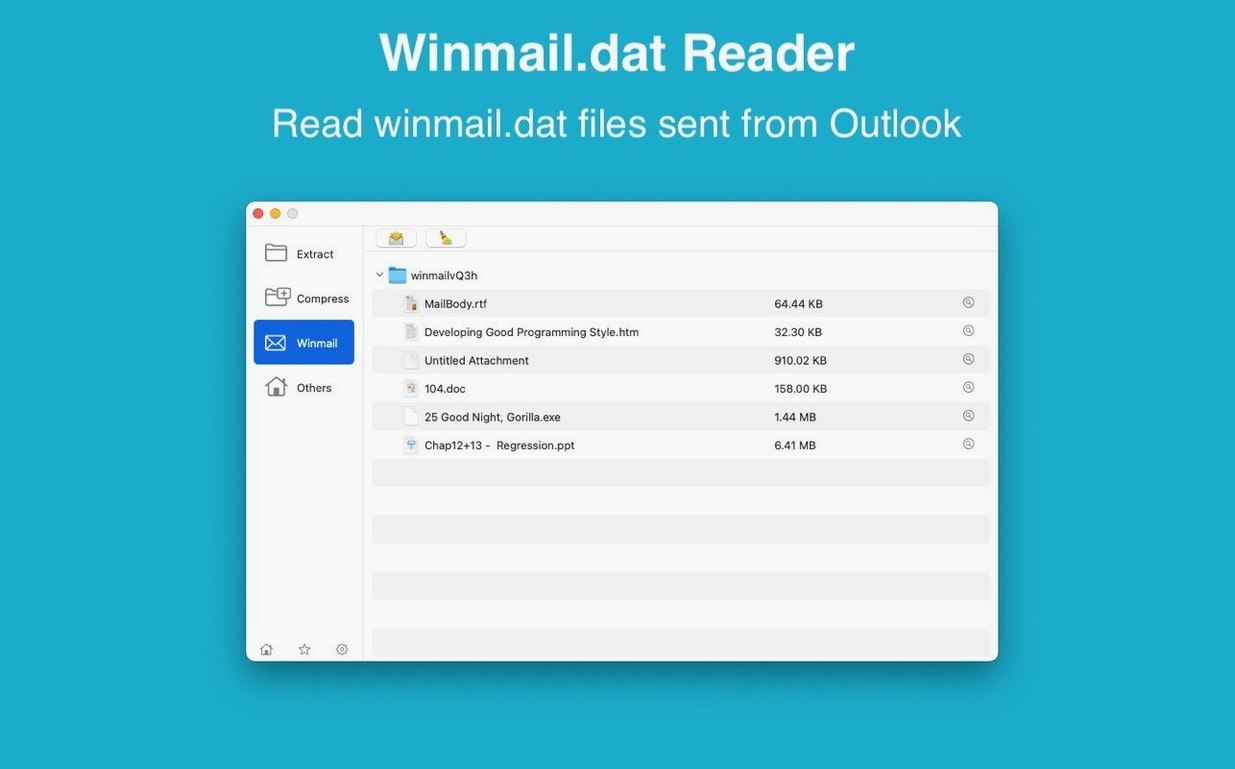
- The winmail.dat previewer remains part of the toolkit, solving those stubborn Outlook attachments.
The core extraction engine supports over forty formats, from common ones like RAR and ZIP through to PAX, LZH, ARJ and NRG. Interface languages are English and Simplified Chinese, and the app runs natively on both Intel and Apple Silicon Macs from macOS 11.5 onward. The current release carries forward the straightforward unpacking workflow while keeping the preview and batch features that reduce unnecessary clicks.
Habits from other tools that trip you up
Most problems come from habits picked up in other tools, not from the app itself. Here is what catches new users out.
- Dragging files without looking at the destination. RAR Extractor uses the same folder as the archive by default. If you drag a file from a packed Downloads folder, the extracted folder lands there too — easily lost among thirty other items.
- Ignoring the preview pane. Beginners double-click an archive and wait for full extraction, unaware the file list already shows everything inside. For a single PDF or image, preview is instant and saves unnecessary unpacking.
- Setting it as the default app, then forgetting. Once RAR Extractor takes over archive associations, every double-clicked RAR, 7Z or TAR opens in it. Users accustomed to another tool sometimes panic when the familiar window does not appear.
- Creating password-protected ZIPs without checking the encryption option. The password field is visible, but AES-256 encryption is a separate toggle. A password without that toggle leaves the archive less secure than intended.
- Batch unpacking into one folder. Selecting five archives and extracting them all to the same location without subfolders creates a jumbled pile of files. The app handles batch jobs reliably, but it follows the destination you give it.
Three archives in a project folder on Monday morning
Monday morning, three archives land in a project folder: a client RAR, a zipped invoice set and a winmail.dat attachment forwarded from a colleague on Outlook.
- Check contents first. The RAR is large, so you drag it onto the Dock icon. The file list opens immediately, showing fourteen folders. You spot the two you need and select only those for extraction, leaving the rest packed.
- Extract to a named folder. You drag the selected folders to the desktop icon, and RAR Extractor places them in a new folder with the archive name. No hunting required.
- Handle the winmail.dat. You drag the mysterious attachment into the app. The preview renders the original file names and structure instantly. Two clicks later, the actual PDFs are on your drive.
- Create an encrypted 7Z for the reply. You select the revised documents, right-click to create a new 7Z, set a password and enable AES-256 encryption. The archive is ready before the email draft is finished.
- Batch unpack the rest. Four more ZIPs arrive while you work. You select them all, drag to the app and let extraction run. No progress dialogues compete for attention — the files simply appear.
The whole session takes under three minutes, and no format stalls the flow. RAR, ZIP, 7Z and winmail.dat each need a different approach in other tools; here they all respond to the same drag-and-extract habit.
- macOS 11.5 or later
- Apple Silicon or Intel 64-bit
Questions the team asks
Yes. It can create password-protected ZIP and 7Z archives directly.








Comments 0
Sign in or create an account to add a comment.
No comments yet. They go up after moderation.