

Screens 5 — Mac download
Download (36 MB) Earlier builds
Ticked
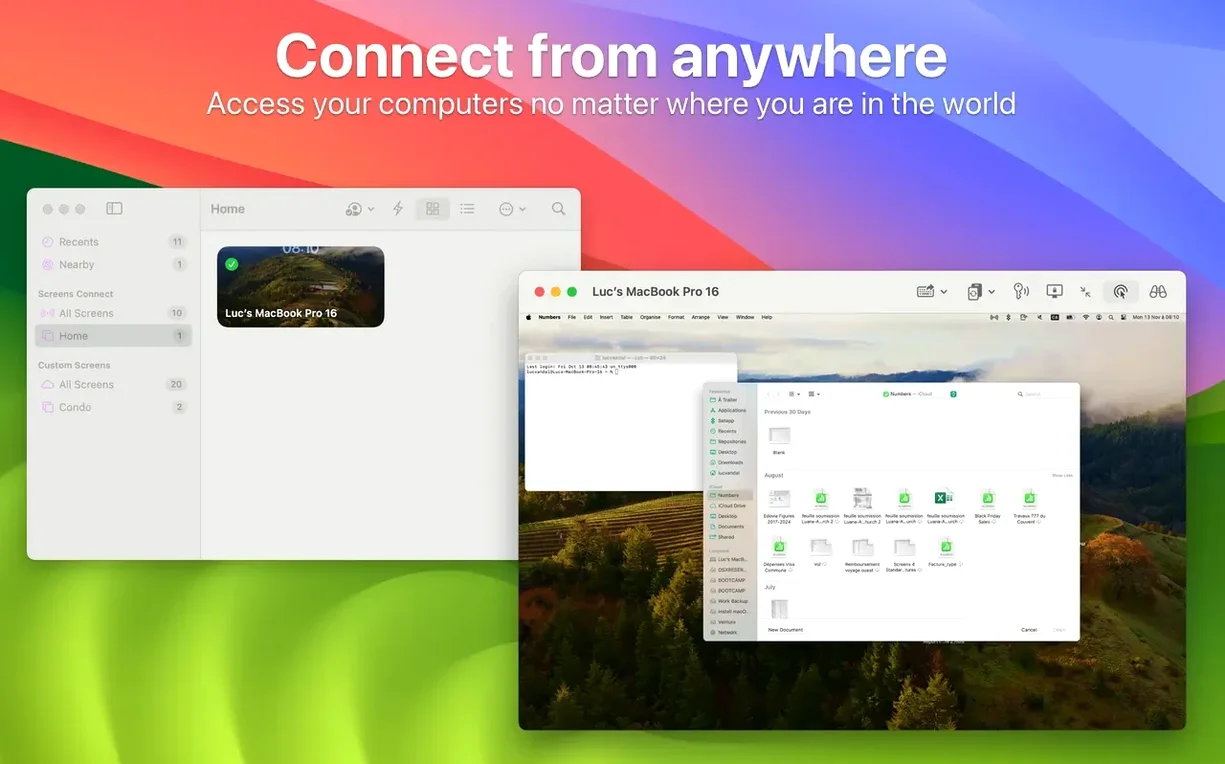
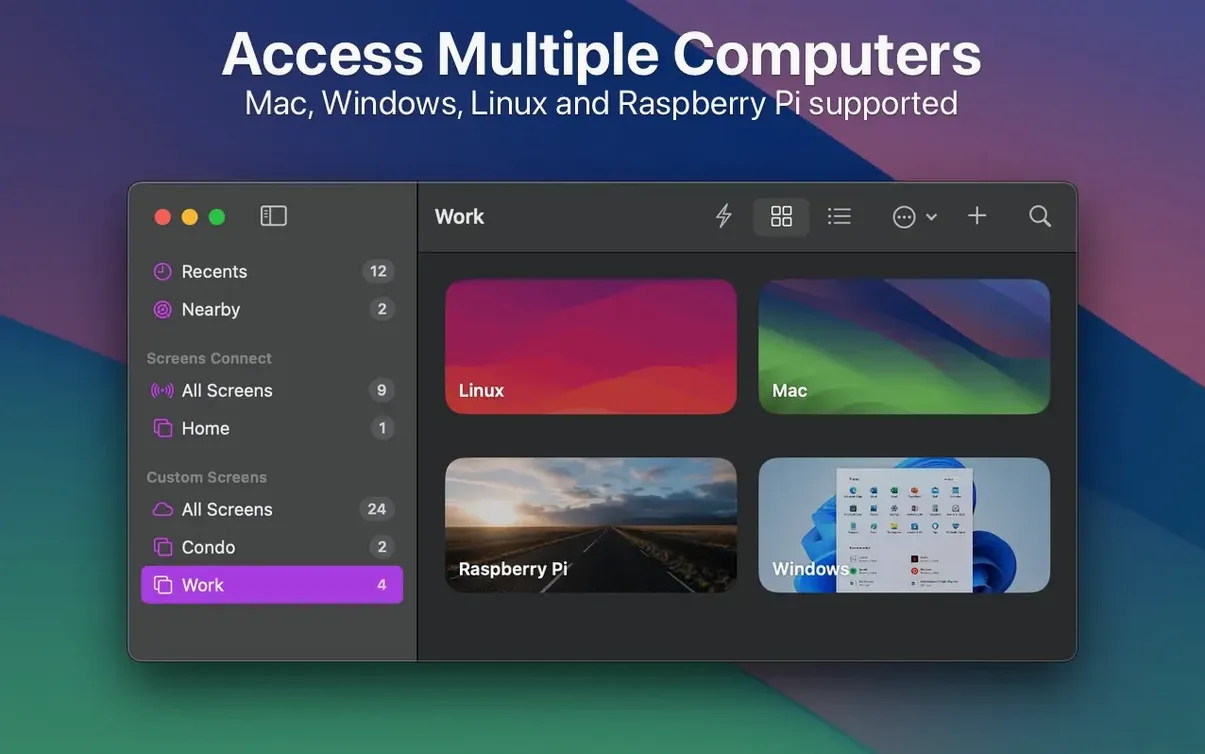
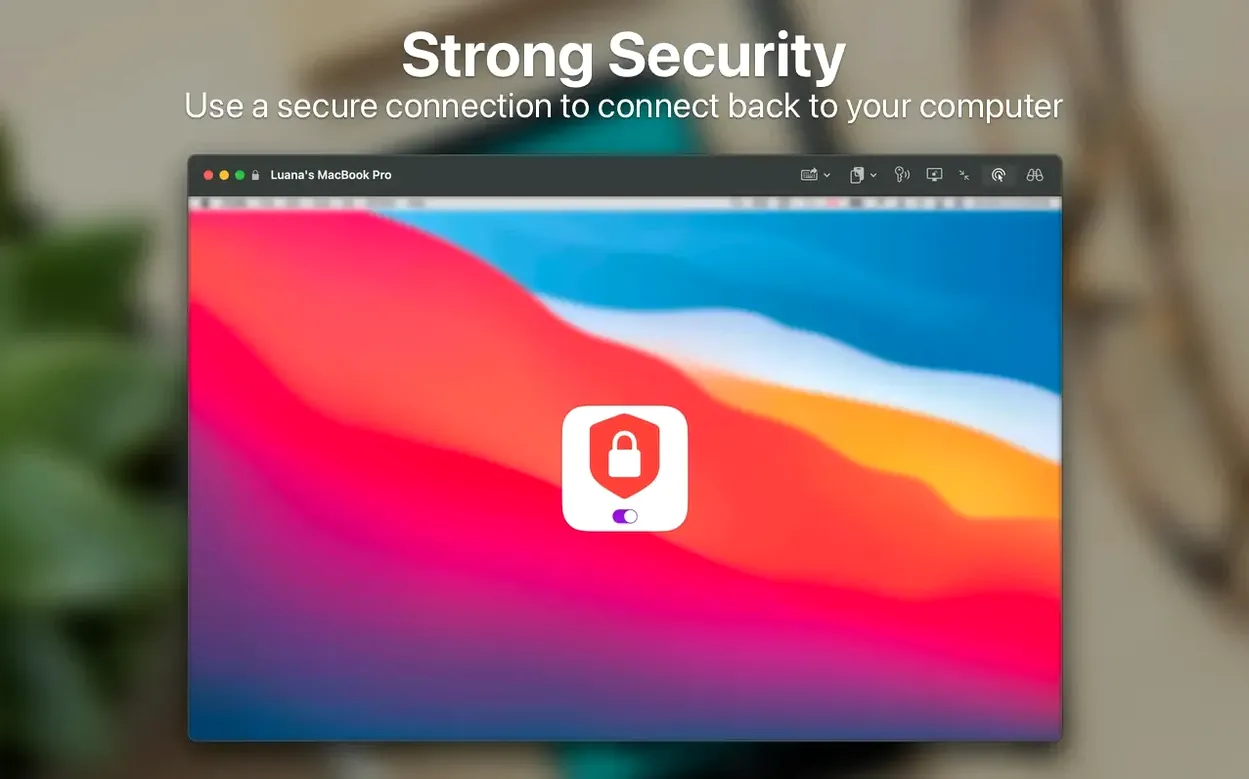
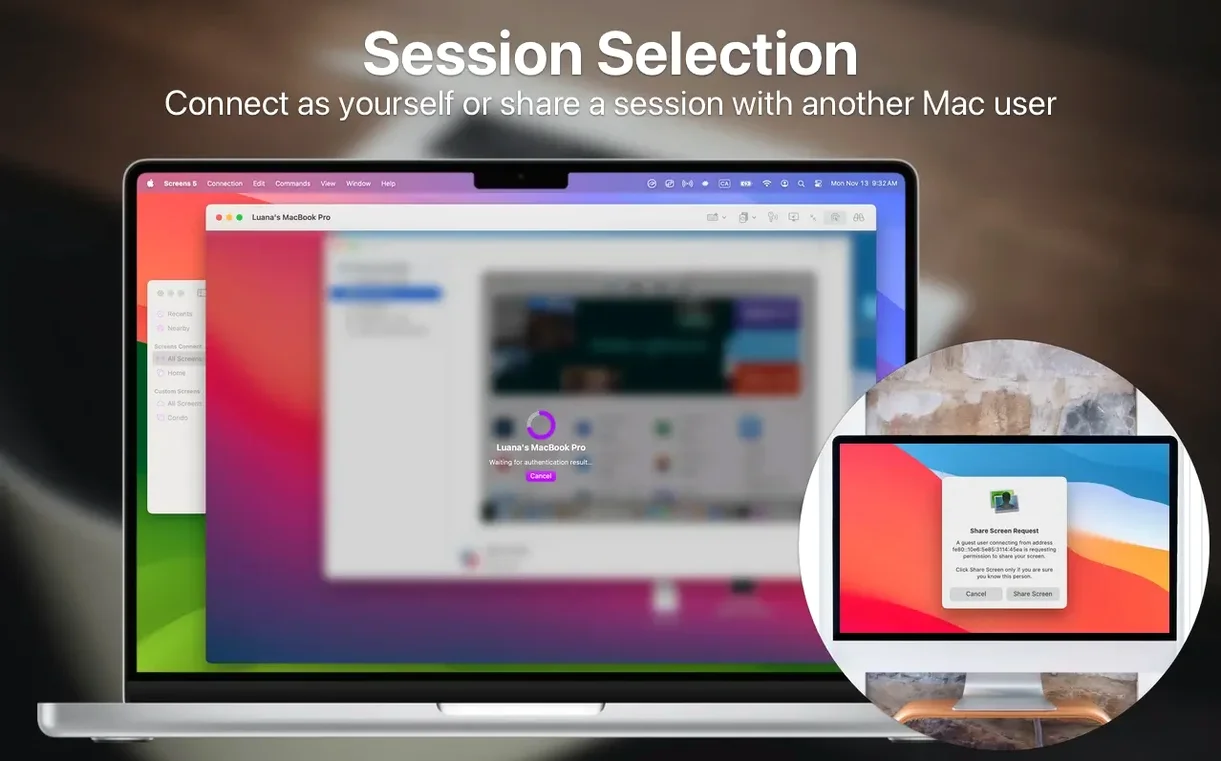
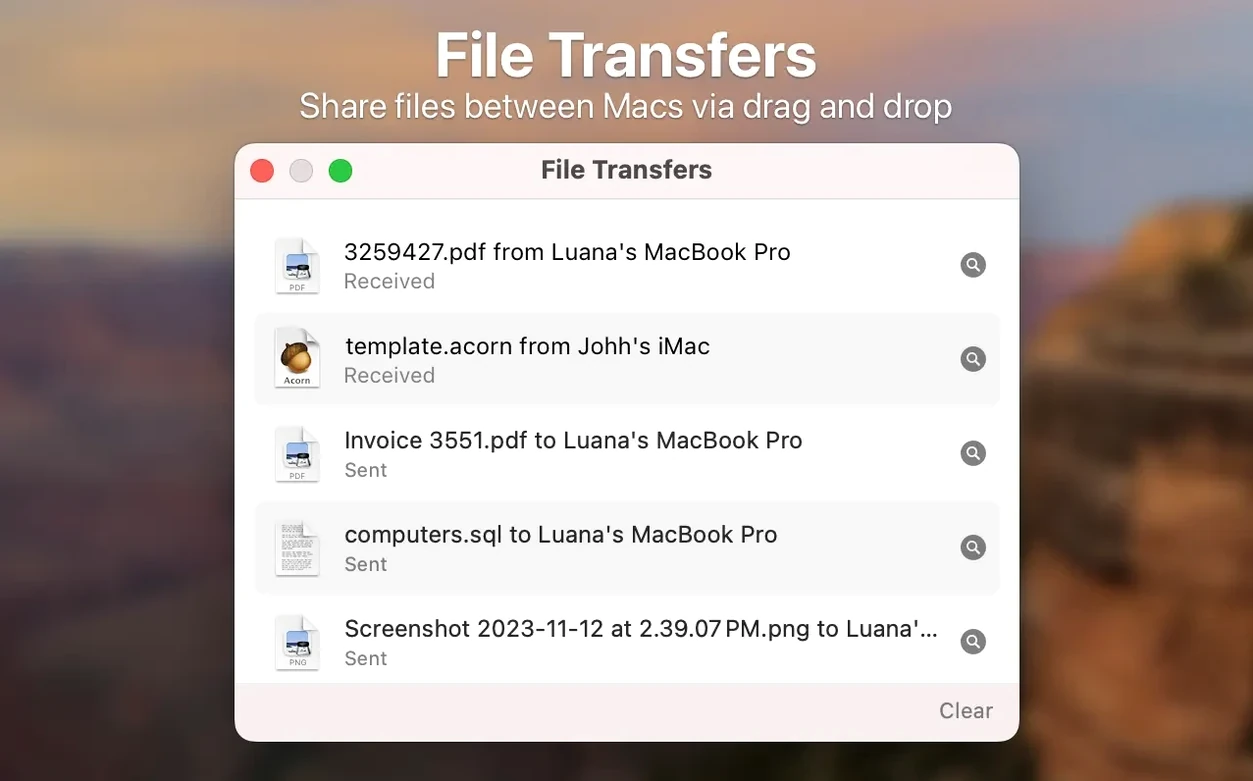
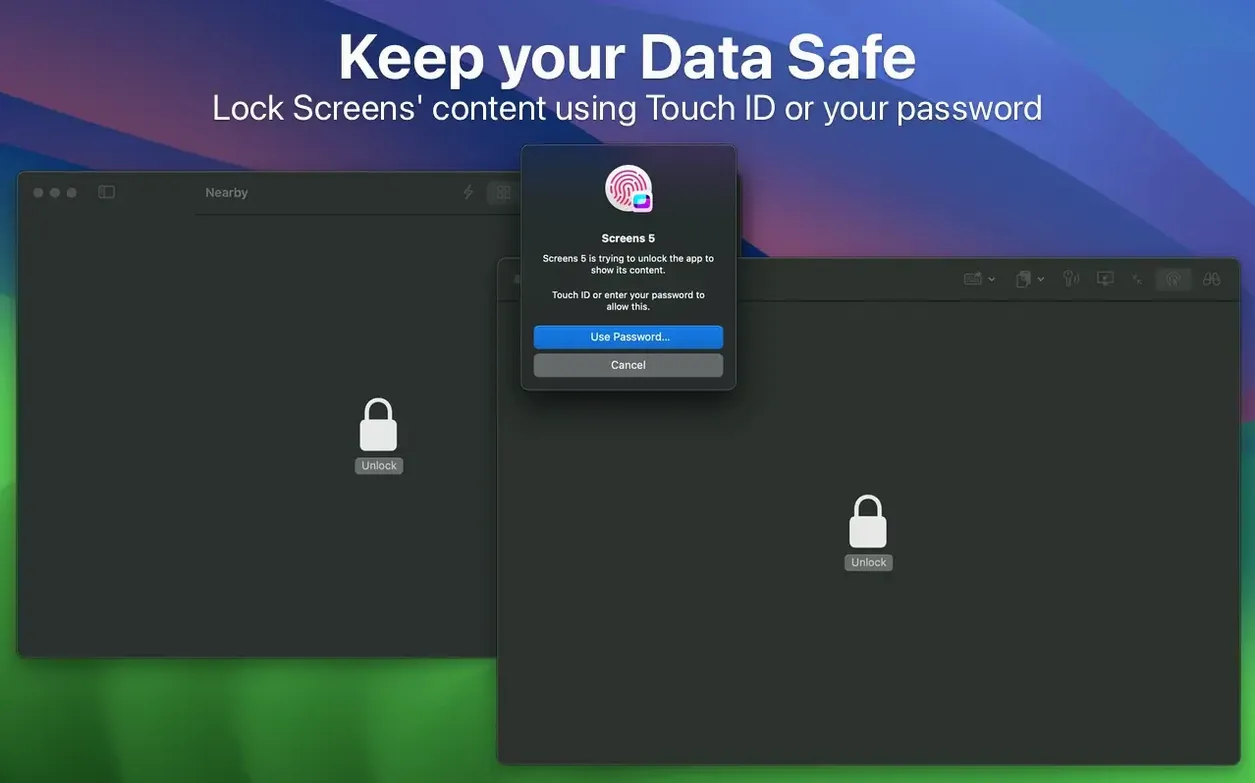
Your main workstation holds all the source files, but you're travelling with a MacBook Air. Logging into a clunky web portal to grab one folder feels like overkill. Remote desktop tools often turn a quick 'grab and go' into a session of lag and frustration.
- Set up the saved connection. Open Screens 5 on your laptop. Add your office iMac using its Screens Connect address. Tick the box to sync details via iCloud so the shortcut appears on your iPad later.
- Start a control session. Double-click the saved thumbnail. The app opens a full desktop view at adaptive quality. Leave it in control mode so you have full mouse and keyboard input.
- Navigate to the file. On the remote screen, open Finder and browse to the project folder. The display stays sharp even with large previews in gallery view.
- Drag the folder to your laptop. Click and hold the remote folder, then drag it off the edge of the Screens window and drop it onto your own desktop. The file transfer begins instantly with a progress indicator.
- Close the session. Press the disconnect button in the toolbar. The session ends cleanly, and the copied folder sits ready on your local drive.
Dragging files straight from a distant Mac onto a local desktop removes the need for intermediary cloud uploads. For a one-off retrieval, the whole flow takes less than a minute.
When clipboard sync drops mid-session
- Clipboard sync stops working mid-session. Toggle the shared clipboard off and on again in the Screens toolbar. If that fails, restart the Screens Connect helper on the remote Mac—it occasionally drops the sync channel after a network blip.
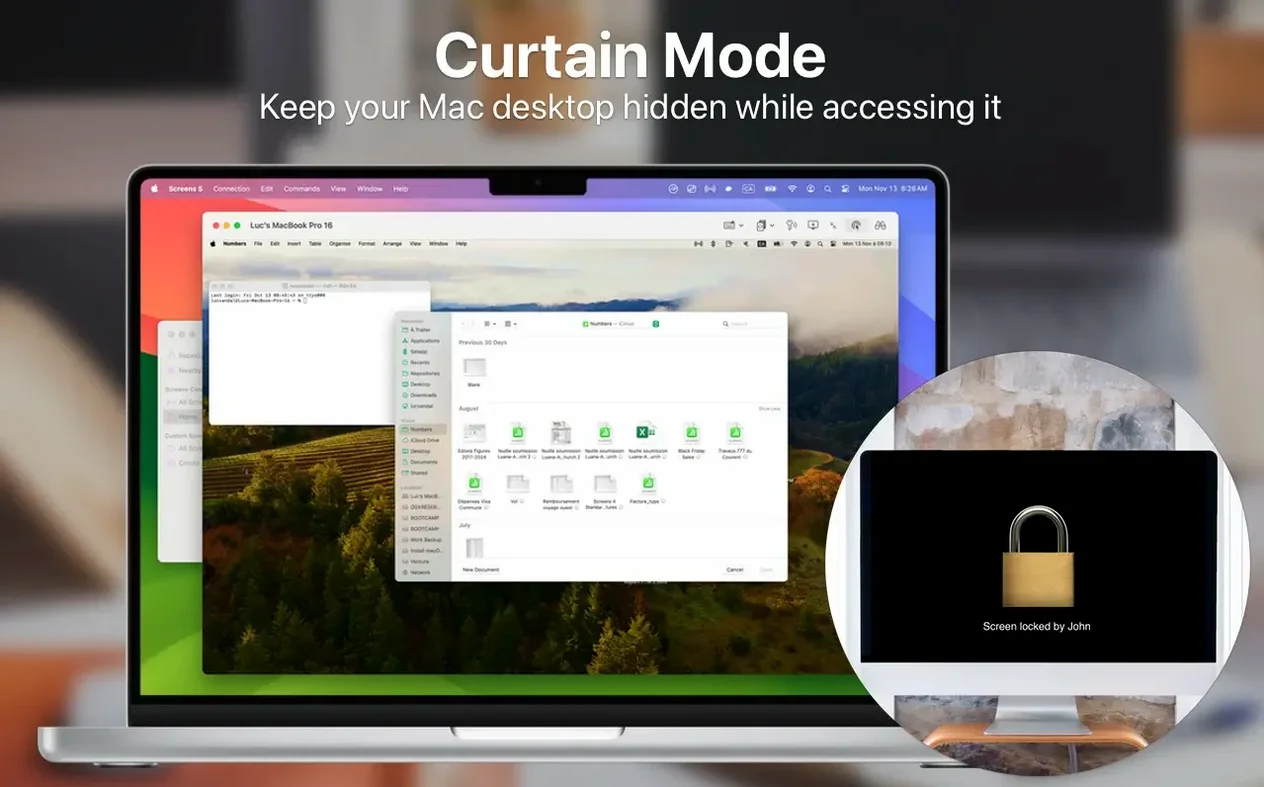
- Curtain Mode leaves a remote display stuck. On rare occasions, ending a session doesn't lift the privacy screen. Reconnect briefly, toggle Curtain Mode off manually in the View menu, then disconnect cleanly. The remote screen returns to normal.
- Connection refuses on a trusted network. Check that the remote Mac's firewall allows incoming VNC connections. If you use SSH keys, verify the key hasn't expired or been removed from the remote machine's authorised keys file.
- File transfer stalls on a large folder. Adaptive quality can throttle throughput on slow links. Switch to a lower display quality temporarily from the session toolbar to free bandwidth for the transfer.
Headless Mac mini server monitoring
People maintaining a headless Mac mini server use Screens 5 as a daily driver—the saved connections grid orders remote machines into logical groups, and observe mode lets you monitor background tasks without accidental input. IT support staff lean on Screens Express sessions to guide colleagues through fixes without pre-configuring anything on the remote side. Creatives who split work between a desktop rig and a portable Mac appreciate dragging project files across screens instead of juggling thumb drives or cloud sync conflicts. If your routine involves quick remote grabs rather than all-day terminal sessions, the app fits neatly into a checklist-style workflow.
- macOS 14 or later
- Apple Silicon & Intel 64-bit
Questions the team asks
Yes. The clipboard syncs between the local and remote Mac automatically when you copy and paste across the session window.
Yes. Turn on Curtain Mode from the Screens 5 toolbar to blank the remote screen and keep your work private.
Yes. Screens 5 runs as a universal binary with support for both Intel 64-bit and Apple Silicon machines.









Comments 0
Sign in or create an account to add a comment.
No comments yet. They go up after moderation.