

Sensei — Mac download
Download (30 MB) Earlier builds
Ticked
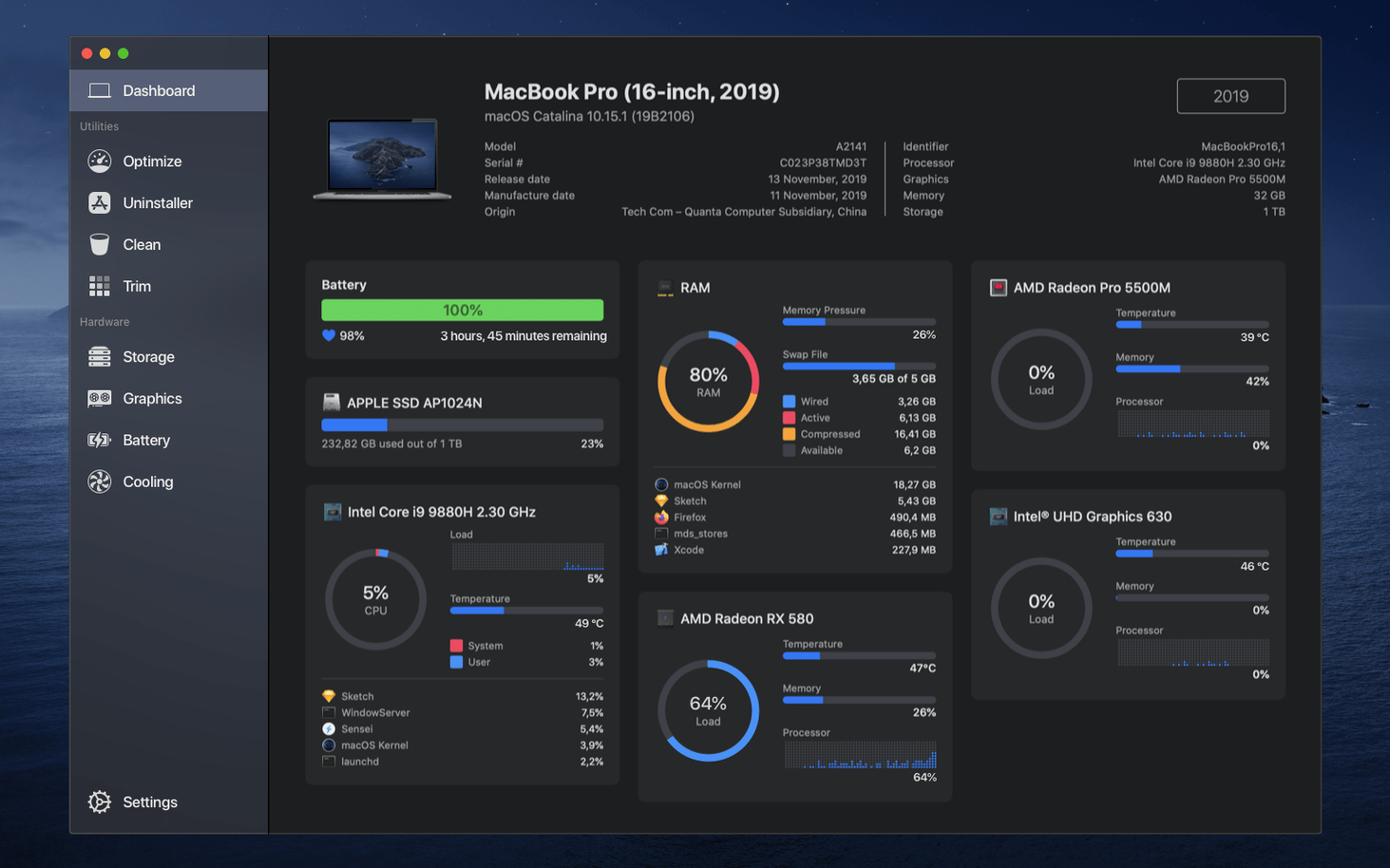
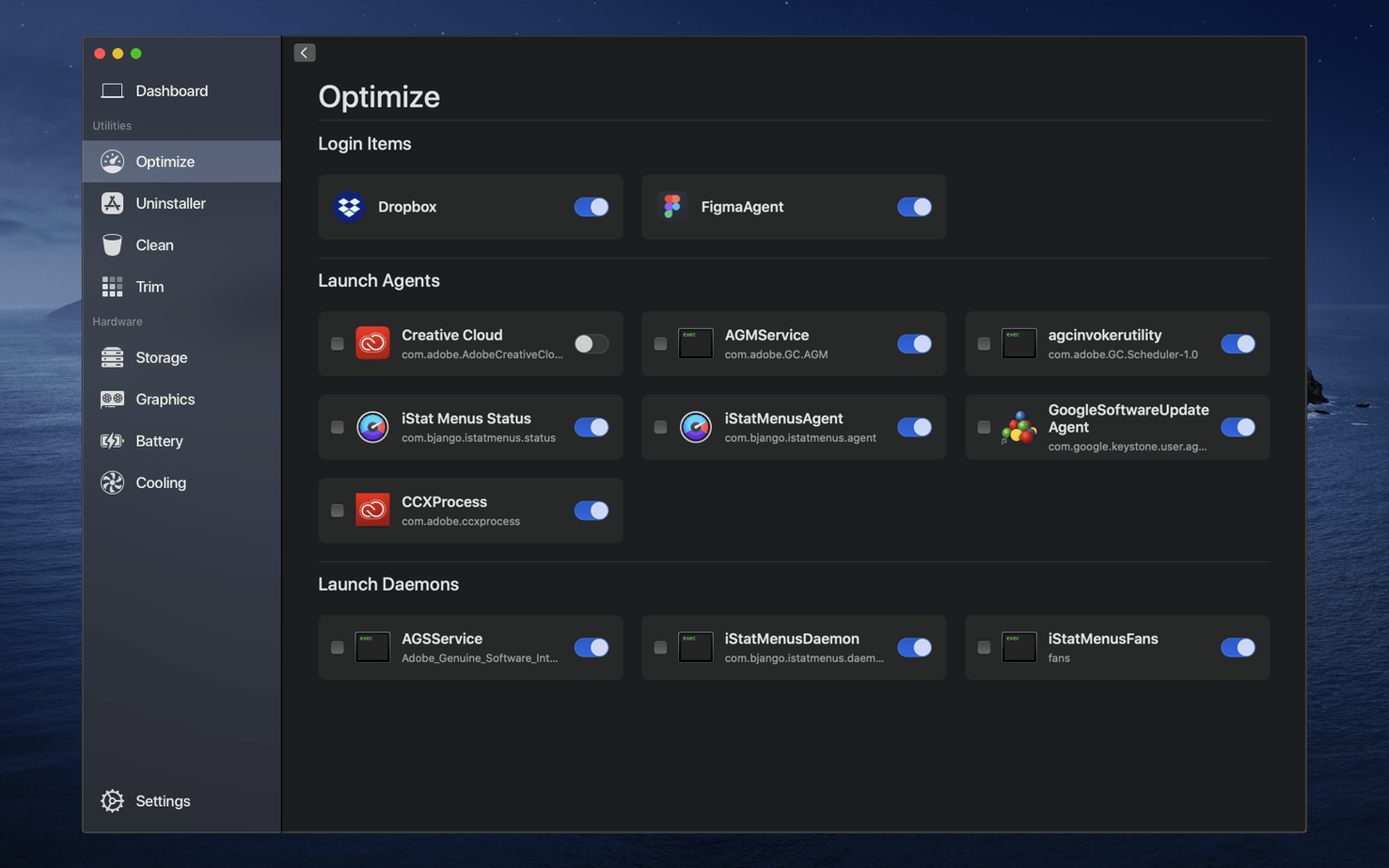
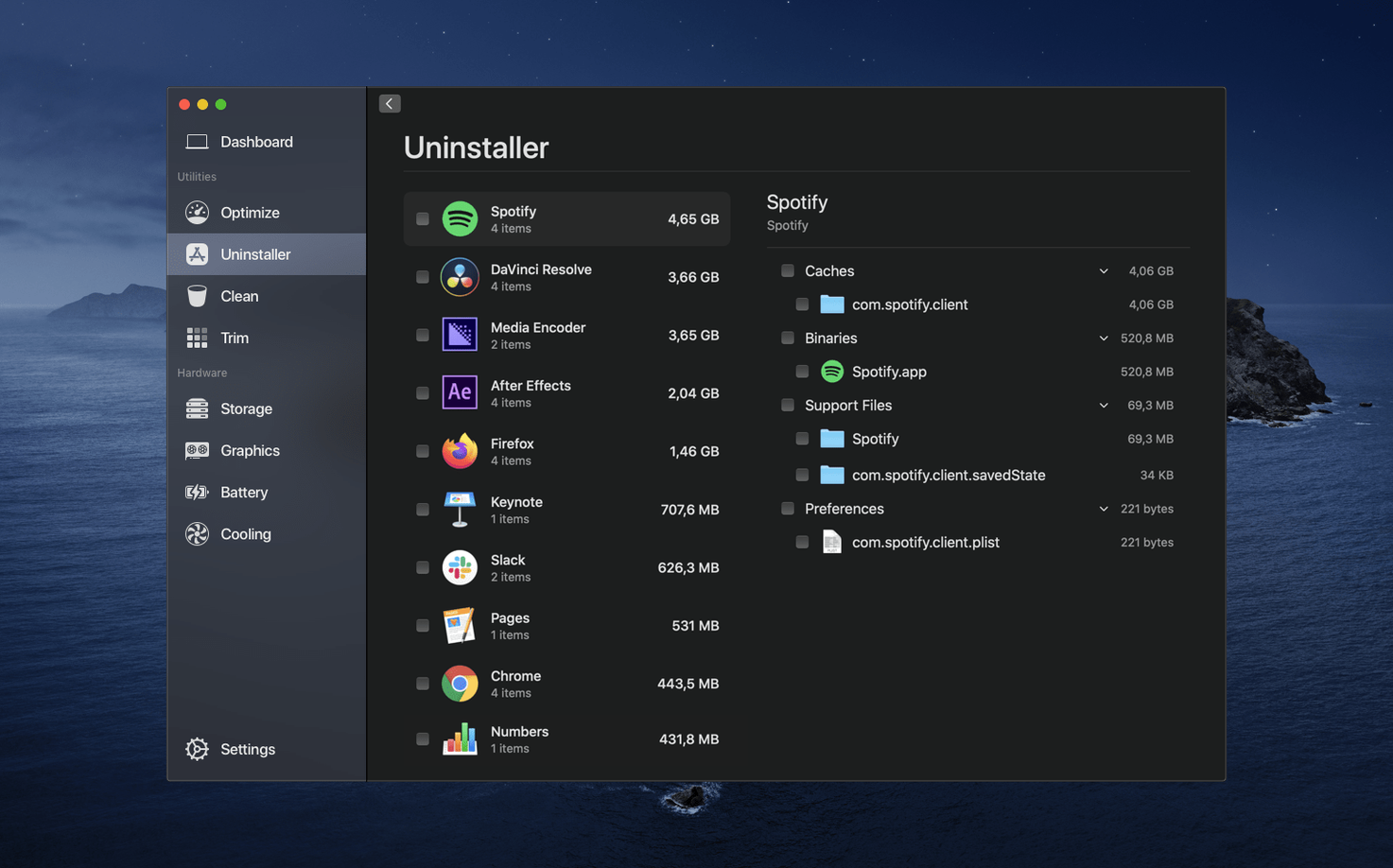
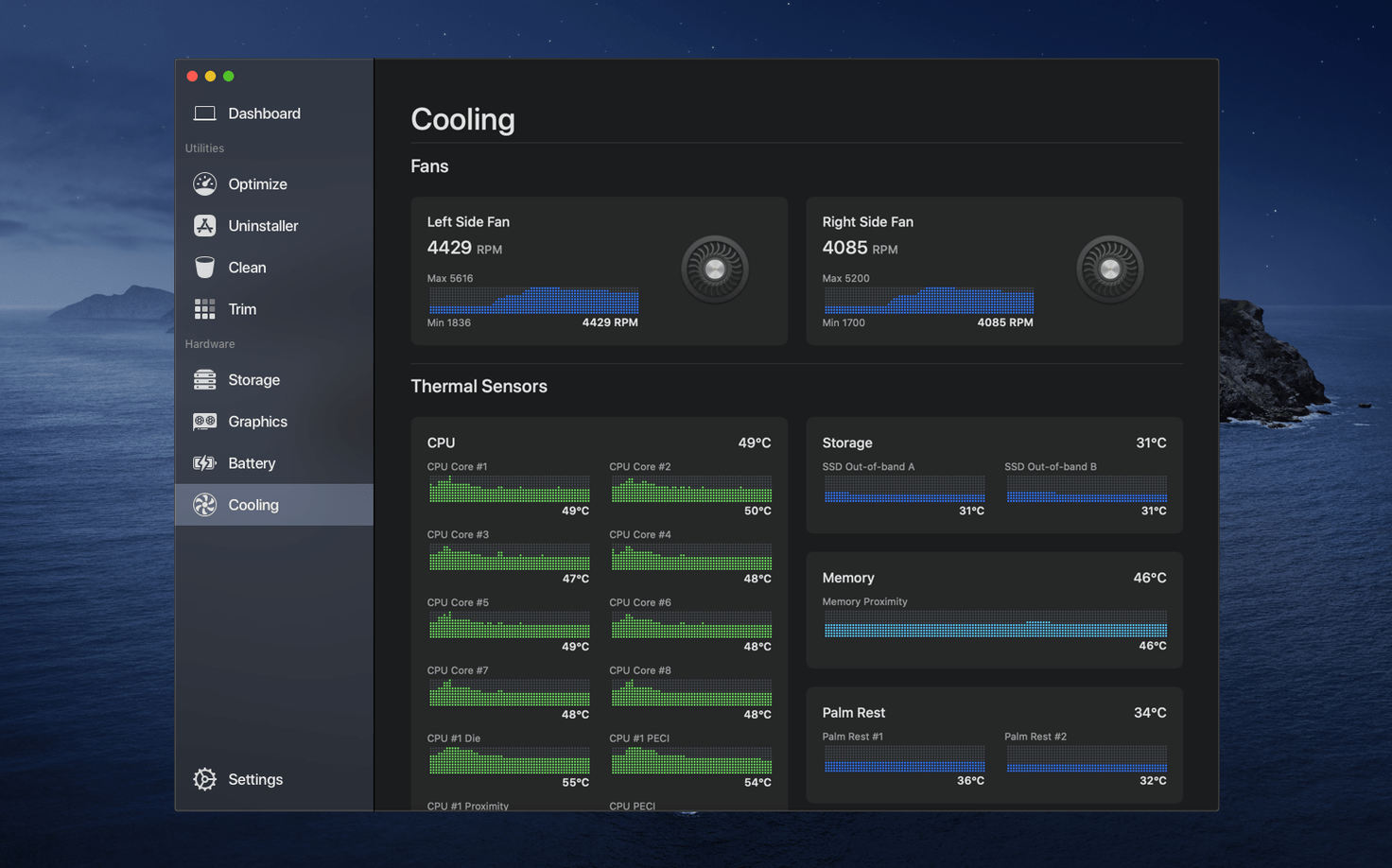
System administrators, IT support staff, and anyone who wants to know exactly what their Mac is doing under the hood reach for Sensei. It answers the practical questions people ask before trusting a utility with their machine.
- Does it show component temperatures? Yes. The thermal dashboard tracks CPU, GPU, and drive temperatures in real time.
- Can I check battery condition? Battery health reporting tells you cycle count, capacity, and overall condition at a glance.
- What performance data is available? Live graphs for CPU load, GPU activity, and RAM pressure let you spot bottlenecks immediately.
- Does it handle SSD maintenance? You can enable TRIM on third-party SSDs and run disk cleanup to reclaim space from caches and logs.
Cindori AB designed it so you do not hunt through System Information or Activity Monitor for these details. One window covers hardware status, storage health, and cleanup tools.
Workflow: finding what is eating your disk space
- Open Sensei and click Storage in the sidebar.
- Wait a few seconds for the scan to map your volumes. The largest folders appear sorted by size.
- Click any folder to drill down. Look for
~/Library/Cachesand old iOS backups — these are the usual culprits. - Check the Large Files tab. Sort by size to spot forgotten disk images or video exports.
- Select items you want to remove. Sensei shows the total space you will reclaim before you commit.
- Click Clean. The app deletes the files and empties the Trash in one pass.
- Switch to the Dashboard to confirm free space has increased.
This routine takes under three minutes on a machine with reasonable storage. The benefit over Finder search is that Sensei skips protected system directories and presents only safe-to-delete caches and logs by default.
How the menu bar monitor affects your Mac's performance
Does Sensei run constantly in the background? The menu bar Monitor is lightweight and uses minimal CPU. You can disable it from preferences if you prefer to launch the app only when needed.
Will the cleanup tools remove files I actually need? The default cleanup targets are caches, logs, and temporary files the system recreates on demand. User documents are never touched unless you manually select them in the Storage browser.
Does fan control override the Mac's built-in thermal management? You set a target RPM or a curve. The system still enforces hardware safety limits. If temperatures climb too high, the Mac protects itself regardless of your manual setting.
Is the TRIM enabler safe for all SSDs? Sensei enables TRIM via the standard trimforce command. It works on most third-party SATA and NVMe drives. The app warns you before applying the change, because a small number of older drives have firmware bugs with TRIM.
Checking cleanup selections before you delete
- Running cleanup without checking what is selected. The default selection is safe, but if you browse into folders and tick random items, you can delete something you wanted. Scroll through the list before clicking Clean.
- Maxing out fan speed to keep the Mac cool. Running fans at full RPM 24/7 wears bearings faster and makes the machine unpleasant to use. Set a moderate curve instead, or raise the base RPM by only 10–15%.
- Enabling TRIM on an SSD without checking compatibility first. Most modern drives handle it fine, but if the drive model is unknown to you, search the manufacturer's documentation or run a quick disk sensei check in forums before flipping the switch.
- Ignoring the Dashboard after a cleanup. The Dashboard graphs show immediate changes in storage and memory pressure. Skipping this step means you miss confirmation that the cleanup actually freed what you expected — and you lose the chance to learn which caches grow fastest on your system.
- macOS 14 or later
- Apple Silicon and Intel Macs









Comments 0
Sign in or create an account to add a comment.
No comments yet. They go up after moderation.