

Sublime Text — Mac download
Ticked
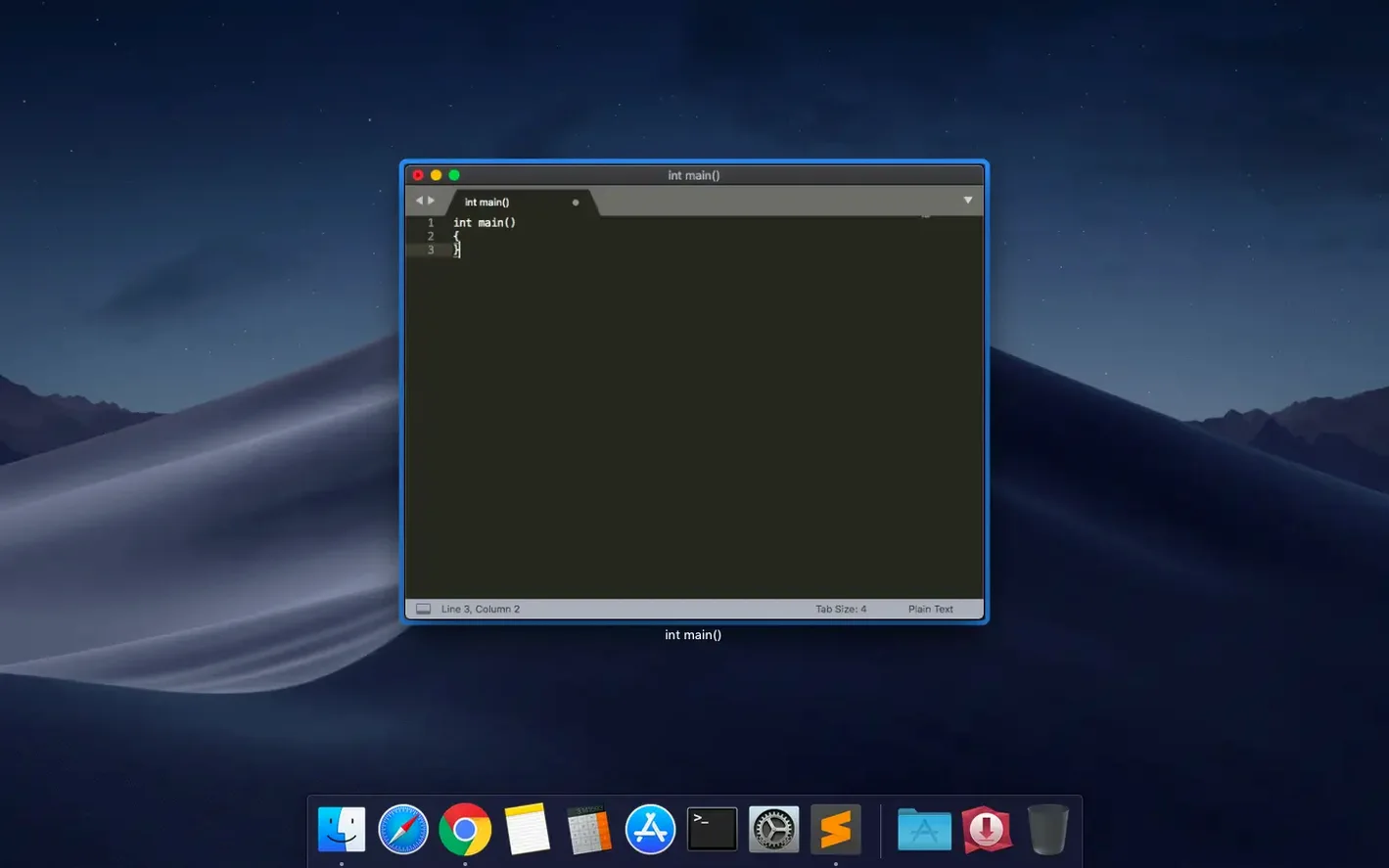
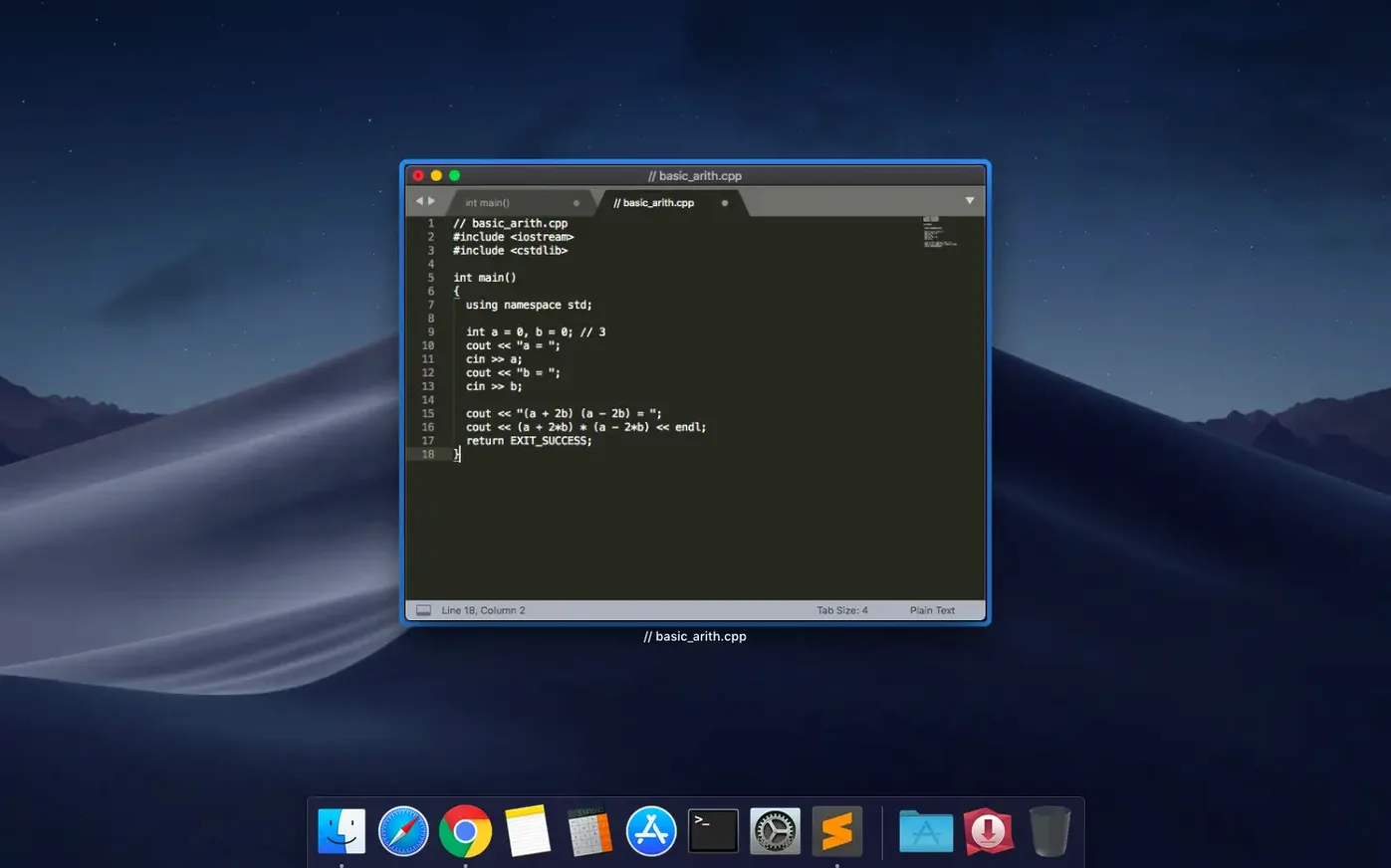
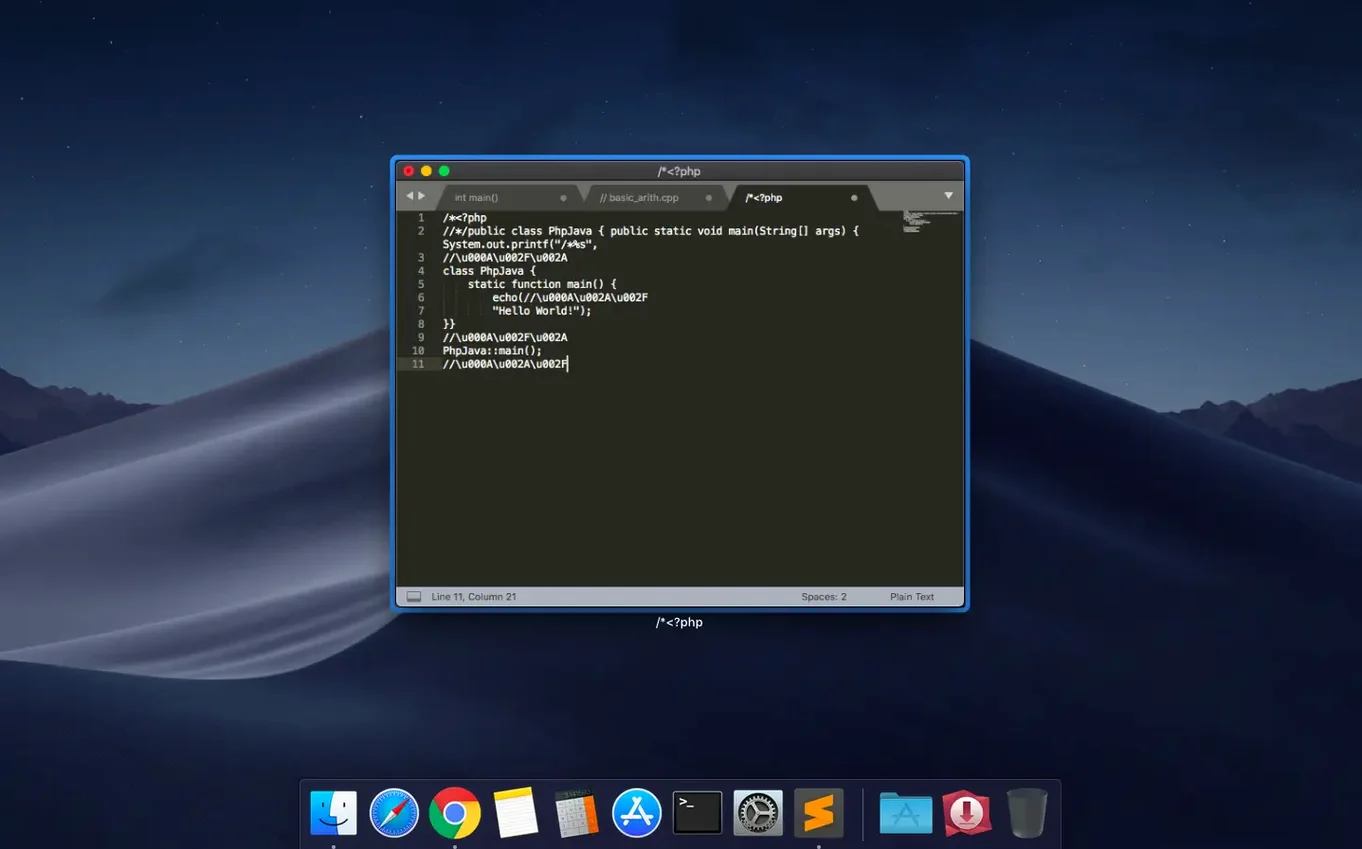
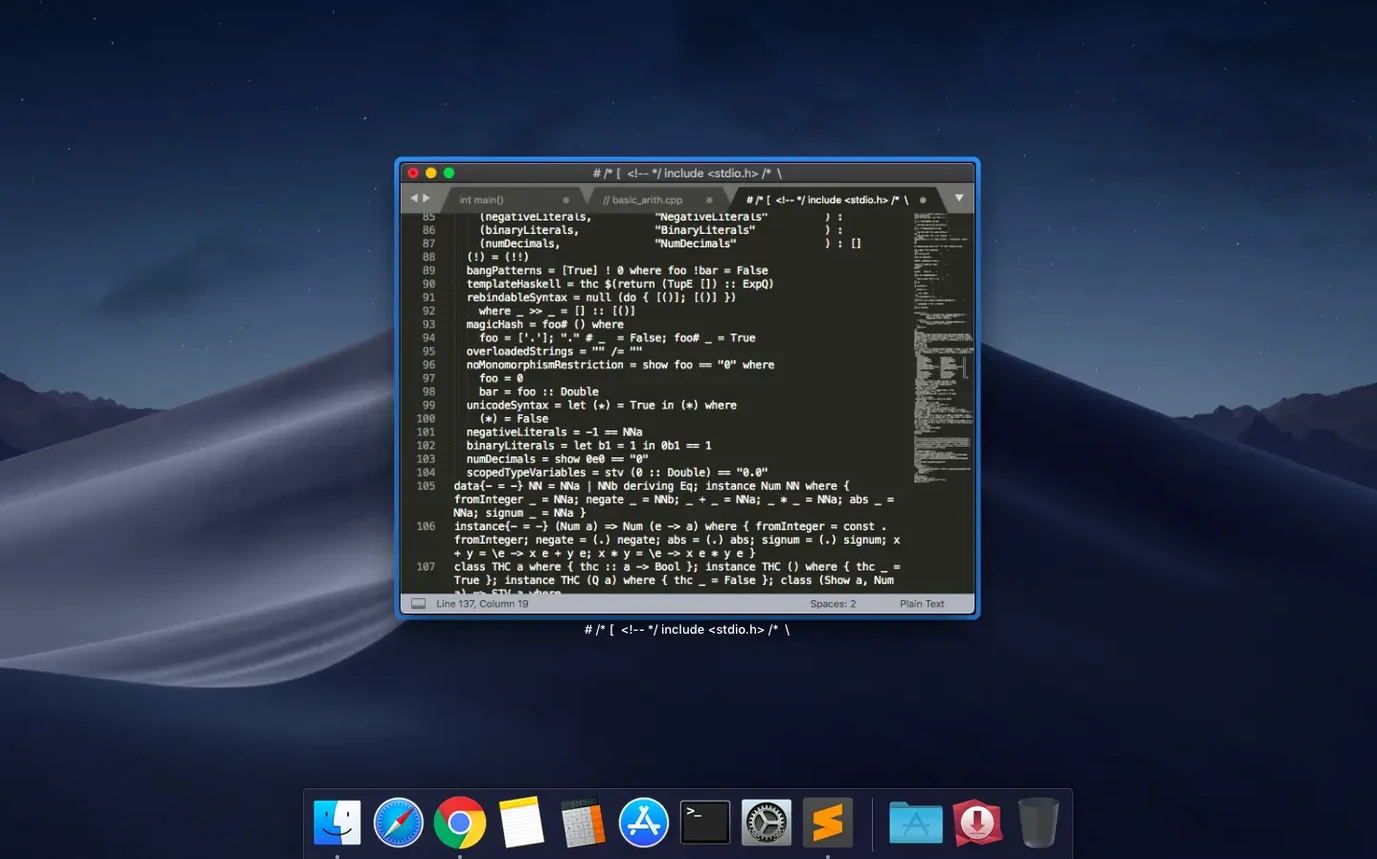
Build 4215 patches a compatibility snag for macOS 10.13 and 10.14 and fixes the vintage M command.
Multiple cursors, column selection, and split panes
Multiple cursors — place more than one cursor to edit several lines at the same time. No find-and-replace repetition.
Column selection — select a vertical block of text. Useful for lining up data or trimming prefixes across rows.
Split panes — view one to four files side by side without opening extra windows.
Syntax highlighting — ships with support for C, C++, C#, CSS, HTML, Java, JavaScript, Markdown, PHP, Python, Ruby, SQL, XML, and more. Plugins add further languages.
Build systems — run a script or compiler directly from the editor. The terminal stays out of sight.
Autocomplete — suggests completions from your code and user-defined variables as you type.
Syntax checking — flags errors while you work, inline.
Cmd+P file jumping and the command palette
Goto Anything — press Cmd+P and type a few letters of a filename. Works across the whole project, no clicking through folders.
Command palette — Cmd+Shift+P. Every menu action, plugin command and preference toggle lives here. Fuzzy-search your way to anything without memorising shortcuts.
Auto-save on focus loss — Sublime saves your work when you switch to another app. No explicit save needed. Enable it once and forget it.
Last-action repeat — Cmd+Shift+G on macOS repeats the last editing action. Indented one line? Repeat it down a block of twenty.
Line joining — Cmd+J pulls the next line onto the current one. Handy when cleaning pasted prose or collapsing multi-line strings.
Minimap scrubbing — click and drag on the minimap to scroll long files. Not just a preview; a navigation surface.
Auto-strip trailing whitespace and ensure newline on save
Open Preferences → Settings and add these lines to your user settings file:
"trim_trailing_white_space_on_save": true— strips invisible trailing spaces automatically on save. One less thing to lint later."ensure_newline_at_eof_on_save": true— adds a trailing newline if one is missing. Keeps diffs clean in version control."translate_tabs_to_spaces": true— converts tabs to spaces project-wide. Pair with"tab_size": 2or4to match your team's style."highlight_line": true— highlights the current line. A subtle visual anchor when hopping between panes."draw_white_space": "selection"— shows invisible characters only within your selection. Less visual noise than the"all"setting.
Right-click Open With, plus the subl terminal launcher
Open from Finder — right-click any text file and pick Sublime Text from the Open With menu. After the first time, macOS remembers the association.
Command-line launcher — the subl helper opens files and folders from Terminal. Type subl . to open the current directory as a project. Set the path once in the app preferences.
Clipboard history tools — column selection pairs well with clipboard managers like Maccy or Paste. Copy a vertical slice from a log file, paste it into a spreadsheet.
Version control — Sublime's gutter shows added, modified and deleted lines when Git is active in the project folder. No plugin needed for basic visual diff cues.
External build tools — point a build system at make, npm or a Python script. Output appears in a bottom panel. Errors are clickable and jump to the exact line.
- Fixed the vintage M command not working.
- Fixed a compatibility issue with macOS 10.13 and 10.14.
- macOS 10.13 or later
- Intel and Apple Silicon Macs









Comments 0
Sign in or create an account to add a comment.
No comments yet. They go up after moderation.