
Swish — Mac download
Ticked
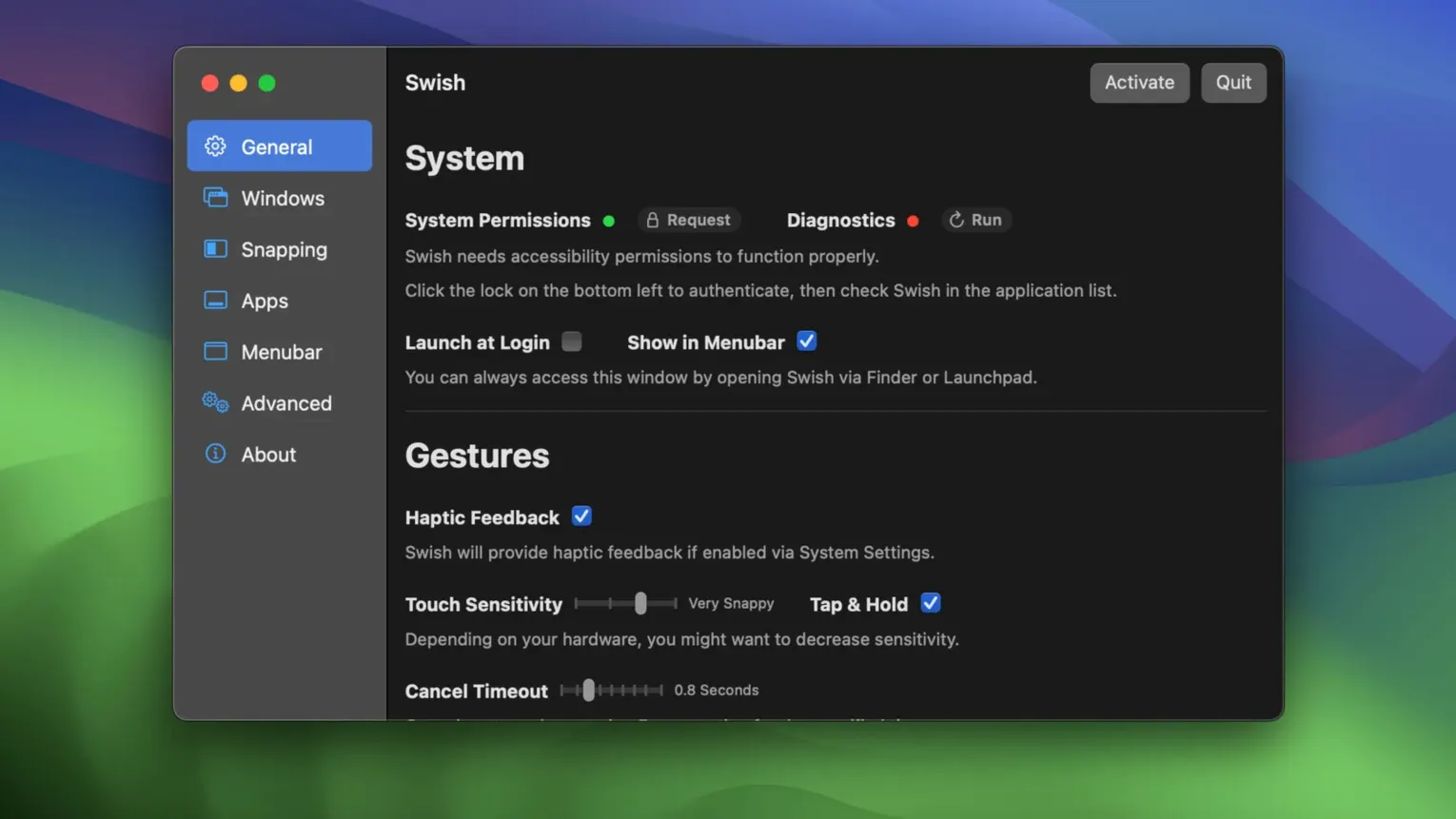
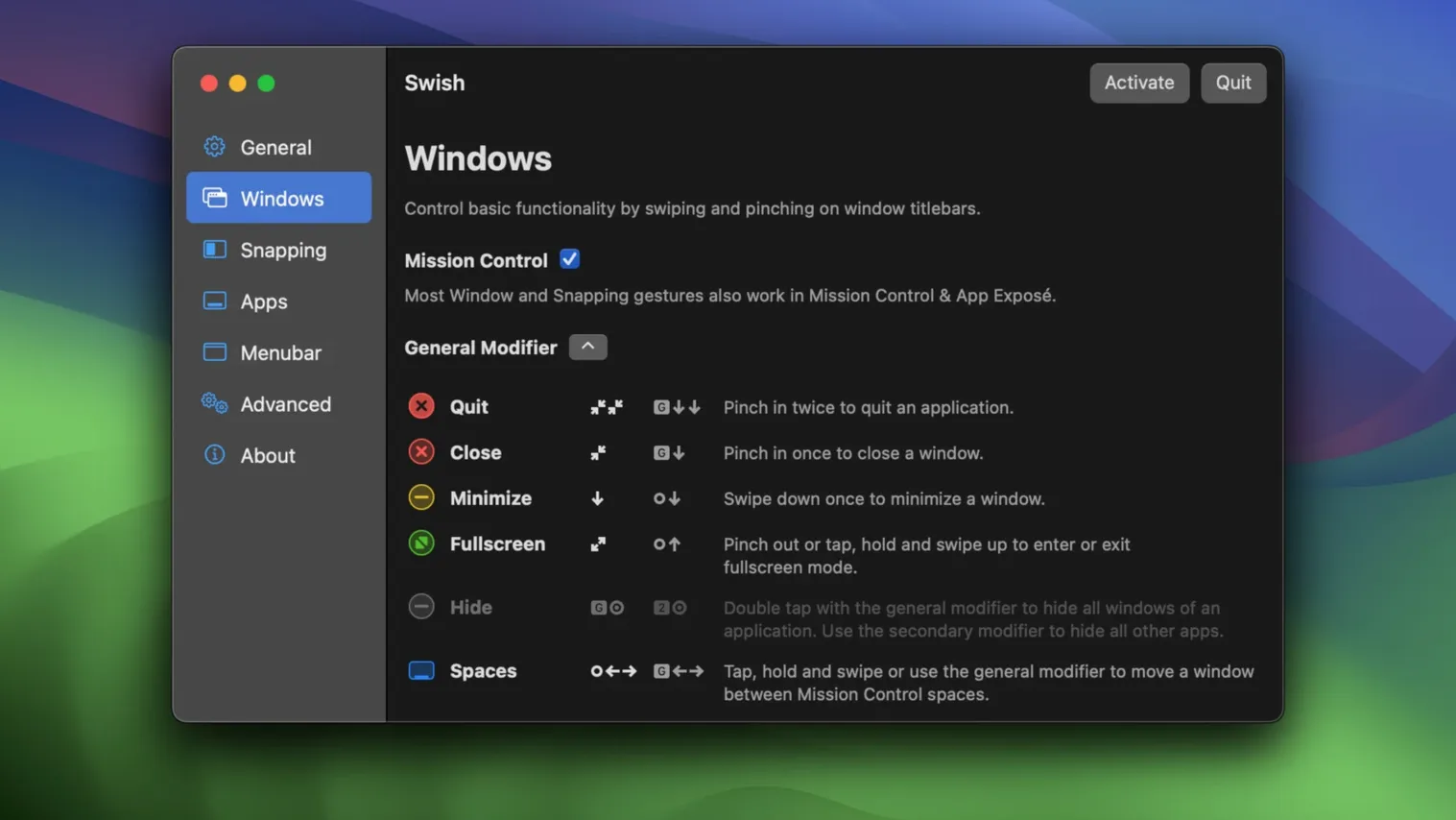
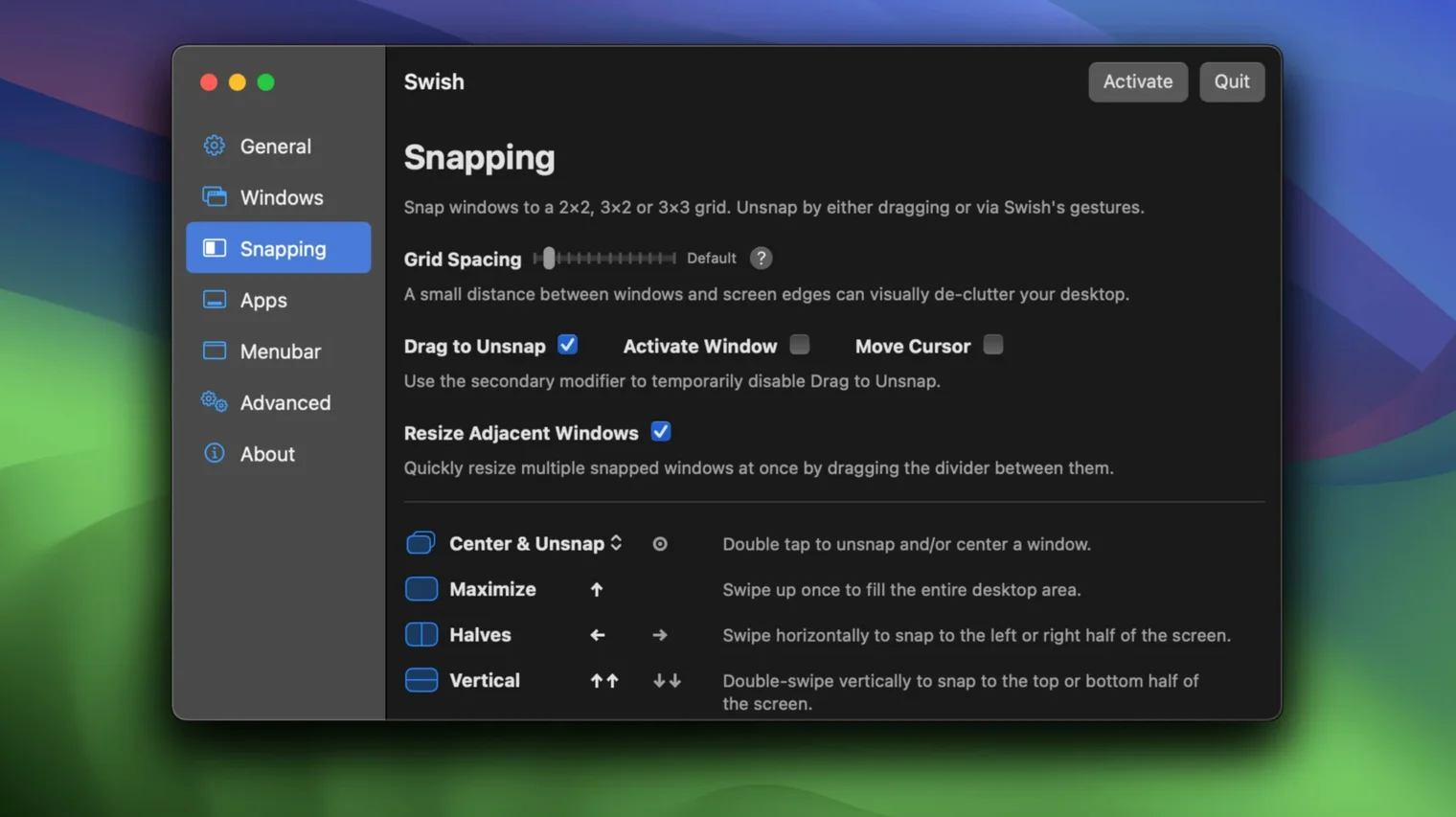
If you use Rectangle or Magnet, you already know the value of snapping windows with a shortcut. Swish takes that muscle memory and extends it to gestures—letting you manage windows, spaces, and the dock without touching the keyboard unless you want to.
Gestures an experienced user will actually use
- Pinch, swipe, or tap on a title bar to snap, centre, or full-screen a window
- Move windows between monitors with a single gesture—no dragging across bezels
- Hold a modifier key to unlock a 2×3 grid for finer window placement
- Control the dock and menu bar from the trackpad to quit, hide, or switch apps
- Send a window to a different space without opening Mission Control
- Toggle individual gestures on or off to avoid clashes with system trackpad settings
28 gestures across your title bar, dock, and menu bar
The 28 built-in gestures cover the title bar, dock, and menu bar—three zones you already interact with hundreds of times a day. It works with a Magic Trackpad, a Magic Mouse, and keyboard shortcuts, so you can mix input methods without switching tools. Everything runs natively on Apple Silicon and Intel, requiring macOS 12 or later.
A typical session: morning setup in three gestures
You open the MacBook at 08:42. Finder, Mail, and Things are still scattered across two spaces from yesterday. Instead of reaching for the keyboard, you work through a quick reset with the trackpad:
- Two-finger swipe down on the Mail title bar to centre it on screen one
- Pinch on the Things window to snap it to the right half
- Tap and hold the Calendar icon in the dock, then slide to open it in the current space
That is the first thirty seconds. No shortcut memorisation, no cursor hunting for green traffic-light buttons. The gestures feel like extensions of the trackpad gestures you already use for system navigation—just aimed at windows instead of content.
Workflow: arranging research across three monitors
Say you are pulling together a report. You have a PDF open on the left display, a browser with twelve tabs on the centre, and a writing app on the right. You want the PDF full-screen, the browser split with notes, and the writing app pushed to a different space.
You start by swiping up on the PDF title bar—full screen, left monitor. On the centre display, you pinch the browser to the left half of a 2×2 grid, then hold ⌥ and swipe the notes app into the bottom-right cell of the expanded 2×3 grid. For the writing app, you two-finger swipe right on its title bar—it moves to the next space on the right monitor without opening Mission Control.
Three displays, four windows, no drag-and-drop. The modifier key grid unlock is the detail that makes multi-monitor work feel less like furniture arrangement and more like a command.
- macOS 12 or later
- Apple Silicon or Intel Mac
Questions the team asks
Swish includes 28 gestures covering window management, dock control, and menu bar interaction, with a 2×3 grid available via a modifier key.
Yes, it supports moving windows between screens on multi-monitor setups using a dedicated gesture.
It works with a Magic Trackpad, Magic Mouse, and keyboard shortcuts, so you are not limited to one input device.







Comments 0
Sign in or create an account to add a comment.
No comments yet. They go up after moderation.