

SwitchResX — Mac download
Ticked
SwitchResX is for the user who checks every pixel on a second screen and runs a monitor alignment routine weekly.
Custom resolution — a pixel dimension you define that macOS never offered. Built for legacy apps or panel-native scaling.
Colour profile + resolution link — bind a specific calibration to a specific mode. Switch one, get both.
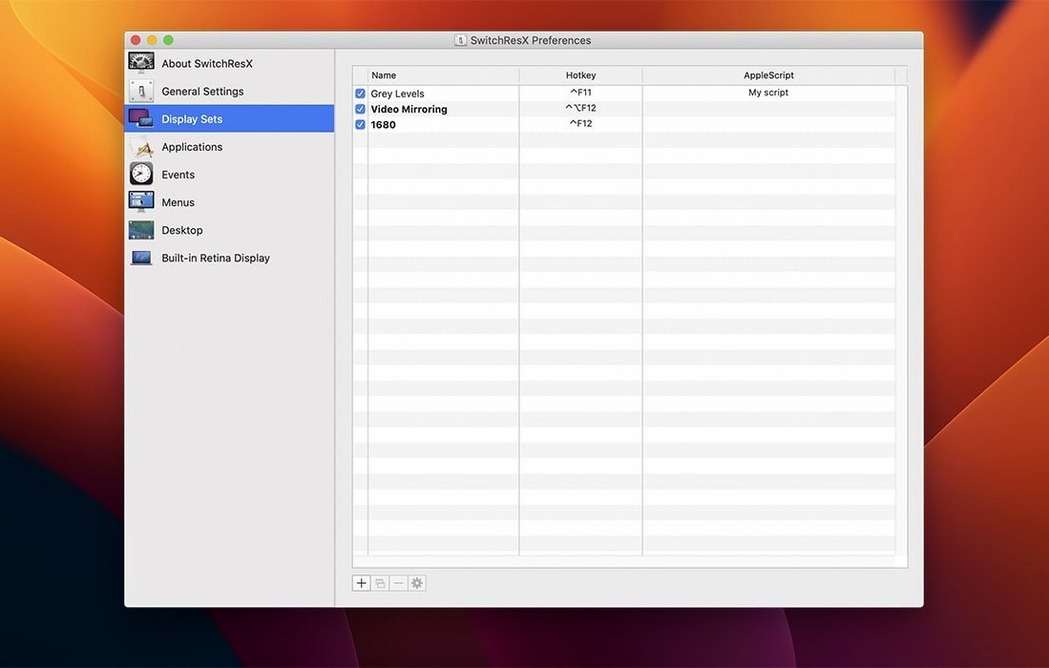
Display Set — a saved state of arrangement, mirroring, rotation and active monitors. Trigger it manually or via an event.
AppleScript context — hook display changes into a larger automation. Toggle a workbench layout when your IDE launches.
Rotation override — force portrait orientation even if macOS hides the option in System Settings.
Retina awareness — the utility reads and maps HiDPI modes cleanly, so pixel-doubled resolutions are listed as separate, selectable options.
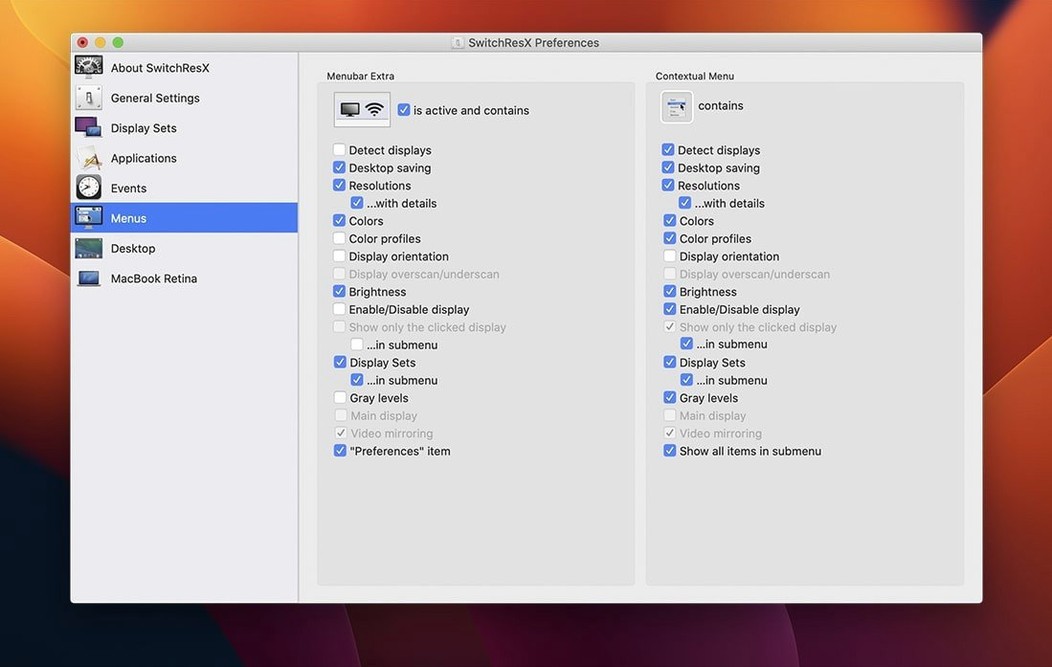
Right-click the menu bar icon to switch a Display Set
The menu bar icon shows the current resolution at a glance — right-click it for a saved Display Set. No digging through settings panels.
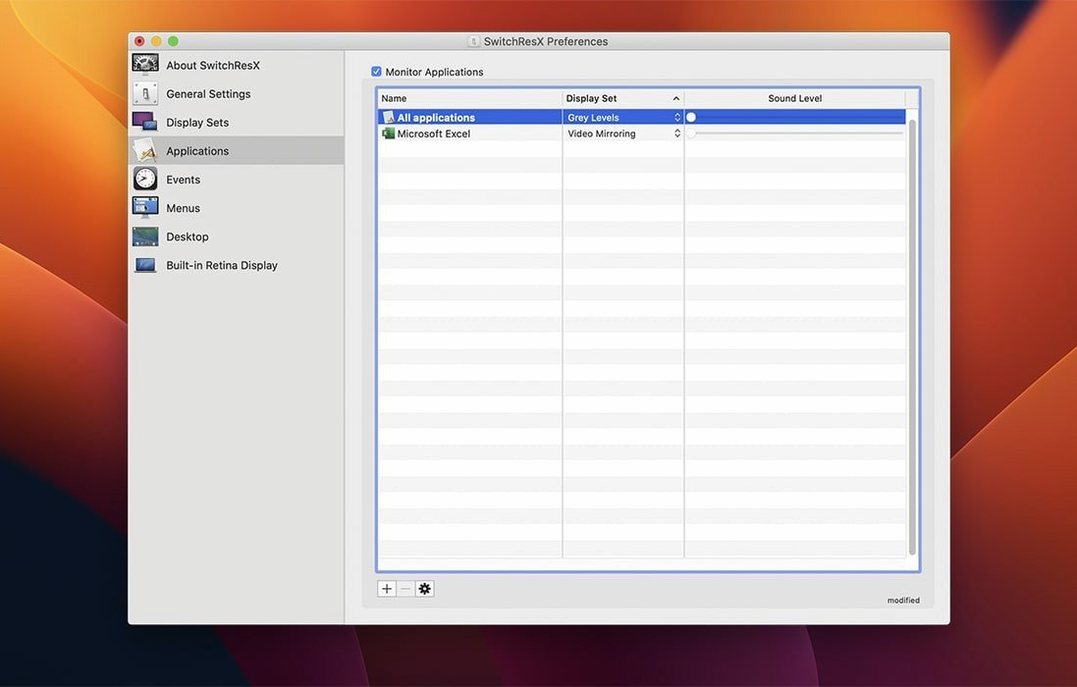
Application-specific resolutions are set in the Applications tab, not the display list. Tick Launch application with this setting and SwitchResX switches the monitor the moment the app opens. Quit the app, and the screen returns to its previous state. Good for colour-critical tools or layout-heavy editors.
Disabling a monitor on Apple Silicon now quits the Dock cleanly — version 4.14.2 fixed a conflict where the Dock would block the change. Look under Display Sets, select the set, uncheck the monitor you want offline, and assign it to a hotkey.
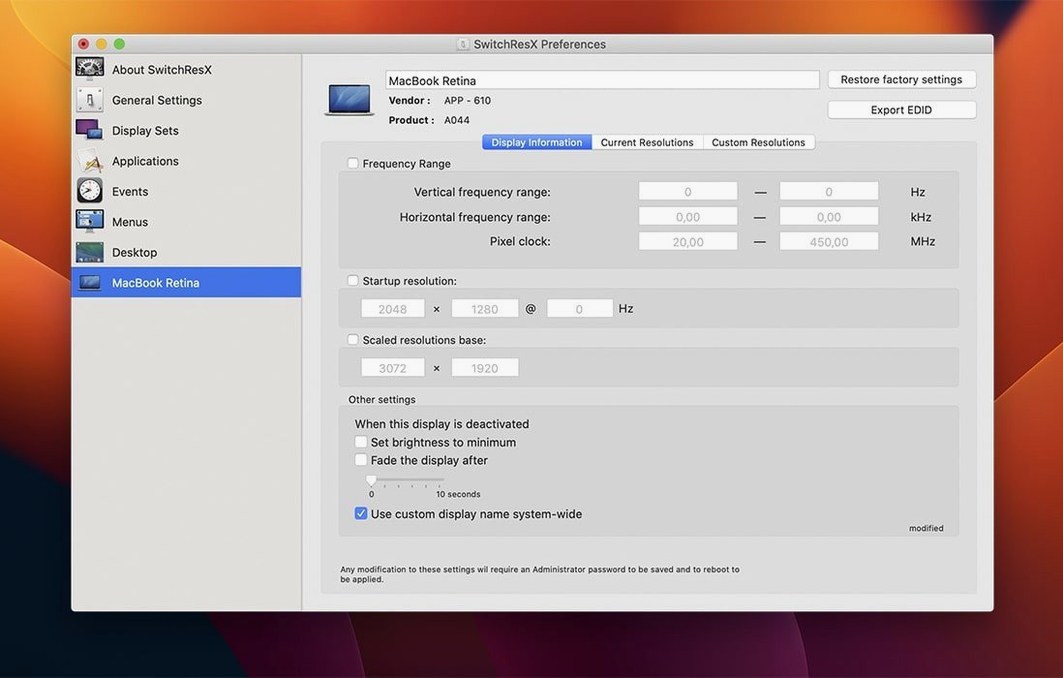
The Monitor Information pane lists EDID data — manufacturer, serial, native timing. Useful when matching a spare panel to a projector calibration.
Mirroring override sits in the Arrangement options. You can force mirroring to the display with the lowest resolution, the highest, or a specific target. No need to accept whatever macOS picks.
Export current display settings before creating a custom resolution
- Open the About SwitchResX menu and confirm it reads version 4.14.2. Earlier builds had a settings loop bug when no display was attached — now fixed.
- Before creating a custom resolution, export your default display settings. The File menu has an export option. If a custom mode blanks the screen, you can restore without a reboot.
- When adding a custom resolution, use CVT-RB timing for modern LCD panels — it reduces blanking overhead. Avoid interlaced modes unless you are feeding an old broadcast monitor.
- Set up one Display Set per physical arrangement. Name them by desk layout, not by resolution: Dual-stacked, Client-facing, Cintiq-only.
- Assign a keyboard shortcut to the Display Set you use most. The shortcut triggers instantly; no confirmation dialog appears.
- If a display appears with no name in the list — fixed in this version — re-scan from the Displays tab. The fix resolves the blank-name entry that could break Display Set chains.
- Test your rotation override before relying on it. Some macOS versions hide portrait mode even when the panel supports it. SwitchResX re-exposes the option, but the monitor firmware must accept the signal.
Unlocking the missing 4096×2160 mode on a reference monitor
A colour calibration tech runs two identical 4K panels, a reference monitor, and a client-facing HDMI feed. macOS sees all four, but the default resolution list omits the native 4096×2160 mode the reference display expects.
After a SwitchResX download and a quick install, the tech adds the missing mode via the Custom Resolutions tab. The panel locks into native resolution immediately. A Display Set named Softproof chain bundles the custom mode with an ICC profile tuned for newsprint output.
When Photoshop launches, an AppleScript hook tells SwitchResX to activate the Softproof chain set. The reference panel switches to 4096×2160, the calibration loads, and the client display mirrors the main palette view. Closing Photoshop returns everything to the Dual-stacked default. No manual switching, no missed profile assignments.
The tech keeps a second set — Client review — that disables the reference monitor entirely and mirrors full-screen to the HDMI feed. Both sets live in the menu bar, and a single right-click toggles between them during a session. The whole workflow fits into three Display Sets and one custom resolution. No scripting beyond the AppleScript one-liner that launches with Photoshop.
- Stops repeated self-updating of settings when no display is attached.
- Fixes an issue with displays that have no name in macOS.
- Fixes an issue when deleting a Display Set used after another Display Set.
- Allows quitting the Dock when disabling a display on Apple Silicon Macs.
- macOS 10.10 or newer
- Intel or Apple Silicon Mac







Comments 0
Sign in or create an account to add a comment.
No comments yet. They go up after moderation.