

SuperDuper! — Mac download
Download (10 MB) Earlier builds
Ticked
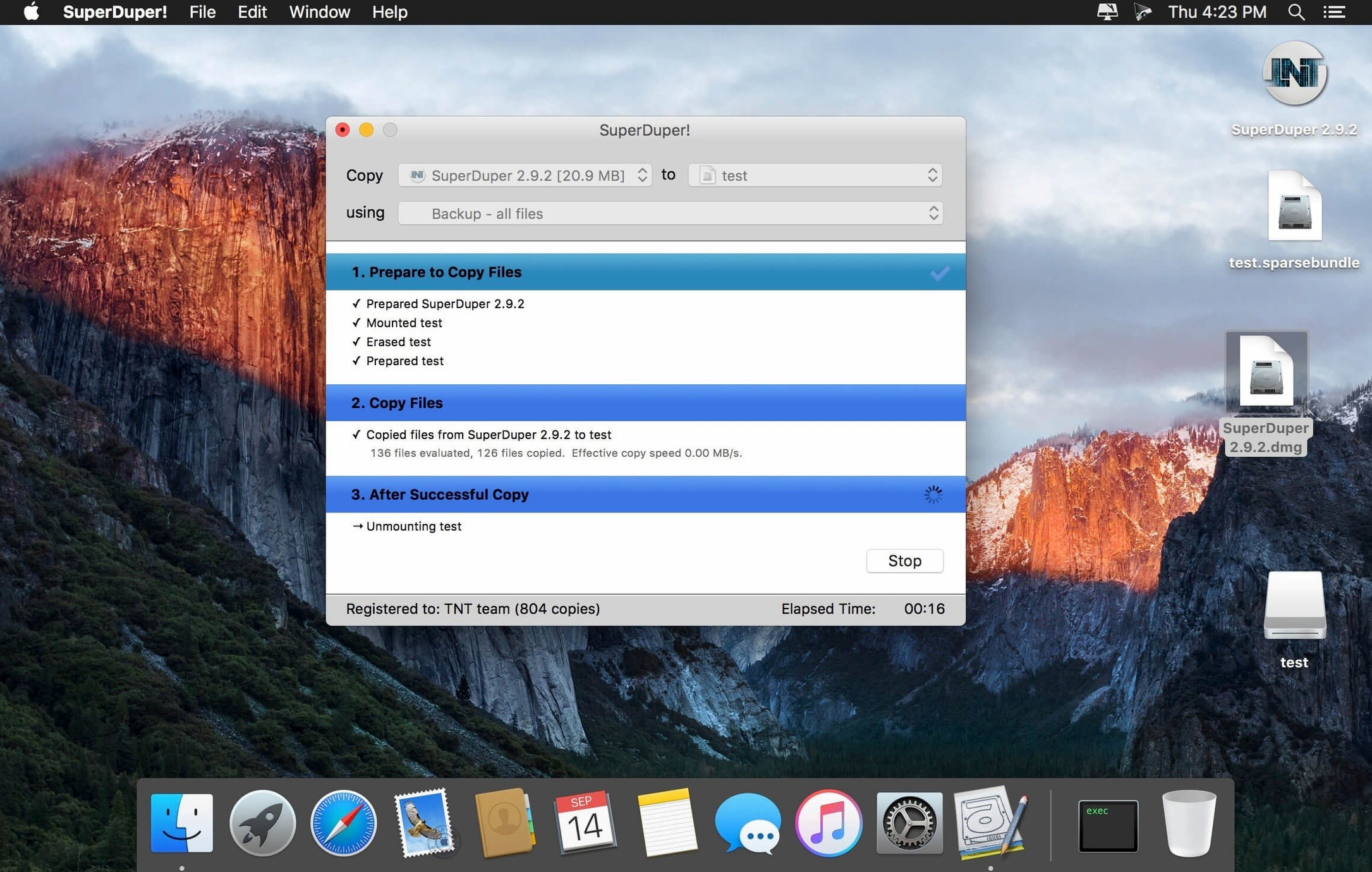
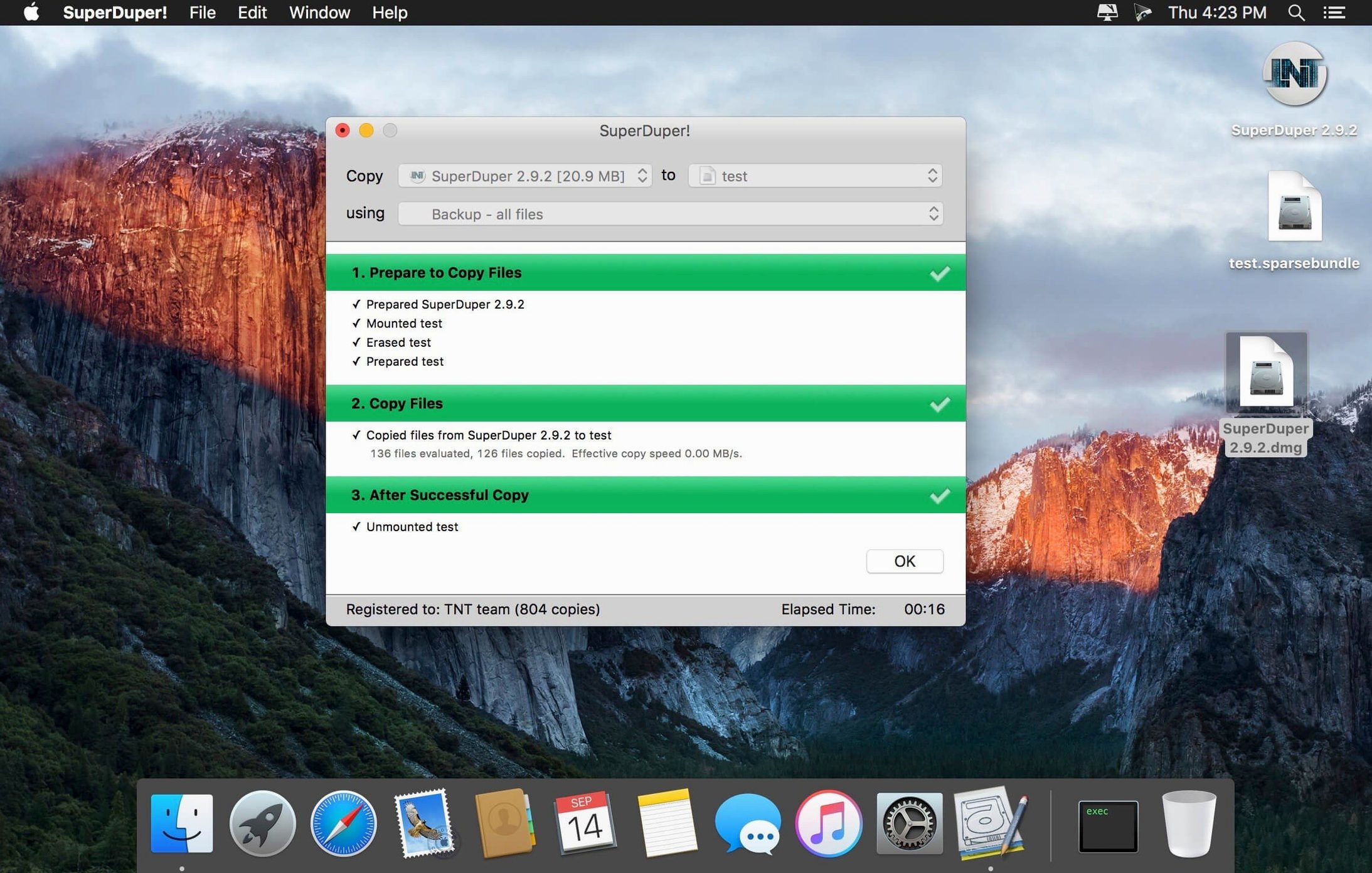
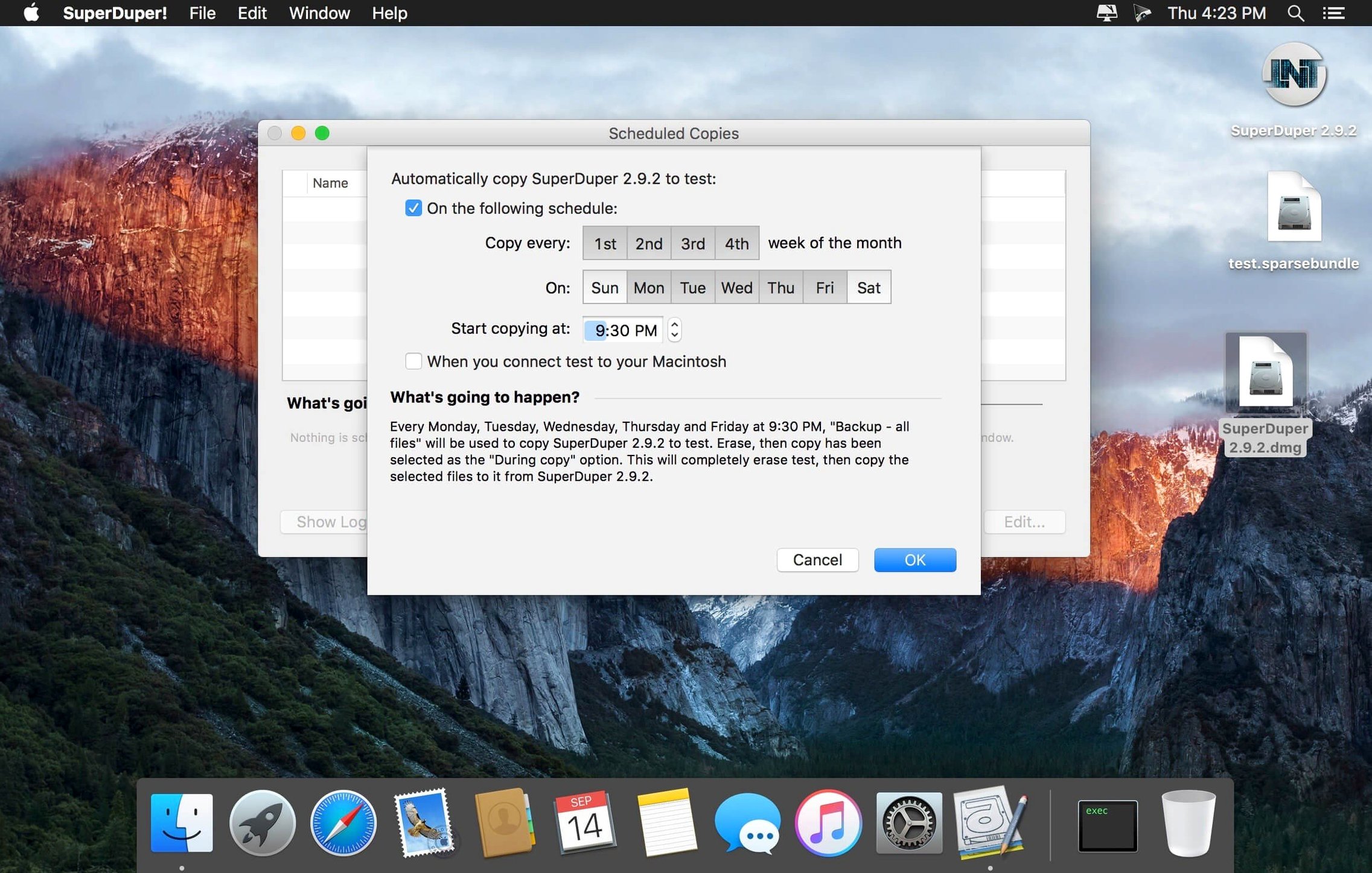
Smart Update is the centrepiece. It copies only the bits that changed, so an after-work refresh takes minutes, not hours. But the first question is always the same.
- Runs on macOS 10.13 or newer, on both Apple Silicon and 64-bit Intel Macs.
- Creates an exact, bootable clone of your startup disk for a fast fallback.
- Copies a whole disk, a single volume, or an image file.
- Moves a complete system to another Mac by cloning to a drive you swap in.
- Runs scheduled, periodic copies of folders that matter to you.
- Installs via a disk image: drag the app to Applications, then launch it.
Once the copy finishes, you find the app in Launchpad and open it directly. That is the compatibility picture. No cloud accounts, no complicated installers — just a straight clone when you need one.
Clone a Mac before a system upgrade: a step-by-step workflow
System upgrades go wrong at the worst times. A bootable clone gives you a safety net you can start from immediately. Here is the pre-upgrade checklist.
- Connect an external drive at least as large as your internal disk. SuperDuper! erases the destination, so move anything you want to keep off it first.
- Open SuperDuper! and choose your internal drive as the source. Select the external drive as the destination.
- Pick Backup – all files from the dropdown. This clones everything: system, apps, hidden files, Recovery volume.
- Click Options… and confirm Smart Update is selected. On a fresh destination it copies everything; on subsequent runs it only updates changes.
- Check Erase destination, then copy files if the drive contains old data. Leave it unchecked only if you are refreshing an existing clone.
- Name the destination drive clearly under the General tab — something like “macOS backup pre-upgrade” — so you recognise it at boot time.
- Click Copy Now. Wait for completion. Do not unplug the drive during the copy.
- After the copy finishes, open System Preferences > Startup Disk and select the external clone. Restart to confirm it boots to your desktop. That test takes two minutes and saves hours of panic later.
- Proceed with your system upgrade. If the upgrade breaks anything, hold Option at startup, pick the clone, and you are back exactly where you were.
For extra safety, run a second Smart Update the morning after the clone, before upgrading. Any overnight file changes get captured, and the refresh is fast.
Boot option fix for macOS 27
Version 4.0.7 shipped a single practical fix: a workaround for a startup-drive visibility issue under macOS 27 Golden Gate. In everyday use that means the clone you made yesterday still shows up as a boot option tomorrow — no disappearing volumes in the Startup Disk pane, no holding Option to find a drive that is not listed.
Earlier releases kept compatibility steady. The app moved to native Apple Silicon support without a separate build, so a superduper mac full install covers both architectures from the same disk image. Users pulling a superduper for mac download no longer need to check whether their Mac is Intel or ARM; the same app runs on either.
Set up a nightly Documents clone before you need it
After dragging the app to Applications and launching it, do these three things before you need a restore.
- Create a “Nightly documents” schedule. Pick your Documents folder as the source, an external drive as the destination, and the Copy different files script. Set it for 2 a.m. daily. This runs a quick scan and copies only what changed. You stop losing afternoon work to a drive failure.
- Save a clone script. Set up a full-system clone with Smart Update, then click File > Save As… and name the script. Next time you plug in the backup drive, open the script and hit Copy Now. No reconfiguring the source and destination every week.
- Test a restore early. Boot from the clone once. Open a file, check that an app launches. A superduper mac backup that has never been booted is a promise you have not kept. The first test reveals permission quirks or missing files while you still have time to fix them.
Some people search for a superduper torrent to skip the disk image step. Whatever route you take to get the app, the post-install habits above are what turn it from a downloaded icon into a safety net you trust.
- Workaround added for a startup-drive visibility issue under macOS 27 Golden Gate.
- macOS 10.13 or later
- Apple Silicon or 64-bit Intel processor
Questions the team asks
Yes. Version 4.0.7 supports both ARM and 64-bit x86 Macs running macOS 10.13 or later.
It can make a full, bootable clone of a disk, copy a specific volume or disk image, and run scheduled backups of important data.







Comments 0
Sign in or create an account to add a comment.
No comments yet. They go up after moderation.