

TechSmith Snagit — Mac download
Download (195 MB) Earlier builds
Ticked
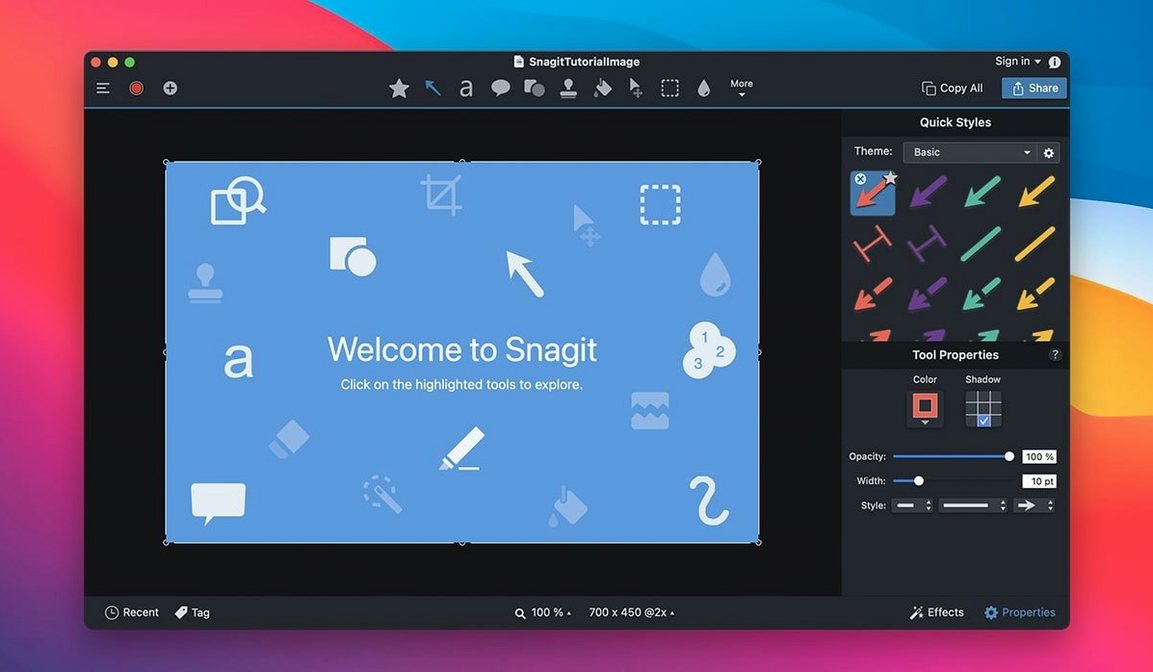
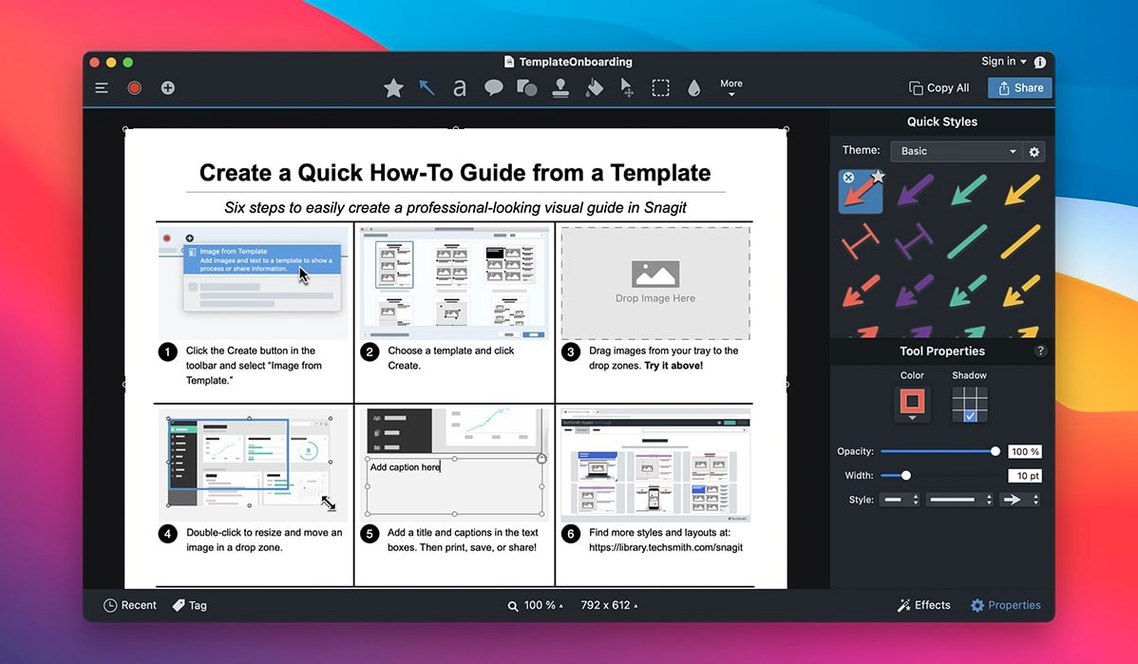
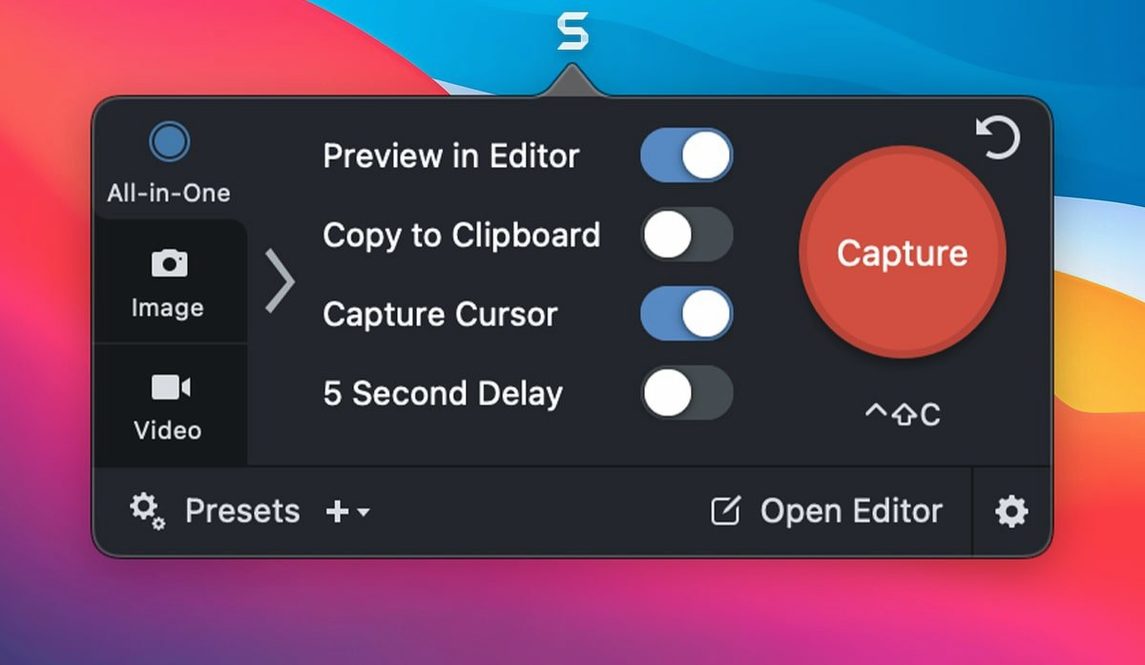
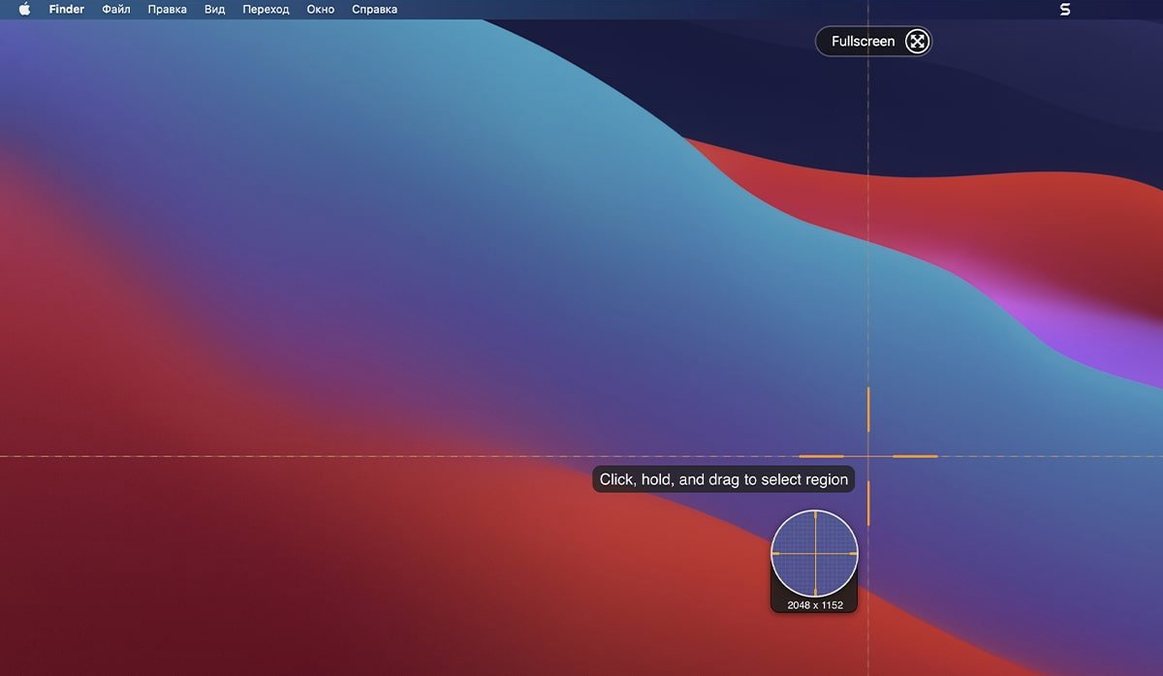
If you’ve ever used macOS’s built-in screenshot tool and wished it could scroll, annotate properly, or file things without renaming ten PNGs, Snagit fills those gaps. It sits in the menu bar and picks up where Shift-Command-5 leaves off.
Grab a full webpage with a scrolling capture
Choose the scrolling window profile, click inside a browser or long document, and Snagit stitches the whole thing together. No more overlapping manual screenshots.
Build a one-key capture preset
Set your area, output folder, and edge shadow once, then save it as a preset. Assign a keyboard shortcut and you’ve got a repeatable capture with zero dialogue boxes.
Tag captures straight after you take them
Before you close the editor, type a keyword or two in the tag field. Tags show up in the Snagit Library later, so finding last month’s mockup is a quick filter instead of a folder hunt.
Saving a capture area as a preset keeps output consistent across a project
- Skipping the preset save step. New users set up a capture area once, use it, then rebuild it again the next day. Saving it as a named preset takes two clicks and keeps output consistent across a project.
- Capturing first, tagging never. Tags work best applied right after capture. Leaving the tag field blank means the Library fills with untitled screenshots that are a chore to sort later.
- Ignoring the canvas resize handles. Beginners crop in the editor by re-capturing the same area, instead of dragging the canvas edges. The crop tool is faster and non-destructive until you save.
- Using video when a scrolling image would do. Recording a 45-second scroll video for a bug report buries the detail. A single scrolling capture gives the developer a static, searchable image they can mark up.
- Hiding the floating capture toolbar. Some people close it thinking it’s a nuisance, then wonder why keyboard shortcuts don’t fire. The toolbar needs to stay open for quick profile switching.
Capturing a step-by-step checkout error with a preset for a shared library
A customer reports a multi-step checkout error. The agent hits Ctrl+Shift+2 for their “step capture” preset, which grabs a region, adds a 2px drop shadow, and saves to a shared library folder. They walk through the broken flow, capturing each screen. In the editor they add numbered callouts and a dimmed background on the field that’s failing. The five-image collage gets tagged with the ticket ID and dropped into an internal Slack thread. Total time from report to annotated evidence: under four minutes. Nobody asks “which page was that again?”
Capture engine fires with no lag on a 5K Apple Silicon Mac
On a standard Apple Silicon Mac the capture engine fires with no perceptible lag, even on 5K displays. The menu bar helper idles around 90 MB of memory; that figure climbs to roughly 180–220 MB during an editing session with multiple images open. Scrolling capture processing adds a brief CPU spike, then settles. Video recordings at 30 fps stay smooth on M-series chips, with the fan staying silent unless you’re capturing a GPU-heavy application. Stability under macOS 15 is solid — the 2026.3.3 build addressed a toolbar freeze and QuickLook arrow-key bug that used to trip up library browsing. For anyone who pulled a snagit for mac download and left it running for a week, the background helper never leaked memory in testing. Intel machines see slightly higher CPU use during video encoding, but still manageable for a daily driver.
Snagit 2026.4.3 is available. The changes are listed on the developer's support site.
- macOS 15 (Sequoia) or later
- Apple Silicon or Intel 64-bit Mac
Questions the team asks
Yes. Select multiple images in the library and use the combine option to build a single collage, which you can then annotate or export as usual.
It does. You can send a finished capture by email, or publish it straight to a blog or FTP server without leaving the app.









Comments 0
Sign in or create an account to add a comment.
No comments yet. They go up after moderation.