

TG Pro — Mac download
Download (15 MB) Earlier builds
Ticked
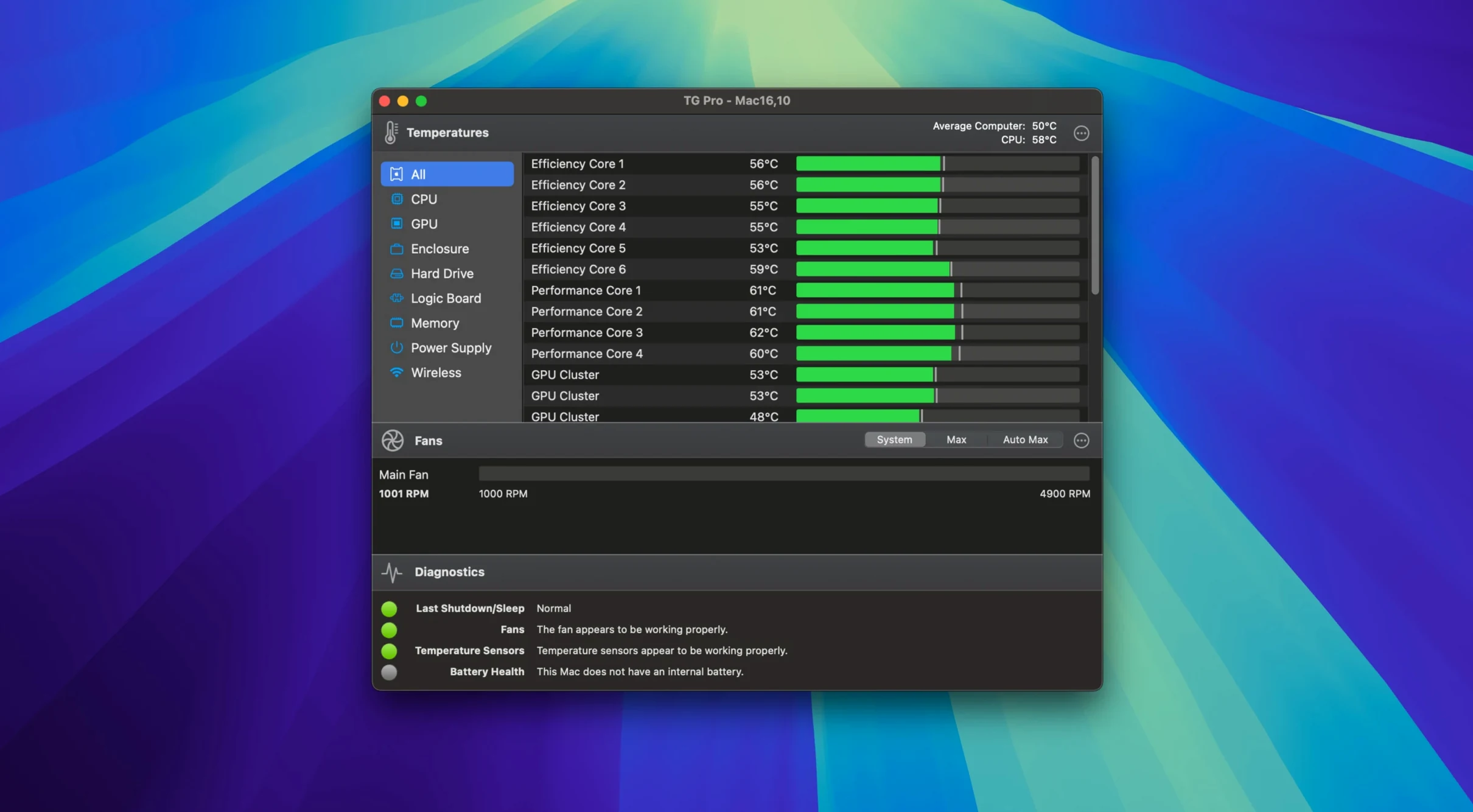
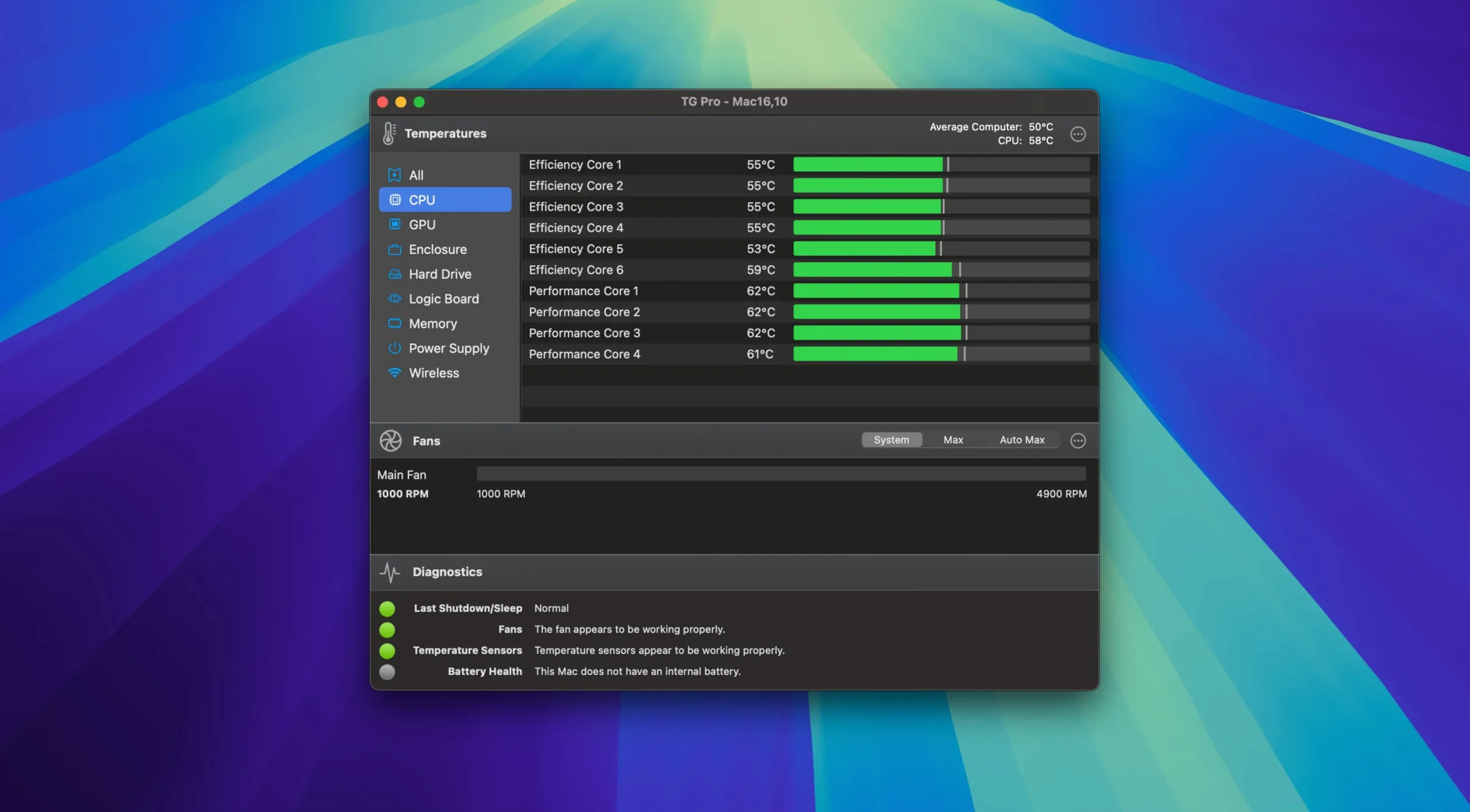
Experienced Mac users reach for TG Pro when they want more than a menu bar readout. It suits people who run sustained loads — renders, builds, virtual machines — and need to see what the cooling system is actually doing.
Can I set fan behaviour based on a specific sensor?
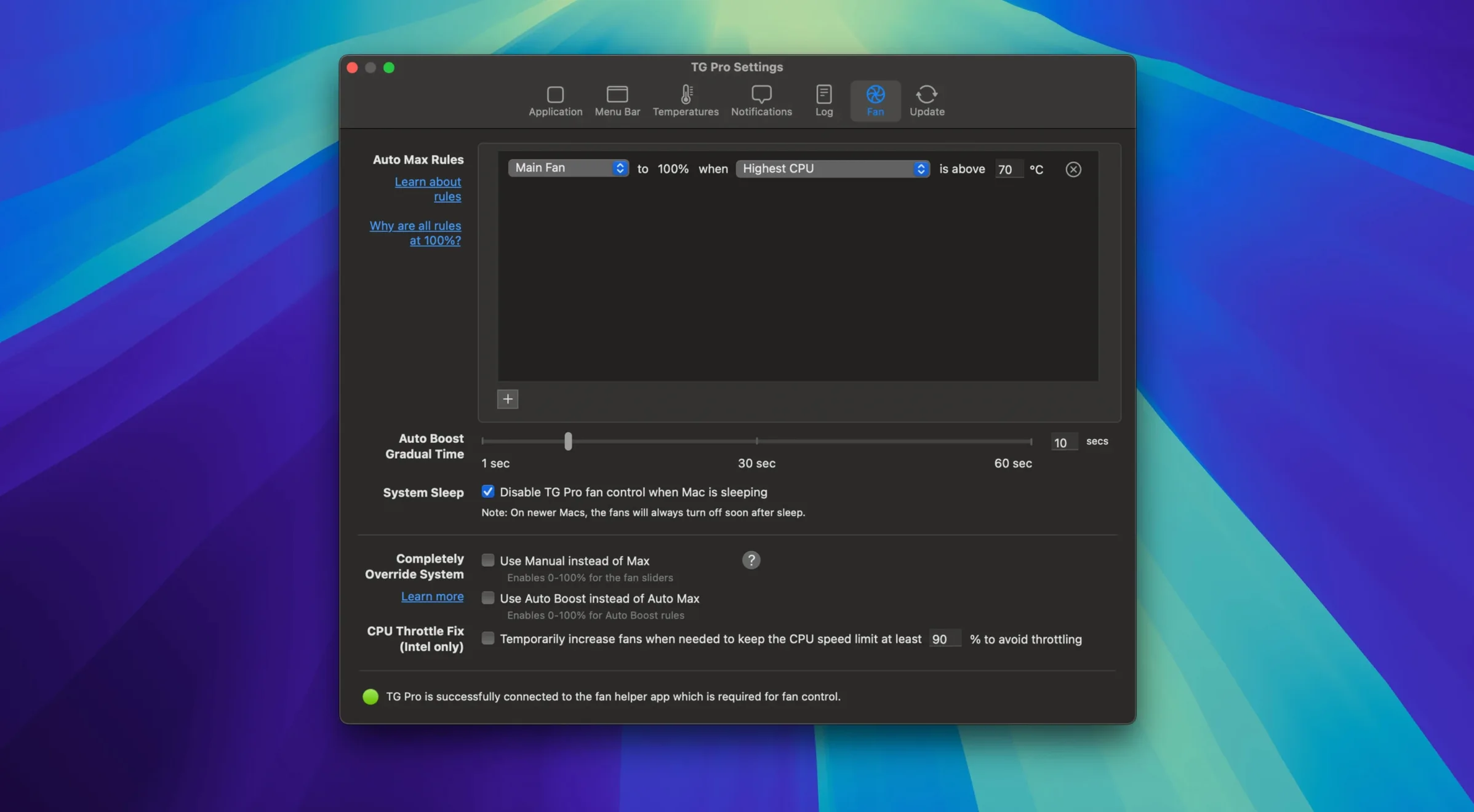
Yes. Custom rules let you tie a fan to any temperature sensor, so a hot SSD can trigger extra airflow without waiting for the CPU to spike.
What sensors does it cover?
CPU, GPU, logic board, memory, Wi-Fi, disks, and battery on laptops. Apple Silicon and Intel 64-bit Macs are both supported.
How do I know if something overheated while I was away?
Alerts and logging record temperature events. You can review what happened instead of guessing.
Does it do more than monitor?
A fixed fan speed ignores heat spikes
New users often set a fixed fan speed, walk away, and wonder why the machine still throttles. A single manual value ignores sensor changes — the fan can't react when load climbs. Use Auto Boost rules instead. They let you shift the factory curve without disabling it.
Another common slip: tying a fan to the wrong sensor. A MacBook's left fan pulling from the GPU diode while the right side pulls CPU proximity — then one fan idles under a CPU-heavy compile. Check the sensor list carefully. Match the fan to the component you are actually stressing.
Some people set alerts too tight. A 75 °C ceiling on a modern Apple Silicon chip triggers notifications during normal spikes that last two seconds. Set thresholds a few degrees above your observed peak, not your comfortable ideal.
Show the hottest sensor in the menu bar
- Menu bar display. Default shows CPU temperature only. Switch it to show the hottest sensor across the system — far more useful when you glance up mid-task.
- Auto Boost mode. Under the fan control tab, enable it per fan. You set a minimum base speed and a temperature target; the app handles the ramp. It stops you cooking the machine while keeping noise down at idle.
- Hackintosh toggle. If you run a non-Apple build, enable it in preferences immediately. Without it, some sensor paths are hidden and fan data may read zero.
- Logging interval. The default 60-second log is fine for trend watching. Drop it to 10 seconds if you are chasing an intermittent thermal fault.
- Startup launch. The app can sit in the background from boot. Turn that on if you rely on custom fan rules — otherwise the rules only apply after you open it manually.
0.1% CPU and 35 MB RAM on M1 Air
TG Pro stays out of the way. On an M1 MacBook Air it sits at 0.1–0.3% CPU while polling sensors every few seconds. Memory use hovers around 35–45 MB — trivial next to a browser tab. Intel machines see similar numbers, though older CPUs with fewer efficiency cores show slightly higher wake-ups during logging.
Fan rule changes apply within a second or two. There is no perceptible lag between a temperature spike and the fan ramp when Auto Boost is configured. The app has survived multiple macOS upgrades without breaking its sensor paths — version 2.103 runs on everything from High Sierra through the latest builds, which is rare for a utility that pokes this deep into SMC and system controllers.
Stability holds well. Over a week of background use with logging active, no crashes or memory creep appeared. The only quirk noted: after Siri or voice dictation finishes, some Macs briefly lost custom fan speeds — but 2.103 explicitly fixes that. If you run a tg pro mac setup alongside other hardware monitors, expect sensor name collisions. Stick to one tool for active fan control to avoid conflicting rules.
Diagnostic tests exercise sensors and fans to confirm they respond correctly. Useful after a repair or when a machine feels hotter than it should.
- macOS 10.13 or later
- Intel 64-bit
Questions the team asks
Yes. It supports Apple Silicon and Intel 64-bit Macs, including M4, M4 Pro, and M4 Max models.
macOS 10.13 High Sierra through macOS 26.








Comments 0
Sign in or create an account to add a comment.
No comments yet. They go up after moderation.