
Techtool Pro — Mac download
Download (318 MB) Earlier builds
Ticked
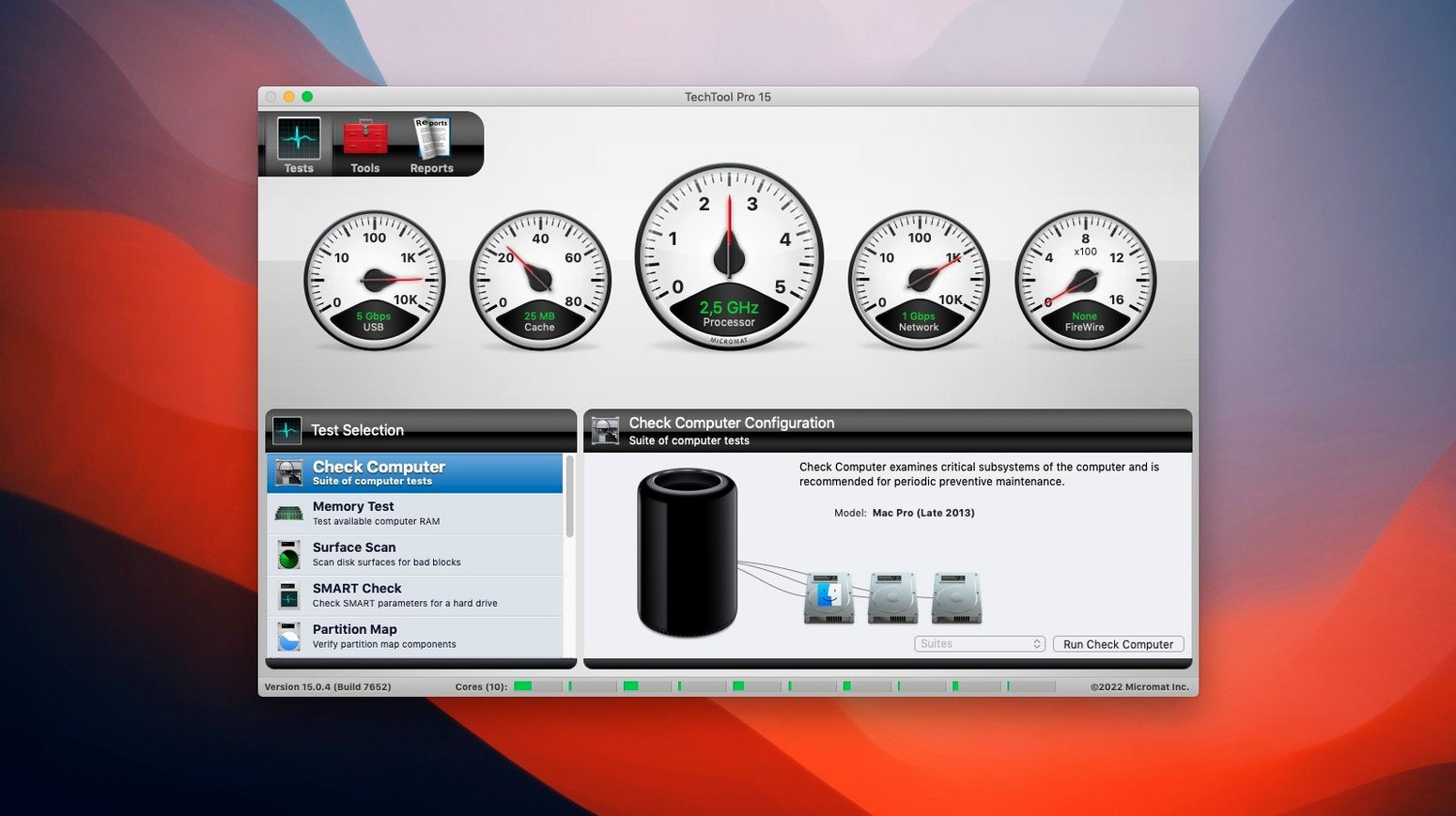
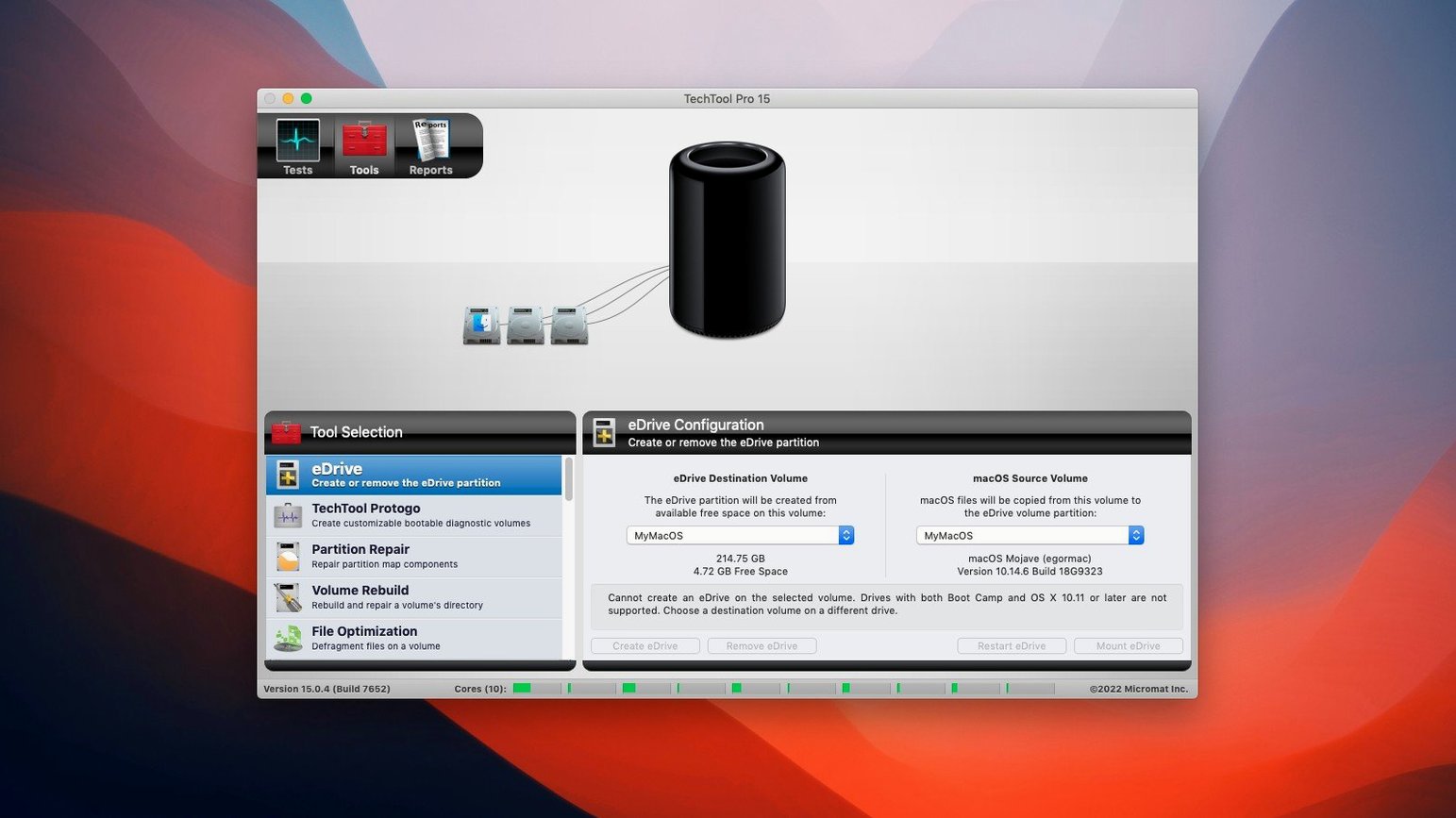
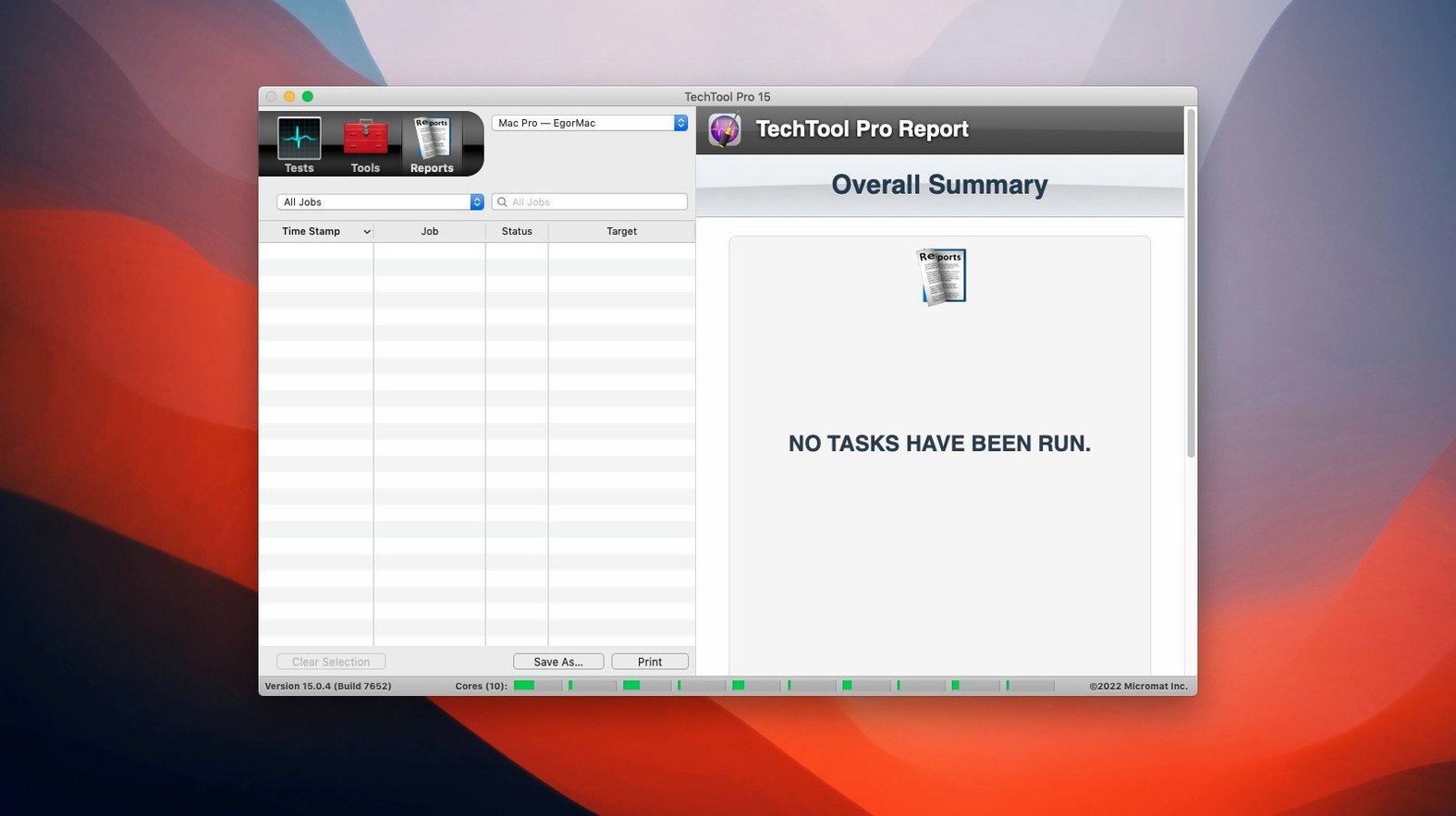
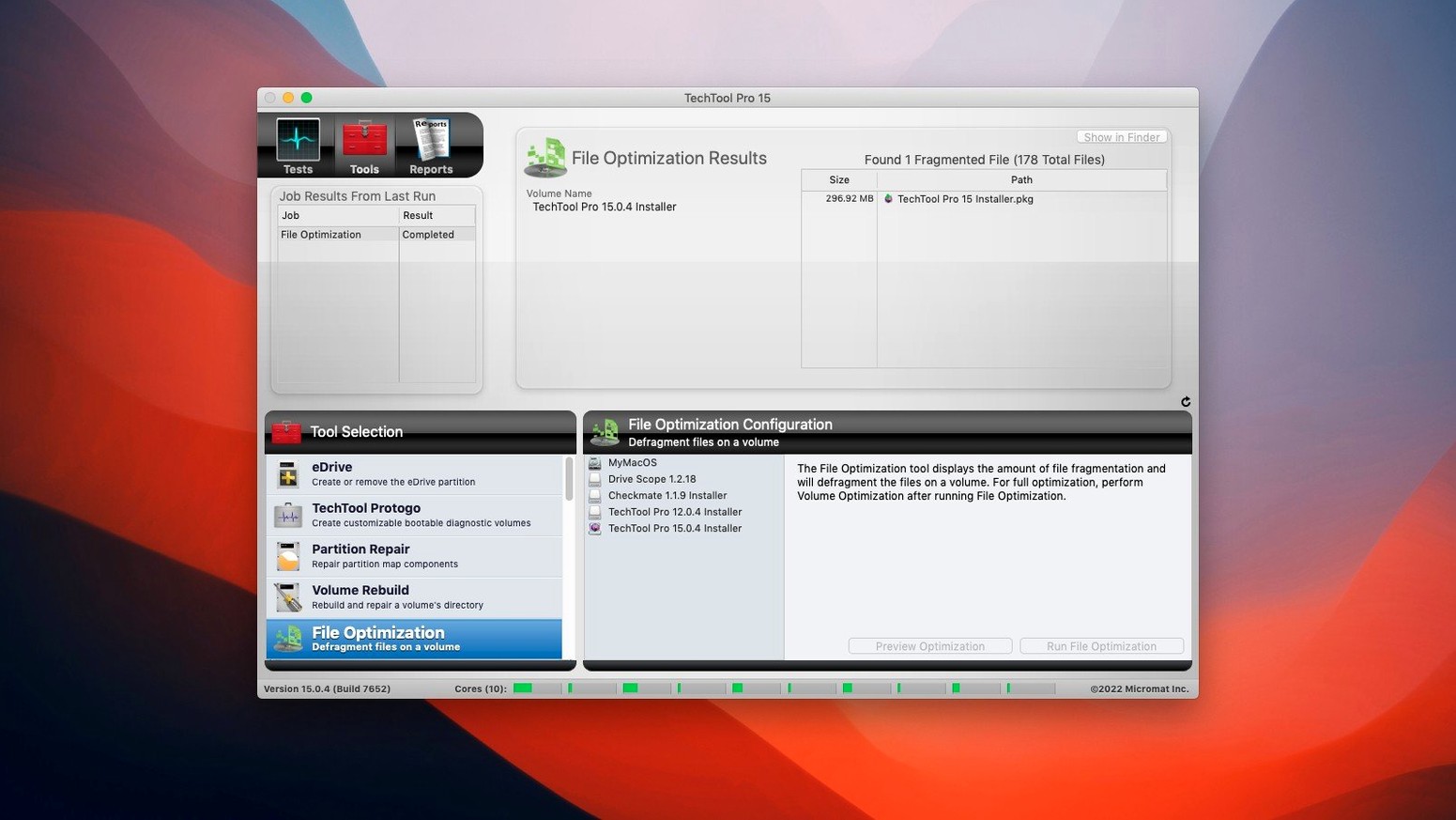
Version 20.1.7 ships with one fix that stops a crash dead — the one that hit when TechTool Monitor launched. That tells you the kind of tight ship Micromat runs. The app itself opens on any Mac running macOS 10.13 High Sierra or newer, Intel or Apple Silicon, no exceptions.
What lands on your drive is a single interface holding the whole toolkit. You can repair damaged volumes, SSD volumes included, and restore file access permissions on a partition that has gone sideways. The cloning tool copies a volume outright. If you need an emergency boot partition, the app builds one straight on the active system volume — no DVD required.
TechTool Protection sits in the background. When it spots trouble, it pushes an on-screen message and can fire off an email notification. For deeper messes, the file recovery tools dig out deleted files and lost data.
Keeps Mail and Logic Pro open during a scan
Does it play nicely with my daily apps? It sits alongside them without friction. Techtool Protection runs in the background at low priority. You can keep Mail, Xcode, Logic Pro and whatever else open while a scan ticks away. No conflicts reported with common development or creative tools on build 9559.
Will it thrash my SSD with constant writes? No. SMART checks read drive attributes — they do not hammer the disk with write cycles. Volume repair touches only the filesystem structures it needs to fix. You set the cadence through Techtool Protection preferences; it does not run unbidden.
Can I use it on more than one Mac? The architecture handles both Intel and Apple Silicon machines from macOS 10.13 upward. If you maintain a bench of Macs, Protogo lets you build a single bootable diagnostic drive that boots any of them. One USB stick, one toolkit, multiple machines.
Start with SMART Check when Finder feels sluggish
You sit down with a Mac that has been acting off — Finder sluggish, a drive that unmounts itself at random. You launch Techtool Pro. The single-window interface lists every tool as a checkbox.
First, you tick SMART Check and Volume Structures. You leave File Permissions checked too — that partition has been through a few migrations. You hit Run. The app sequences through each test, logging pass or fail as it goes. SMART returns green. Volume Structures flags two catalog errors. Permission repair finds seven misaligned items and fixes them silently.
Next, you run Surface Scan on the suspect drive. It finds one bad block and pulls the file that lived there into a recovery folder on your desktop. You open it — intact. The block gets mapped out so macOS never touches it again.
Before you close the lid, you toggle Techtool Protection to watch free disk space and SMART status. Email alerts are set. You quit the app; the monitor stays resident. Session done in under twenty minutes.
Goes deeper than Disk Utility on surface scans
Techtool Pro slots into a Mac toolkit without overlap. Disk Utility handles formatting and first aid; Techtool Pro goes deeper on surface scans, data recovery and permissions that Disk Utility skips. Time Machine backs up versions; Techtool Pro clones whole volumes for a bootable snapshot you can swap in immediately.
For network admins, the device configuration monitor plays nice with Apple Remote Desktop and basic MDM profiles — it does not interfere with management frameworks, it just adds another layer of hardware-level visibility. Protogo builds a diagnostic drive that boots independently of the installed OS, which means you can test a machine without touching its internal drive at all. Combine that with a techtool pro mac setup on a USB-C stick and you have a portable bench tool that covers every Mac in the building.
File recovery integrates with Finder directly — recovered items land in a dated folder, ready to drag back where they belong. No proprietary container format, no extra import step. Just files, back in your workflow.
Everything runs from one window. No jumping between separate utilities. Just pick the task, start the check, and work through the results.
- macOS 10.13 High Sierra or later
- Intel or Apple Silicon Mac
Questions the team asks
Yes. The repair tools handle damaged volumes including SSDs.
Techtool Protection monitors your system and can show an alert and send an email when it finds a problem.
Yes. The app can create an emergency boot partition directly on the active system volume.









Comments 0
Sign in or create an account to add a comment.
No comments yet. They go up after moderation.