
ToothFairy — Mac download
Ticked
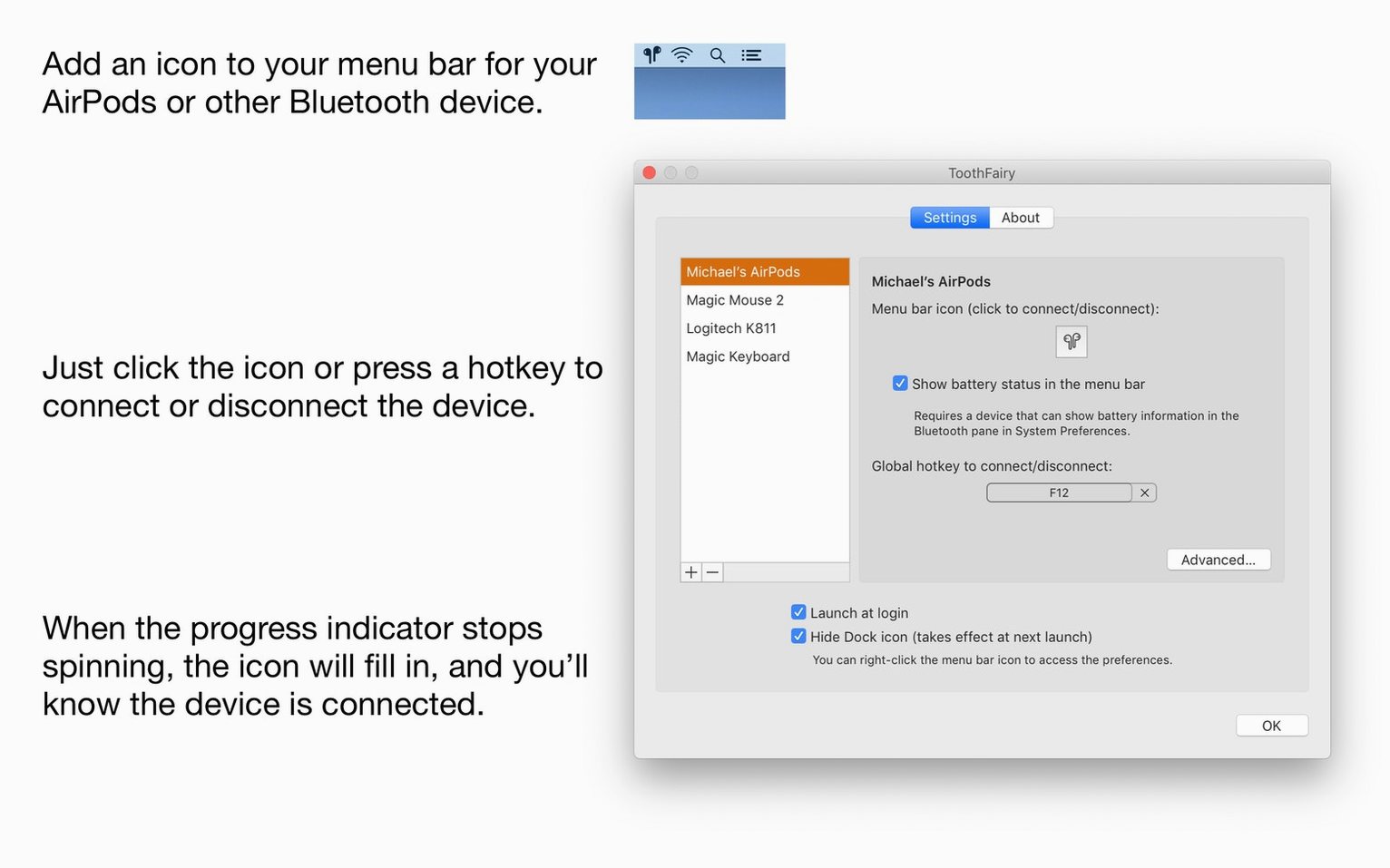
Add a device
The current version notes a macOS Tahoe 26 quirk where a paired device may not appear in the Bluetooth selector dialog when adding it. If you hit that, check the macOS Bluetooth menu first—the device needs to be paired at system level before ToothFairy can see it.
Connect with one click
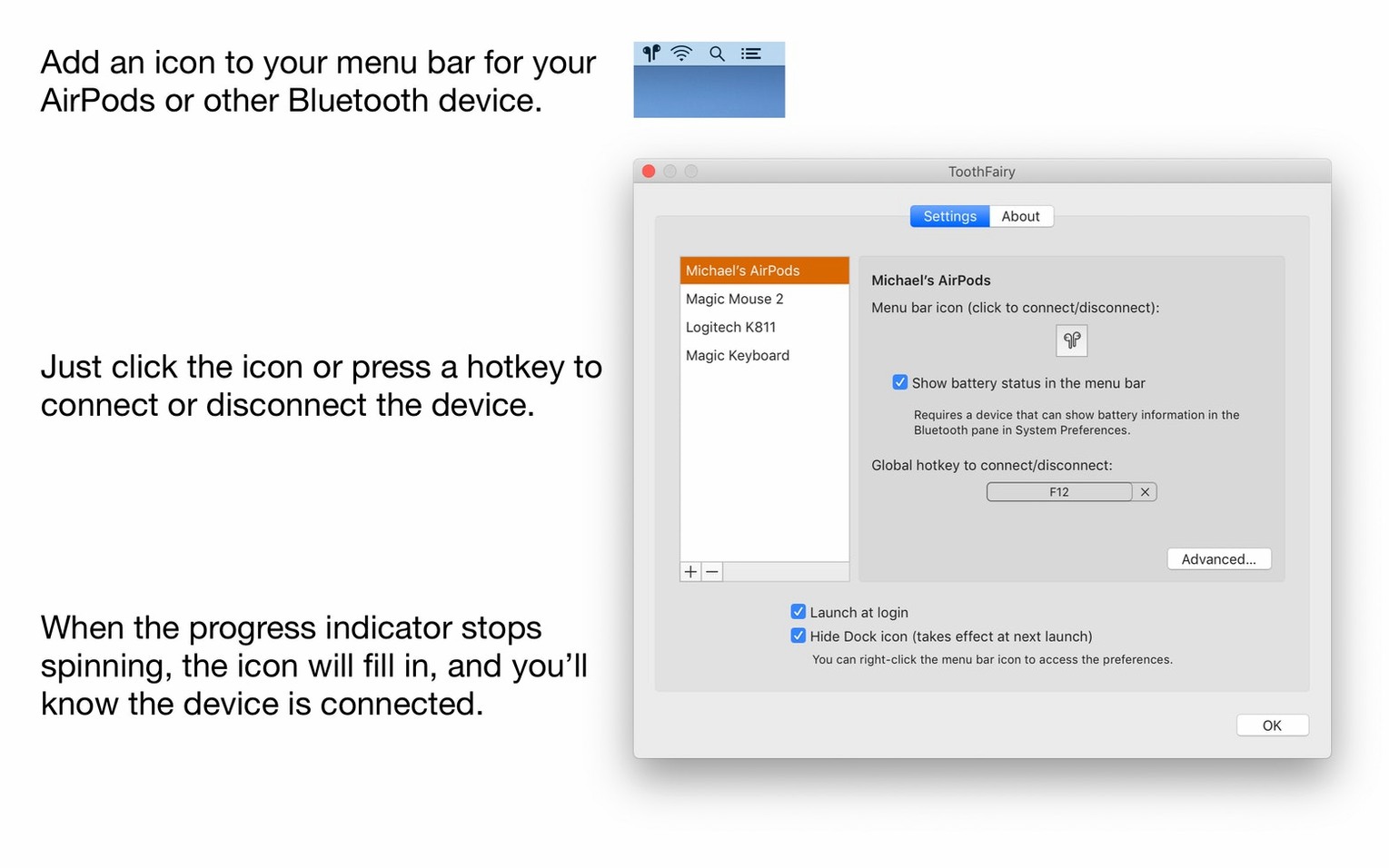
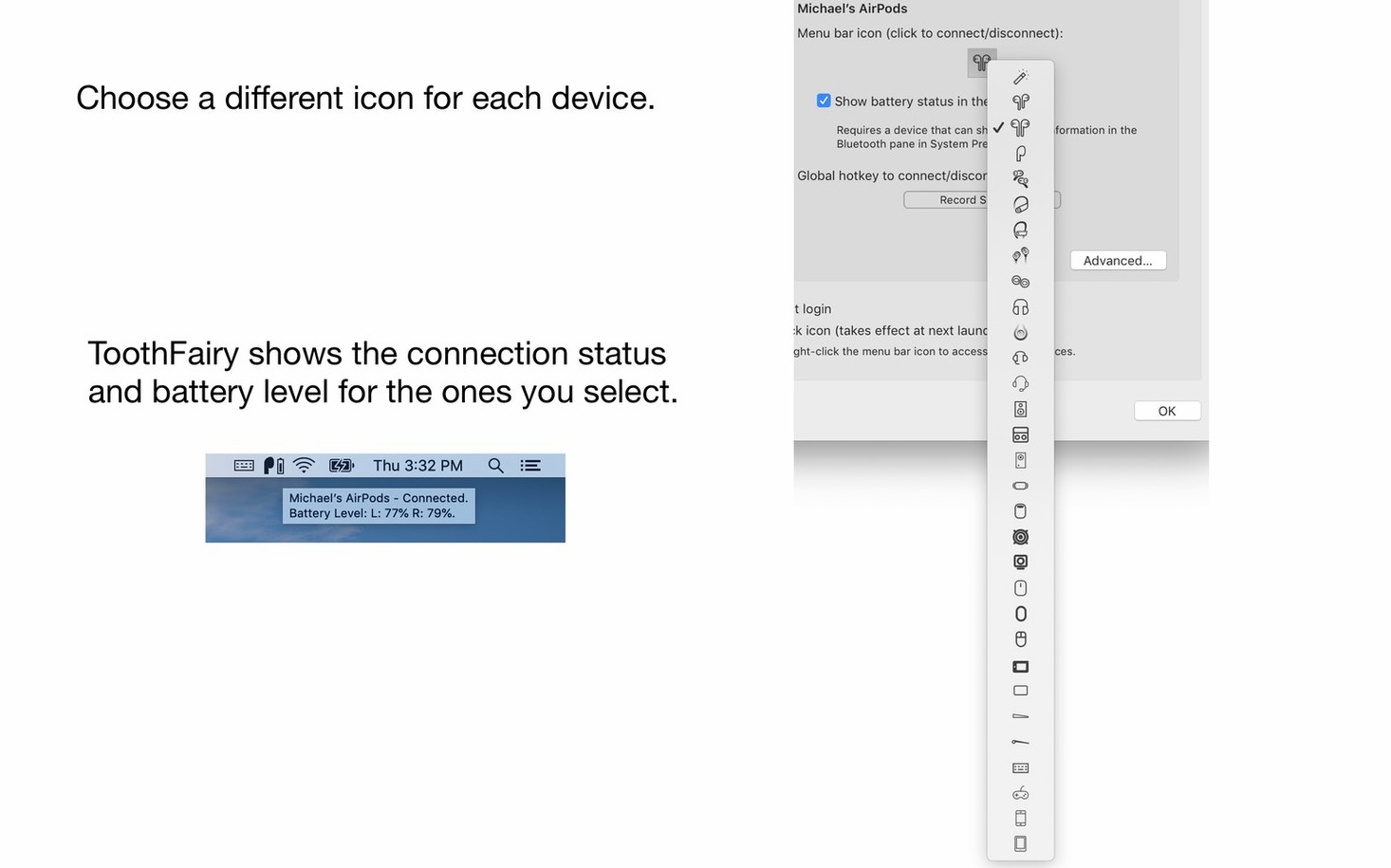
Pick an icon from the menu bar to connect a device instantly. A single click toggles the connection for headphones, speakers, or a game controller. No digging through System Settings.
Use a keyboard shortcut
A workflow: switch audio to headphones for a call
You sit down and notice your AirPods are still paired to your phone. On the Mac, you click the ToothFairy icon for your AirPods in the menu bar. The icon fills, the connection sound plays, and macOS routes audio to them. Open your call app. The battery level shown in the menu bar tells you there is enough charge for the meeting. After the call, click the same icon to disconnect and send audio back to the Mac speakers. No Bluetooth pane, no drop-down fiddling.
Click an icon, connect a device by 9:11
9:10. You unlock the Mac. ToothFairy launched at login, so three device icons sit in the menu bar: AirPods, a Bose headset, and a Bluetooth mouse.
9:11. Click the mouse icon. It connects. The custom icon turns solid.
10:30. A colleague messages about a quick call. You click the AirPods icon. Four seconds later the status dot confirms the link. The battery indicator reads 72%. You take the call.
10:55. Call ends. You press ⌃⌥⌘A, the shortcut assigned to the AirPods, to disconnect them. Audio snaps back to the MacBook speakers.
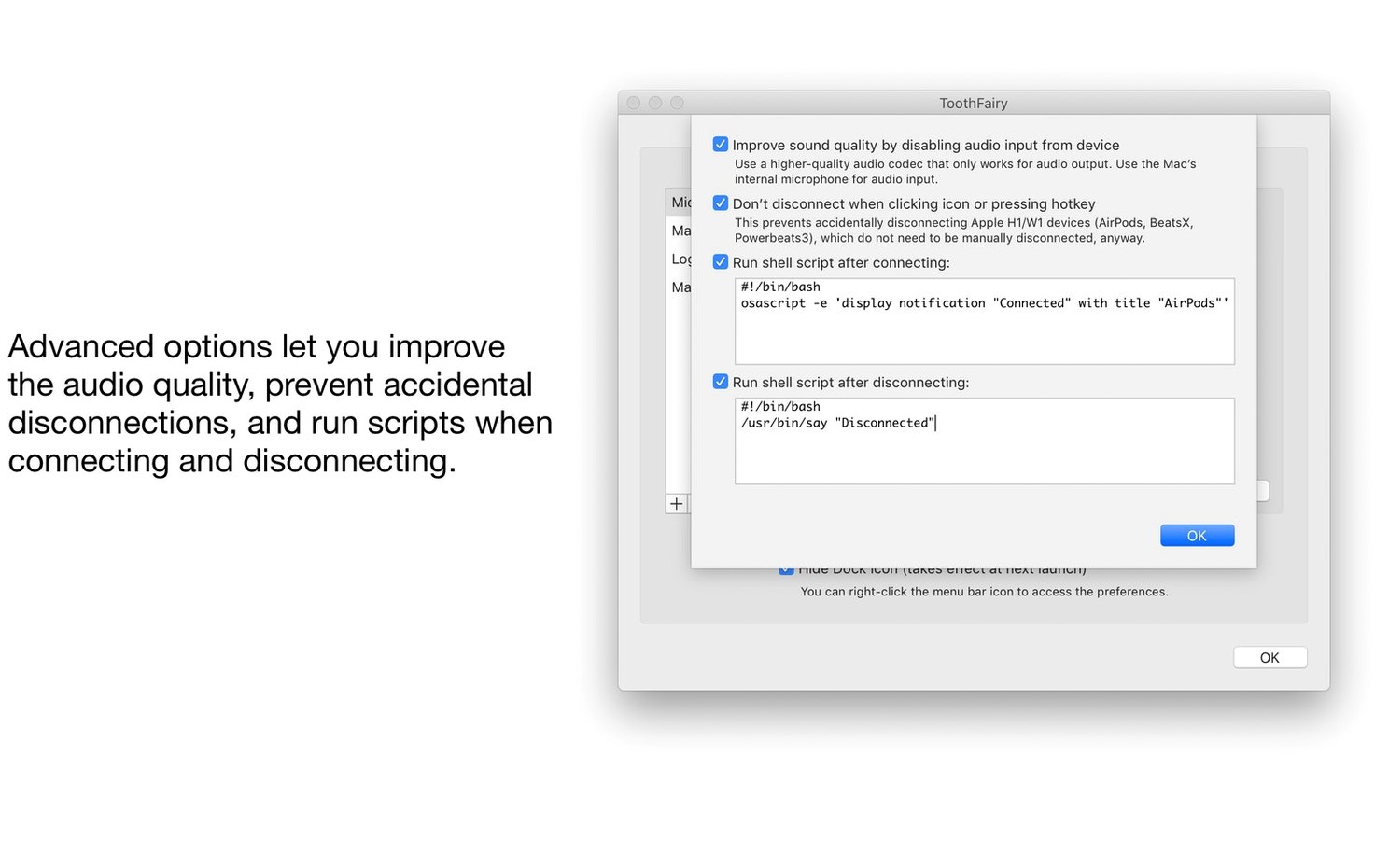
14:00. After lunch, you connect the Bose headset for focused work. A shell script fires on connection and launches your music player. The app forces AAC codec for audio output only, so you get cleaner sound. Two hours later, one click on the Bose icon disconnects it. The script closes the player.
17:00. End of day. You glance at the menu bar. All three icons show disconnected. No battery surprises waiting for tomorrow.
Assign a global shortcut to your most-used device. One keypress connects or disconnects it, without touching the mouse.
- Adds a note about a macOS Tahoe 26 issue where a paired device may not appear in the Bluetooth selector dialog when adding it in the app.
- macOS 10.13 or later
- Apple Silicon or Intel 64-bit
Questions the team asks
It works with AirPods, headphones, headsets, microphones, controllers, keyboards, and mice—any standard Bluetooth device that pairs with macOS.
Yes, you can set it to launch at login so your shortcuts and menu bar controls are ready immediately.









Comments 0
Sign in or create an account to add a comment.
No comments yet. They go up after moderation.