

Tuxera NTFS — Mac download
Ticked
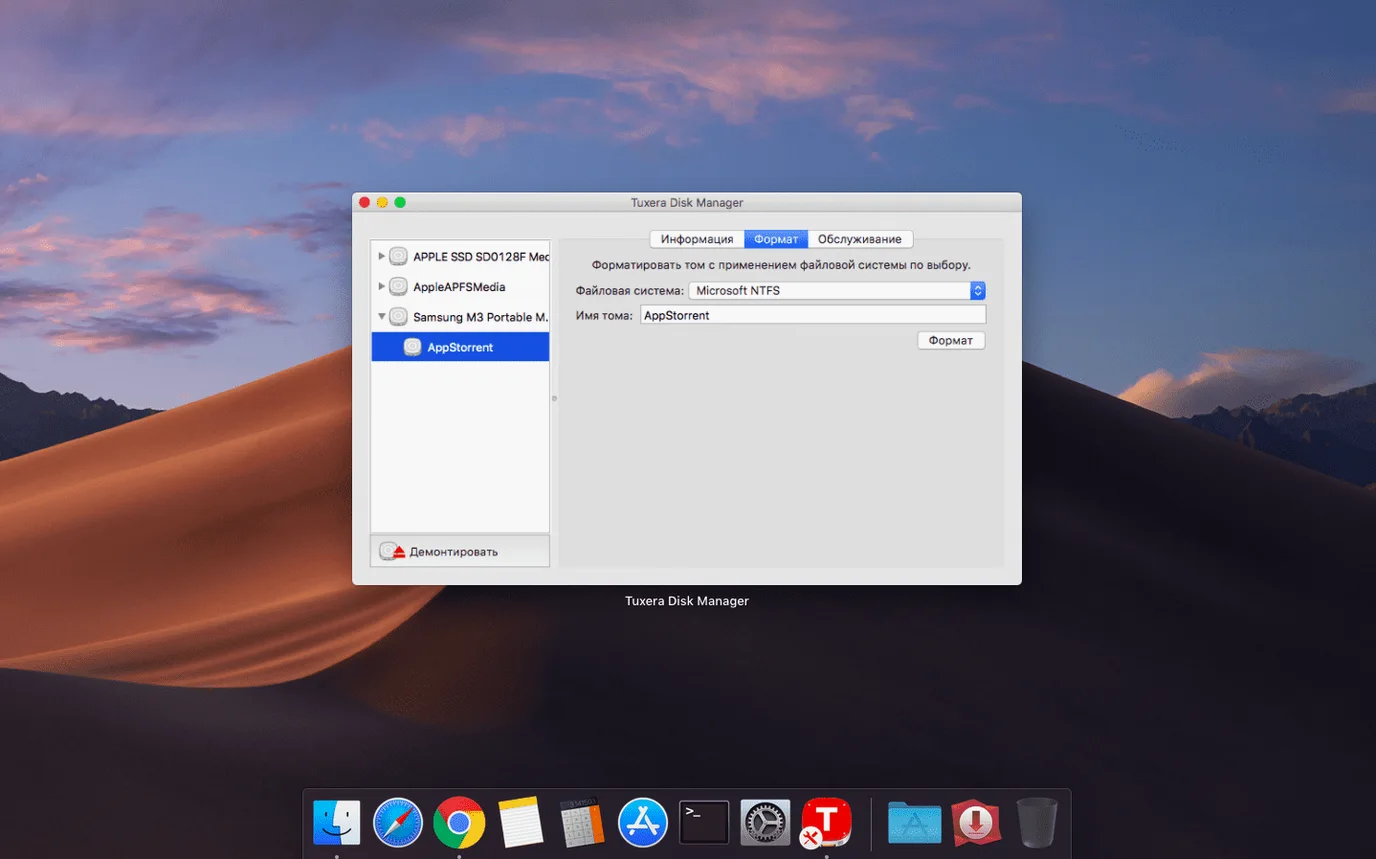
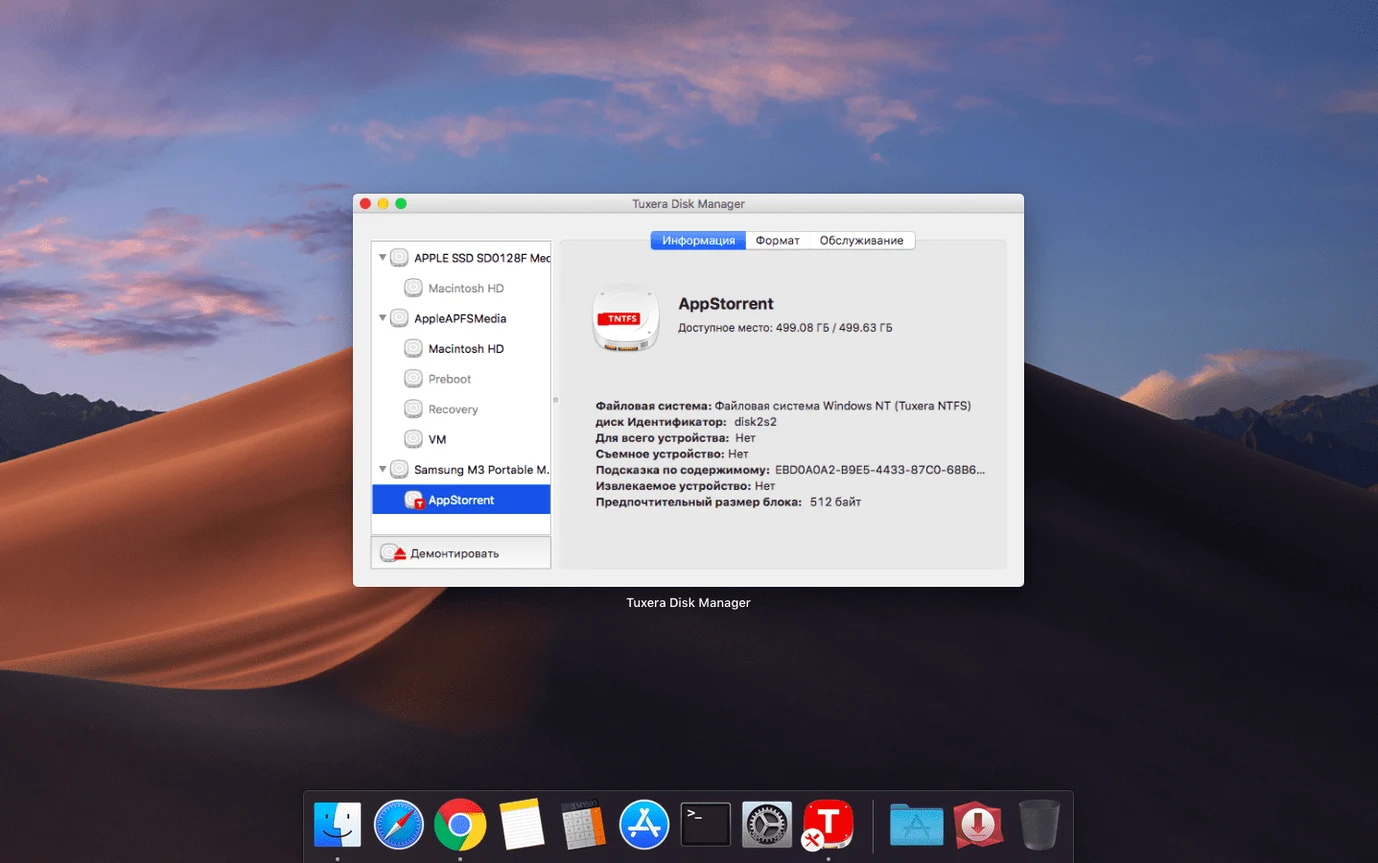
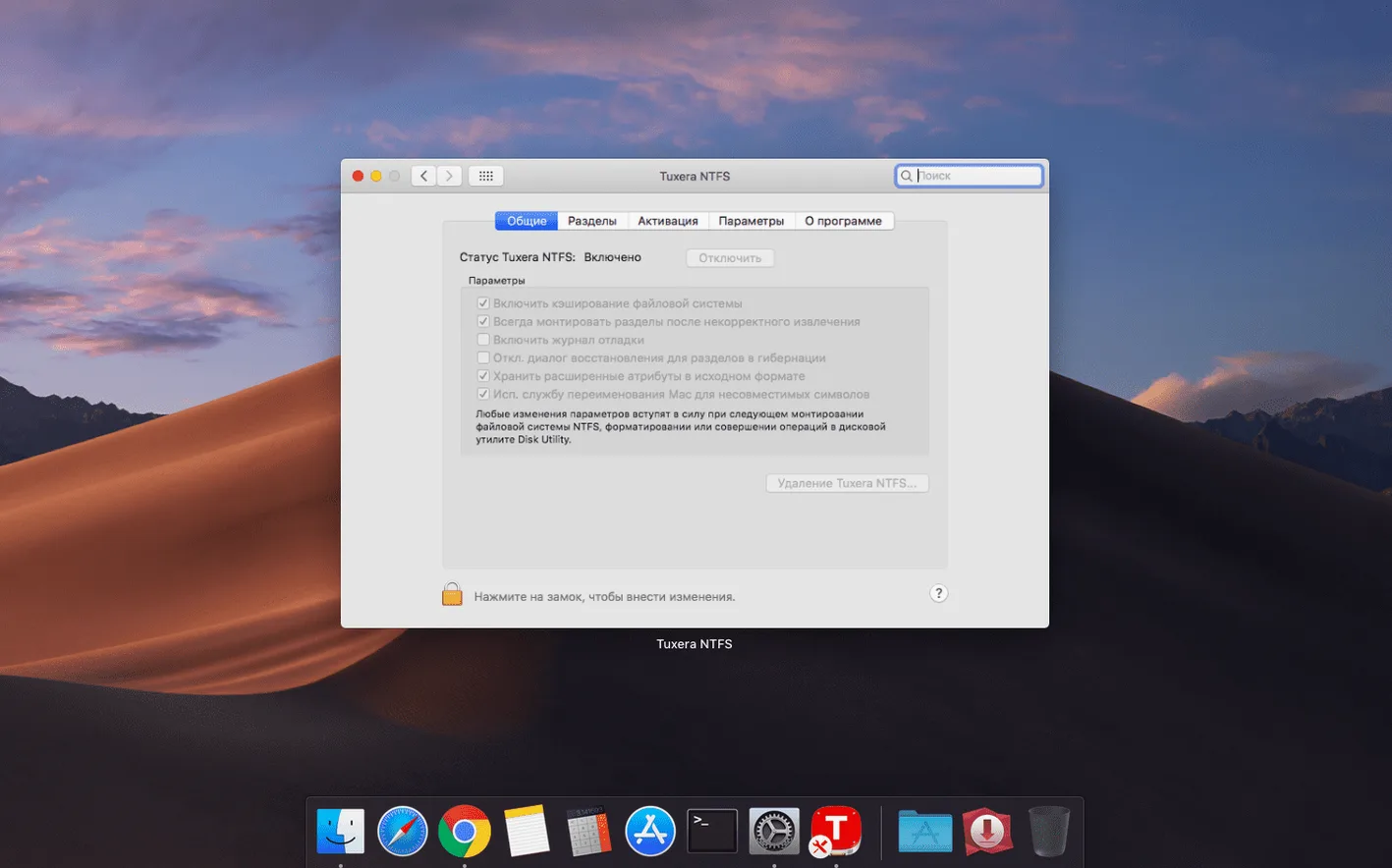
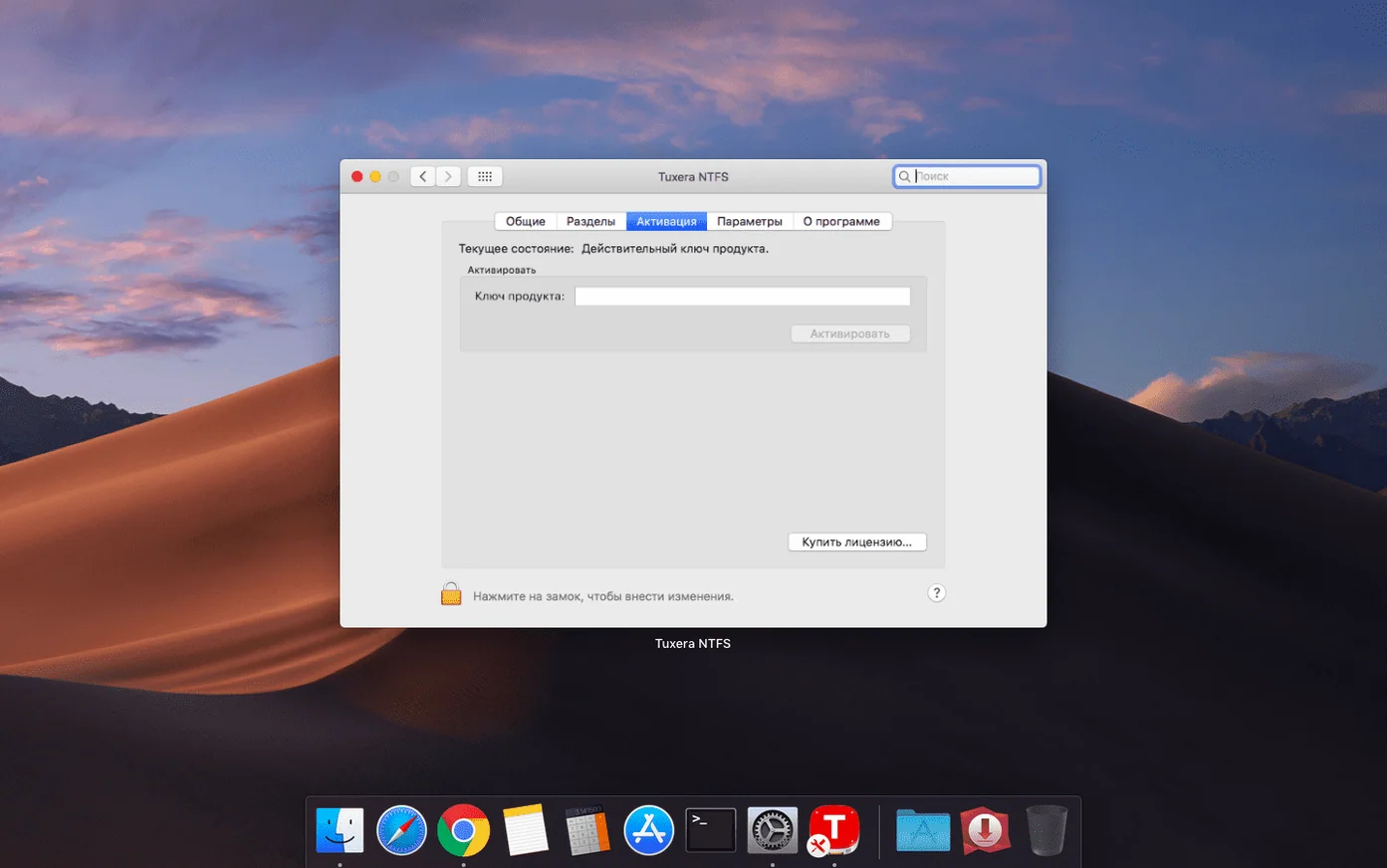
Workflow: moving a USB drive between Mac and PC
- Plug in the NTFS drive. macOS mounts it read-only by default. Tuxera NTFS enables write access.
- Open, edit, copy, move or delete files on the drive from Finder or any Mac app.
- Check the volume. Use the verification and repair tools if the drive has been moved between machines often.
- Eject and carry on. The same drive works on a Windows PC without changes.
It fits alongside your existing disk tools. Where Disk Utility can verify APFS or HFS+ volumes, Tuxera handles the NTFS side. If you dual-boot Windows and macOS on the same computer, it keeps files shared between both systems readable and writable from either side.
Timestamp fix for copied files
Version 2023.1 shipped one targeted fix. That single change affects anyone who relies on accurate timestamps during file transfers.
- Incorrect date or time stamps on copied files. Before the fix, some files copied to NTFS volumes showed the wrong creation or modification date. The new build writes timestamps correctly.
- Sorting in Finder. With accurate dates, files sort properly by date added or date modified — no more mystery files jumping to the top or bottom of a list.
- Backup and sync workflows. Tools that compare file timestamps to decide what to copy now see consistent dates. Fewer unnecessary re-copies.
- No other behaviour changes. The driver loads the same way, mounts volumes the same way, and uses the same system preferences pane. Only the timestamp logic changed.
It runs at boot, not as an app you open
New users often treat Tuxera NTFS like an app they need to launch. It is not. It is a driver that loads at boot and sits in the background. Here is what goes wrong and how to avoid it.
- Looking for an app icon. There is no Dock icon. Open System Preferences and look for the Tuxera NTFS pane instead. That is where you check drive status and run repairs.
- Pulling a drive without ejecting. Yanking an NTFS USB drive while writes are in progress can corrupt the file system. Eject from Finder or use the menu bar eject icon every time.
- Forgetting to reinstall after a macOS upgrade. Major macOS updates sometimes overwrite third-party kernel extensions. If NTFS drives suddenly go read-only after an update, reinstall the driver and restart.
- Running repair tools on a mounted volume. You cannot verify or repair a mounted NTFS volume. Unmount it first from Disk Utility, then use the Tuxera pane.
- Assuming all external drives are NTFS. A drive formatted as exFAT or FAT32 does not need Tuxera at all. macOS handles those natively.
NTFS drive handoff from camera to Mac editor
A wedding photographer shoots on Saturday, hands over a USB drive to the editing team on Monday. The camera dumps files to an NTFS drive from a Windows laptop on site. Back at the studio, the editor works on a Mac Studio.
She plugs the drive in. Finder shows the folder of raw files instantly. She copies selects to her working SSD, edits in Lightroom, then writes the finished JPEGs back to the client folder on the NTFS drive. No format conversion, no cloud upload, no extra copying step. The same drive goes back to the photographer for the next job. If the drive has been bumped between bags and machines all weekend, she runs a quick check on the volume before trusting it. Three minutes and it reports clean.
Extends Disk Utility with write access
Tuxera NTFS fills a specific gap that macOS leaves open. It does not replace any built-in tool; it extends what the system can touch.
- Disk Utility. Use Disk Utility to partition drives, erase them, or run First Aid on APFS and HFS+ volumes. Switch to the Tuxera NTFS pane when you need to verify or repair an NTFS volume.
- Finder. With the driver loaded, Finder treats NTFS drives like any other writable volume. Copy, paste, rename and delete work without a separate file manager.
- Terminal. Commands like
cp,mvandrmwork on NTFS mounts. If you script file transfers between macOS and Windows volumes, the driver runs underneath without changes to your scripts. - Virtual machines. When you run Windows in Parallels or VMware, you can point the VM at a physical NTFS partition. The driver lets macOS read and write that same partition while the VM is off, so files are accessible from both sides without booting Windows.
- Time Machine. Time Machine requires HFS+ or APFS. You cannot back up to an NTFS drive with Time Machine. Use the NTFS drive for manual drag-and-drop backups or archives instead.
- Boot Camp. On Intel Macs with a Boot Camp partition, the driver gives macOS write access to the Windows system volume. Tread carefully: writing to system files from macOS can break a Windows installation. Stick to the user folders.
If you are searching for a way to get write access without the built-in limitations, phrases like Tuxera NTFS for Mac crack or NTFS for Mac torrent pop up in forums. Some users also look for a Tuxera torrent or NTFS Mac torrent when they need the driver quickly. A properly installed copy runs smoothly—just make sure to grant the required System Extension permissions in Privacy & Security so the driver loads correctly, which is a common setup step for any Tuxera NTFS torrent.
- Fixed incorrect date and time stamps on files copied to NTFS volumes.
- macOS 10.9 or later
- Intel and Apple Silicon
- Interface languages: English, German, French, Spanish, Italian, Chinese (Simplified), Japanese, Russian and more
Questions the team asks
Yes. It provides read and write access to NTFS-formatted USB drives and other Windows volumes on macOS, including opening, editing, copying, moving and deleting files.







Comments 0
Sign in or create an account to add a comment.
No comments yet. They go up after moderation.