

Topaz Video AI — Mac download
Download (1.6 GB) Earlier builds
Ticked
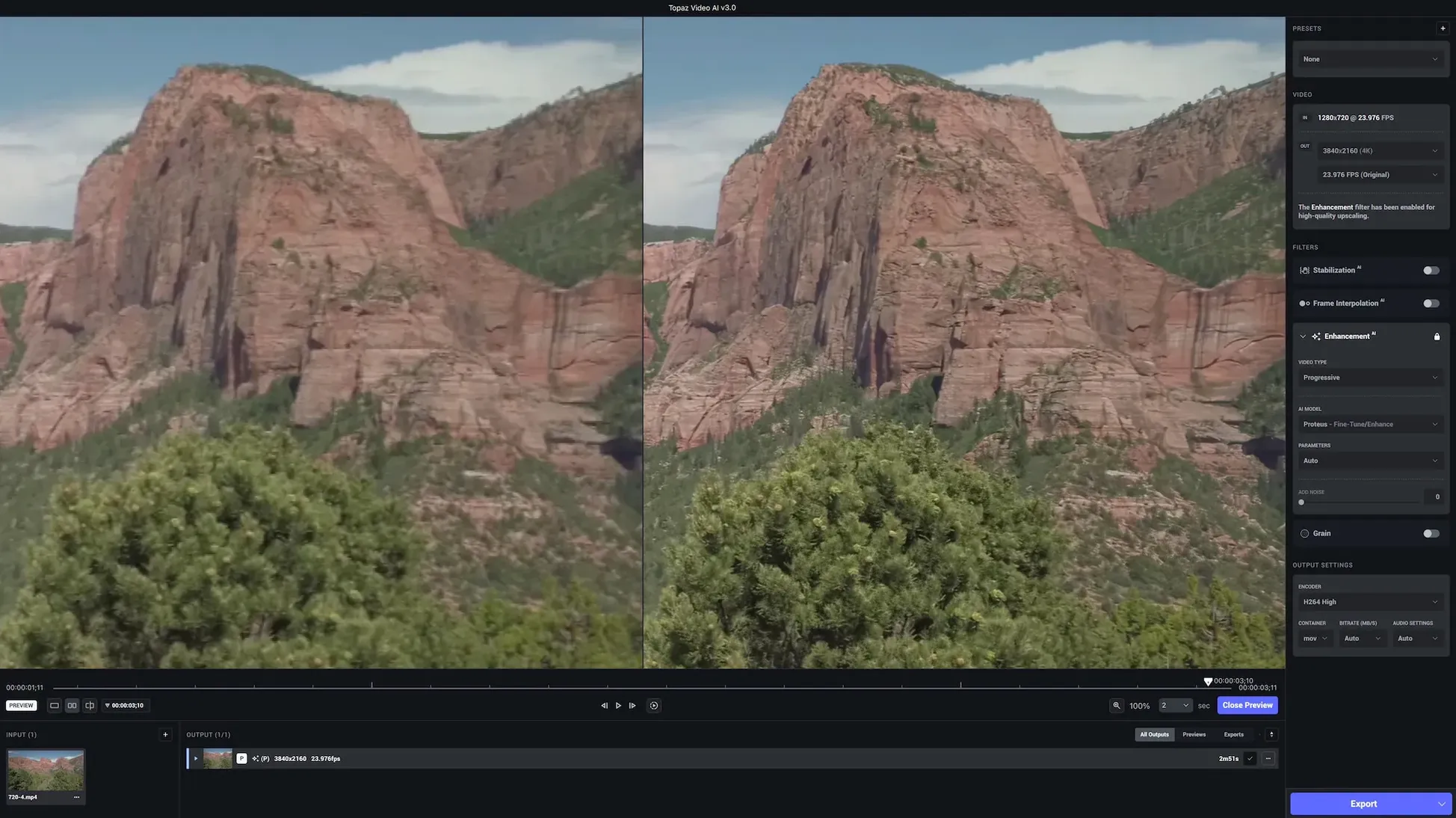
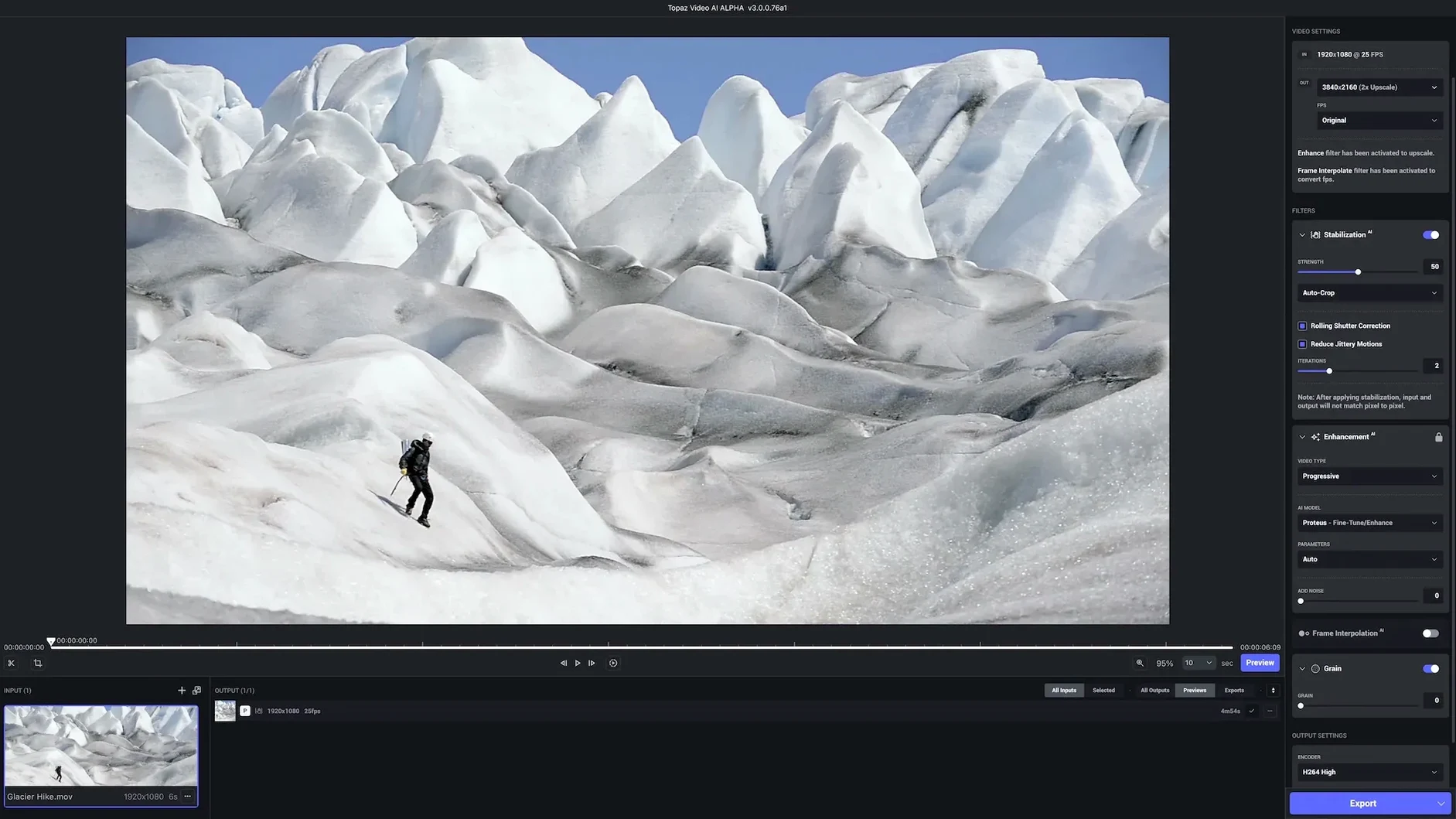
The app runs on any Mac with macOS 11 or later, Intel 64-bit or Apple Silicon. Formerly called Video Enhance AI, the desktop application installs as a single package.
First three things to try
- Upscale an old clip. Pick a short archival file. Apply a 4K upscale model and compare side by side. The difference usually shows right away.
- Remove noise. Run the same clip through a denoise model. Low-light footage and digitised tapes respond well.
- Change frame rate. Let the app generate new frames to smooth out jerky handheld video. Start with a 24-to-60 fps conversion on a ten-second test.
Restoring focus
Blurry faces and soft edges sharpen with the focus-restoration pass. Stack it after denoising, not before, so the model works with cleaner source frames. Apply it selectively across short sections to gauge render time before committing to a full export.
Tap spacebar to compare original and processed frames instantly
- Compare view shortcut. Tap the spacebar during preview to toggle between original and processed frames instantly. No menu diving needed.
- Drag-and-drop queue. You can drag multiple files straight onto the file list. The app auto-detects resolution and frame rate per clip.
- Model tooltips. Hover over any AI model name in the dropdown. A short description explains what it targets — useful when you are deciding between Proteus and Artemis.
- Output naming pattern. The default adds the model name to the filename. Turn this off in preferences if your project folder structure already handles versioning.
- Keyboard scrubbing. Left and right arrow keys step frame by frame in the preview panel. Hold shift to jump ten frames at a time.
A one-minute 1080p to 4K upscale finishes in about four to six minutes on M1 Max
On Apple Silicon, processing feels snappy with shorter clips. A one-minute 1080p file upscaled to 4K using Proteus finishes in roughly four to six minutes on an M1 Max. Intel Macs take longer — expect double the render time on equivalent footage. The app uses all available GPU cores, so fan noise is normal during longer exports.
RAM usage sits between 2 GB and 6 GB for most jobs. Large 8K upscales push that higher. Closing other heavy apps before a long queue keeps things smooth. Crashes are rare in version 1.7.1, though the preview window can stutter briefly when switching models mid-session. A quick app restart clears it.
Batch processing is stable. Queuing five or six clips overnight works reliably. The progress bar per clip is accurate, and paused jobs resume without frame corruption.
Denoise and upscale turn VHS, DVD and MiniDV footage from SD to HD
Archival and restoration users see the biggest payoff. Digitised VHS, DVD rips and old MiniDV tapes respond dramatically to the denoise and upscale combination. Grain clears, edges tighten and the jump from SD to HD is unmistakable.
Editors working with stock footage benefit too. A 720p clip purchased years ago can sit in a 4K timeline without looking soft when the right model is applied. Game footage creators use the frame-rate tools to smooth out 30 fps captures for 60 fps uploads.
Quick-turnaround video producers may find the render times a bottleneck. The app rewards patience. Short, targeted passes on hero shots work better than trying to process an entire hour-long timeline in one go.
Switch to ProRes 422 if you plan to grade or edit the upscaled file
- Output format. Switch from the default MP4 to ProRes 422 if you plan to grade or edit the upscaled file further. The file size grows, but the quality holds.
- Preview quality. Drop it to medium in preferences. Full-resolution previews slow down model comparisons without adding much value during selection.
- GPU selection. On Intel Macs with a discrete GPU, check the preferences panel to confirm the dedicated card is selected, not the integrated one. The difference in render speed is substantial.
- Auto-update off. Disable automatic update checks if your workflow depends on a specific model version. Model behaviour can shift between releases.
- Temp file location. Point the cache folder to an external drive with fast read/write speeds. The app writes large temporary frames during processing, and keeping them off the internal SSD preserves space.
Topaz Labs have published release notes for version 1.7.2 on their own site.
- macOS 13 or later
- Apple Silicon or Intel 64-bit
Questions the team asks
It supports Apple Silicon and Intel 64-bit Macs running macOS 11 or later.
It was formerly called Video Enhance AI. The current desktop application name is Topaz Video AI.









Comments 0
Sign in or create an account to add a comment.
No comments yet. They go up after moderation.