

VideoByte BD-DVD Ripper — Mac download
Ticked
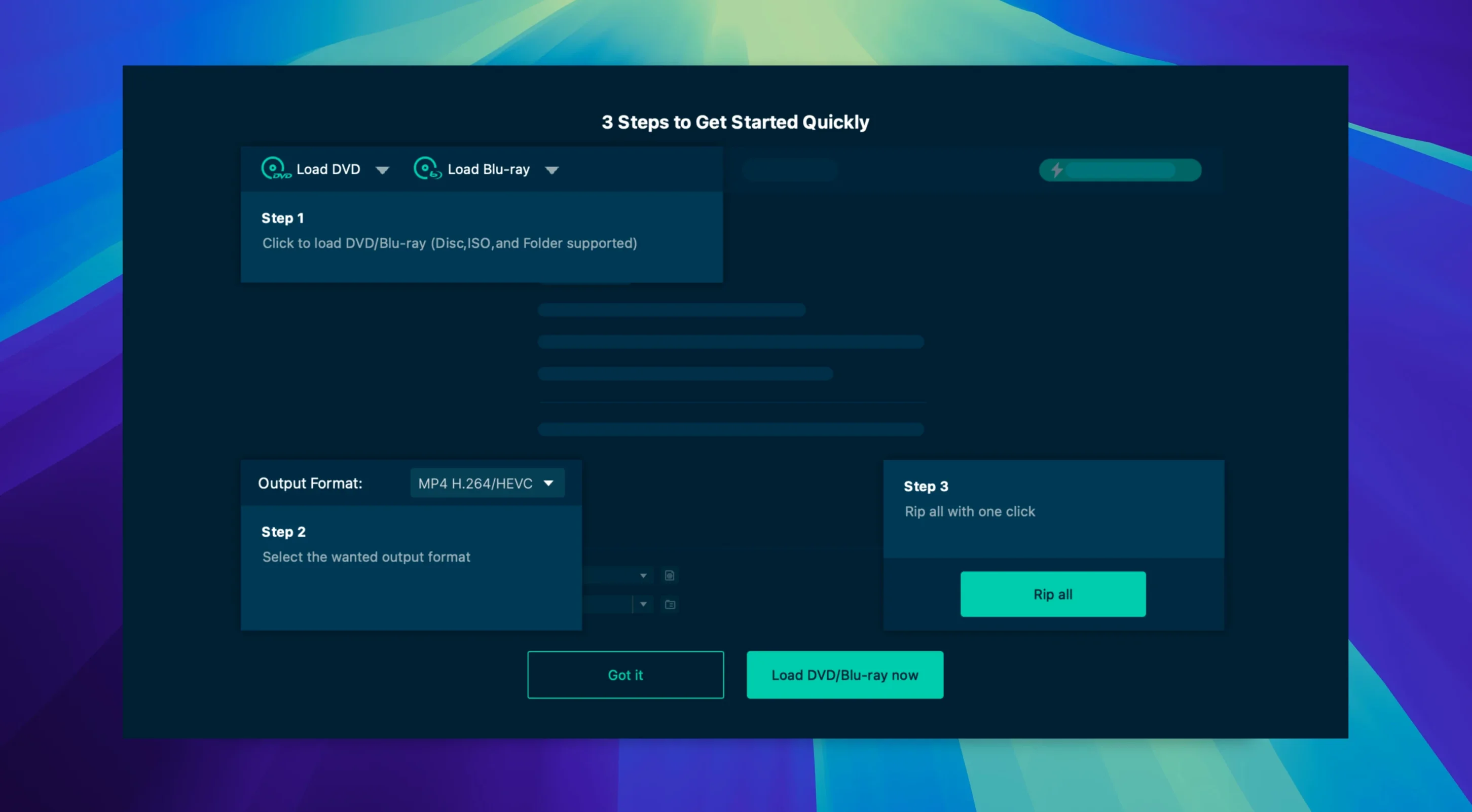
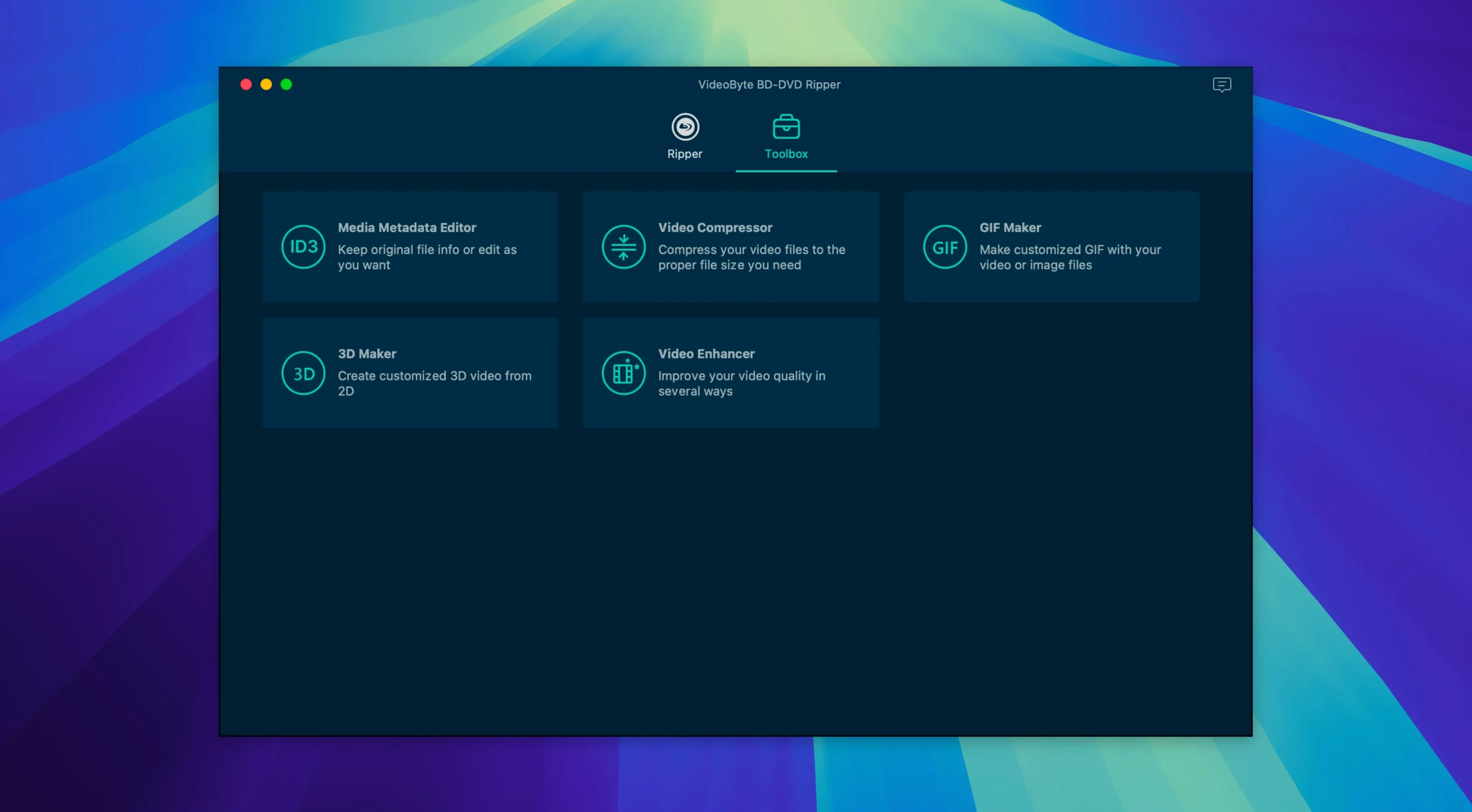
You have a shelf of Blu-rays you bought years ago and a MacBook that has no disc drive. An external USB BD drive sits on the desk, plugged in and recognised. The disc mounts, but macOS cannot play it natively — copy protection locks the content. VideoByte BD-DVD Ripper reads the disc, strips the AACS and BD+ layers, and shows the main title ready for conversion.
You pick the main movie track on the disc. The preset list covers device profiles and direct format outputs — MP4 with H.264 suits the Plex library. You check the audio track list and confirm the original DTS stream is selected. Subtitles stay on by default; you toggle off the foreign-language subs and leave the English forced track.
Before the rip runs, you trim the studio logos off the front and crop a thin black bar the disc authoring left in the frame. The built-in editor does that without sending you to another tool. One click starts the conversion. The timecode moves steadily. Twenty minutes later, a clean MP4 sits in the output folder, named, tagged and ready for the media server.
Turn on hardware acceleration to cut conversion times
Open Preferences before your first rip. A few defaults slow things down or produce larger files than needed.
- Hardware acceleration — Turn it on. The box for Intel Quick Sync sits unchecked by default. Tick it and conversion times drop by half on supported Macs.
- Output directory — The default dumps rips into a buried user folder. Point it to your media drive or a folder you actually browse.
- Post-rip action — Set it to Do nothing. The default ejects the disc immediately, which is annoying when you want the commentary track as a separate file.
- Subtitle handling — Switch from None to Forced only. You get the burned-in translations for alien dialogue in a sci-fi film without six full subtitle tracks clogging the container.
- Audio default — Change it from AAC stereo to Original. The app otherwise downmixes the DTS-HD track you kept the disc for.
All five take under a minute. You do them once.
Workflow: archiving a TV series disc
You insert a Breaking Bad season disc. The disc loads and VideoByte parses the structure. Instead of the main movie, you see a list of episodes — the app reads the playlist correctly and labels each by runtime.
- Select all episodes — Tick the checkbox at the top of the title list. The batch queue populates with one entry per episode.
- Choose a format — Pick MKV with H.265. Smaller files for a full season, and the container keeps chapter markers intact.
- Set a naming pattern — In the output settings, append the title name automatically. Each episode lands as
Season_3_Episode_01.mkvwithout manual renaming. - Audio and subs — Keep the original English DTS track. Add the English SDH subtitle track from the disc. Skip the commentary tracks for this pass.
- Run the queue — Hit Rip All. The batch processes sequentially. A three-disc season finishes in under two hours with hardware acceleration enabled.
- Post-processing — Drag the folder into your media library. Plex or Infuse picks up the metadata from the filenames. No extra tagging needed.
The queue holds if a disc swap is needed. Eject, insert the next disc, the list refreshes, and you add the new batch without restarting the app.
Real-world scenario: the commuter with no signal
Sophie travels by train from Bath to London twice a week. No Wi-Fi, patchy 4G through the countryside. She rips two or three films before each trip onto her iPad.
She grabs a Blu-ray from the shelf — last week it was Dune: Part Two — and loads it into an LG external drive connected to her Mac mini at home. VideoByte scans the disc and she picks the Apple iPad Pro preset from the device list. The preset locks resolution to the tablet's screen, sets H.264, and downmixes audio to stereo AAC — good enough for the train and small file sizes.
She trims the opening logos, crops the letterbox bars, and adds a subtle brightness bump in the filter panel because train windows wash out dark scenes. The rip encodes in 25 minutes. She drags the resulting MP4 into the TV app on the Mac, it syncs to iCloud, and by the time she boards at Bath Spa the file is waiting on the iPad.
No streaming subscription. No buffering. Just the film she owns, playing locally, with no signal bars needed.
- macOS 10.12 through 15.x
- Intel or Apple Silicon processor









Comments 0
Sign in or create an account to add a comment.
No comments yet. They go up after moderation.