

VMware Fusion Pro — Mac download
Download (479 MB) Earlier builds
Ticked
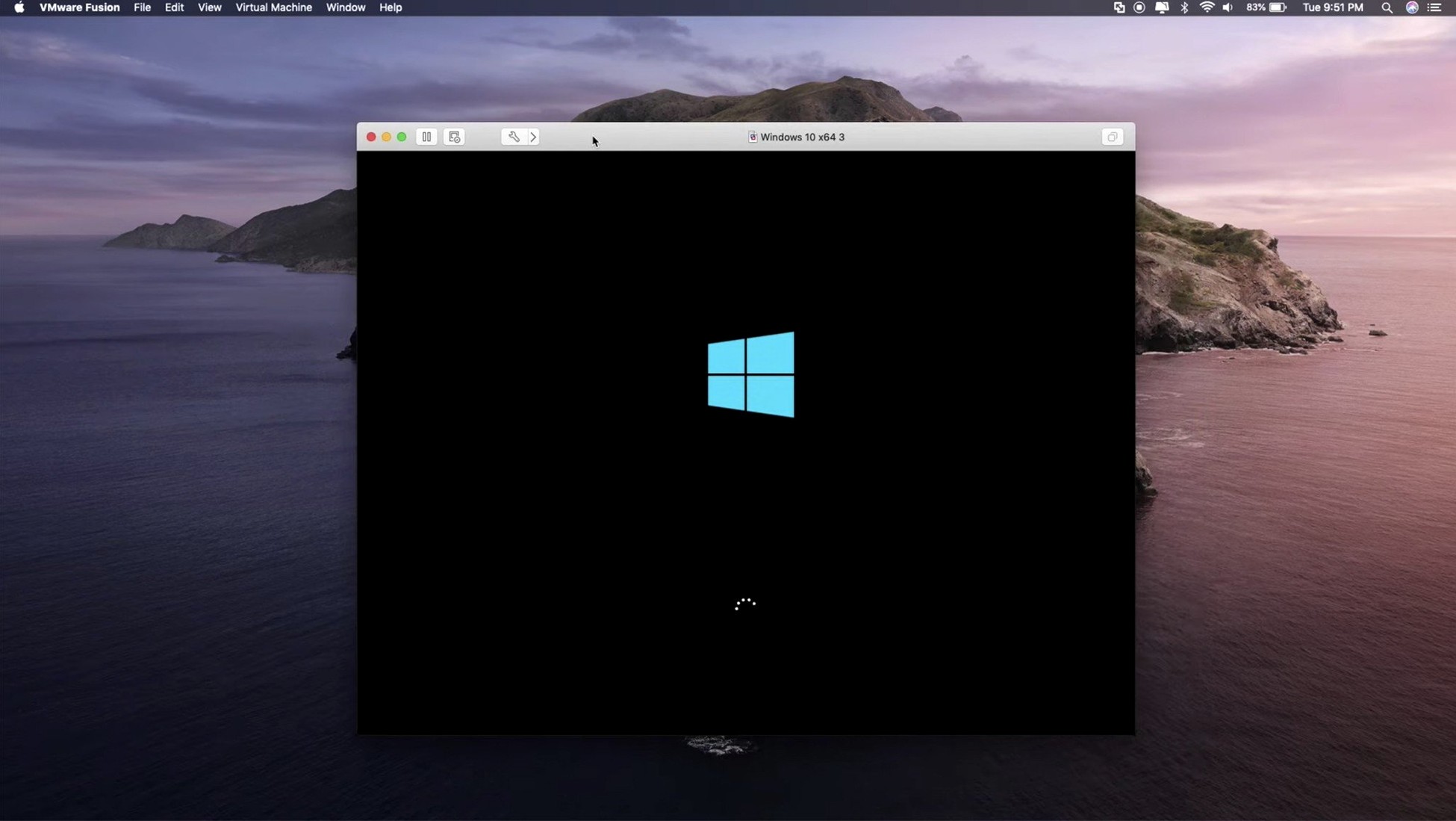
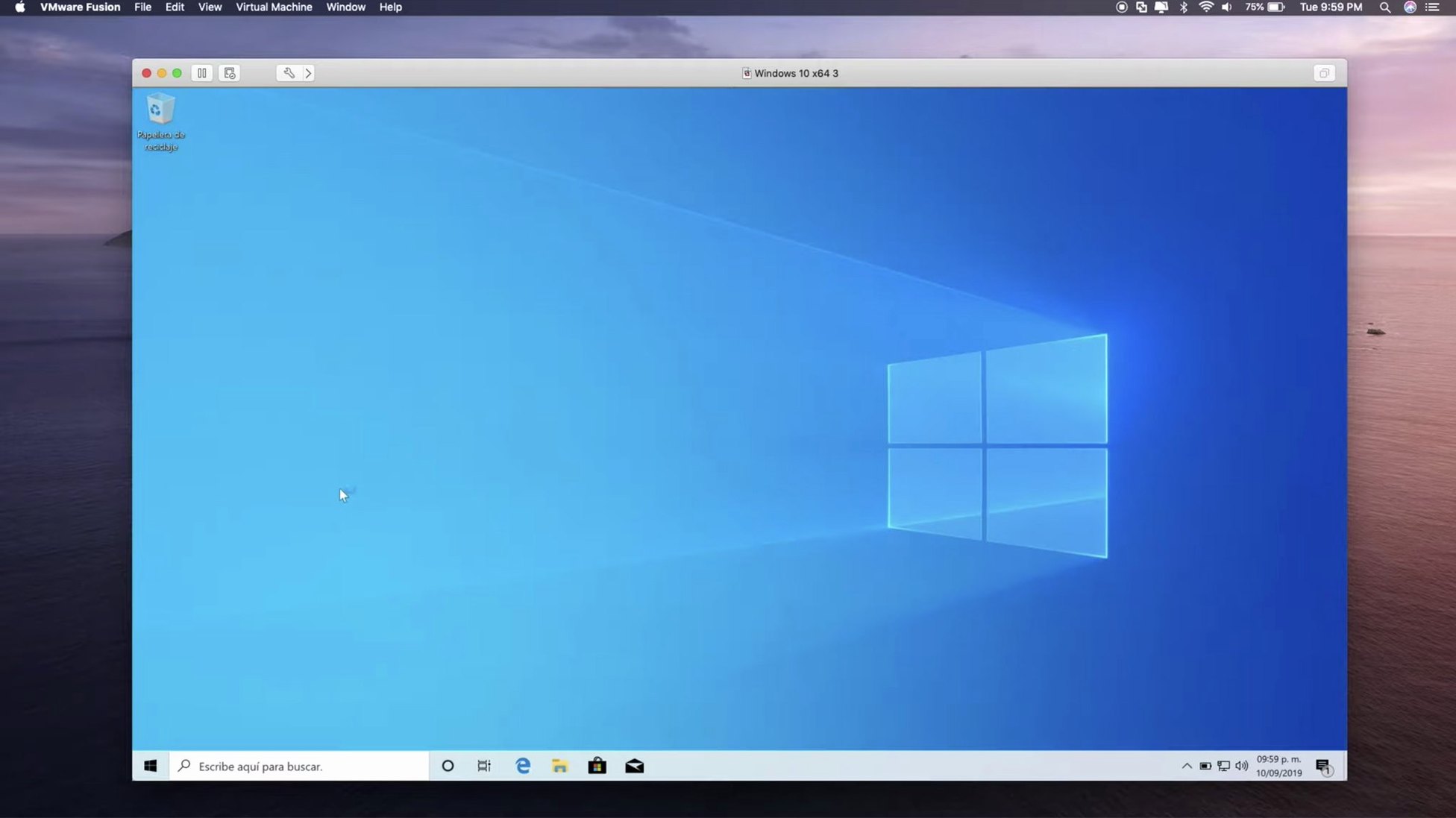
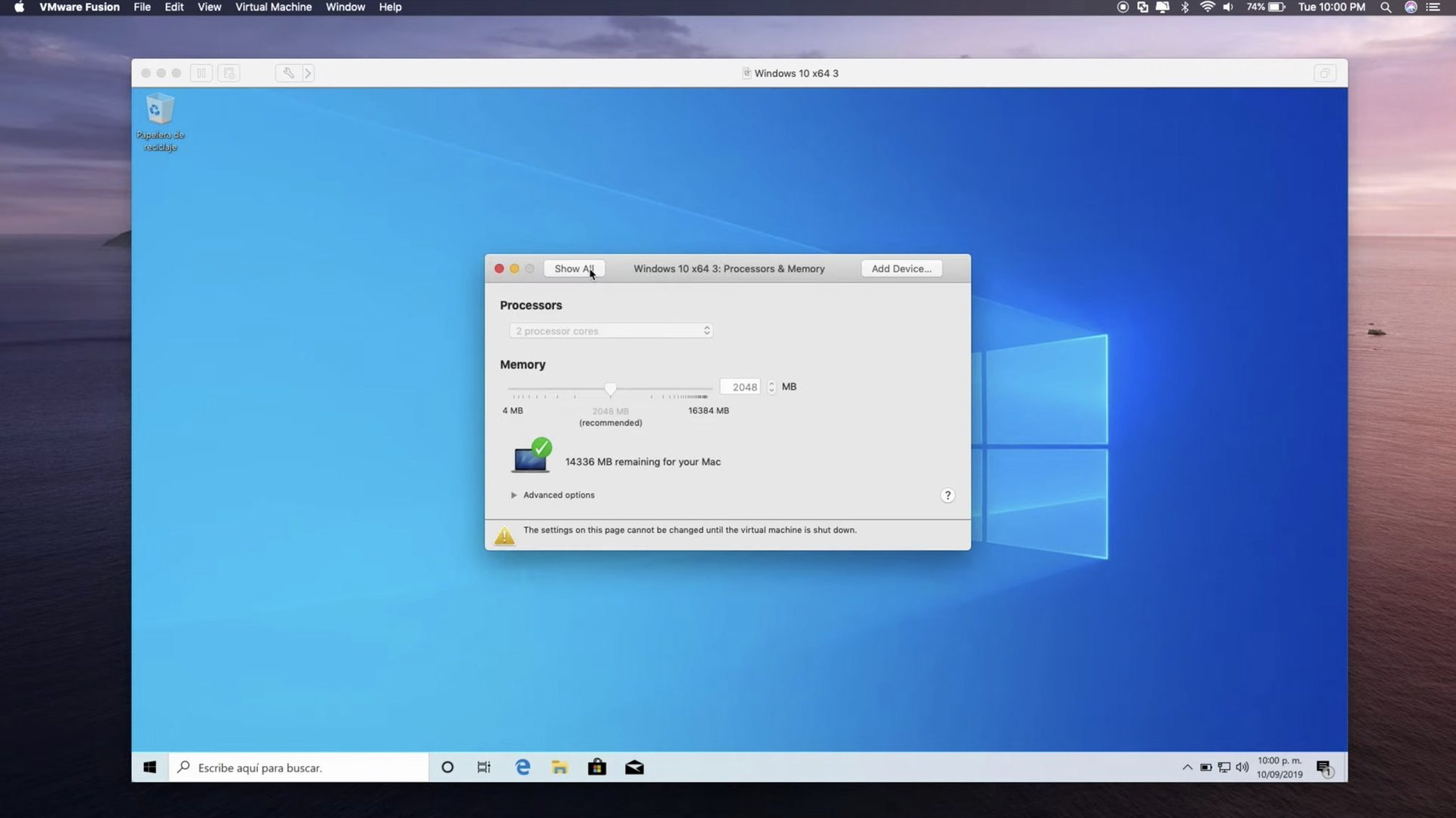
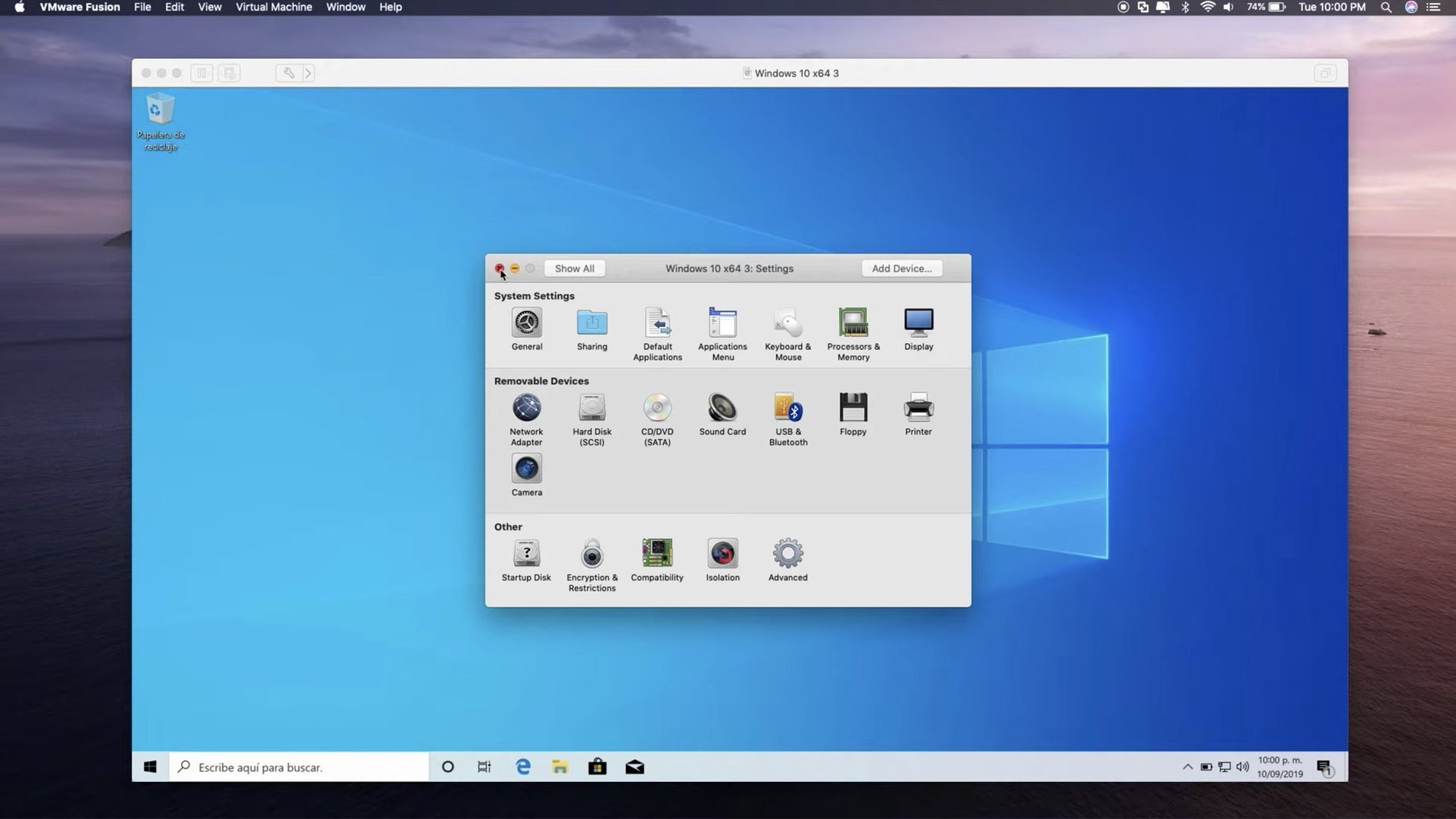
If you already use VMware Workstation on a PC, Fusion Pro is its direct Mac counterpart — same virtual machine format, same broad OS support, now on Apple Silicon or Intel.
Check guest OS compatibility
The 26H1 release adds support for Fedora 43, Fedora 44 and Ubuntu 26.04 LTS. Windows 11, older Windows releases and many Linux distributions continue to work.
Confirm hardware features
DirectX 11 acceleration works in Windows 10 VMs. The app also supports eGPU devices and remote connections to ARM-based ESX hosts.
Look at developer tooling
Resume a Windows 11 VM with new timestamps in the library
You open Fusion Pro and the Virtual Machine Library lists your VMs. Each row now shows two timestamps — created and last powered on — added in 26H1.
- Pick a VM. Double-click a Windows 11 machine. It resumes from a suspended state in under ten seconds.
- Check the snapshot. Before a risky install, you take a quick snapshot from the Snapshots panel. It completes silently in the background.
- Work across desktops. Windows runs full-screen on a separate Space. You swipe between macOS and Windows with a three-finger gesture — no lag, no window clutter.
- Plug in a USB drive. A dialogue asks whether to connect it to Mac or VM. You pick the VM. The drive appears in Windows Explorer immediately.
- Shut down cleanly. You shut down Windows from its Start menu. Fusion releases the RAM and CPU back to macOS.
- Check the timestamp. Back in the library, the "last powered on" time updates. A small detail, but useful when tracking test environments.
Workflow: test a Linux build before deployment
A developer pulls the latest code branch and wants to verify it on a fresh Ubuntu 26.04 LTS install — one of the new guest OSes in 26H1.
- Create the VM. Click New, select the Ubuntu 26.04 LTS ISO, and accept the defaults. Fusion sets 4 GB RAM and a 40 GB disk automatically.
- Install without friction. The Easy Install feature fills in the user account and regional settings. You walk away for eight minutes while the installer runs.
- Install VMware Tools. From the Virtual Machine menu, choose Install VMware Tools. The shared clipboard and drag-and-drop between Mac and guest activate.
- Pull the build. Inside the VM, you open a terminal, clone the repo, and run the build script. The output scrolls in a window on your Mac's second screen.
- Test and capture. You run the test suite. A failure log appears. You copy it via the shared clipboard and paste it into a Slack thread on the Mac side.
- Clean up. The VM gets deleted — its purpose was temporary. The whole round trip took under 30 minutes.
Fix an Intel-only ISO that blocks VM startup on Apple Silicon
Three issues crop up regularly in support forums and team chats.
- VM won't start on Apple Silicon. You're using an Intel-only ISO. Fusion on ARM needs ARM-compatible guest OS images. Grab an ARM build of Windows 11 or an ARM Linux distribution.
- Poor graphics performance in Windows 10. DirectX 11 acceleration is off by default on some older VM configurations. In Settings, under Display, turn on Accelerate 3D Graphics and retick the DirectX version if it's greyed out.
- USB device not appearing. The device defaults to the Mac. Go to Virtual Machine > USB & Bluetooth, find the device in the list, and select Connect to VM. For USB 3.1 devices, make sure the VM's USB compatibility is set to USB 3.1 in the USB settings pane.
Local Kubernetes clusters and OCI containers are available through the command-line interface. VM creation timestamps and last power-on times now appear in the library.
- Guest OS support added for Ubuntu 26.04 LTS, Fedora 43, Fedora 44, SUSE Linux Enterprise 16, openSUSE 16.0 and FreeBSD 15.0
- Timestamps now shown for virtual machine creation and last power-on time
- Remote connections to ARM-based ESX hosts now supported
- macOS 13 or later
- Intel or Apple Silicon Mac
Questions the team asks
Yes, the current version runs on both Intel and Apple Silicon Macs and requires macOS 13 or later.
Yes, the 26H1 update added support for remote connections to ARM-based ESX hosts.









Comments 0
Sign in or create an account to add a comment.
No comments yet. They go up after moderation.