

ViWizard Spotify Music Converter — Mac download
Download (7 MB) Earlier builds
Ticked
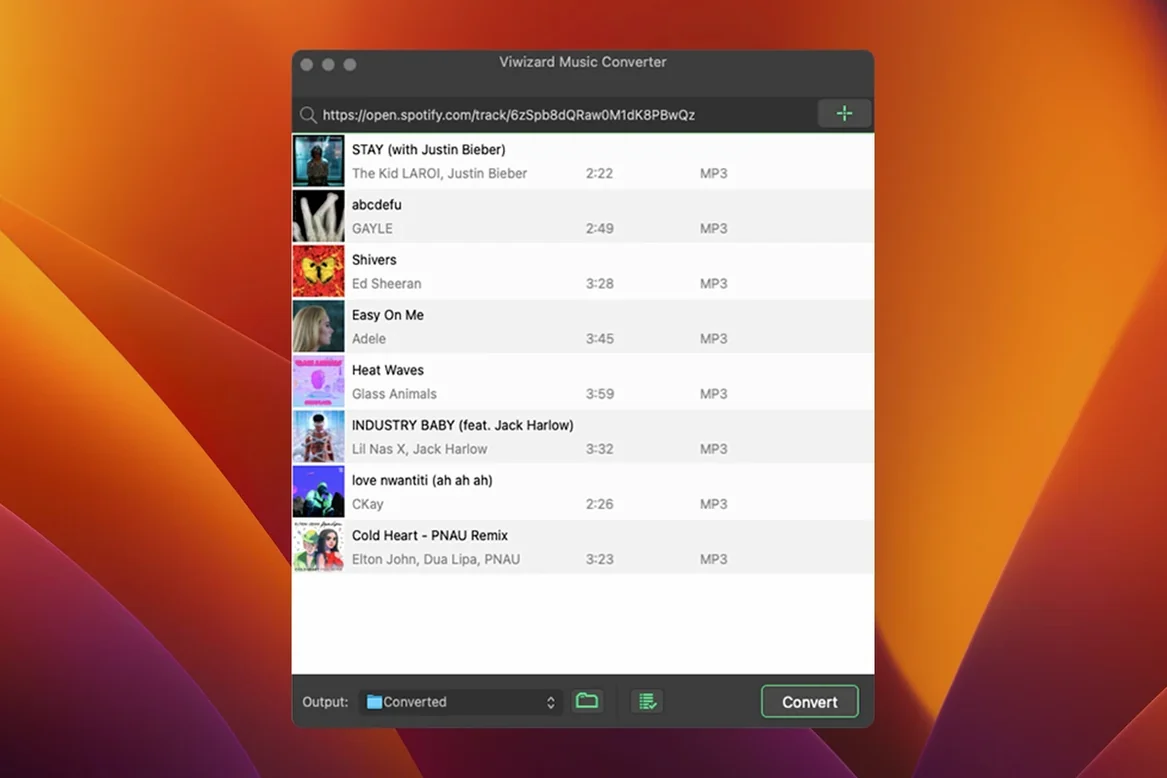
A project manager on your team wants Friday’s brainstorm playlist as local files for a client video. You export the whole thing before lunch.
Batch convert a playlist
Queue up entire playlists, albums or artist discographies. ViWizard processes the list in one run so you are not babysitting individual tracks.
Keep the metadata
Title, artist, album and artwork come through in the converted file. Your library stays organised without manual tagging afterwards.
Pick the right format
Log in once and grab an album from Spotify
You open ViWizard and the built-in Spotify web player loads. Log in once with your Spotify account — the app remembers it.
- Browse or search for the album you need. Hit the green Add button.
- The track list appears in the conversion queue. Untick any tracks you do not want.
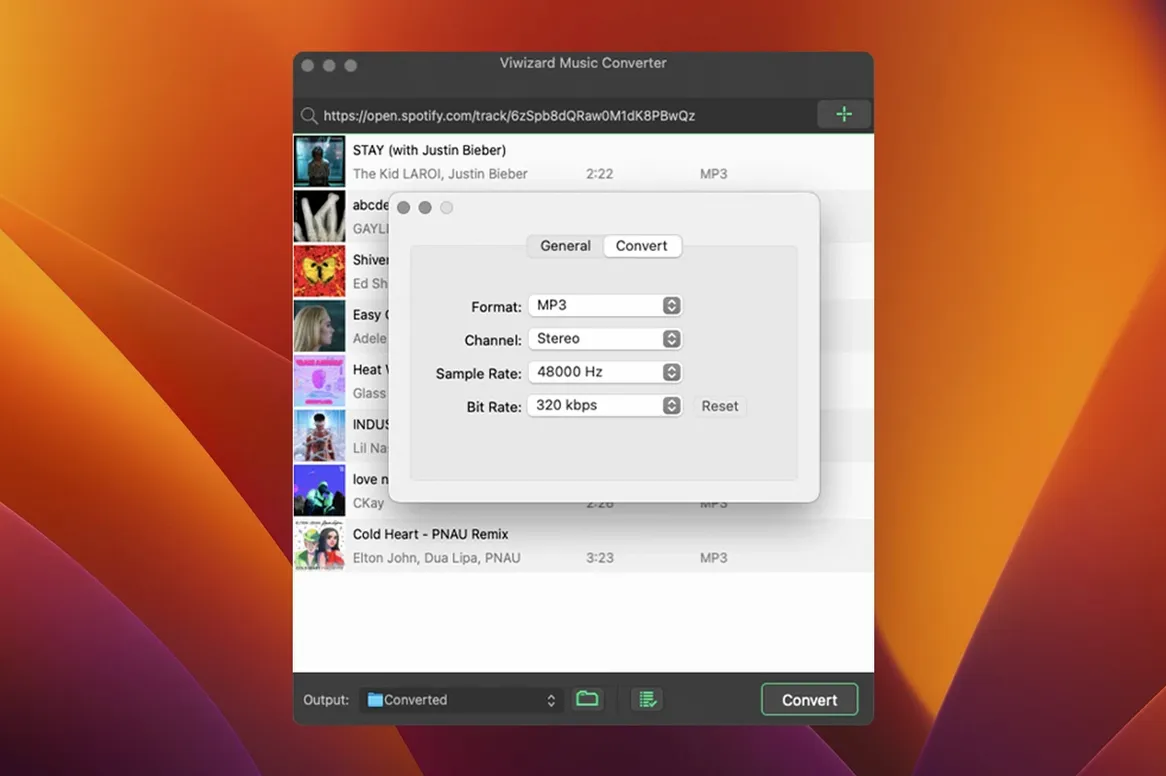
- Open Preferences and set output format to FLAC, bitrate to 320 kbps, sample rate to 44.1 kHz. Close the window.
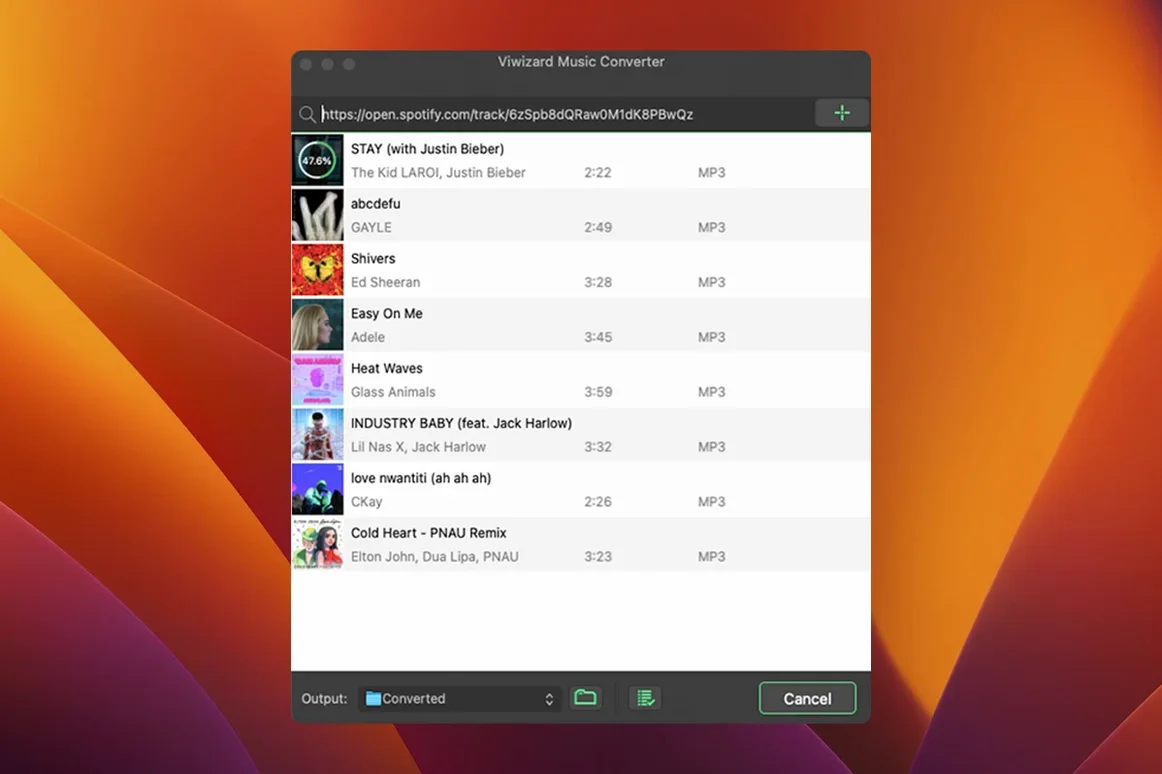
- Click Convert. The progress bar moves track by track; an album finishes in under ten minutes.
- Click the folder icon next to any finished track. Finder opens to the output directory, files named by artist and album, artwork embedded.
You drag the folder straight into your video editor’s media bin. No renaming, no re-tagging.
Switch to FLAC or WAV for lossless editing
- Output format. Default is MP3. Switch to FLAC or WAV if you need lossless for editing or archiving.
- Output folder. Set a permanent location — a dedicated folder in your project drive keeps things off the desktop.
- File naming. Choose Artist/Album/Track for automatic subfolders. Saves sorting time later.
- Conversion speed. Leave it on 1× for the most reliable results. Higher speed settings can introduce glitches on older Intel Macs.
- Post-conversion action. Tick Open output folder so Finder pops up when the batch finishes.
No section text provided
ViWizard vs. NoteBurner Spotify Music Converter
NoteBurner offers a similar built-in web player and batch workflow. ViWizard pulls ahead on format choice — M4B for audiobooks is missing from NoteBurner’s list. NoteBurner’s interface feels slightly more polished, but ViWizard’s metadata handling is more reliable on long playlists. Both run on older macOS versions, which matters if your team still uses Intel machines.
ViWizard vs. Sidify Music Converter
Sidify has a larger preset library for output devices, which is handy if you move files to non-Apple hardware. ViWizard keeps things simpler: fewer presets, faster path from search to conversion. Sidify sometimes stumbles on podcast episodes with long titles; ViWizard handles those cleanly. If you value speed and a lean interface over device-specific presets, ViWizard fits better.
ViWizard vs. TunePat Spotify Converter
TunePat splits its Spotify and audiobook converters into separate apps. ViWizard does both in one window, which means one install to manage. TunePat’s tagging is slightly faster but occasionally drops album artwork on M4B files. ViWizard keeps artwork intact across all formats, including M4B, which matters for audiobook libraries.
Output to MP3, FLAC, WAV, AIFF, M4A or M4B. Choose lossless for archive copies or compressed files for a portable drive.
- OS X 10.10 or later
- Intel processor (x86 64-bit)








Comments 0
Sign in or create an account to add a comment.
No comments yet. They go up after moderation.