

Couverture — Mac download
Ticked
First things to try in Couverture
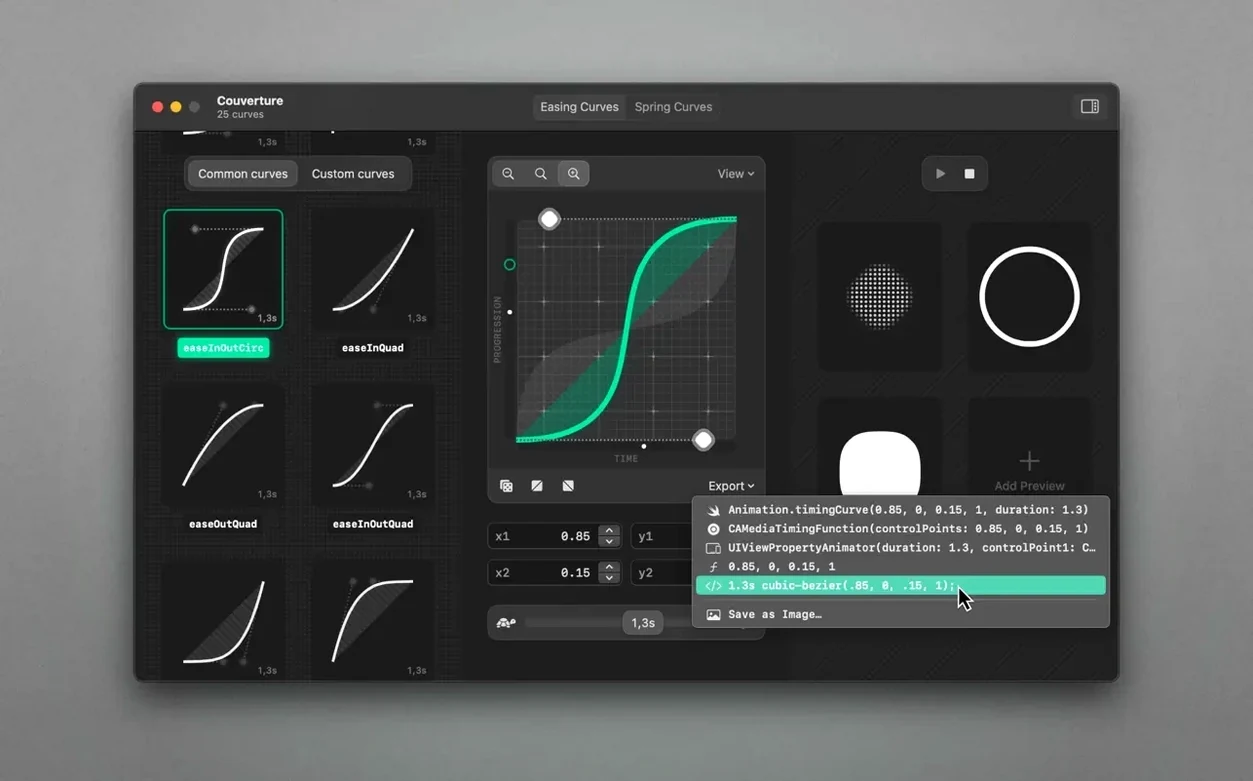
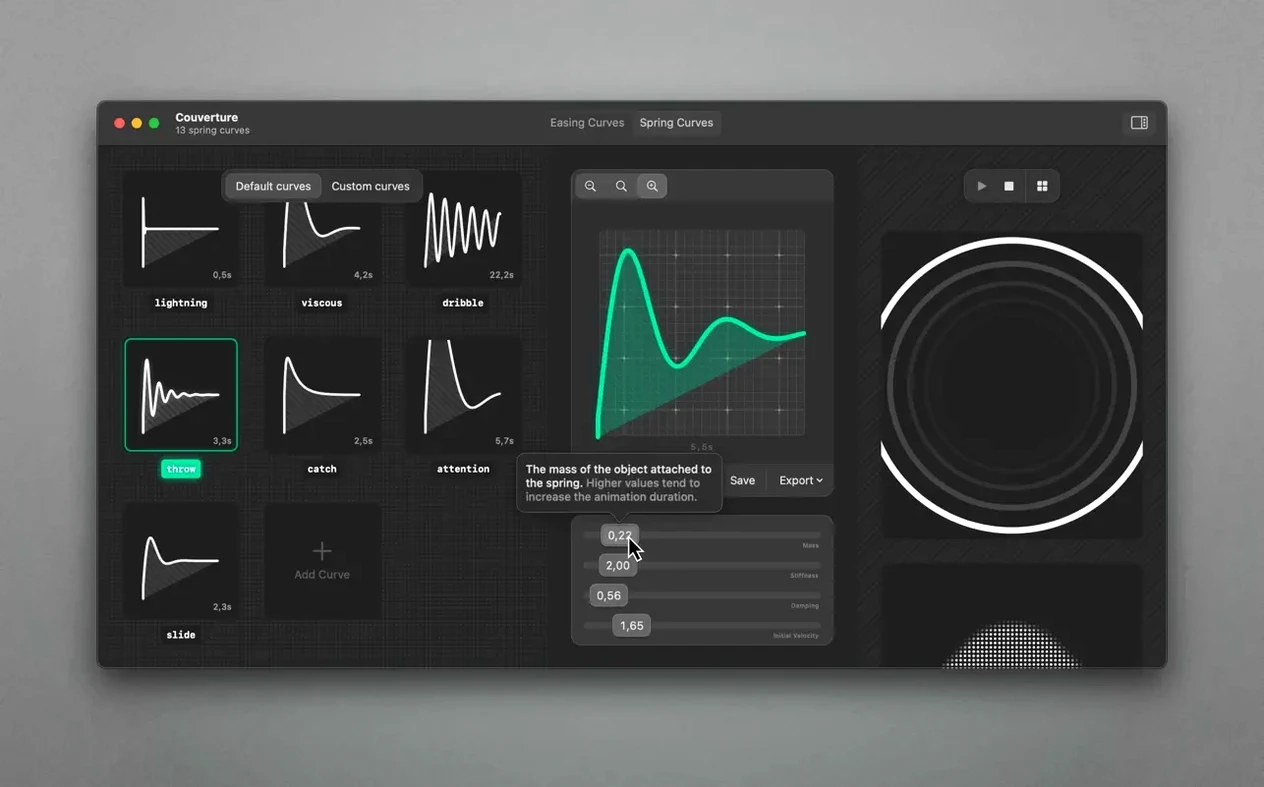
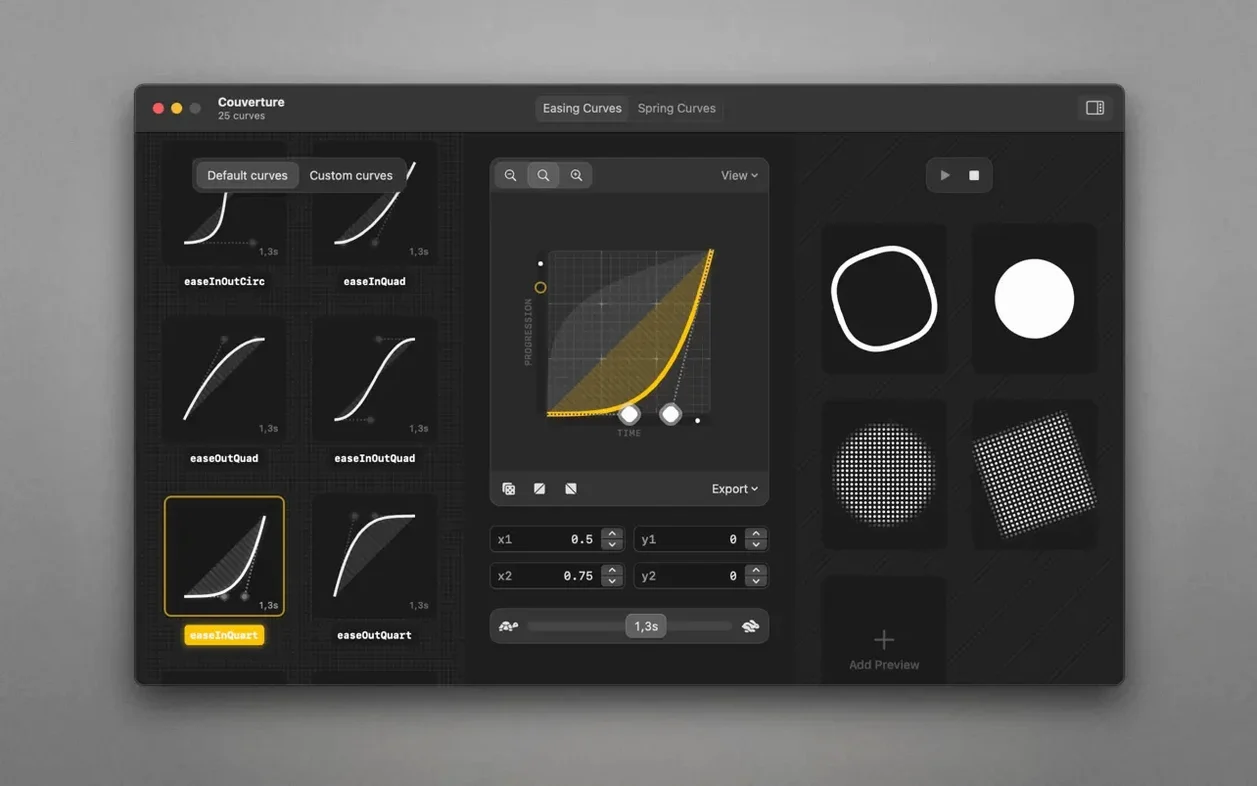
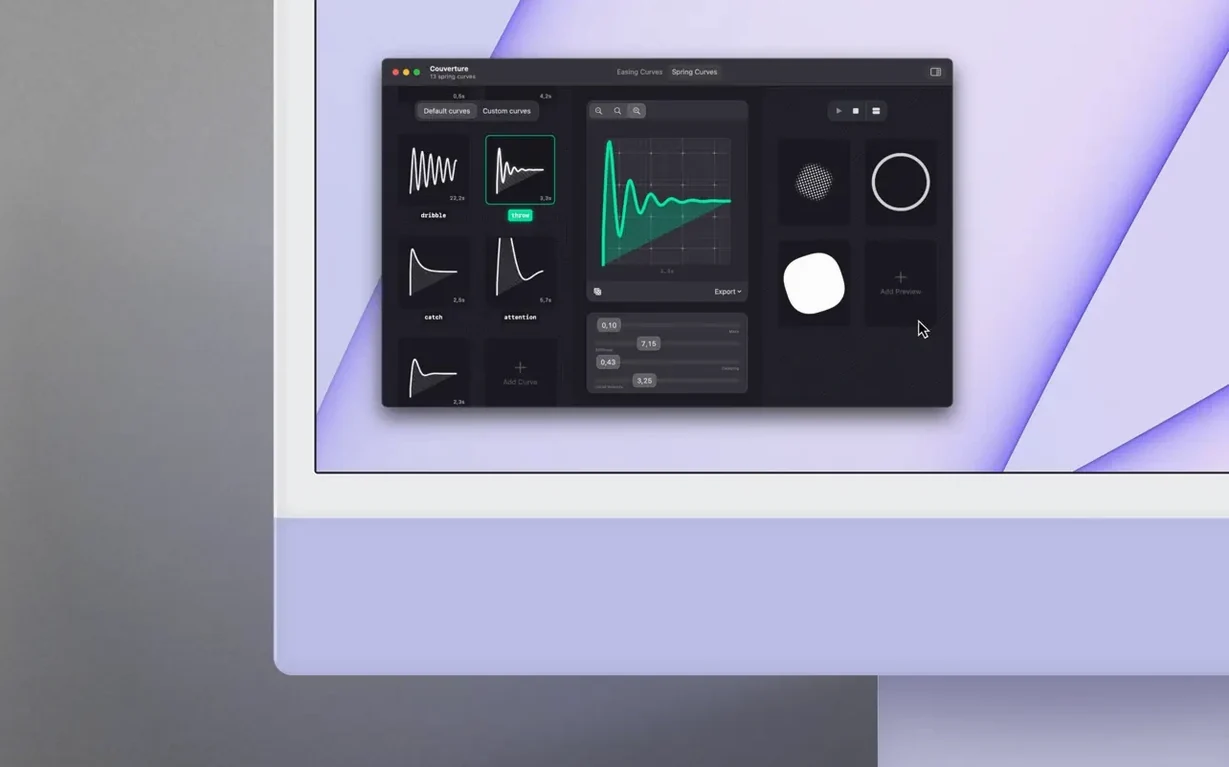
- Open Couverture and browse the 24 easing curves and 13 spring curves in the library. Each curve is a preset you can edit.
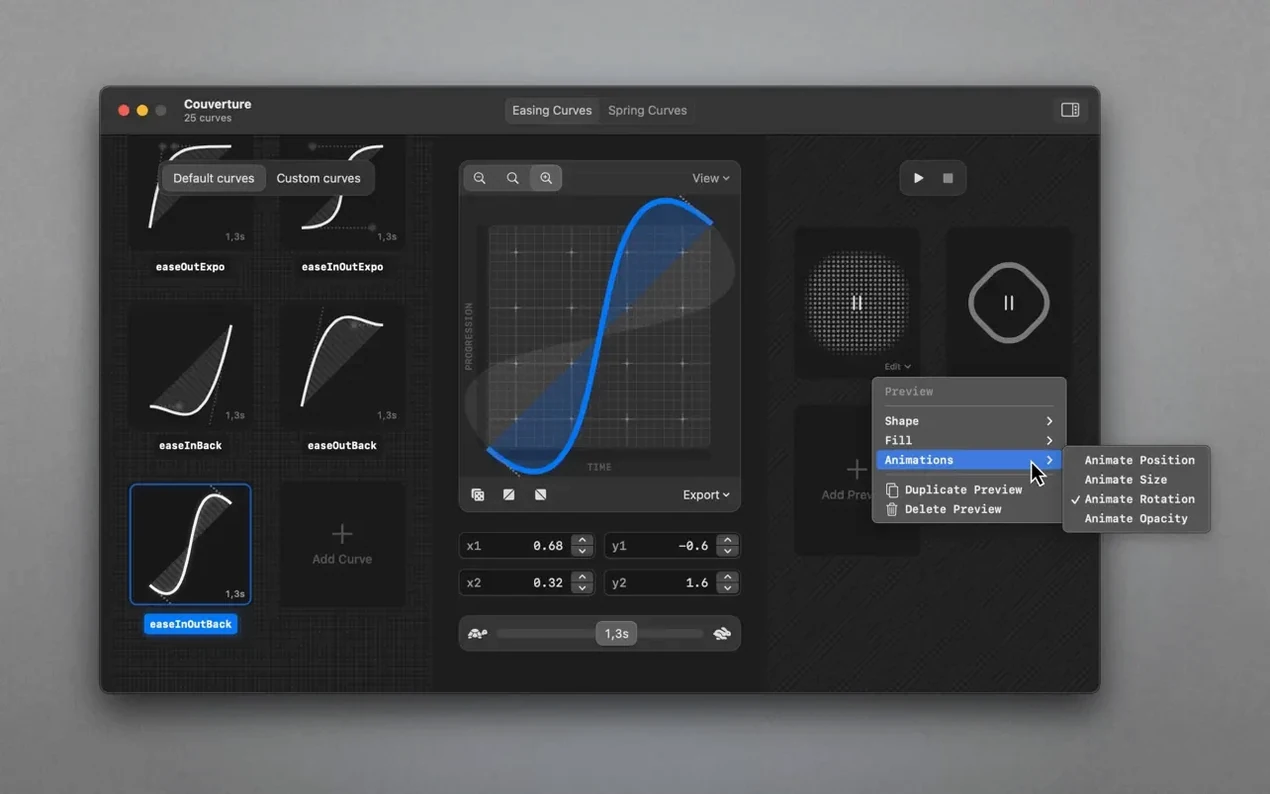
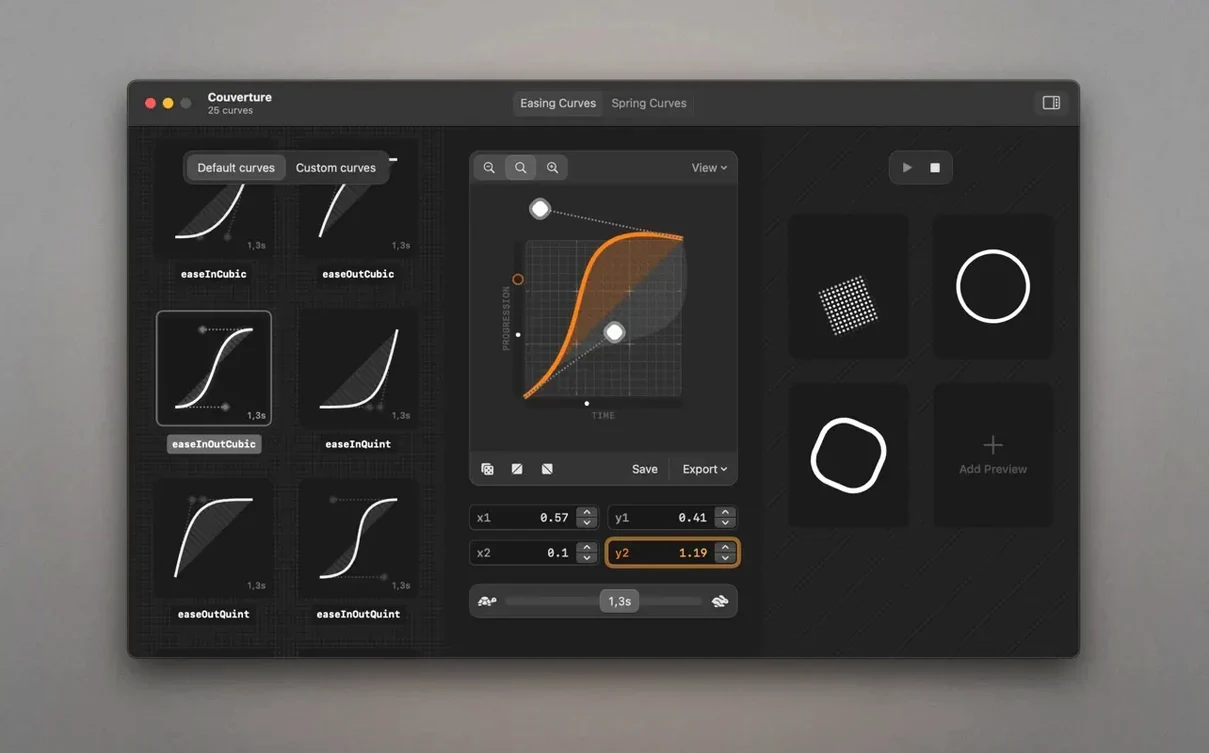
- Click a curve to preview it in real time. Drag the control points on the graph to adjust the animation shape — you see the result immediately.
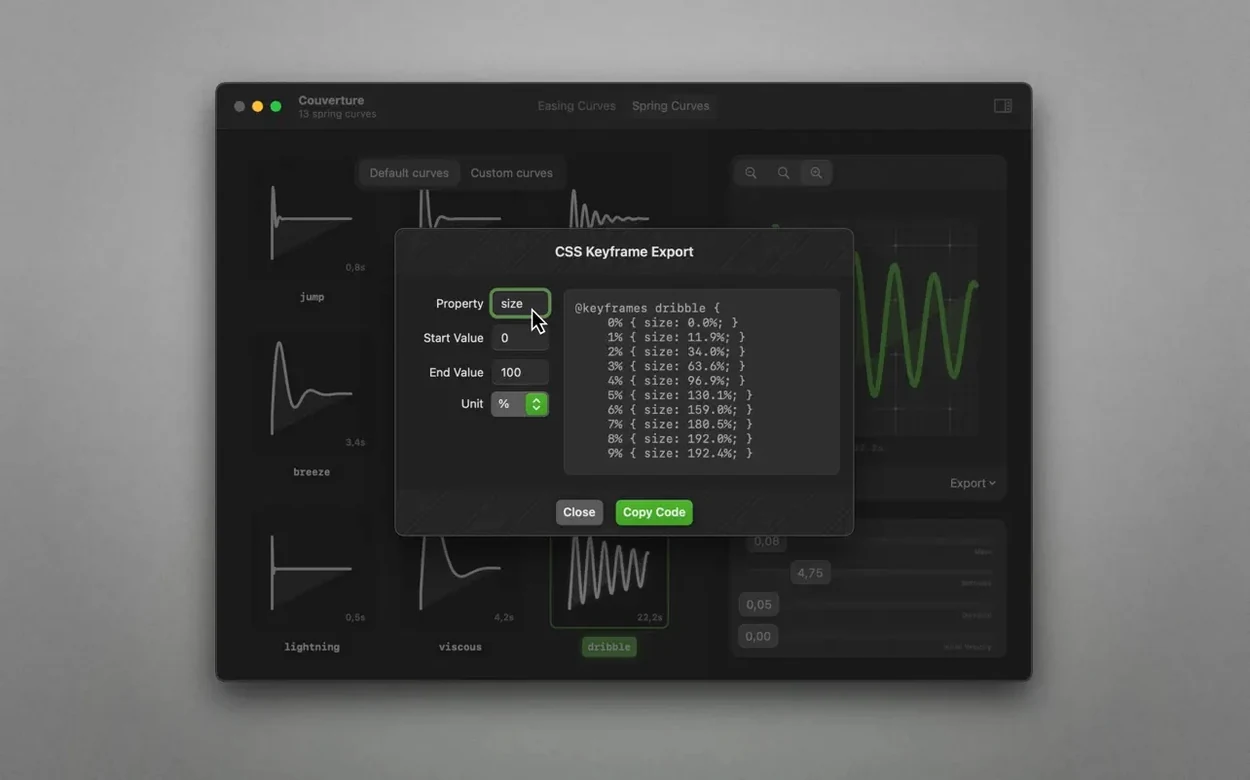
- Export your curve. Choose a format that fits your project: SwiftUI, Core Animation, UIKit, CSS, a PNG image, or a plain float literal. The export is a single step.
That is the core workflow: pick, tweak, export. The app keeps everything visible on one screen, so you never hunt for settings. It supports macOS Shortcuts, which means you can build a curve and drop it into an automation without leaving your main tool. For a design tool, it stays out of your way.
Real-time preview updates as you drag
After a few days with Couverture, you start noticing the touches that speed up everyday use. The real-time preview updates as you drag, but you can also scrub the playhead across the timeline with a single finger on a trackpad — no need to click a separate play button. The spring curve editor shows a ghost of the previous curve behind your edits, so you can compare iterations without flipping back and forth.
- Copy a curve as text: Select a curve, press Cmd+C, and Couverture copies the float literal to your clipboard. Paste it straight into Figma, After Effects, or Motion. No extra export step.
- Rename presets: Double-click a curve name in the library to rename it. Useful when you're iterating on "Button bounce v3" and need to keep track of versions.
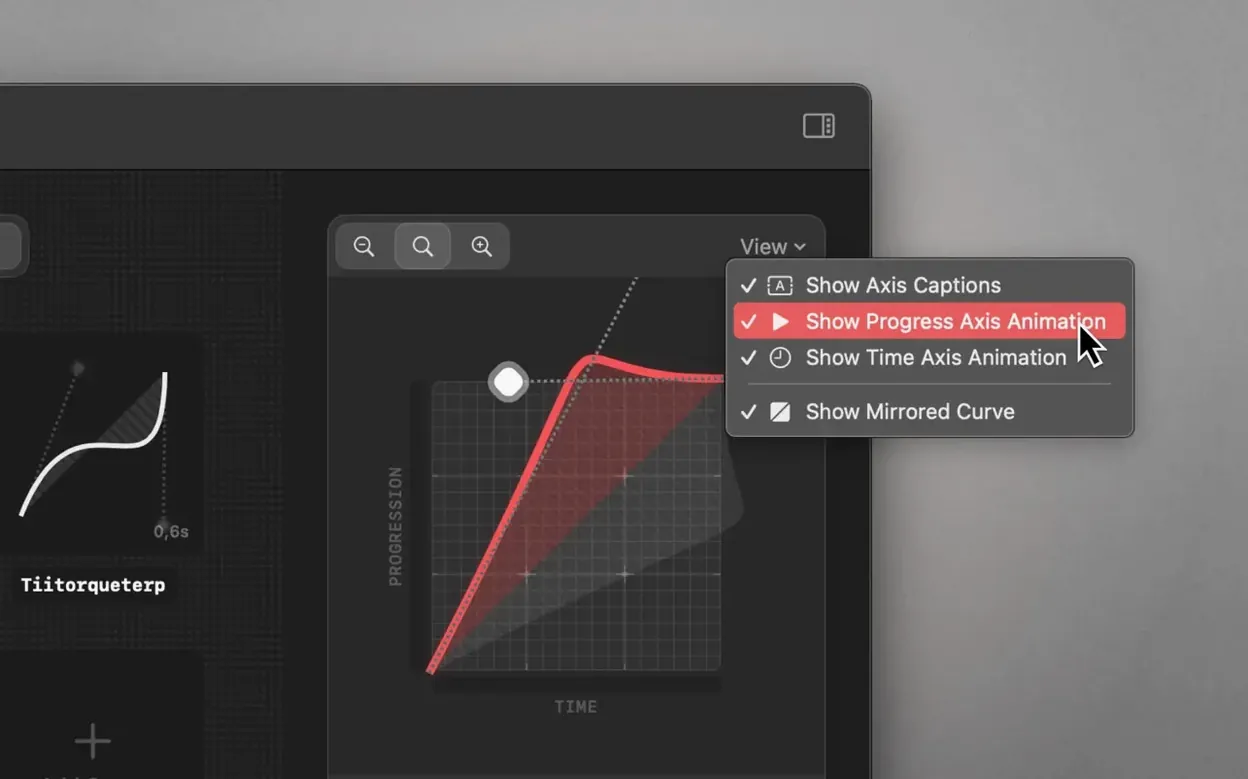
- Zoom into the graph: Two-finger pinch on the trackpad or Cmd+scroll zooms into the easing graph. Fine adjustments on tight curves become much easier when you're zoomed in.
- Reset a single curve: Hold Option while clicking the reset button — it reverts only the selected curve, not the whole library. Saves time when you only messed up one preset.
- Export the current curve as PNG: Drag the curve preview image from the graph area directly onto your desktop or into a design document. It drops a transparent PNG, ready for presentations or style guides.
Start with easing curves before spring ones
Start with the easing curves before touching the spring ones. Easing curves are simpler and their control points behave predictably. Once you are comfortable with the graph editor, move to spring curves — they add a physics-like bounce that can surprise you if you are new to them.
- Keep the library in alphabetical order until you know the presets well. Sorting by type or custom order can hide the built-in curves you might want to reference.
- Export a few curves as float literals early in your workflow. Paste them into your design tool and check that the timing matches your expectations. The float format works universally, so it is a safe starting point.
- Use macOS Shortcuts to batch-export curve sets. For example, create a Shortcut that opens Couverture, imports a list of curve names from a text file, and exports each as CSS code. The automation stays in place even if you switch projects.
- Pin the Couverture window to one side of your screen. The interface is compact enough to sit alongside your code editor or design canvas without overlapping important panels.
Apple Silicon makes the graph redraw faster
The current release, version 1.1.6, keeps the same visual editor but runs more reliably on macOS 12 and later. The biggest practical change for daily work is improved Apple Silicon optimisation — the graph redraws faster when you drag control points, especially on M1 and M2 Macs. On an older Intel machine, the difference is less noticeable, but the app still feels responsive.
- The library now loads presets in about half the time compared to earlier builds. Opening Couverture after a fresh install feels snappier.
- Exporting to UIKit and Core Animation formats had a minor delay in previous versions. That delay is gone in 1.1.6; the export dialog appears instantly after you choose a format.
- The German localisation received a few string corrections, so the interface reads more naturally if you work in German. No new features were added, which means the learning curve from earlier versions stays flat — your existing muscle memory still works.
For anyone who picked up Couverture from a couverture Mac torrent, the 1.1.6 update is identical to the official build. The app does not phone home, so it works offline without issues. Just mount the disk image, drag the app to Applications, and open it from Launchpad when the copy finishes.
- macOS 13.5 or later
- Intel or Apple Silicon
Questions the team asks
Yes. Couverture runs on both Intel and Apple Silicon Macs, but it is optimised for Apple Silicon.
You need macOS 13.5 or later.
It exports to SwiftUI, Core Animation, UIKit, CSS, PNG images, and float literals.





Comments 0
Sign in or create an account to add a comment.
No comments yet. They go up after moderation.