

Typeface — Mac download
Download (23 MB) Earlier builds
Ticked
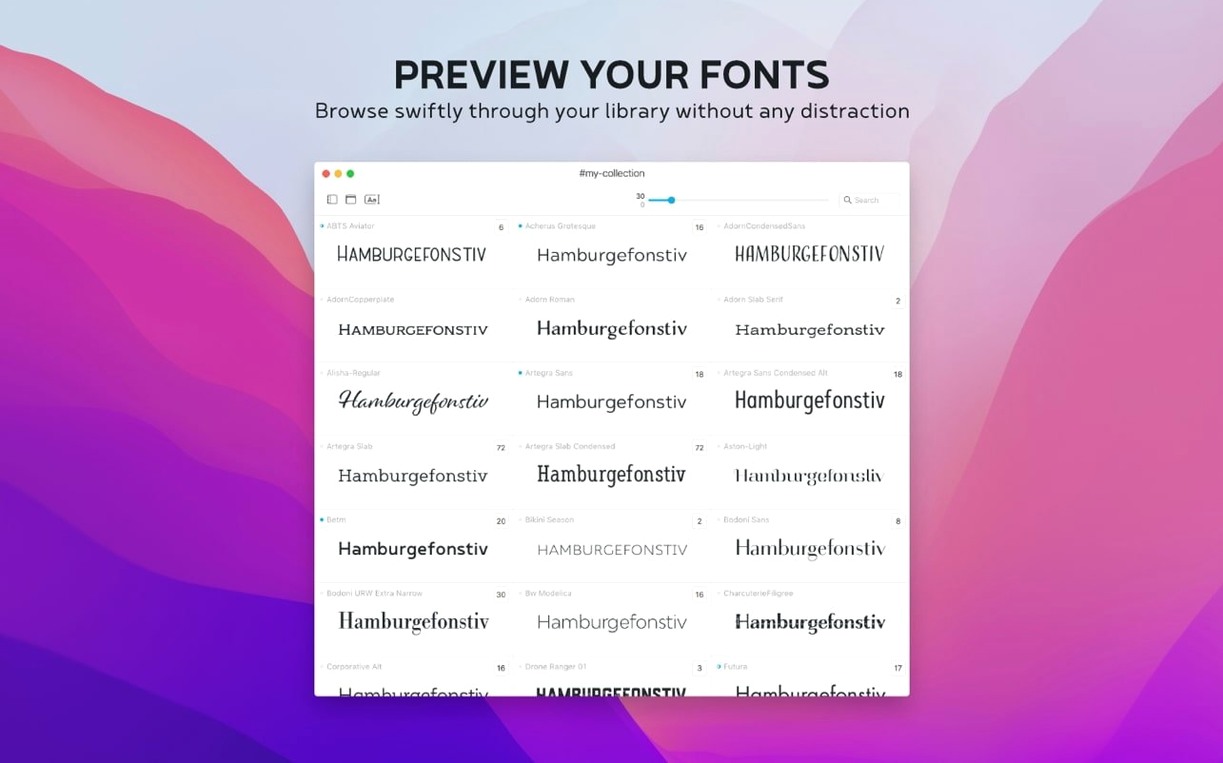
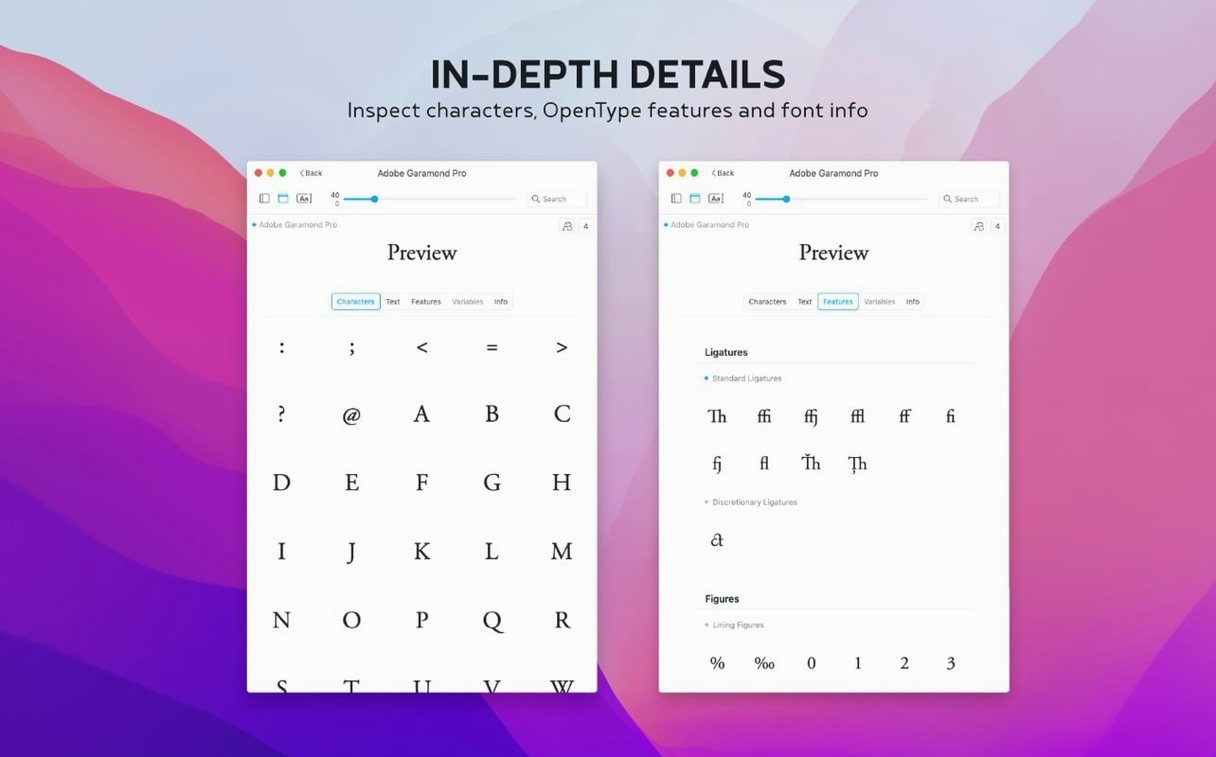
Typeface 4.5 quietly extends the Info tab. You can now attach a plain-text note to any font. The overview searches those notes too, so tagging foundry names or project reminders becomes a sortable column later. A Last Activated timestamp has also arrived, alongside support for .otc font collections—useful if your archive goes that far back.
The app slots in next to the Mac font book you already use without trying to replace it. All system and custom fonts appear immediately. Import from a downloads folder, a client drive, or another font manager in one step, then group them by family. The layout keeps comparison quick: pick two or three weights and see them on one screen without dumping everything into a design document first.
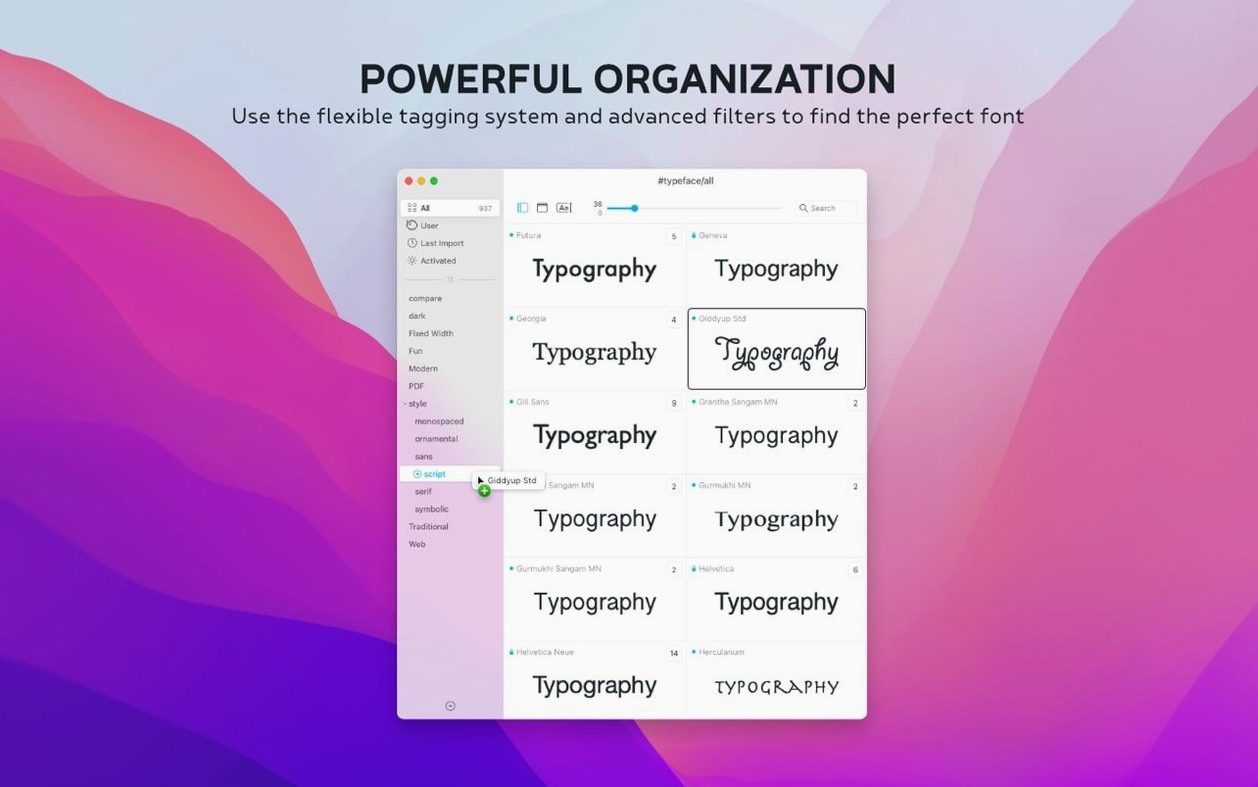
Filtering is fast because it leans on what the OS already indexes. No catalogue rebuilds, no separate library format to maintain. If you already flip between Sketch, Photoshop, and Keynote, Typeface sits in the background as a lightweight check before you commit a heading or a logo lockup.
Interface languages span English, German, Dutch, French, Czech, and Japanese, so it scales across small studios with mixed-language Macs. It asks for macOS 12 or later and runs natively on Apple Silicon and Intel hardware.
Speed and resource habits
Typeface stays light. On a daily-driver Mac with 600+ fonts activated, scrolling through the full library rarely stutters—even while previewing large families at 144 pt with glyph overlays open. Memory use hovers around 150–200 MB, which leaves plenty of room for Adobe apps and a dozen browser tabs alongside it.
Launch time is under two seconds on Apple Silicon. Font activation doesn't trigger a system-wide refresh, so you won't see other apps freeze while Typeface does its work. Searches feel instant because the app reads the same font cache macOS already maintains; there's no separate database to rebuild after a crash or an OS update.
Stability holds up across long sessions. Leaving it open overnight with a few comparison windows active doesn't cause memory creep or beachballs the next morning. The only noticeable pause comes when importing several hundred fonts at once—and even then, the progress bar stays responsive.
Swap the sample text for your real copy before browsing
Open Preferences straight after the first launch. A handful of defaults are worth adjusting before you start building collections:
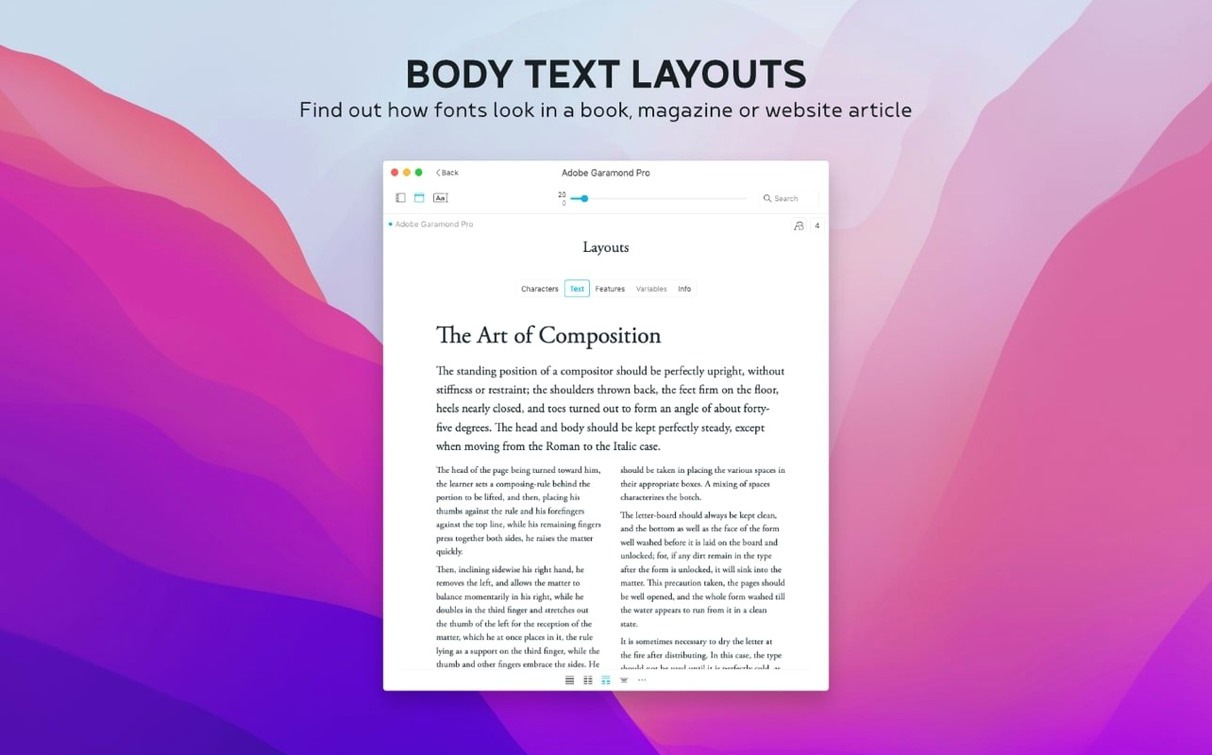
- Sample text. Replace the default pangram with the copy you actually design for. Paste in a brand tagline, a typical headline length, or a paragraph of lorem ipsum that matches your column width.
- Preview size. Set a default point size that fits your workflow. UI designers often benefit from 16–24 pt; print people may want 48 pt and up.
- Last Activated column. Enable it in the overview layout. This column only appeared in 4.5.0 and becomes useful quickly when you're testing candidates for a project.
- Google Fonts import. If you reach for web fonts regularly, connect the built-in Google Fonts browser. The catalogue stays current without manual downloads.
Tag fonts into a ‘Current project’ collection on day one
Tag early. Drop fonts into a collection called "Current project" on day one, then refine into narrower tags like "Logo shortlist" or "Body text candidates" as you narrow choices. A font can live in several tags, so you don't lose trail when a serif that failed for headings becomes a contender for pull quotes.
Use the Notes field for context that won't fit in a tag. Jot down "Client liked, but too wide for mobile" or "Needs tighter kerning before presentation." Those notes become searchable, and a month later you'll remember why you didn't pick that perfectly nice geometric sans.
Run side-by-side comparisons of two or three weights before installing anything new. Typeface makes this faster than the trial-and-error of dropping text into a layout app, and it helps you preview and activate only the styles you need from a Typeface torrent, keeping your font menu clean.
Sort by Last Activated at the end of a review session. The list tells you which fonts you actually tested—useful when a client asks what you considered. Export a quick screenshot of the comparison view for your working file; it's faster than writing a summary and more visual than a spreadsheet.
Release notes for version 4.5.1 are up on the developer's site. Head over for the full list of changes.
- macOS 12 or later
- Apple Silicon or Intel 64-bit








Comments 0
Sign in or create an account to add a comment.
No comments yet. They go up after moderation.