
Super Vectorizer Pro — Mac download
Ticked
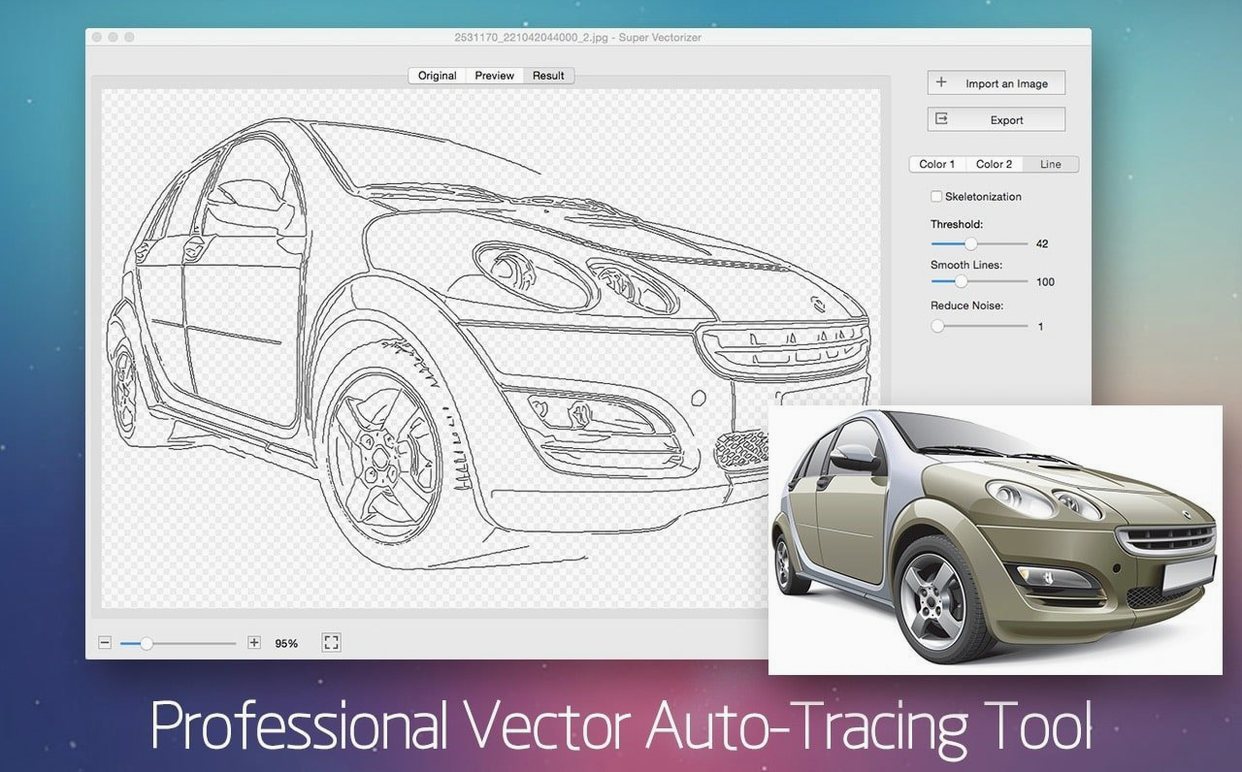
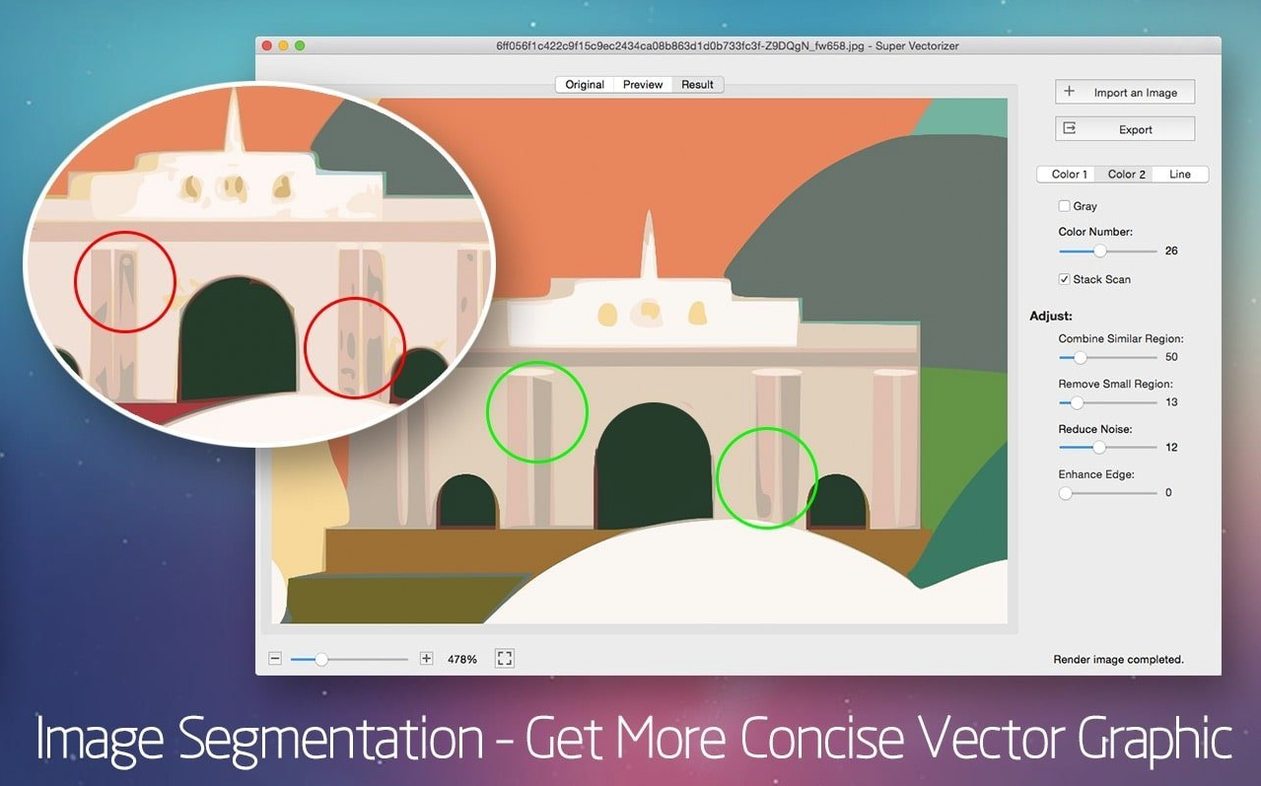
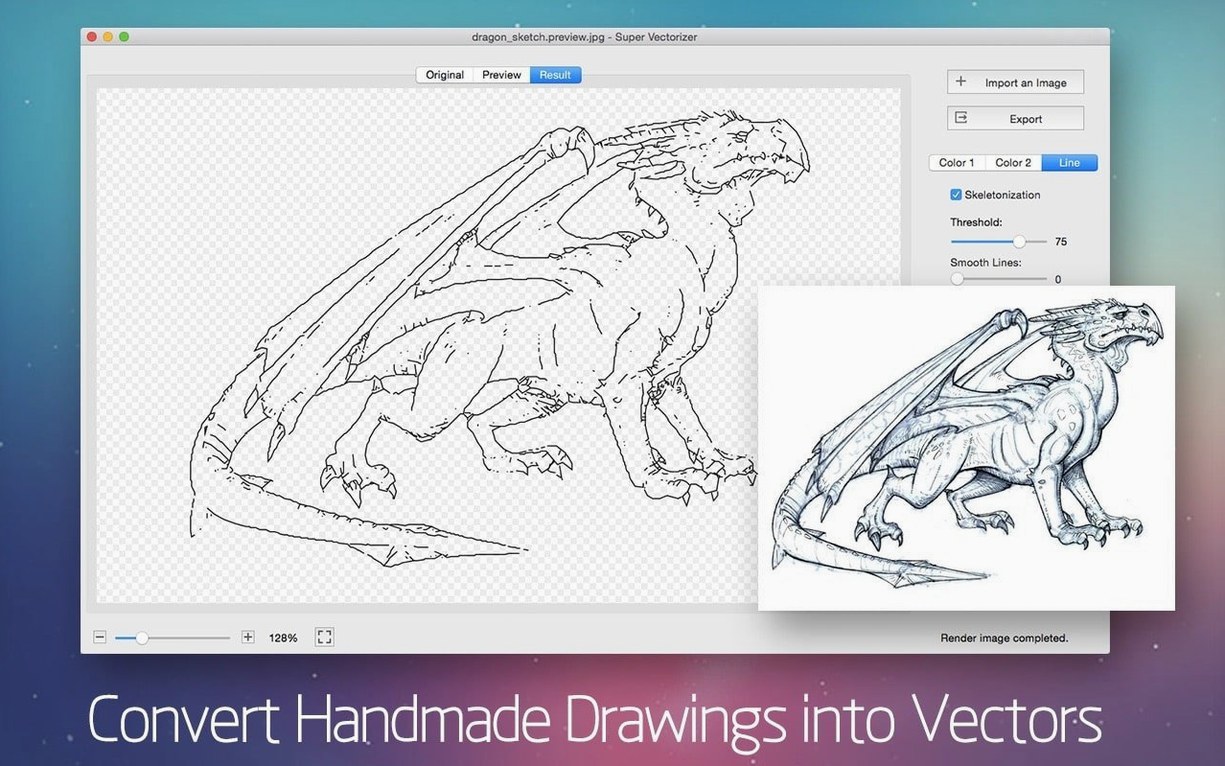
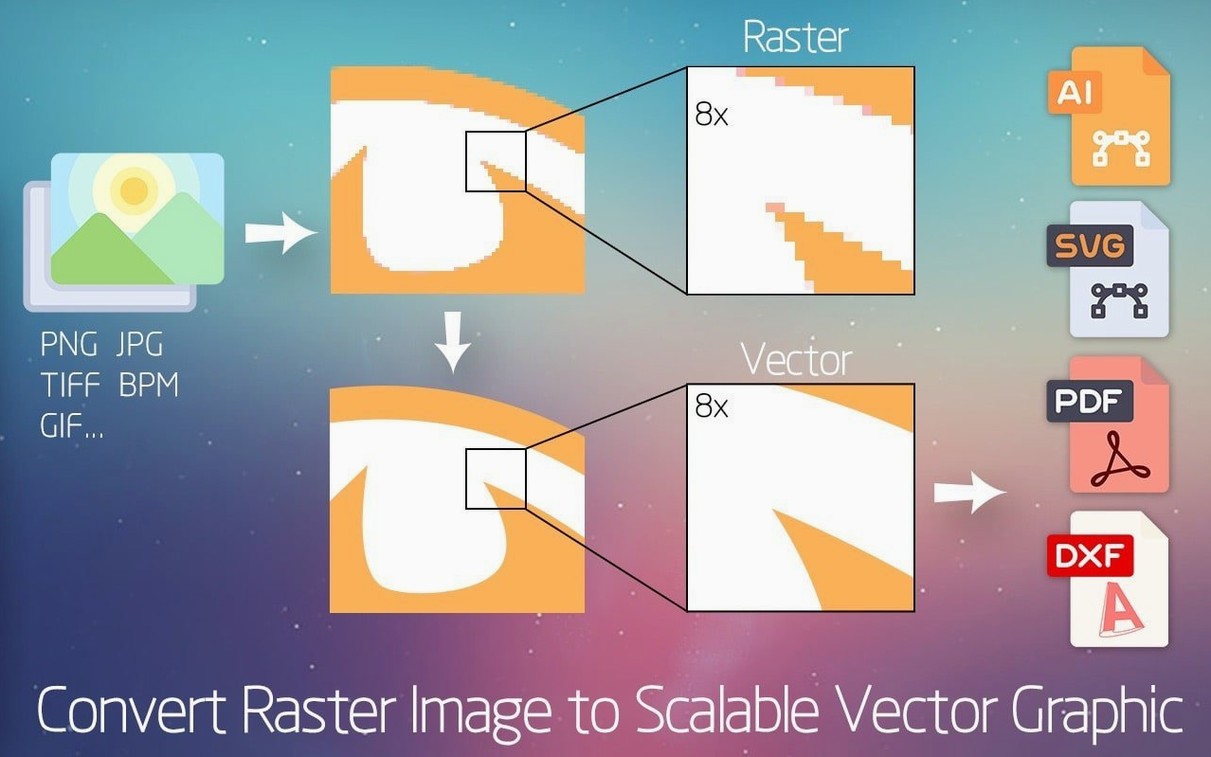
It reads over 70 bitmap formats. That is the first thing to know. A scan of a pencil drawing, a flat logo in a JPEG, a screenshot of a map — feed it in, and the app traces clean vector paths you can edit later.
| Quick facts | |
|---|---|
| Version | 2.3.3 |
| Developer | XiuXia Yang |
| macOS | 10.10 and later |
| Architecture | Intel 64-bit, Apple Silicon |
| Output formats | AI, SVG, DXF, PDF |
People often ask two things before they install. Can it open their file? Almost certainly — the input list stretches past 70 formats. The second question is where the vectors end up. Output lands in AI, SVG, DXF or PDF, so you open the result straight in Illustrator or Corel without a conversion step. The interface stays out of the way: pick an image, pick a vector style, export.
Hands off editable AI paths to Illustrator or CorelDRAW
Super Vectorizer Pro does one job and hands off the result. That is why it sits early in a pipeline, never at the end.
With Illustrator or CorelDRAW. Export to AI and open directly. All paths come through as editable vectors. No embedded bitmap, no tracing step inside the host app. You can assign stroke weights, fill colours and layers straight away.
With Sketch or Figma. Use SVG export. Drop the file into either app and the vectors appear as grouped shapes. Useful for icon sets, map pins or UI elements traced from a scan.
With AutoCAD or QCAD. The DXF export gives you polylines and splines. A sketched floor plan becomes a base layer for measured drafting. Not every tracing app offers DXF — this one does.
With macOS Finder and Preview. Quick Look shows the output PDF and SVG files inline. You can check the traced result without opening an editor. Drag a PDF into Keynote or Pages and the vector stays sharp at any size.
With the clipboard. You cannot paste a vector directly from the app into Mail or Notes, but the AI and SVG files sit in a folder. Drag them in. It is a small extra step, and it keeps the pipeline clean.
Workflow: pencil sketch to SVG asset
A common task: you have a pencil drawing on paper, you scan it, and you need a clean SVG for a website.
- Scan the drawing at 300 dpi into a JPEG or TIFF. Keep the contrast high — dark lines on white paper.
- Open Super Vectorizer Pro and drag the scan in. The preview window shows what it sees.
- Choose Line Mode for pencil work. Set the threshold slider so the traced lines match the original stroke weight. Watch the preview update in real time.
- Set output colours low — two or three. That keeps the tracing tight. Tick Ignore White so the background stays transparent.
- Pick SVG as the output format. Click Export, name the file, save.
- Open the SVG in Sketch or Illustrator. Ungroup, assign stroke colours, delete stray nodes. Done.
The whole trace takes under a minute. The manual cleanup afterwards is where you spend the real time, but the app gives you a head start that beats hand-tracing every node.
Drop color count to 4 or 8 for tighter logo paths
The defaults are safe, but a few tweaks save time later.
- Color count. The default often sits at 16. For logos or flat icons, drop it to 4 or 8. Fewer colours mean tighter paths and fewer stray nodes. For photos you want to stylise, go up to 64.
- Ignore White. Tick it. Otherwise the app traces the background as a shape, and you have to delete it afterwards. The only exception is when you need a white-filled background as part of the design.
- Skeletonisation. This is the setting for line art and handwriting. It traces the centreline of a stroke, not its outline. Turn it on for scanned pencil or ink work. Leave it off for filled shapes and logos.
- Output format preset. If you always open files in Illustrator, set AI as the default in Preferences. If your team works in Figma, set SVG. It saves three clicks every export. The tab hides in the app preferences, not the main window.
- Preview zoom. Pinch to zoom the preview before committing to a trace. Small artefacts at 100% view become large problems when scaled up. Check the edges of curved paths at 200%.
- OS X 10.10 or later
- Apple Silicon or Intel 64-bit
Questions the team asks
Yes. Scanned pencil drawings are one of the target use cases, tracing the lines into editable SVG, AI, DXF or PDF output.
The exported AI, SVG, DXF and PDF files open directly in Illustrator, Corel and other vector editors on Mac.





Comments 0
Sign in or create an account to add a comment.
No comments yet. They go up after moderation.