

Garden Planner — Mac download
Ticked
New path styles joined the toolkit
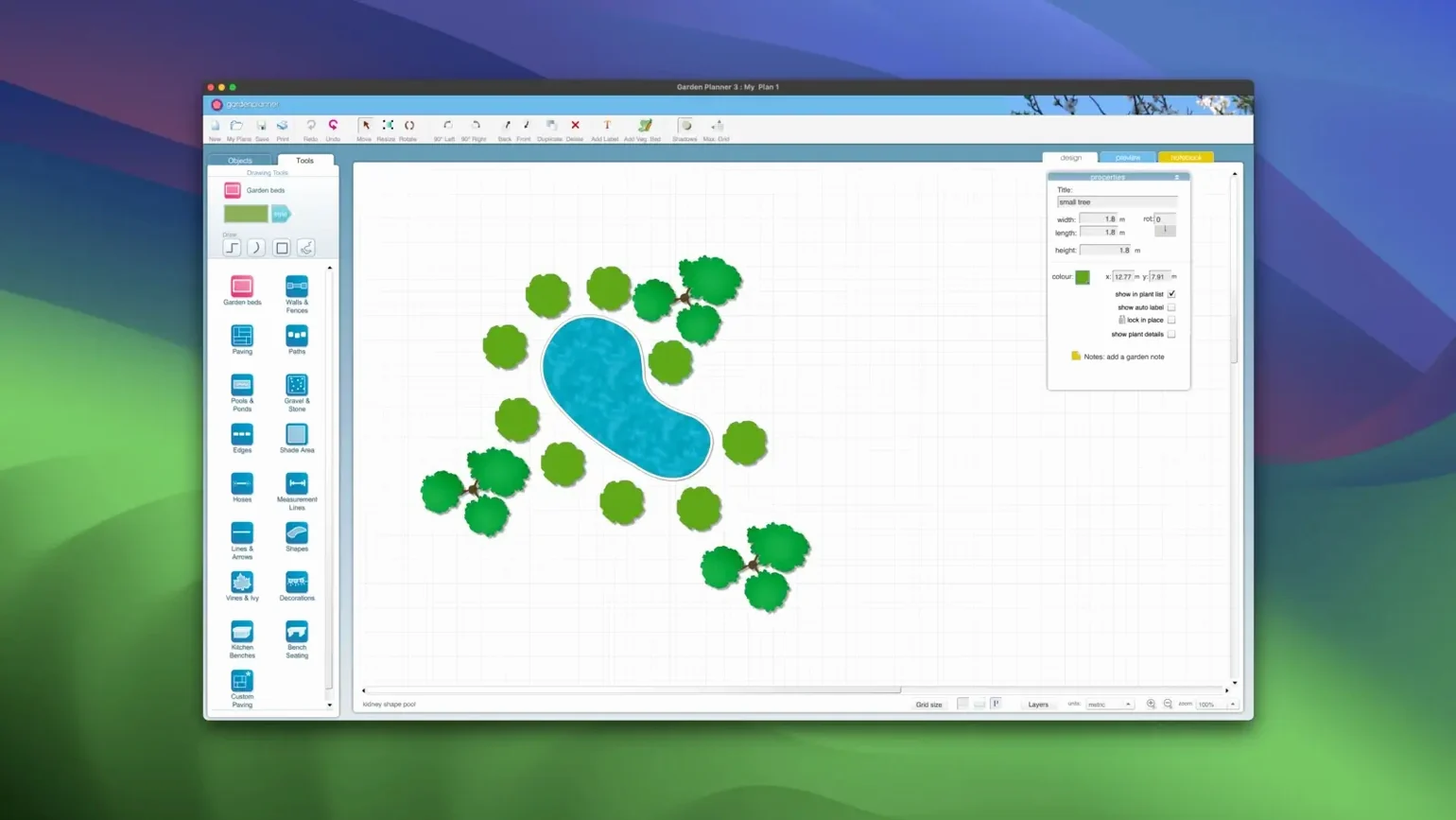
New path styles arrived. The update also bundled improvements and bug fixes. The rest of the toolkit stayed familiar.
Plan a garden in four steps
- Set the canvas. Pick a scale and drop in a property outline.
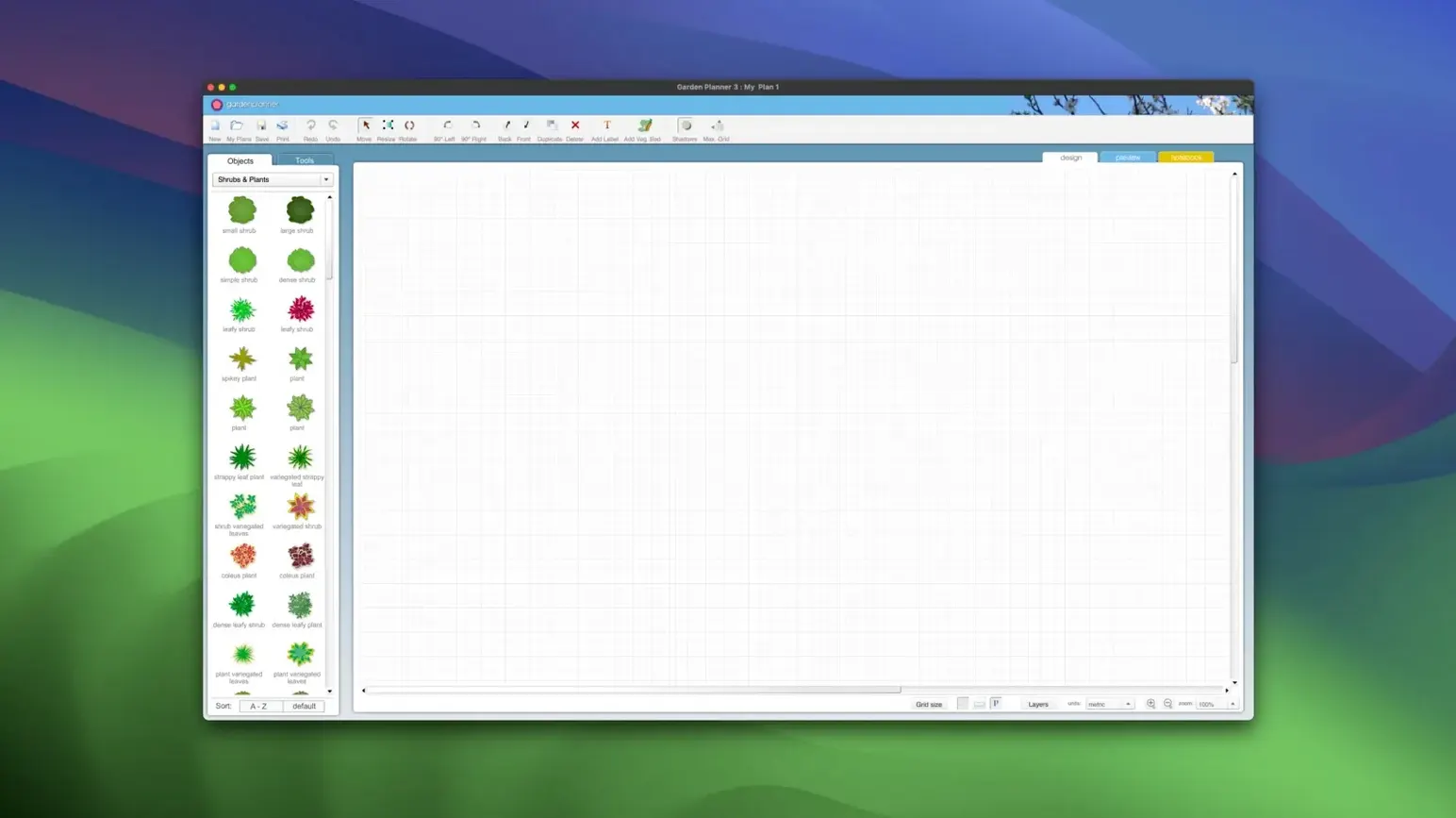
- Drag from the library. Over 1,200 plants and objects sit in the sidebar. Trees, shrubs, sheds, paving — pull what you need onto the grid.
- Switch views. The 2D plan keeps measurements exact. Flip to 3D for a walkthrough before a single spade hits soil.
- Add notes and export. Attach text descriptions to any object. Print the object report or save it as CSV or TXT.
The app runs natively on ARM and x86 Macs, needing only OS X 10.7 or later. Interface language is English. The whole thing works by drag and drop — no CAD skills required.
Skipping scale setup skews print sizes
- Skipping the scale setup. Jumping straight into dragging plants before setting the property dimensions. Everything looks fine on screen, then prints at the wrong size.
- Ignoring the object report. Designing a full garden and forgetting to export the plant list. When it is time to buy, there is no shopping list.
- Overcrowding. Shrubs and perennials look small as icons. Beginners pack them tight, then realise a mature spread fills twice the space.
- Staying in 2D only. The 3D walkthrough catches sight-line problems — a fence blocking a view, a tree casting shade on a veg patch — that flat plans hide.
- Not labelling. A bed full of unlabelled circles means nothing six weeks later. Text descriptions take seconds and save guesswork.
Runs on any Mac from OS X 10.7 onward
Does it run on current Macs? Yes. The app works on any Mac running OS X 10.7 or later and supports both ARM and Intel 64-bit architectures. People searching for planner 5d mac free or a home planner torrent often land here, then find a dedicated garden tool fits better than a general room planner.
Can I print to scale? Yes. The print preview shows exactly what hits paper. Set your scale at the start, and the output matches real-world measurements.
What export formats do I get? Finished plans export as JPEG and PNG. The object report — a full inventory of every plant, path, and structure in the project — exports as CSV or TXT.
Do I need to be online? No. The whole library sits on your drive. No cloud account, no sign-in.
Is there a 3D view? Yes. Switch from the 2D plan to a 3D walkthrough anytime. It is built in, not an add-on or a separate app.
Workflow: mapping a kitchen garden
- Create a new project and set scale. Open the app. Choose a scale that fits your plot — 1:50 works for most back gardens. Draw the boundary with the wall tool, marking north with a text label.
- Lay out raised beds. Pull rectangular shapes from the library. Duplicate them — four beds, each 1.2 metres wide, paths between at 60 cm. Colour them with soil textures.
- Add hard landscaping. Use the path tool to run a main walkway down the centre. Drop in a small shed from the objects library, rotated to catch morning light.
- Place crops. Search the plant library for vegetables. Drag tomatoes, carrots, beans, and herbs into the beds. Space them using the grid as a guide. Scale oversized icons down to true spread.
- Check in 3D. Walk the plot. Make sure the shed does not shade bed three. Adjust as needed.
- Export the plan and the report. Save a JPEG for your phone. Print the object report as a CSV — it lists every variety, ready for the seed catalogue.
- New path styles added.
- General improvements and bug fixes included.
- OS X 10.7 or later
- Apple Silicon and Intel (64-bit)
Questions the team asks
Yes. The object report lists everything on the plan and can be printed or exported as a CSV or TXT file.








Comments 0
Sign in or create an account to add a comment.
No comments yet. They go up after moderation.