
Batch Photo Resizer — Mac download
Ticked
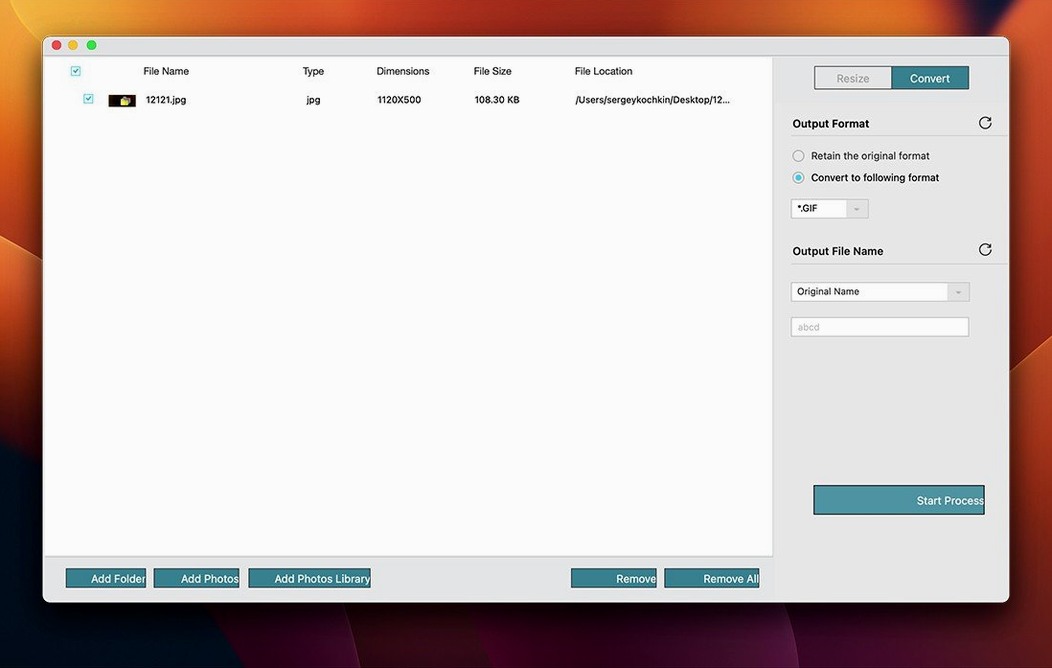
If you regularly process dozens or hundreds of photos, the repetitive clicking through menus wastes time. Batch Photo Resizer solves exactly that: convert, resize, and rename whole folders of images in one pass.
| Detail | Info |
|---|---|
| Developer | CluBees Tech |
| Current version | 3.2 |
| macOS required | OS X 10.10 or later |
| Architecture | Intel 64-bit and Apple Silicon |
| Languages | English, German, Arabic, Spanish, Chinese (Simplified), French, Japanese |
It handles multiple image formats, including raw files, and preserves quality when resizing. You can keep or flatten folder structures. A straightforward utility for anyone who needs consistent batch output without fiddling with scripts.
Workflow: preparing product photos for a web shop
Here is the step-by-step runthrough.
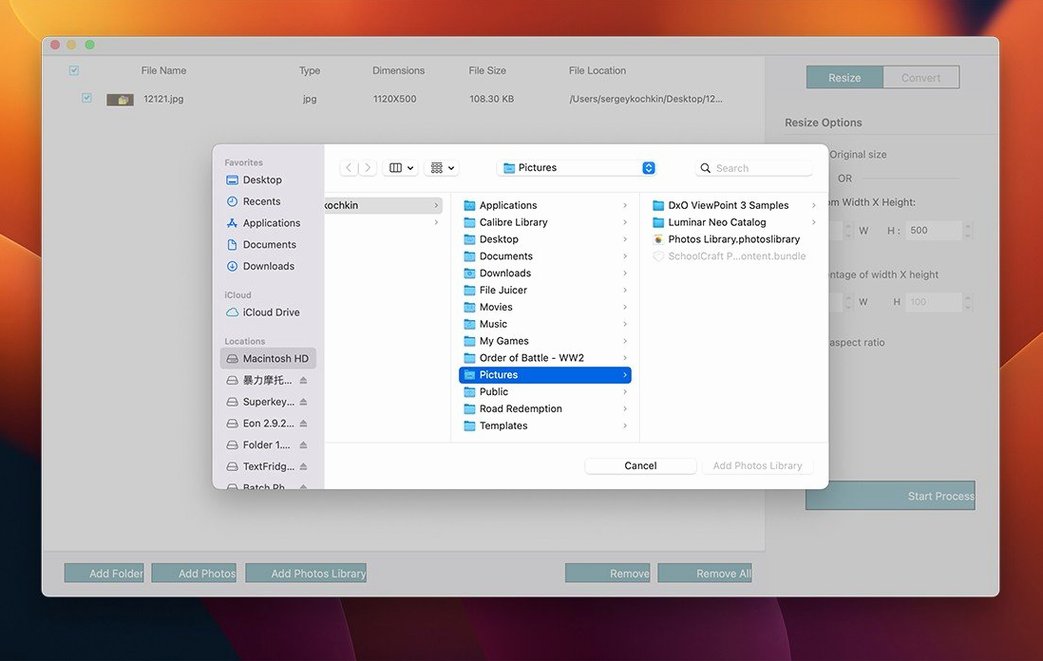
- Open Batch Photo Resizer and click Add Folder — the app reads the entire directory, including subfolders if you keep the structure toggle on.
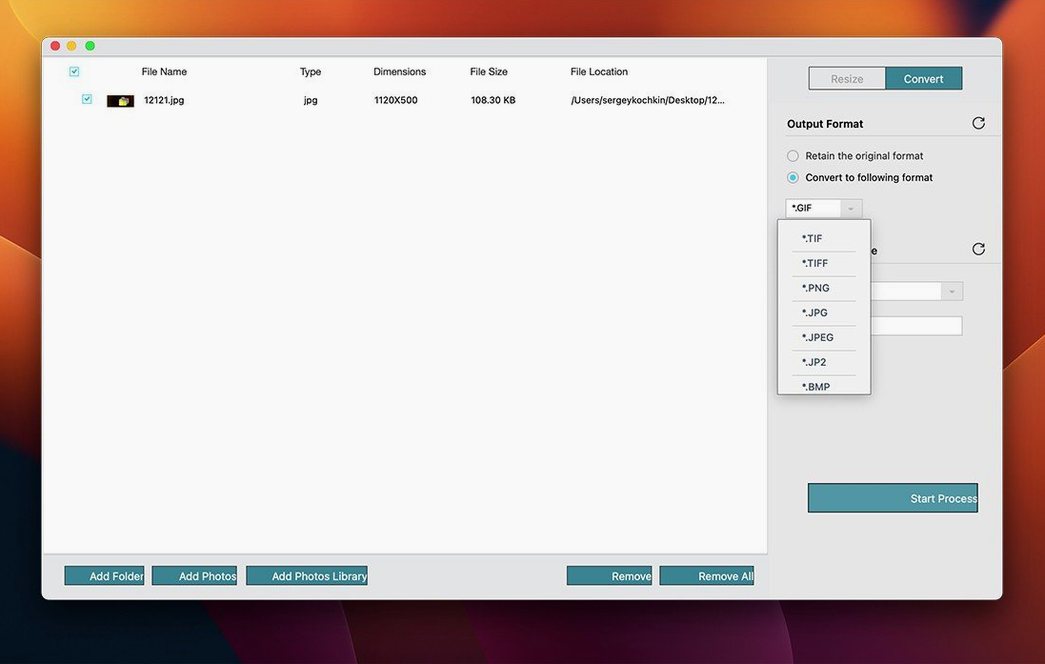
- Set the output format to JPEG and the width to 800 px. The height scales proportionally; you can lock aspect ratio or set both dimensions manually.
- Switch to the Rename tab. Define a pattern like
product-{counter}. The preview shows the first few filenames so you spot mistakes early. - Choose a destination folder — same directory or a new one. Keeping originals untouched is the safer habit.
- Click Start. The progress bar moves through each file.
- Check the output: filenames match the pattern, dimensions are consistent, and quality looks good even on zoom.
The whole process takes under a minute once you are familiar with the layout. No command line, no exported presets to lose.
80 MB RAM for 200 JPEGs, no fan spin on Apple Silicon
Batch Photo Resizer is light. CPU usage spikes during conversion then drops to near zero. No fan noise or stutter in other applications.
Stability is reliable for the common formats. I have processed 500 files in one go without a crash. The app does not hang or freeze on large raw files either. However, if you point it at a folder with mixed corrupted images, it skips them silently — no error popup, which can be confusing the first time.
The version 3.2 build runs natively on both Intel and Apple Silicon. No Rosetta translation layer, so the speed is consistent across Macs. On older hardware (a 2013 iMac running macOS 10.10), the same 200-image job took roughly twice as long, which is expected for a decade-old machine.
Overwriting originals and skipping rename preview
- Overwriting originals. The default destination is often the source folder. New users click Start and lose their untouched files. Always set a separate output folder.
- Ignoring the rename preview. Typing a pattern like
img-{counter}.jpglooks fine, but if you include a typo in the extension, the app still writes the file — now you haveimg-1.jgpthat no image viewer opens. Check the preview before running. - Assuming raw support is lossless. Batch Photo Resizer converts raw to JPEG or PNG. It does not retain the raw metadata or DNG editing capabilities. For archival workflows, keep the originals separate.
- Not testing with a small batch first. Beginners process the whole folder at once. A few files are enough to confirm dimensions, naming, and format before committing 500 images.
A final tip: if you regularly resize for social media, set up a template by saving the output settings. The app remembers your last choices, but starting fresh each time invites mistakes.
- macOS OS X 10.10 or later
- Intel 64-bit or Apple Silicon Mac









Comments 0
Sign in or create an account to add a comment.
No comments yet. They go up after moderation.