

Photo Mechanic — Mac download
Ticked
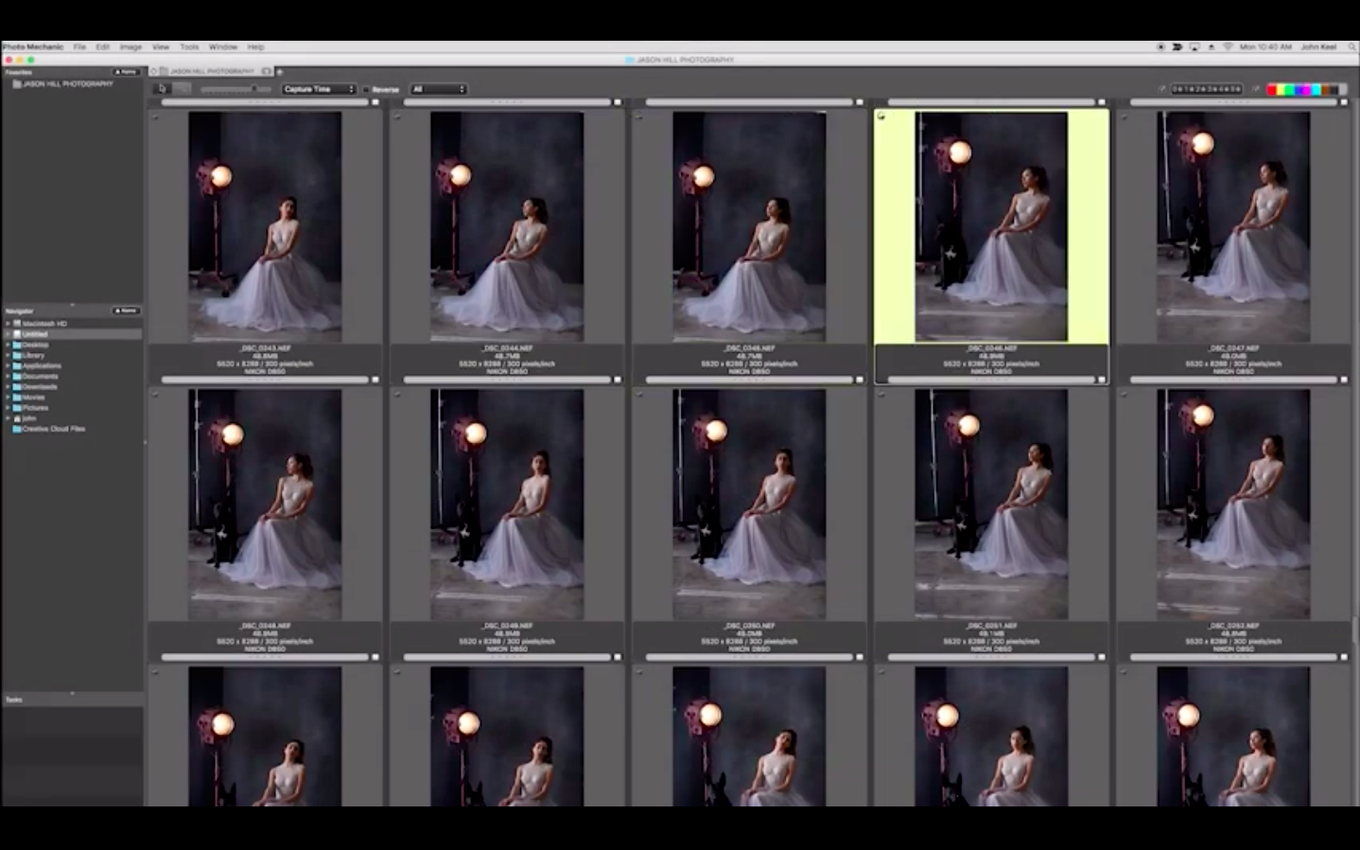
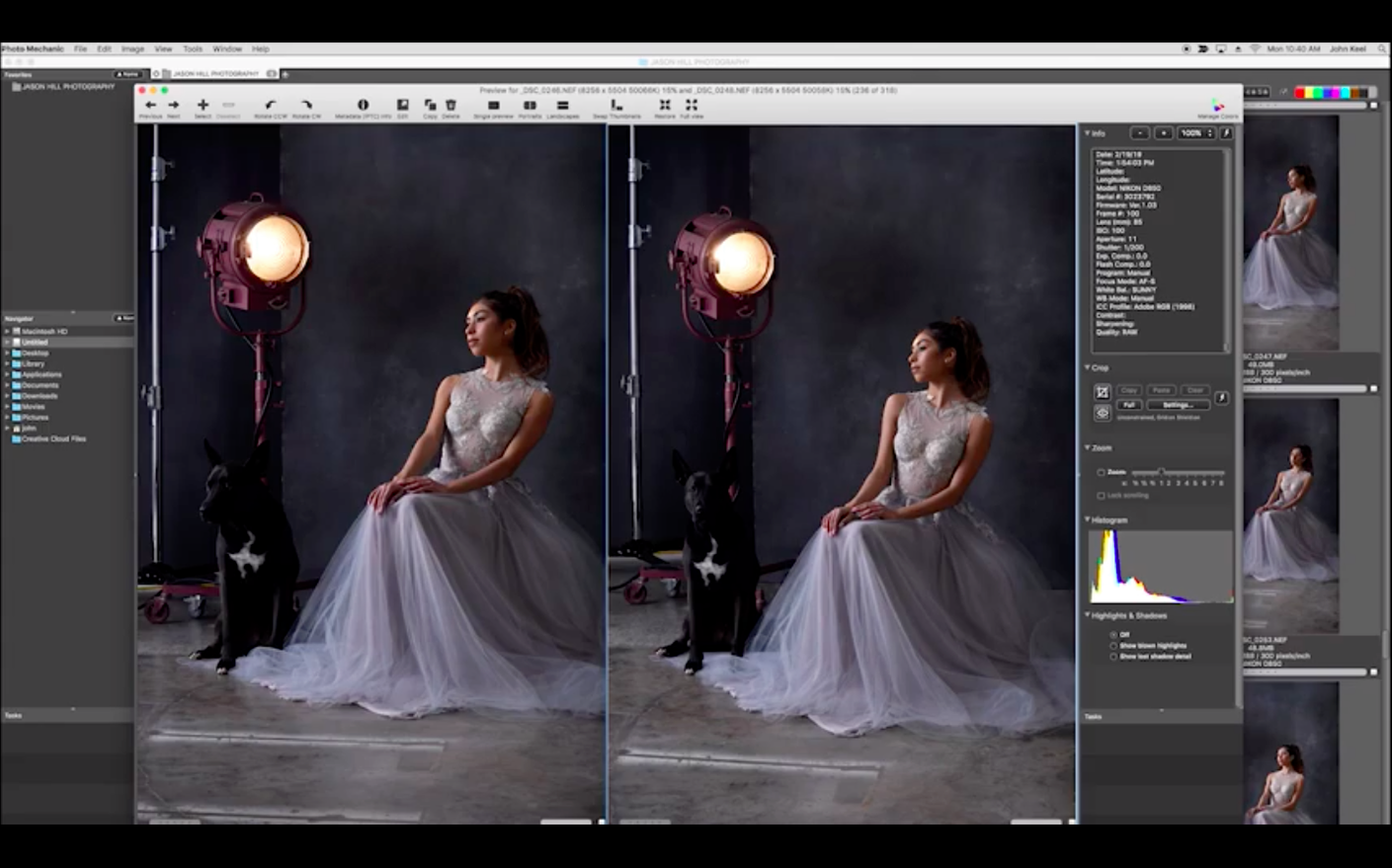
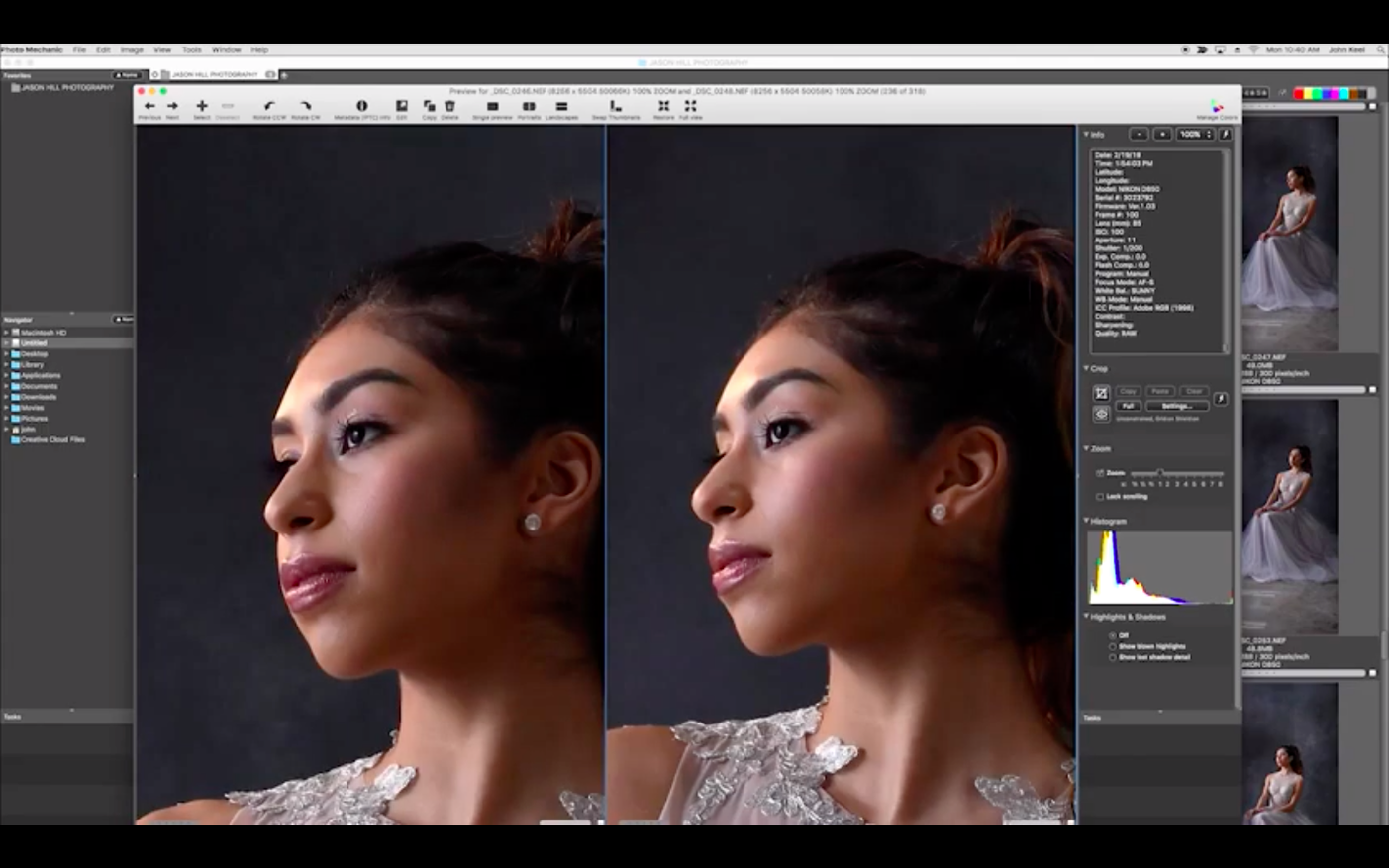
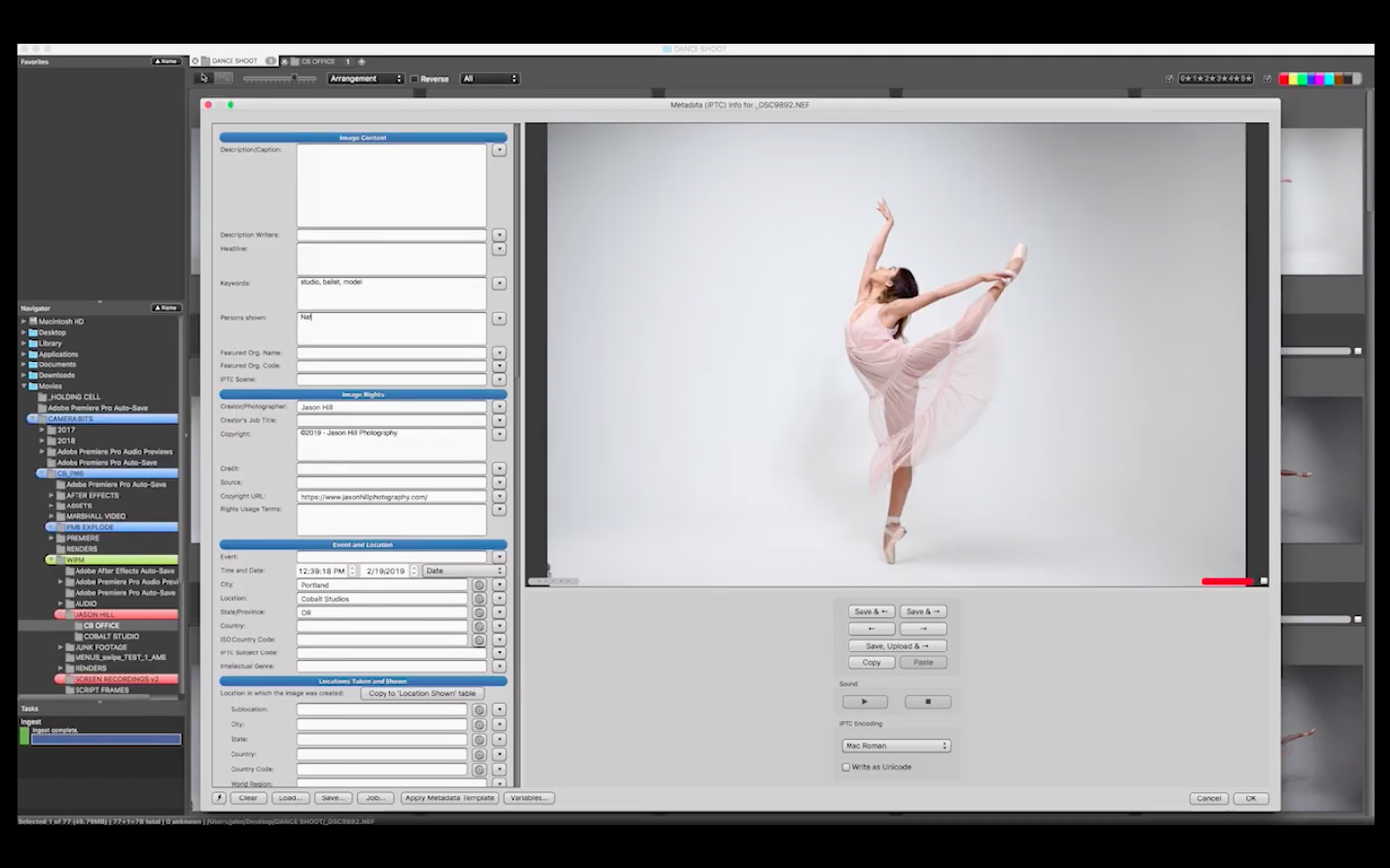
Photo Mechanic lands on Macs running macOS 13 Ventura or later. You need an Apple Silicon machine — Intel Macs are not supported in the current version. Check your chip type in About This Mac before you download.
| Detail | Info |
|---|---|
| Developer | Camera Bits |
| Version | 2025.1.8239 |
| macOS | 13+ (Apple Silicon only) |
| Language | English |
Once you meet those requirements, you get a media browser built for speed. It ingests folders of raw files without choking. You view, tag and rate shots before touching an editor. Metadata tools let you check lens, focus mode, white balance and camera model on the spot. Side-by-side comparison helps you pick keepers fast. From there you can batch-rename, add IPTC data, resize for web or queue exports. Photo Mechanic Plus extends this with a catalogue database, but the base app handles the daily cull-and-sort workflow on its own.
First 48 hours: a setup checklist
Don't just launch it and dig through old folders. Spend the first couple of sessions dialling in the workspace. A little setup now saves hours of rework later.
- Set your IPTC stationary pad. Open the Metadata (IPTC) Template from the Image menu. Fill in your name, copyright, contact details and any recurring keywords. Save the template. Every batch of photos you ingest can inherit this data automatically.
- Pick a colour class system. Decide what each label means and stick to it. Example: red for rejects, yellow for picks worth a second look, green for client-ready. Ingest a test folder and tag 30 shots — check if the system makes sense at speed.
- Tweak the ingest settings. Go to Ingest, pick a destination folder structure (date-based usually works) and set the renaming string. {year4}-{month0}-{day0}_{filenamebase} is a safe starting point. Tick the box for applying your IPTC stationary pad during ingest.
- Learn the keyboard shortcuts. At minimum, memorise T for tag, 1–5 for colour classes, and the arrow keys for moving through a contact sheet. The less you touch the mouse during a cull, the faster you get.
- Set up an export preset. Pick a common delivery spec — say, 2048px JPEG at 80% quality — and save it as a preset in the Export dialog. Name it something obvious like "Client proof". You'll reuse it constantly.
- Test FTP upload on a small batch. If you deliver to a server or photo desk, enter your FTP credentials in the Uploader and send three test files. Confirm with the recipient before you rely on it under deadline.
Where 2,000 frames become 80 selects
Good for anyone who shoots in volume and needs to reduce a card of 2,000 frames to 80 selects before post-production. Photojournalists, wedding photographers, sports shooters and event photographers live here — the ingest-and-cull speed is what they pay for.
Good for people who geotag, caption and keyword rigorously. Photo Mechanic's IPTC and GPS tools are deeper than what a raw processor gives you, and they work across hundreds of files without slowing down.
Not for someone who shoots 40 photos on a weekend walk. At that volume, the overhead of learning a dedicated browser isn't worth it. The app shines when you face a backlog, not a handful.
Not for anyone who wants a single app that edits pixels. Photo Mechanic does not develop raw files or retouch. It hands off to an editor — Lightroom, Capture One or Photoshop — once the selection and metadata work is done.
When ingest stalls or thumbnails lag
Thumbnails render slowly on a fast Mac
This usually means Photo Mechanic is reading embedded previews rather than rendering from raw. Go to Preferences > Rendering and tick Enable RAW rendering. Set the preview size to match your screen. On Apple Silicon Macs, this shifts the load to the GPU and speeds up scrolling noticeably.
Ingest copies the whole card again
By default, Photo Mechanic only skips files if the filenames match exactly. If you renamed in-camera or formatted a card partially, it sees "new" files. Switch the ingest source to Incremental Ingest from the dropdown — the app scans the destination folder and only copies what isn't already there.
FTP uploads time out
Check your connection type in the Uploader settings. Many servers want passive mode switched on. Also set the timeout slider to 60 seconds instead of the default 30. If you're uploading a big batch, send in chunks of 50 rather than firing all files at once — some servers throttle concurrent connections.
Colour class or tag not sticking
Photo Mechanic writes colour classes and tags to XMP sidecar files by default, not into the raw file. If you later move the photos without the sidecars, the metadata vanishes. To avoid this, go to Preferences > IPTC/XMP and set Add tag, color class, and rating to IPTC for TIFF-based raws. For proprietary raw formats, keep the XPM files paired with your photos during any file moves.
Search doesn't find recent work
The base app searches contact sheets you have open. It does not search across unmounted drives or folders you haven't browsed. If you need catalogue-wide search across offline drives, that's where Photo Mechanic Plus comes in. For the base app, keep a folder structure you can navigate by memory — year/month/day is hard to beat.
- macOS 13 Ventura or later
- Apple Silicon Mac (M1, M2, M3, M4 series)









Comments 0
Sign in or create an account to add a comment.
No comments yet. They go up after moderation.