
Pixelmator Pro — Mac download
Download (641 MB) Earlier builds
Ticked
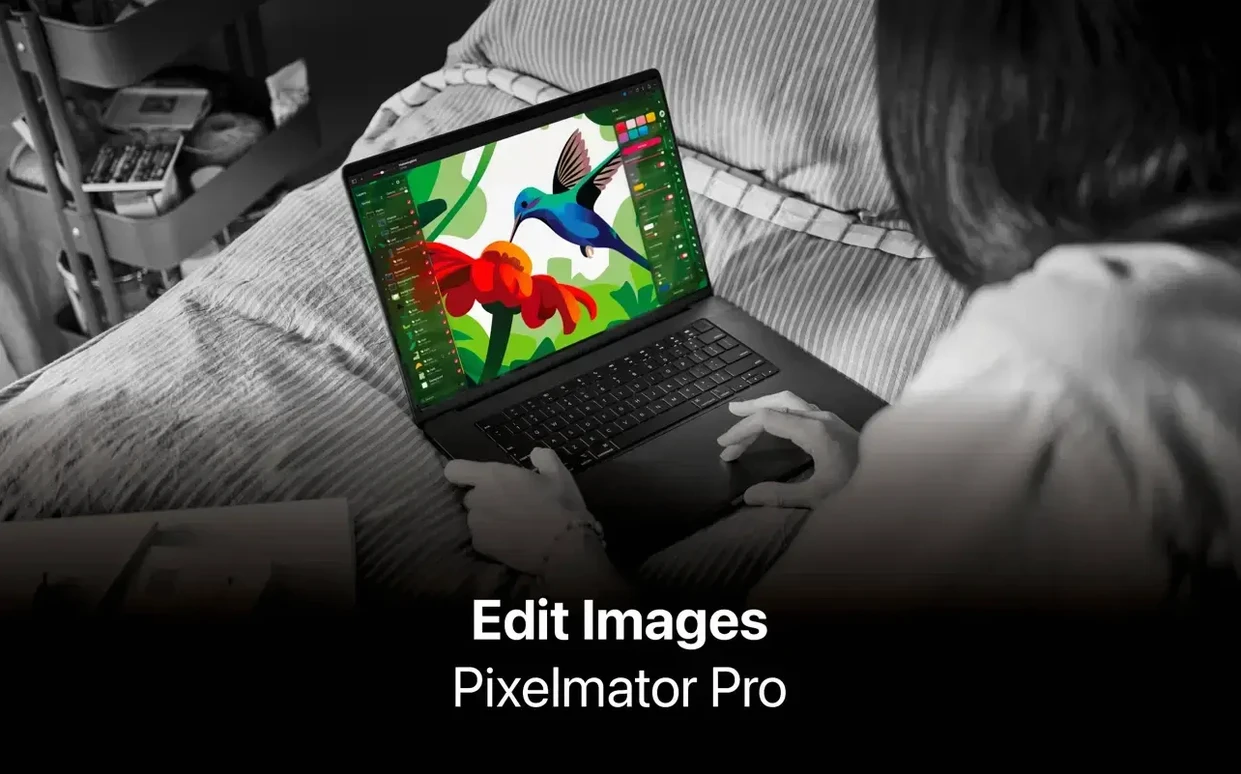
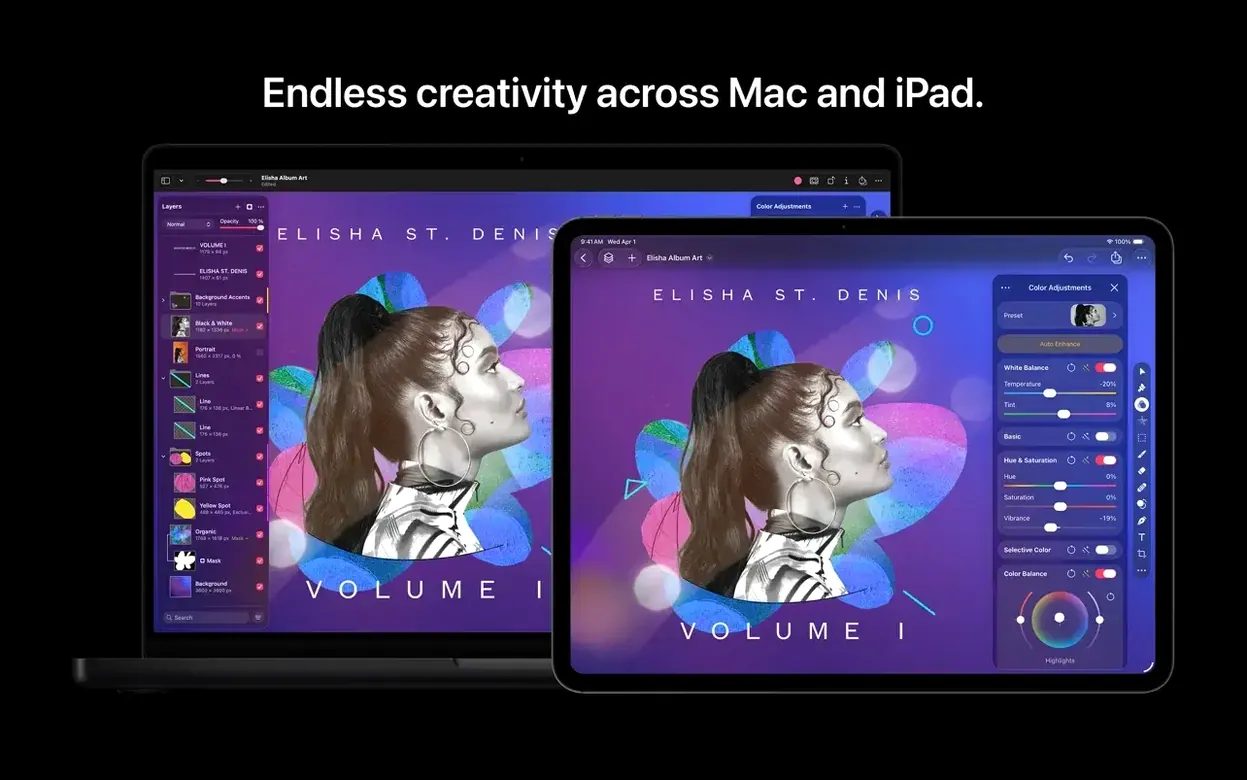
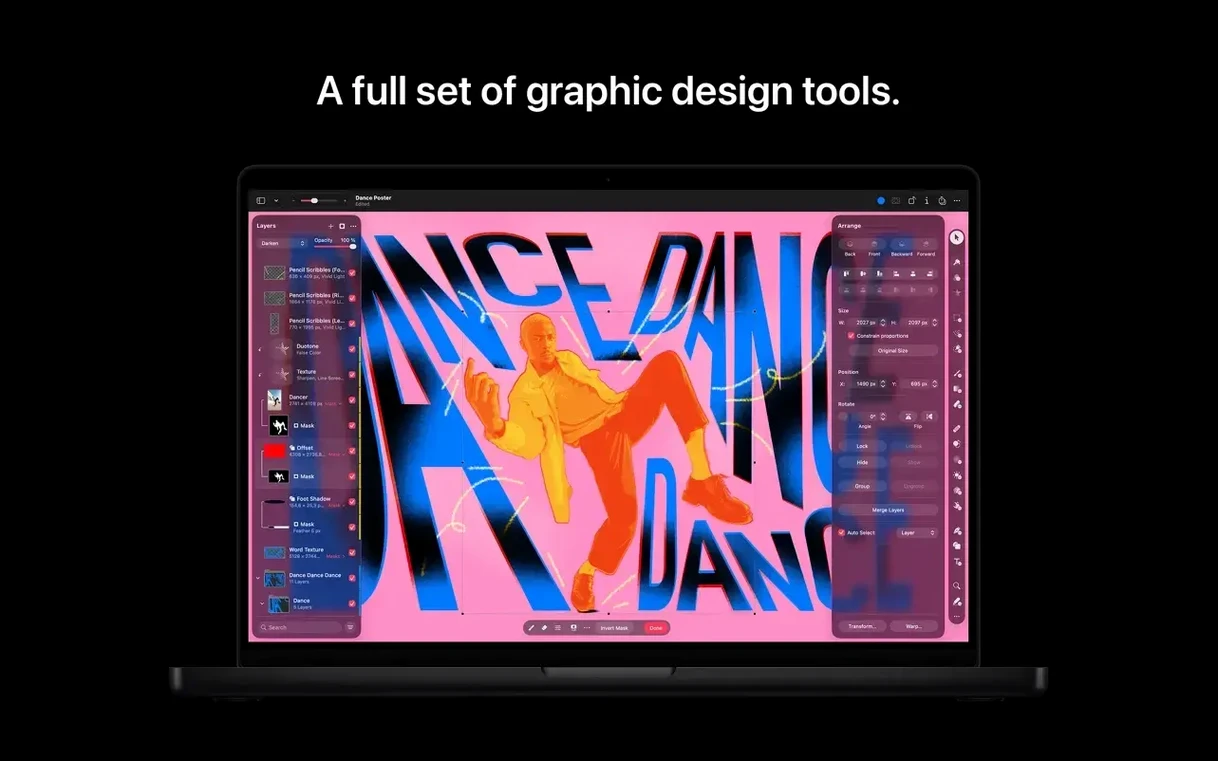
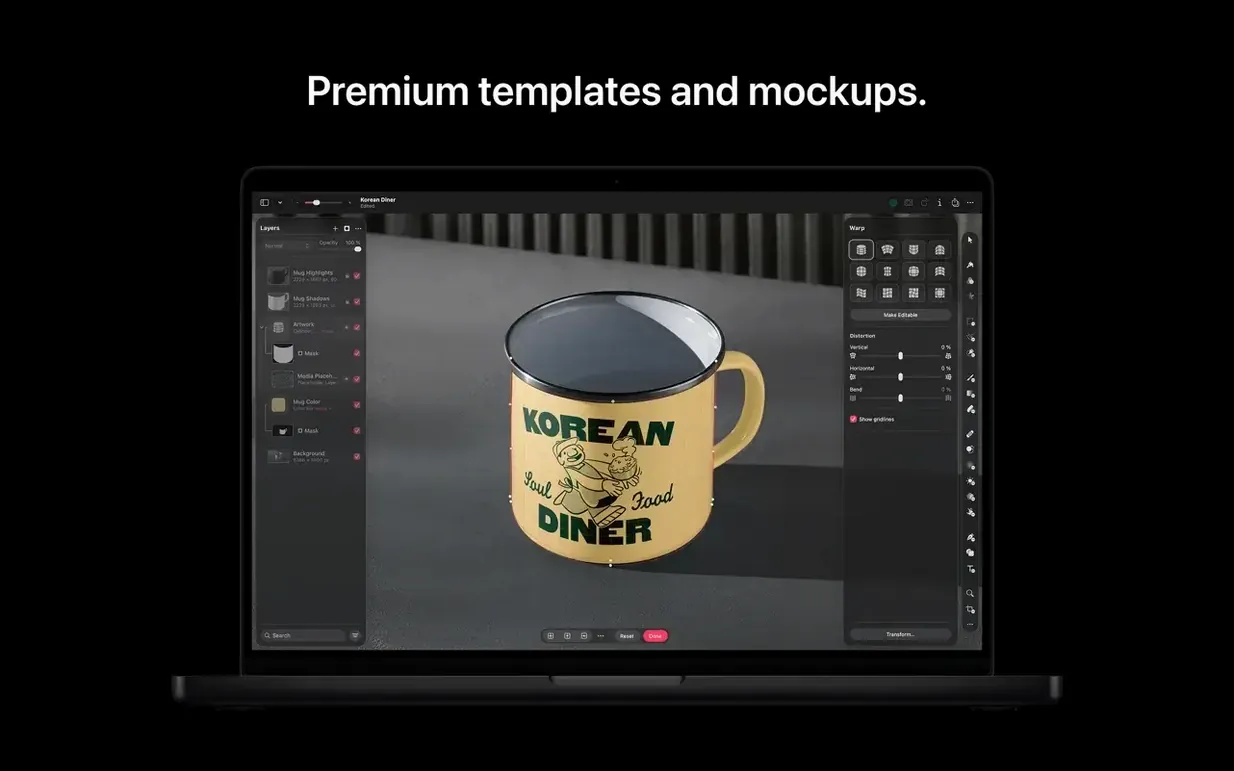
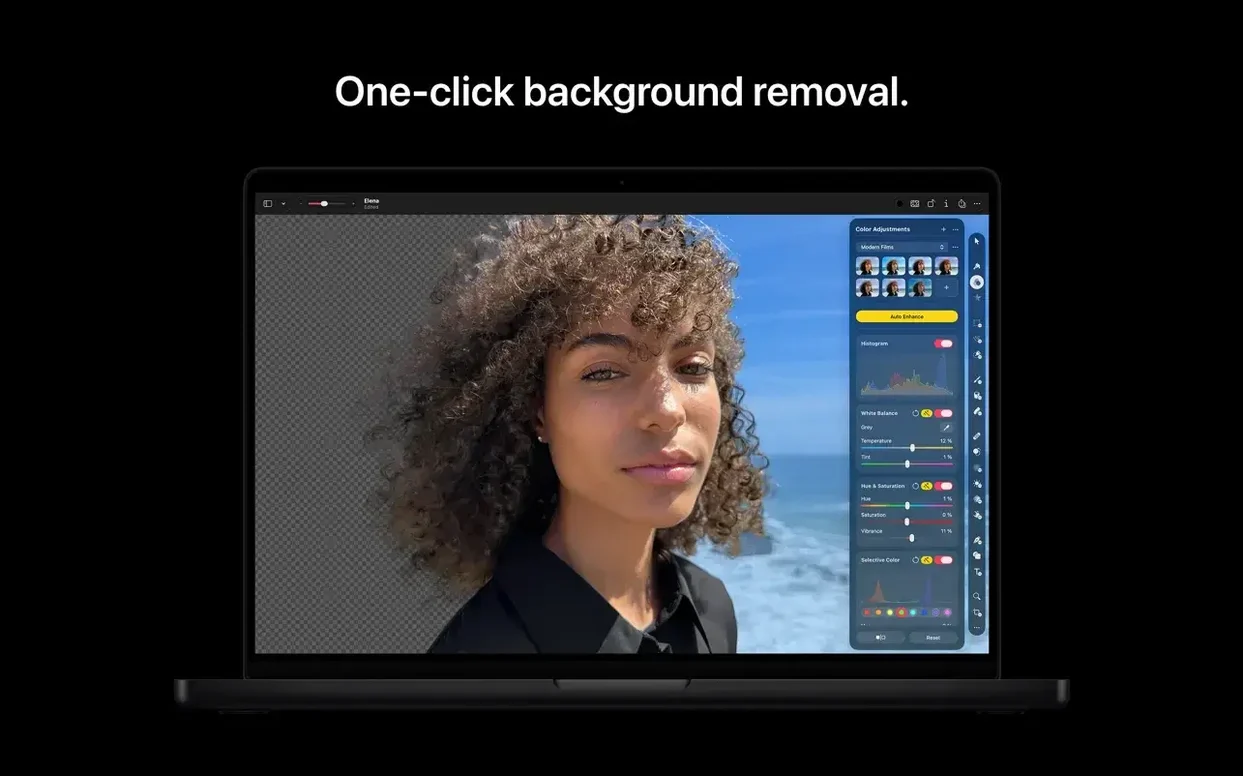
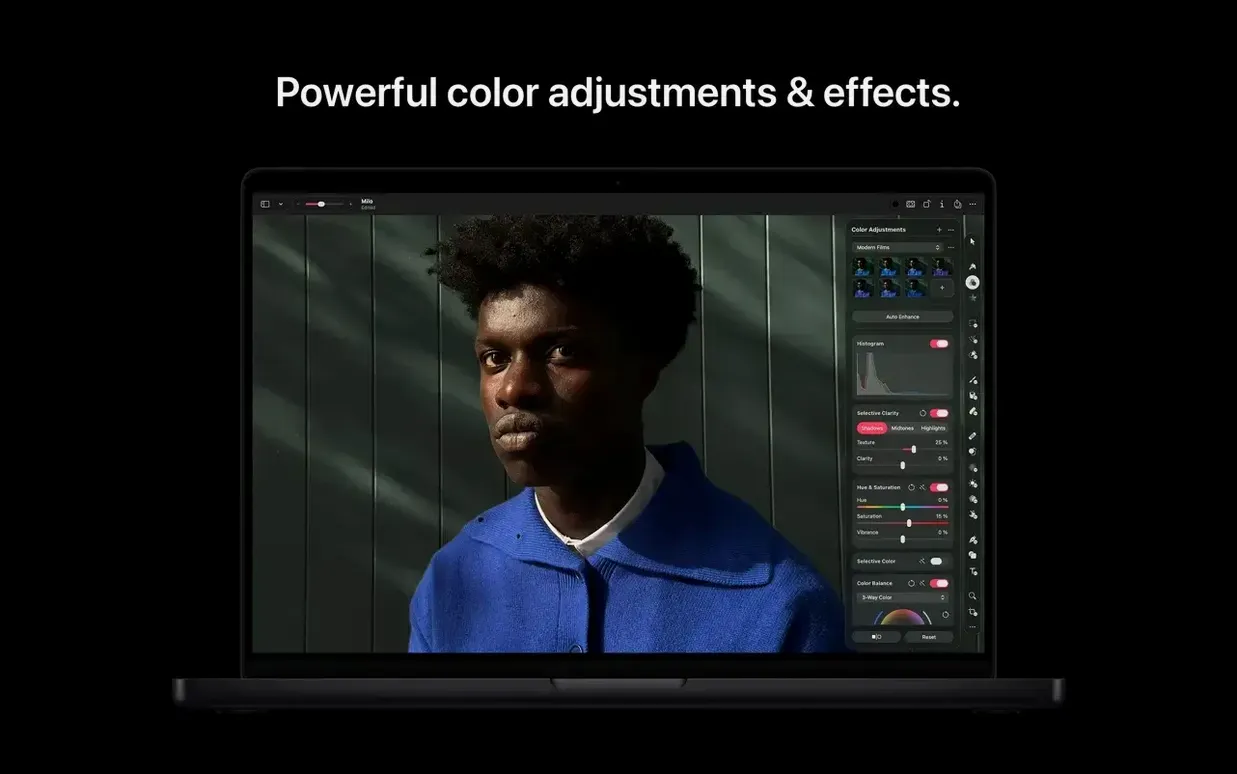
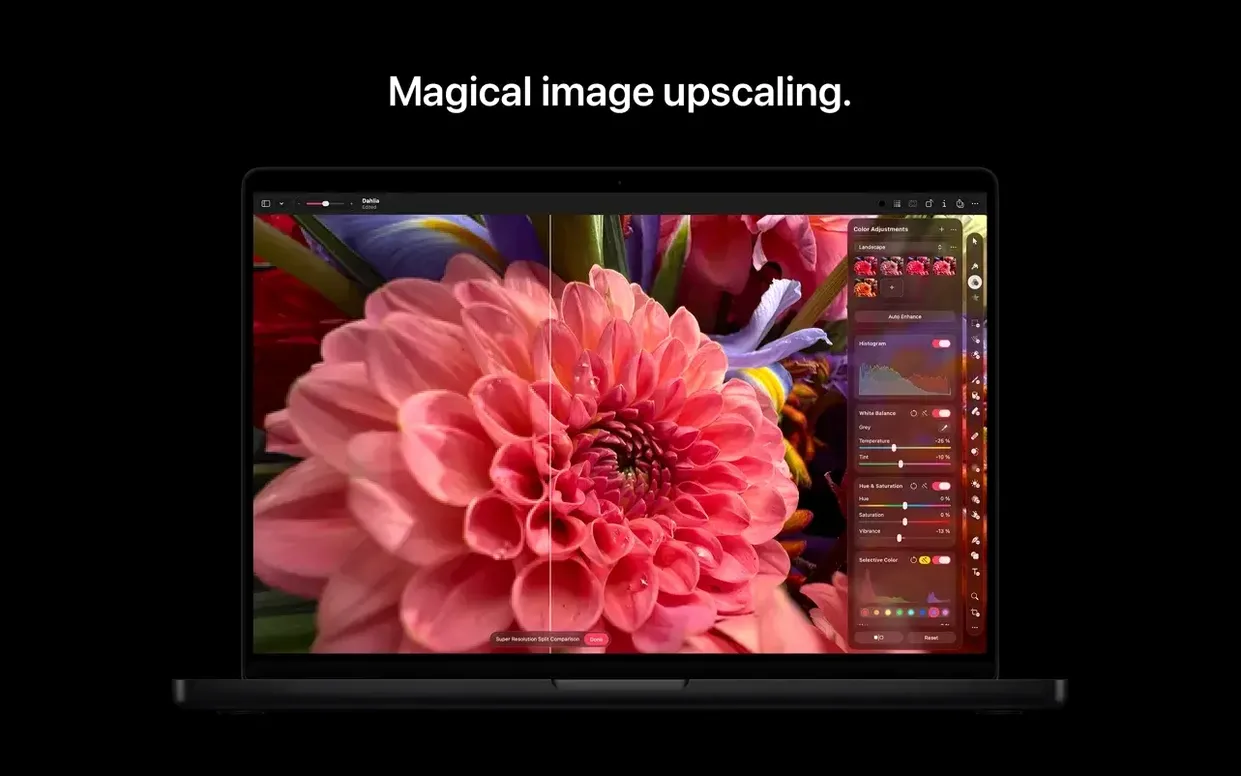
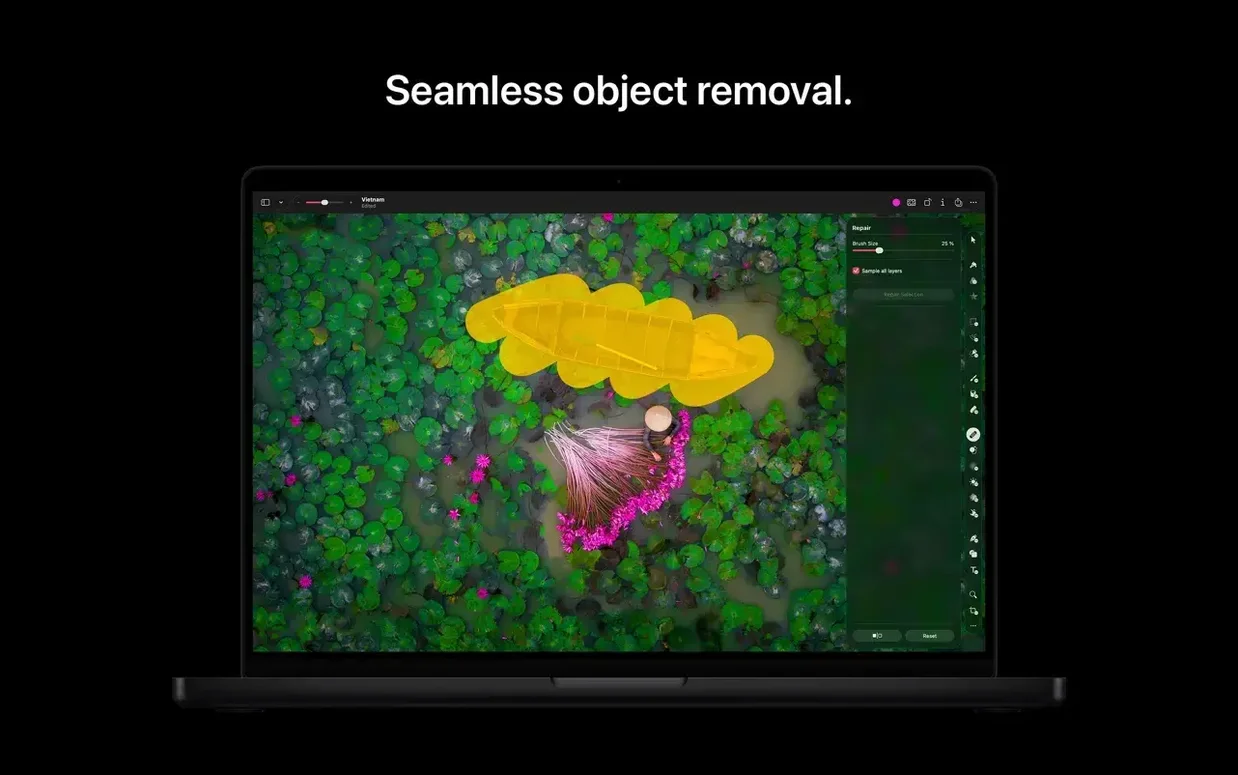
You have a batch of TIFFs from a scan, a layered PSD for a layout, and an SVG icon that needs recolouring. Pixelmator Pro opens all of them in its single-window workspace without sending you on a format hunt.
Workflow checklist
- Open anything. JPEG, TIFF, PNG, PSD, HEIF, SVG, PDF, GIF, BMP, TGA, JPEG 2000 — the app reads them natively.
- Edit without damage. Non-destructive editing keeps your original pixels intact. Adjust colours, add effects, then tweak or remove any change later.
- Enhance with a click. The Core ML-based enhancement analyses the image and corrects exposure, white balance, and colour — no sliders required.
- Add new elements. The Content Hub in version 4.3 lets you insert photos, graphics, shapes, and illustrations from a built-in library.
- Generate from text. Describe an image or edit an existing one using text prompts with the new Generate Image and Generate from Image features.
- Export or continue. Save to any supported format, or move the file into another Apple Creator Studio app.
The tool covers photo enhancement, compositing, drawing, painting, and vector editing in one interface. Interface languages include Russian, German, Japanese, and both Simplified and Traditional Chinese.
Cleaning and prepping a product shot for web in 45 minutes
Here's how a typical 45-minute session runs when you need a product shot cleaned, cropped, and prepped for a website banner.
Open and assess
- Launch the app. The single-window workspace fills the screen — no floating palettes to corral.
- Drag a RAW file from a Fujifilm mirrorless onto the canvas. It decodes instantly, no intermediate converter.
- Check the layers sidebar. The original sits locked at the bottom. Good. Non-destructive editing is already on.
Colour and tone
- Tap the Core ML enhancement button. It brightens the midtones, cools the white balance slightly, and pulls shadow detail out of the backdrop. Two seconds. No sliders touched.
- Add a Curves adjustment layer. Lift the quarter-tones a fraction to open up the product texture. The original pixels underneath stay untouched.
Retouch and reshape
- Switch to the retouching tool. A small dust spot on the lens — gone with a single brush stroke. A reflection in the corner of the frame: the repair tool clones nearby texture and blends it plausibly.
- Activate the repositioning tool. The product sits slightly off-centre. Drag the selection area to the right. The app warps the surrounding background automatically to fill the gap. No content-aware fill dialogue needed.
Generate and place
- Open the Content Hub. Search for a subtle gradient shape to lay behind the text you'll add later. Insert it, scale it across the lower third, set blending to Overlay.
- Use Generate from Image with a short text prompt to soften the background bokeh further. The model processes locally — the result appears in under ten seconds, as a new layer you can mask or dial back with opacity.
Export and share
- Save a layered PSD for the designer who still uses Photoshop. Export a JPEG for the CMS. Share a preview directly to Mail to confirm with the client. All from the same File menu.
Where its machine learning tools outpace the alternatives
Pixelmator Pro vs. Adobe Photoshop
Good for Pixelmator Pro: a cleaner single-window layout, faster launch on Apple silicon, built-in Core ML enhancement, and no Creative Cloud overhead. It reads and writes PSD files so you stay compatible with Photoshop-based teams.
Good for Photoshop: deeper typography controls, CMYK and prepress workflows, and a larger ecosystem of third-party plug-ins. If your print shop demands a specific colour profile, Photoshop still calls the shots.
Pixelmator Pro vs. Affinity Photo
Good for Pixelmator Pro: tighter macOS integration — Photos app round-tripping, iCloud sharing, and Apple Pencil support on iPad. The text-to-image generation features in version 4.3 have no direct equivalent in Affinity Photo.
Good for Affinity Photo: full HDR merging, focus stacking, and a more extensive macro and batch-processing system. If you shoot real estate or astrophotography, Affinity covers niche compositing tasks that Pixelmator Pro skips.
Pixelmator Pro vs. GIMP
Good for Pixelmator Pro: a modern Mac-native interface, RAW editing without a separate developer module, and vector shape generation from text descriptions. GIMP feels like a Linux app that tolerates macOS; Pixelmator Pro feels like it was made for the platform.
Good for GIMP: scriptable in Python, extensible with community plug-ins, and costs nothing. If your workflow relies on custom scripts or you need to open obscure scientific image formats, GIMP fits.
Under three seconds to launch, no lag on 50-megapixel edits
On an Apple silicon Mac, Pixelmator Pro launches in under three seconds — faster than most text editors. The interface stays responsive during heavy operations: applying a complex set of adjustment layers to a 50-megapixel image, then scrubbing through history states, shows no beachball. The app offloads Core ML tasks to the Neural Engine, so enhancement and generation jobs do not compete with CPU-bound rendering.
Memory use sits between 400 MB and 1.2 GB depending on layer count and document size. Closing a document releases RAM within a few seconds. No gradual memory creep over a long session.
Stability on version 4.3 is solid. In a day of mixed work — RAW edits, SVG imports, text-to-image generation, batch exports — crashes are rare. The only edge case that occasionally triggers a hang is opening very large PSD files (over 2 GB) with dozens of smart objects. Saving frequently avoids any headache there.
Battery impact on a MacBook Pro is moderate: a one-hour editing session with some generate tasks drains about 12–15% battery. The Neural Engine calls are brief and efficient; it's continuous painting with large brushes that warms the chassis and draws more power.
- Content Hub added for inserting photos, graphics, shapes, and illustrations.
- Generate Image creates images from text descriptions.
- Generate from Image applies text-based edits and transformations.
- Custom vector shape generation from text descriptions.
- Improved support for Switch Control and VoiceOver.
- Requires a Mac with Apple silicon.
- Requires macOS 10.13 High Sierra or later.
Questions the team asks
Yes, it supports opening and editing layered PSD files alongside SVG vectors and standard image formats.



Comments 0
Sign in or create an account to add a comment.
No comments yet. They go up after moderation.