

Luminar Neo — Mac download
Download (3.8 GB) Earlier builds
Ticked
macOS 12 floor, 13 soon required
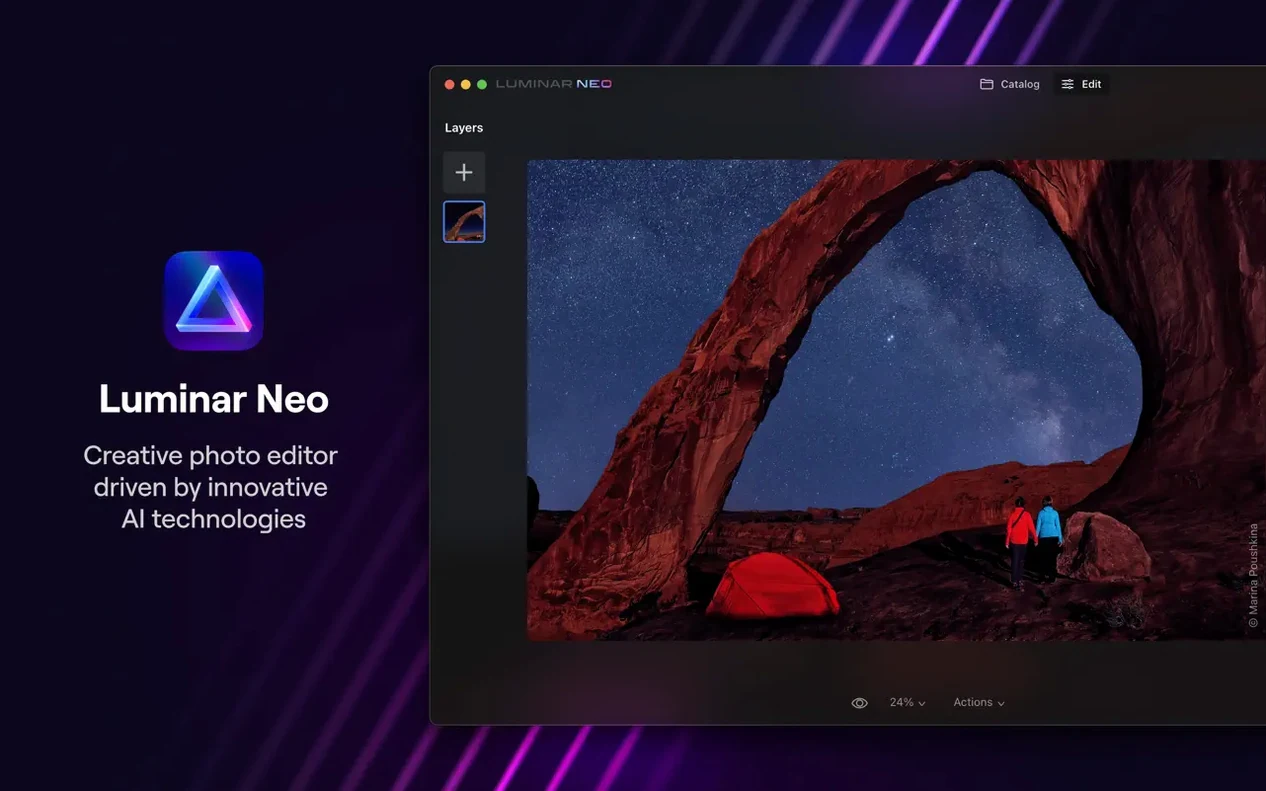
Luminar Neo runs on Apple Silicon and Intel Macs. The minimum system is macOS 12.0 with 8 GB RAM. Skylum recommends 16 GB. The current support note says the minimum supported version will move to macOS 13 Ventura.
First edits: a newcomer checklist
- Open the AI Assistant. Version 1.26.0 adds it to the Presets and Edit tabs. The assistant reads the image and suggests a starting point. Accept or tweak its suggestions.
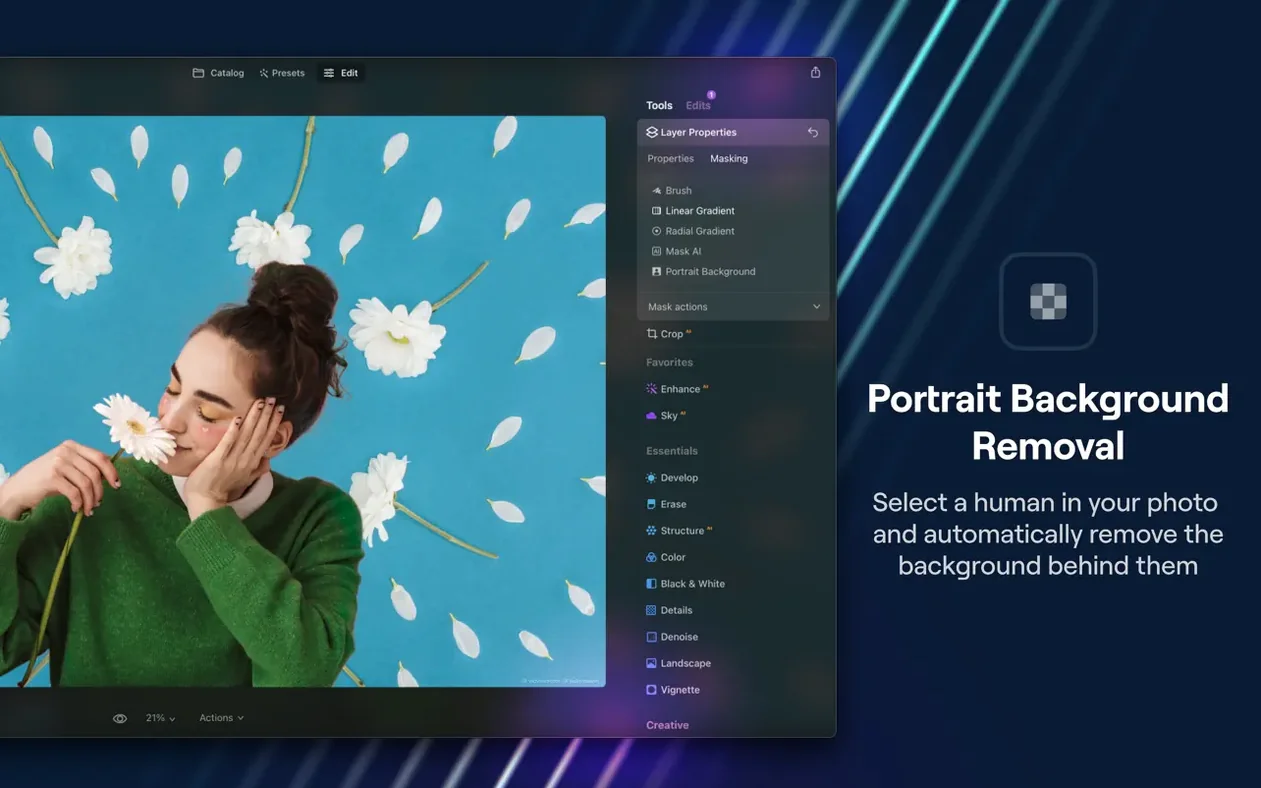
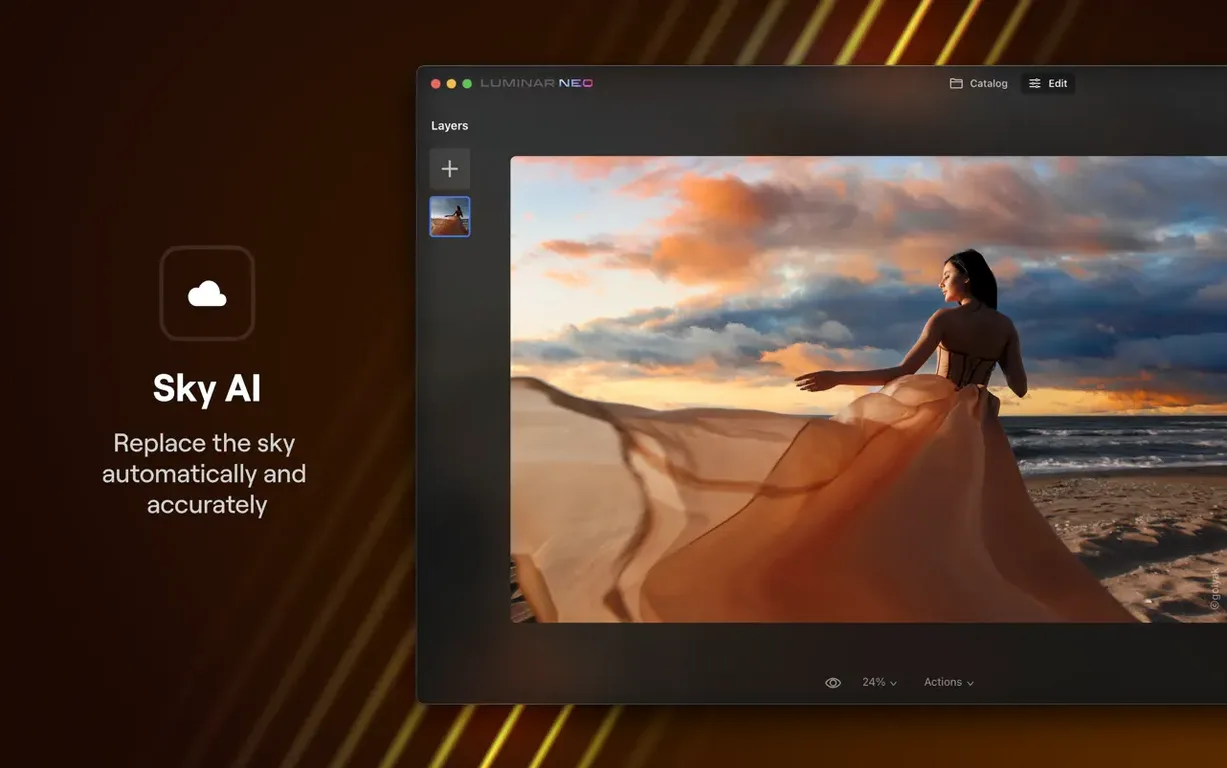
- Replace a background. Use the background replacement tool on a portrait or product shot. Select the subject, pick a new backdrop, and check the edge masking.
- Remove dust spots. Run the dust removal tool on a sky or a smooth surface. The AI scans and cleans sensor spots or scan marks without manual cloning.
- Browse Presets. Presets are one-click looks built for different genres. Apply a few to understand the range before diving into manual edits.
Luminar Neo is a more customisable editor built on Skylum's earlier LuminarAI. Its tools lean on artificial intelligence to handle repetitive tasks, so you spend more time on creative decisions.
Luminar Neo vs similar Mac editors
Luminar Neo and Adobe Lightroom Classic
Lightroom Classic is a catalog-first raw processor. Luminar Neo skips catalog management entirely. You open a file, edit it, export it. No import dialogues, no library module. For a photographer who already lives in a folder structure, Luminar Neo feels lighter. The trade-off: Lightroom's batch editing and keywording are far ahead.
Luminar Neo and Pixelmator Pro
Pixelmator Pro blends layers-based design with machine learning. Luminar Neo leans harder into AI-driven photo correction. Dust removal, relighting, and background replacement in Luminar Neo need fewer manual steps. Pixelmator Pro gives you more control over vector shapes and typography. Pick Pixelmator for design work. Pick Luminar Neo for fast photo fixes.
Luminar Neo and ON1 Photo RAW
ON1 Photo RAW bundles browsing, layers, and effects in one window. Luminar Neo focuses on the edit itself. ON1's masking tools are more detailed. Luminar Neo's AI Assistant makes quicker first-pass suggestions. If you want an all-in-one hub, ON1 fits. If you want a clean editing slate, Luminar Neo works better.
Presets stamped without pulling opacity back
- Overusing Presets without tweaking. A preset is a starting point, not a finished edit. Pull back the opacity or adjust the exposure after applying one. Otherwise every image looks stamped from the same template.
- Ignoring the AI Assistant. Version 1.26.0 puts the assistant right in the Presets and Edit tabs. Skipping it means missing a fast read of the image. Even if you reject its suggestions, the analysis saves time.
- Replacing backgrounds on low-contrast edges. The background removal tool works best when the subject separates clearly from the background. Hair against a busy wall or glass objects on a white table can confuse the mask. Fix those edges manually before moving on.
- Piling on too many tools. Luminar Neo makes it easy to add relighting, structure, and a sky replacement in three clicks. The result often looks overcooked. Apply one tool, assess, then add another.
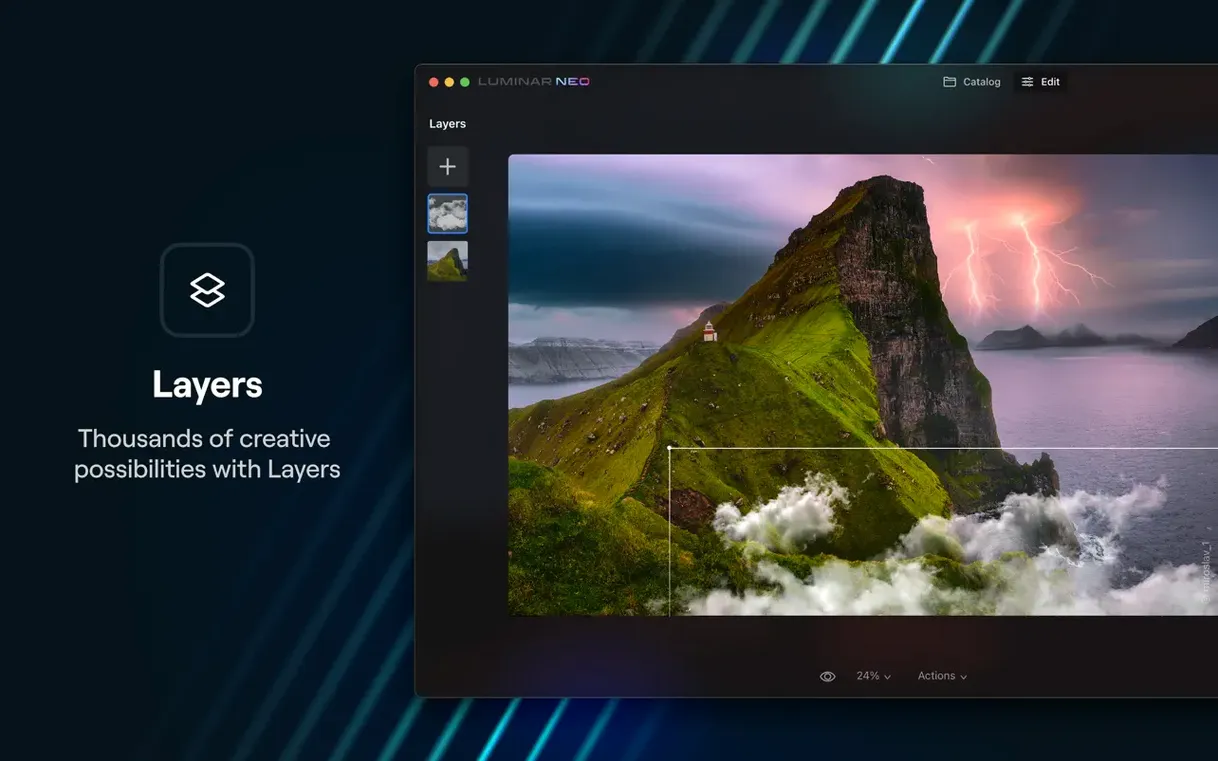
- Working on the original layer. The app supports image layers. Duplicate the base layer before heavy edits. A quick toggle between layers shows exactly what changed.
Wedding photographers cutting 600-frame first passes
Portrait and event photographers. Background replacement, relighting, and dust removal handle the bulk of delivery edits. The AI Assistant cuts the time spent on a first pass. A wedding photographer with 600 frames benefits from the speed.
Product photographers and e-commerce editors. Clean backgrounds sell products. The background replacement tool paired with dust removal gives a consistent look across a catalogue without manual masking. Layers help composite multiple exposures of the same item.
Photography enthusiasts moving past Apple Photos. Luminar Neo opens raw files without a library lock-in. The interface stays approachable. Someone who has outgrown the editing sliders in Photos finds more depth here without jumping into a full Lightroom workflow.
Mac users with 16 GB RAM or more. The recommended spec is 16 GB. AI tools like scene analysis and relighting run noticeably faster on machines that meet the recommendation. Users on 8 GB Macs can edit, but larger raw files and multiple layers will slow things down.
AI Assistant moved into Presets and Edit tabs
Version 1.26.0 brings the AI Assistant into the Presets and Edit tabs. Before this, the assistant lived elsewhere in the interface. Now it sits where you start every edit. The immediate effect: fewer clicks to get a suggested starting point.
Earlier updates built the toolset that version 1.26.0 ties together. Background replacement and relighting arrived first. Dust removal followed. The assistant now reads an image and applies those tools in combination. The edit feels less like a sequence of separate modules and more like one guided pass.
Skylum's support note warns that the next release will drop macOS 12 Monterey. The move to a Ventura minimum signals that future updates will lean on newer macOS frameworks. For everyday use on Monterey, version 1.26.0 remains the current working build.
- AI Assistant available in the Presets and Edit tabs.
- Update designed to make editing faster and smarter.
- macOS 12.0 or later (macOS 13 Ventura noted as future minimum).
- Apple Silicon or Intel processor.
- 8 GB RAM minimum; 16 GB recommended.








Comments 0
Sign in or create an account to add a comment.
No comments yet. They go up after moderation.