

Image Resizer - Resize Photos — Mac download
Download (6 MB) Earlier builds
Ticked
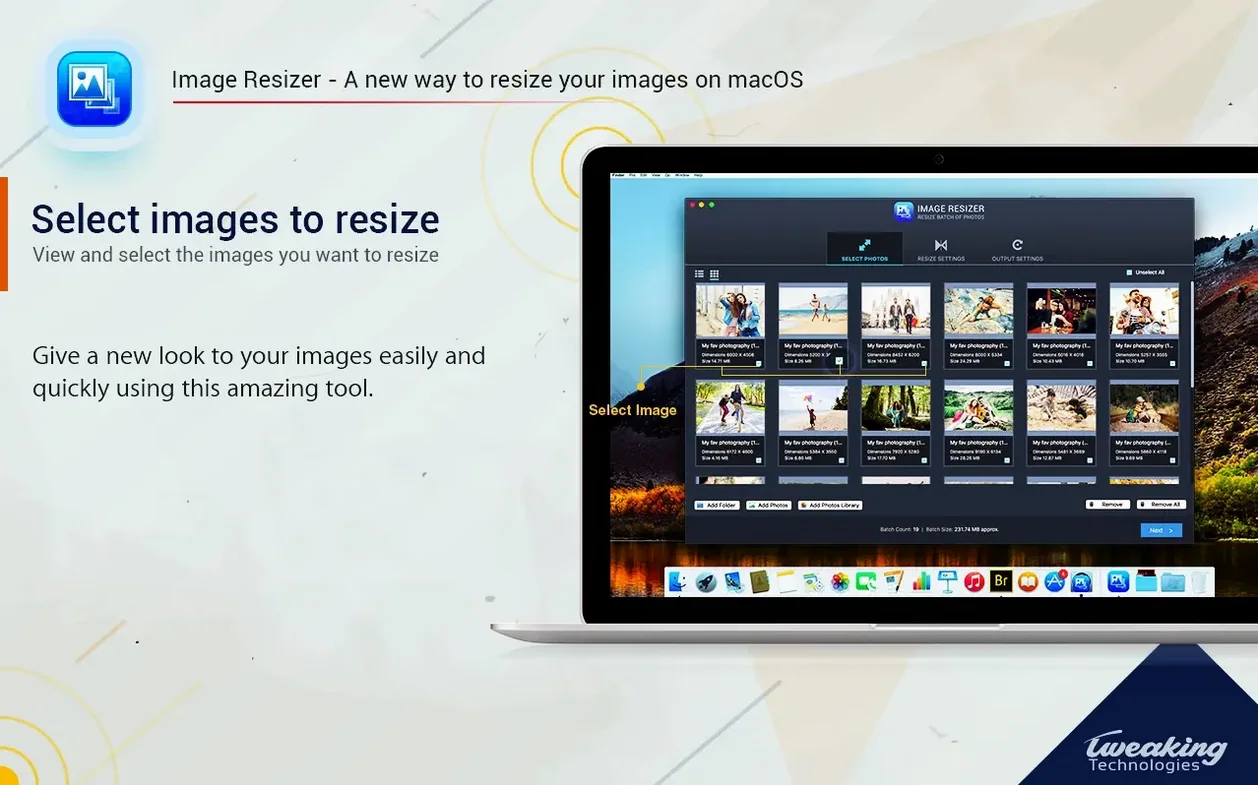
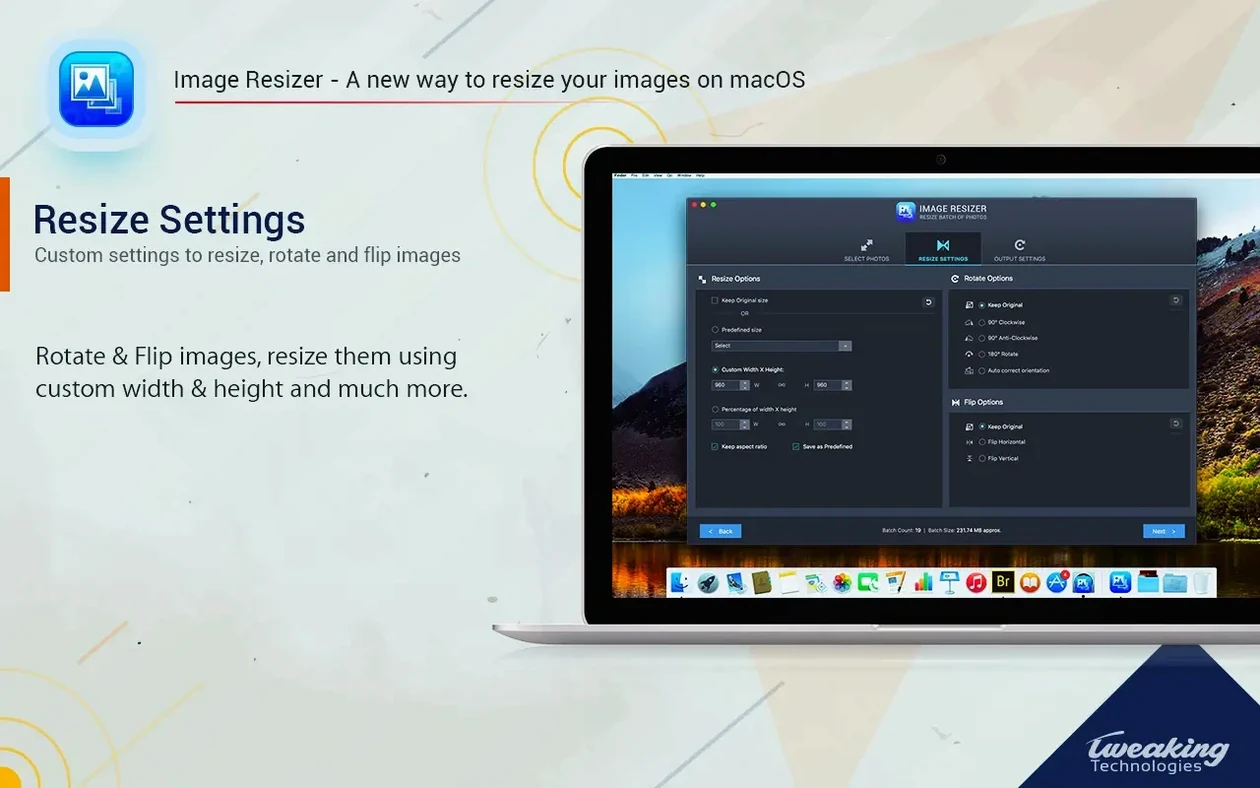
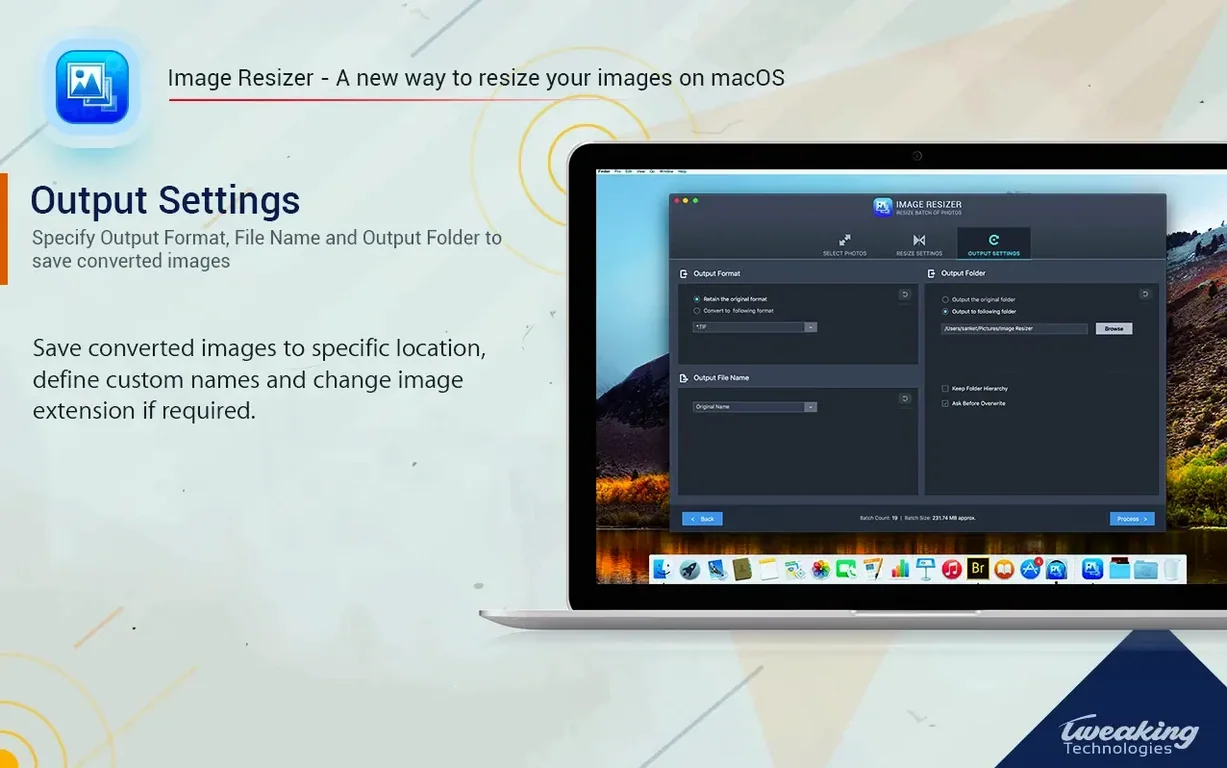
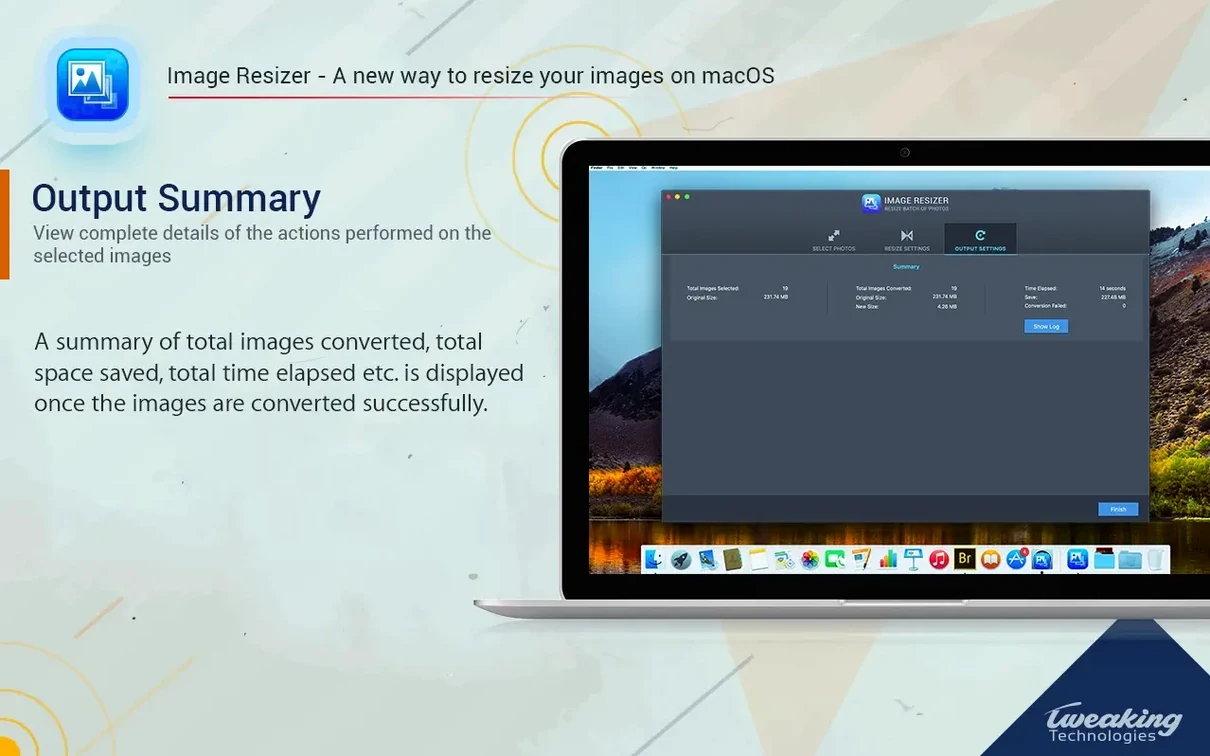
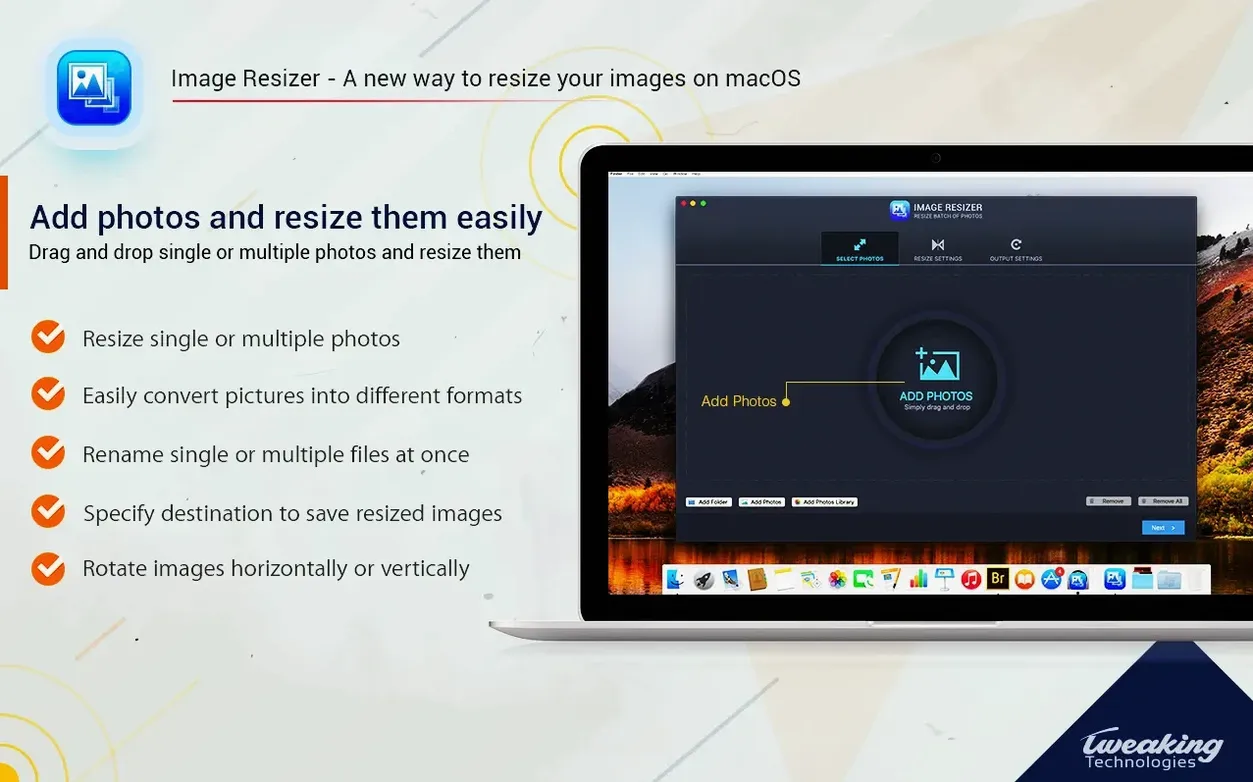
If you have used macOS Preview for a one-off crop, you already know the basics. Image Resizer – Resize Photos scales that idea up to batches, adding controls an experienced user expects.
Resize without quality loss — downscaling does not degrade sharpness; the engine preserves the original pixel data where possible.
Rotation presets — 90° clockwise, 90° counterclockwise, 180°. Quick corrections for orientation mistakes across a whole shoot.
Flip — horizontal and vertical mirroring built in. Handy for product shots that need a facing-direction swap.
Crop — trim to a fixed ratio or freeform before the resize pass runs.
Output naming — rename files during export so your final set arrives with clean, sequential names.
Chosen save location — send resized copies to any folder you pick, not just the source directory.
Crop and rotate in batches, tools Permute skips
Image Resizer – Resize Photos vs. Permute 3
Permute converts video, audio, and images. If you need a single tool for all media, Permute wins. But for batch photo-only work, Image Resizer gives you crop, rotate, and flip controls Permute does not offer. Permute is a converter; Image Resizer is a photo prep station.
Image Resizer – Resize Photos vs. PhotoBulk
PhotoBulk adds watermarking — something Image Resizer skips. Both handle batch resize and format conversion. Image Resizer pulls ahead on rotation: dedicated 90° and 180° presets versus PhotoBulk's more limited orientation options. If watermarking matters, go PhotoBulk. If rotation speed matters, stay with Image Resizer.
Image Resizer – Resize Photos vs. Preview
Preview is free and built in. It can resize and rotate single images. It cannot batch-process, flip, or rename output files. For one image, Preview works. For twenty product shots that need a 50% downscale, JPEG conversion, and sequential naming, an image resizer - resize photos for mac free download like this one saves half an hour.
Workflow: product shots for a web store
A typical task — you have thirty-five product photos from a shoot. They are 4000 px wide TIFFs. Your store template needs 1200 px JPEGs with a clean naming scheme.
- Open Image Resizer. Drag all thirty-five TIFFs into the window.
- Set Resize by pixels, width 1200, height locked to ratio.
- Tick Convert format and select JPEG. Leave quality at 90%.
- Enable Rename. Set prefix to
product_and starting number to01. - Choose a destination folder — a new folder called
web-readyon the desktop. - Hit Process. Thirty-five renamed, resized, converted JPEGs land in one place.
- Spot-check three images: open in Preview, confirm sharpness and framing. If one needs a horizontal flip, drag just that image back, flip, and re-process.
The whole job takes under two minutes. No script, no export preset to build — just a checklist of settings you can save mentally for next time.
- Now compatible with the latest macOS.
- Minor bug fixes and performance improvements.
- OS X 10.10 or later
- Apple Silicon and Intel 64-bit
Questions the team asks
Yes. You can convert images to a different format during the resize and export process.
Yes, the app runs natively on both Intel and Apple Silicon Macs.
Image Resizer – Resize Photos requires macOS 10.10 or later.








Comments 0
Sign in or create an account to add a comment.
No comments yet. They go up after moderation.