

PowerPhotos — Mac download
Download (40 MB) Earlier builds
Ticked
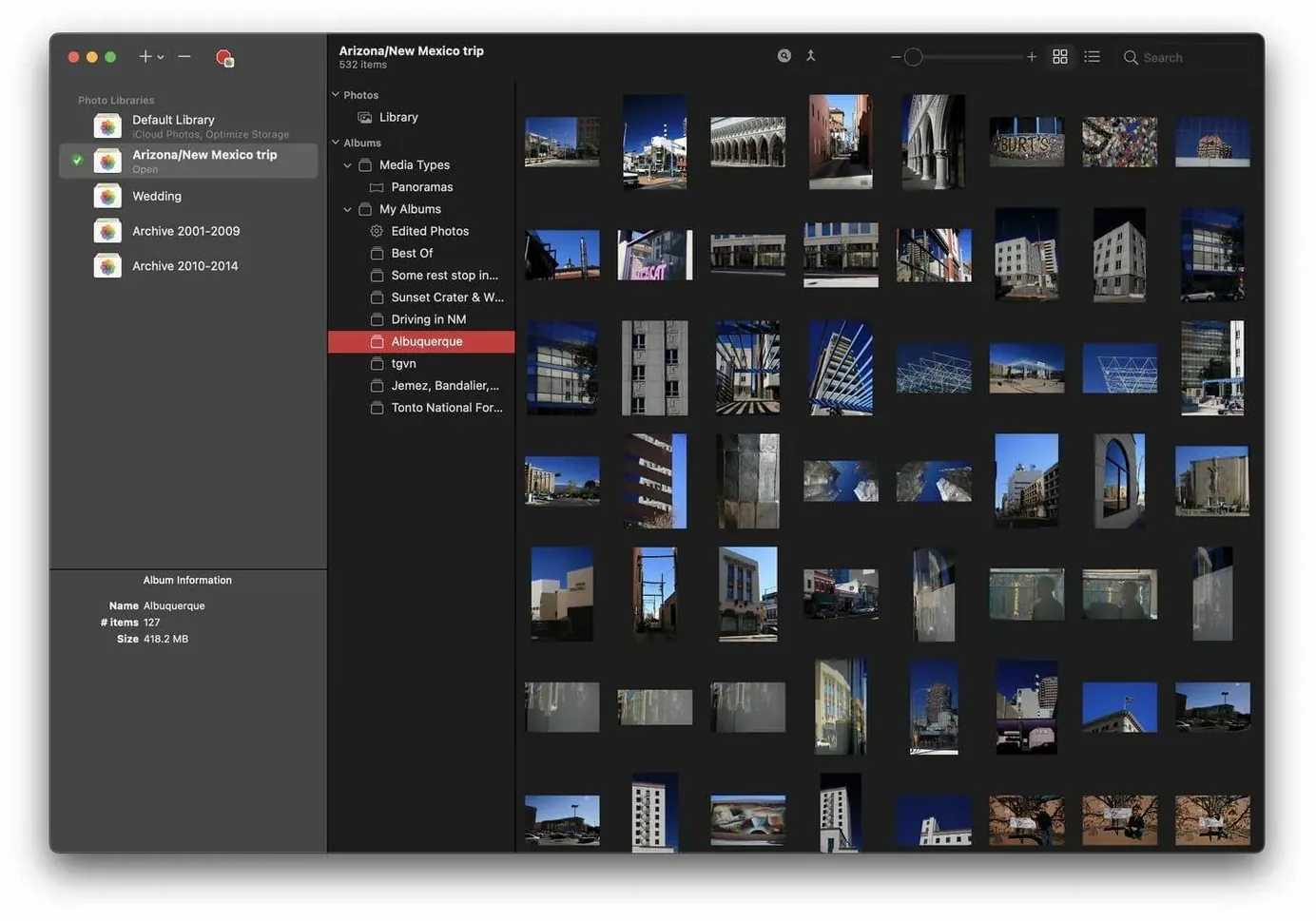
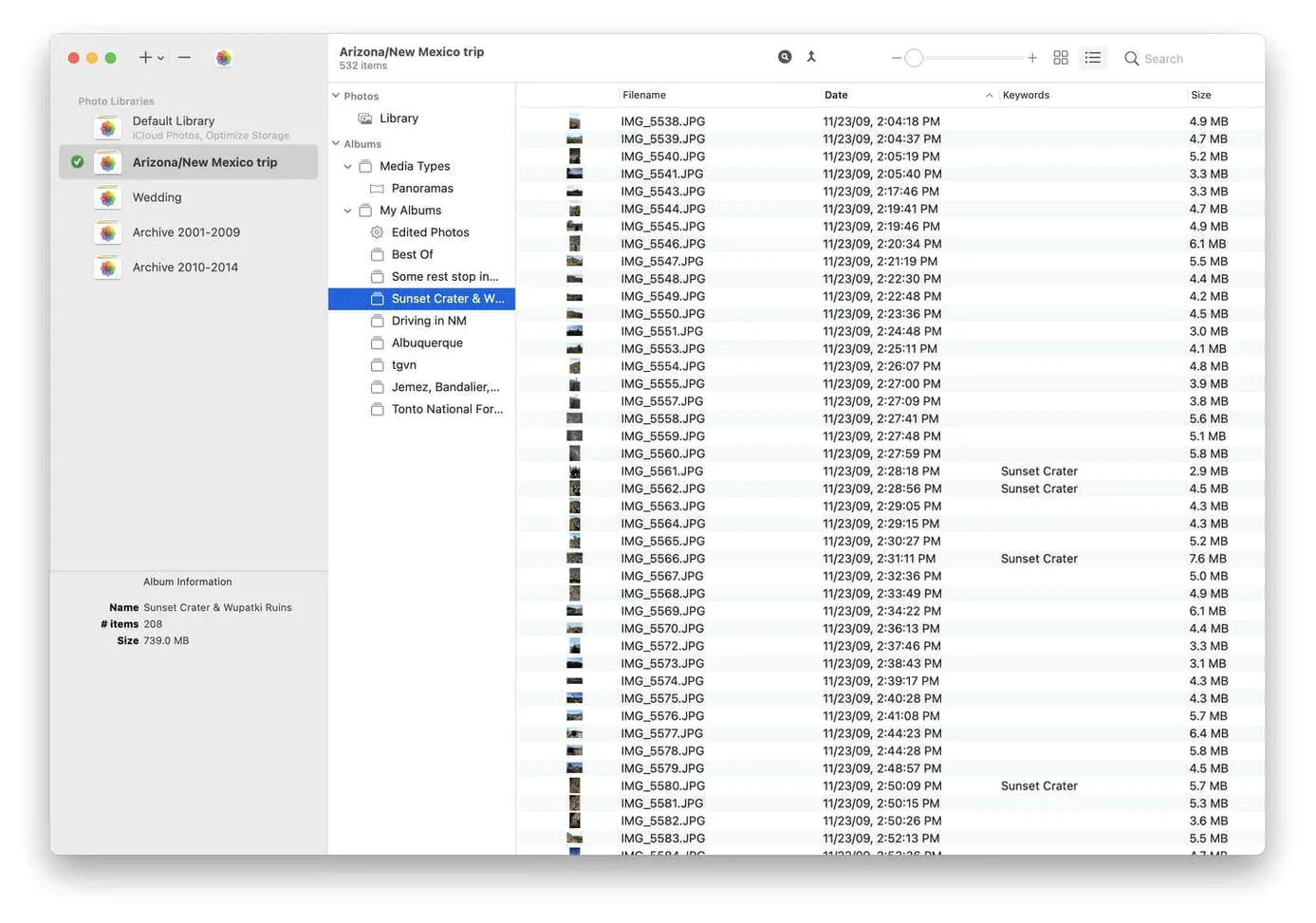
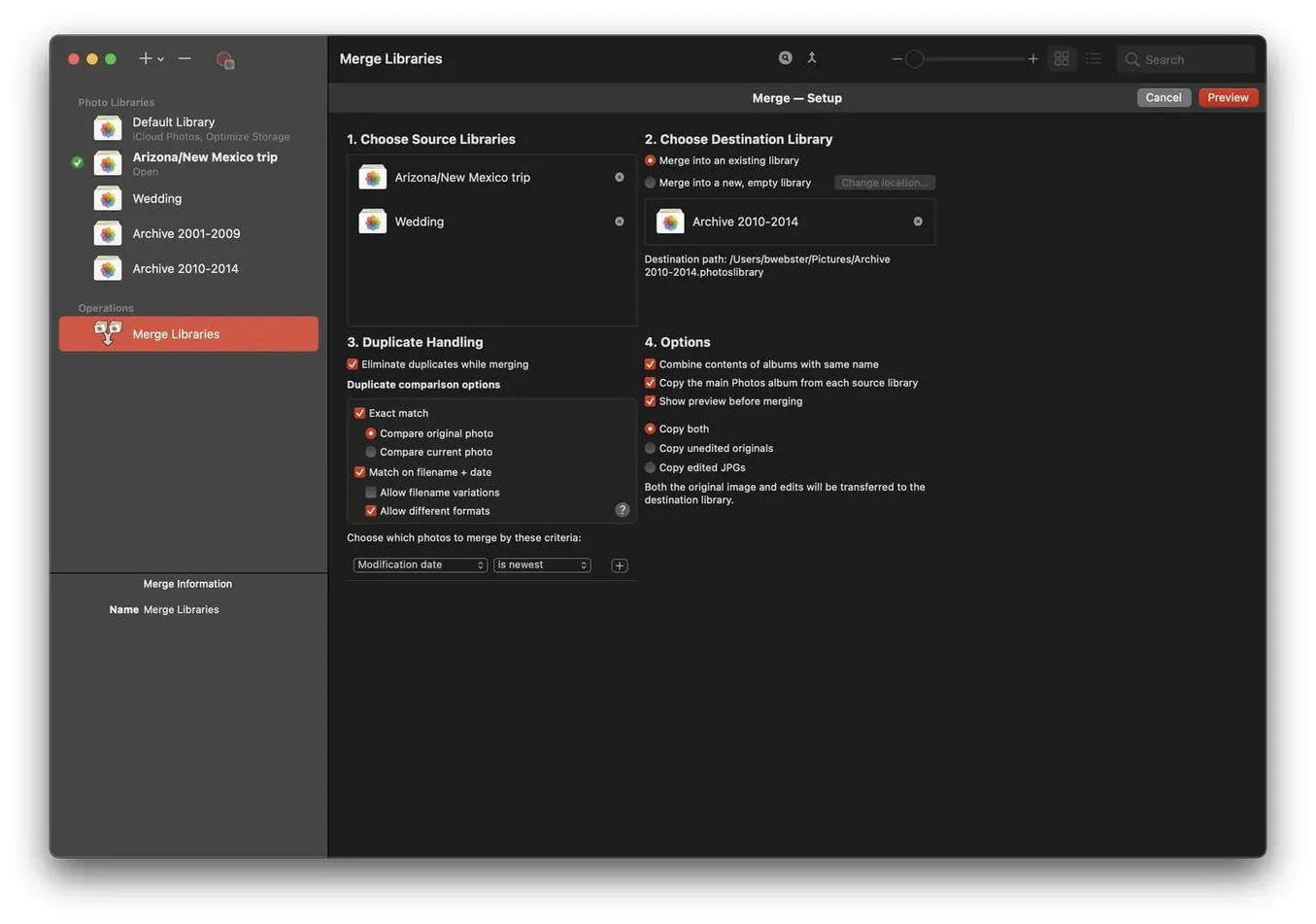
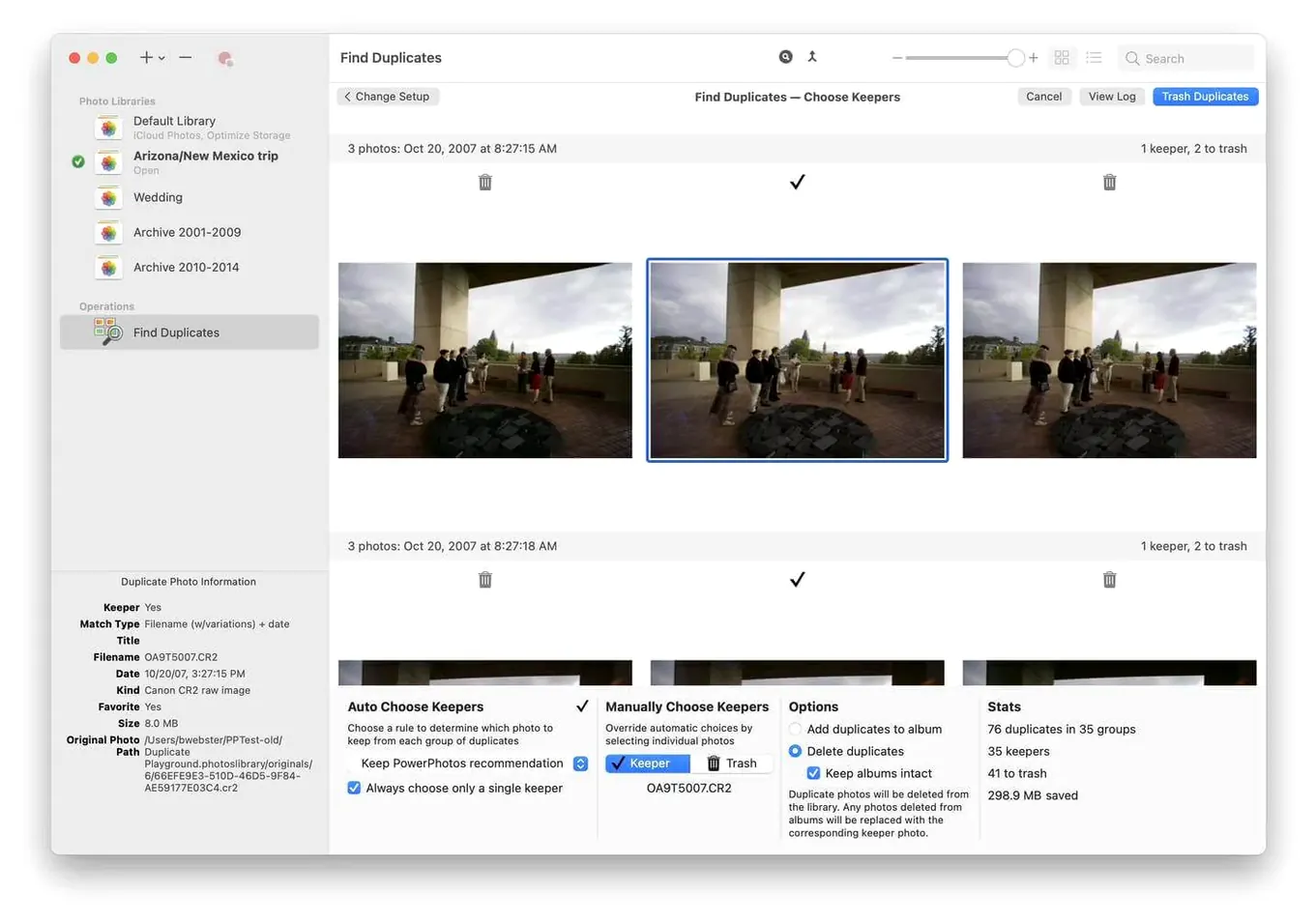
Duplicate browser
PowerPhotos can analyse a single library or every library at once for duplicate images. It shows pairs side by side so you can decide what to keep, not blindly delete. You control the comparison rules — matching by file name, date, or visual similarity.
Multi-library search
Searching one library at a time is slow. PowerPhotos lets you search across all your libraries in a single query. Type the keyword once and get results from every library you have open.
Library switching
Switching libraries through the Photos app means quitting and holding the Option key every time. Here, you click a library in the list and it opens. No restart loop.
ICloud storage control
Keeping everything in one library pushes it all to iCloud by default. Separating libraries into active and archived collections means only the current library syncs, cutting down your iCloud storage use.
First-day checklist
Before you touch a single duplicate, do these three things. They take ten minutes and prevent regret later.
- Let it scan overnight. The first full duplicate scan across a large library is slow. Start it, plug in power, and walk away.
- Set your comparison rules once. Open preferences and decide early: match by exact file data, by visual similarity, or by filename plus date. Changing rules later means re-scanning.
- Test on a small library first. Create a tiny test library in Photos, add twenty images with a few intentional duplicates, and run the workflow end to end. You will make mistakes there, not on your main collection.
Worked example: splitting a bloated library
A common scenario: one 400 GB library holding ten years of photos, syncing fully to iCloud, storage warning every week. Here is the PowerPhotos fix from start to finish.
- Open PowerPhotos and select the large library. Choose File > Split Library.
- Set a split point — usually by year. Tell it to move everything before 2020 into a new library called "Archive 2014–2019".
- Wait for the copy process. PowerPhotos duplicates nothing; it hard-links files when possible, so this is faster than a Finder copy.
- When done, open the new archive library in Photos. Confirm the photos are there and intact.
- Back in your main library, delete the pre-2020 albums you just moved. Empty the Recently Deleted album in Photos.
- Open Photos preferences. Set the system library back to your main, smaller library. iCloud now syncs only that one.
Your archive library sits on an external drive, searchable through PowerPhotos whenever you need it. iCloud storage drops immediately after the next sync.
Shortcuts worth knowing
- Right-click a library in the sidebar. The context menu gives you "Open in Photos" and "Show in Finder" without extra clicks.
- Drag and drop between libraries. Select photos in one library view, drag them to another library in the sidebar. PowerPhotos copies them over directly.
- Space bar preview. In any browser view, highlight a photo and tap the space bar. You get a Quick Look preview without opening the library.
- Sort duplicate pairs by size. In the duplicate browser, click the size column header. Deal with the largest wasted files first for the biggest immediate space gain. Most people miss this.
- Batch-apply "Keep one." After reviewing duplicates, select multiple pairs and use the "Keep One Photo" action. Do not process them one by one.
- macOS 14 or later
- Apple Silicon or Intel Mac
Questions the team asks
Yes, it works directly with the standard Photos app on your Mac, managing the libraries that Photos creates.









Comments 0
Sign in or create an account to add a comment.
No comments yet. They go up after moderation.